


A few days ago, we shared a trick that allows Android phone users to download APK without rooting to meet the needs of car owners who want to watch YouTube videos on the Android Auto car system (If you haven’t seen it yet, you can click here to review it.). However, after all, Android Auto may be limited by hardware differences in different vehicles, and also bring completely different user experiences. If you are still used to selecting YouTube videos on your mobile phone and want to use “screen mirroring” to synchronize them to your car for playback, then continue reading the complete tutorial in this article!
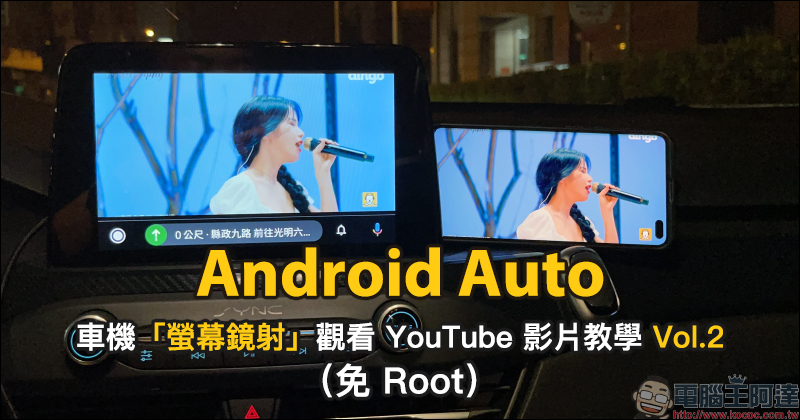
Use Android Auto “Screen Mirroring” to watch YouTube video tutorials for free, and your phone does not need to be rooted!
After the first tutorial article on watching YouTube videos on Android Auto was published, the author also received feedback from friends that the person sitting in the passenger seat complained that his hands were sore when he kept reaching out to touch the screen. I wanted to ask if there is any other way to make it easier to operate directly on the mobile phone. Just mirror the screen of the mobile phone to the car. In order to meet everyone’s needs, this time I will share how to directly mirror the screen of the Android phone to the car screen without rooting the phone.
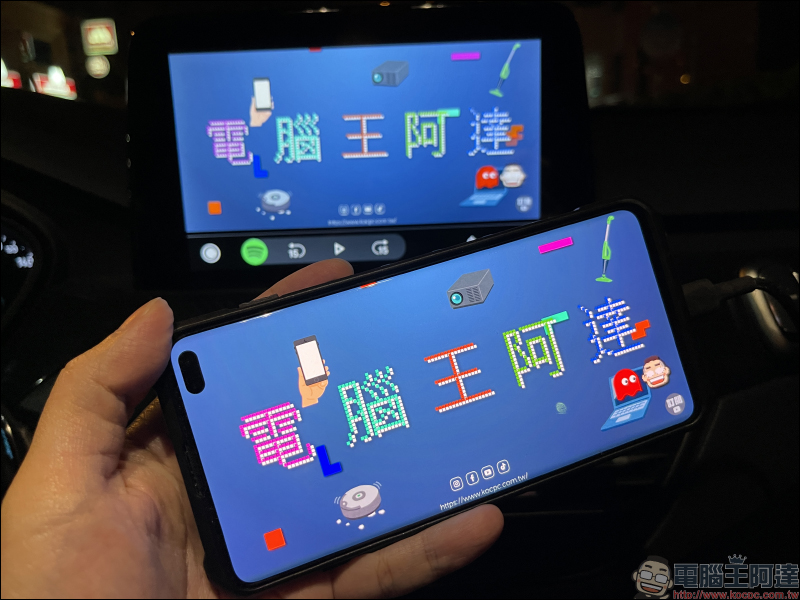
(*Tips: Do not use your mobile phone while driving. If you want to watch videos while driving, please do so when the vehicle is stationary and safe.)
Preparation—Android Auto is downgraded to version 6.3 (if you have read the previous tutorial, you can skip this paragraph)
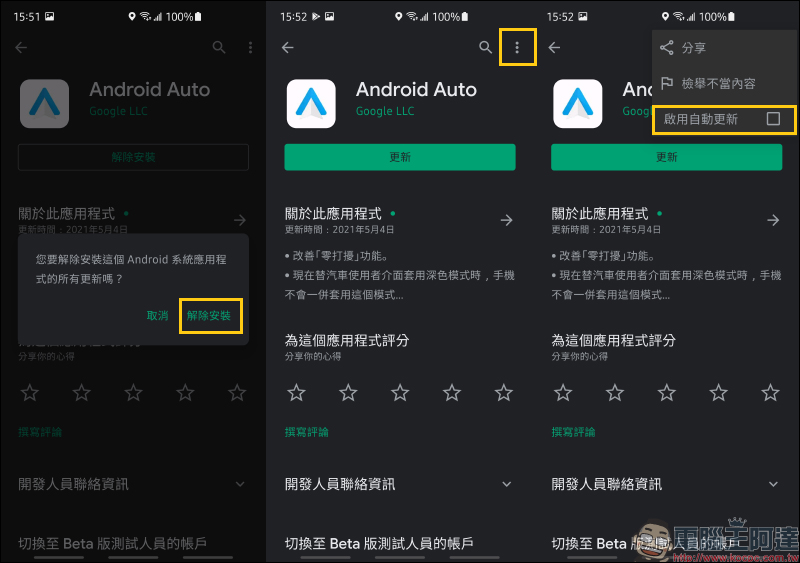
Before this, owners whose vehicles support the Android Auto function and use Android phones must have downloaded the Android Auto App. However, because this method cannot be used in Android Auto app version 6.4 or above, we need to go to the Google Play Store to find the Android Auto App and uninstall it first.
After uninstalling, you also need to click the function menu in the upper right corner of the App page to turn off the “Enable automatic updates” function to prevent the app from automatically updating in the future.
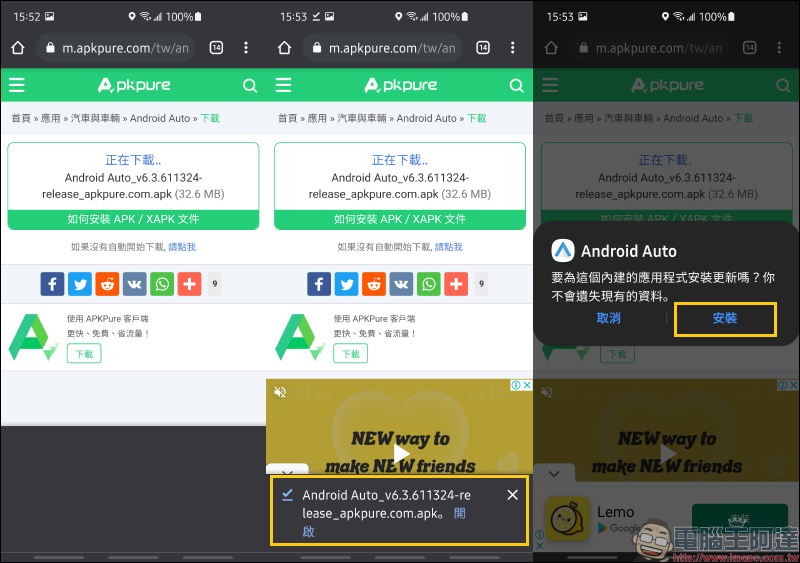
Next, look for the Android Auto 6.3 version APK file on the Internet to download and install. Here I also share the download source I found (Click here to download)。
After the installation is complete, go to the phone system settings to find “Android Auto”, and then find the version information at the bottom of the About category.
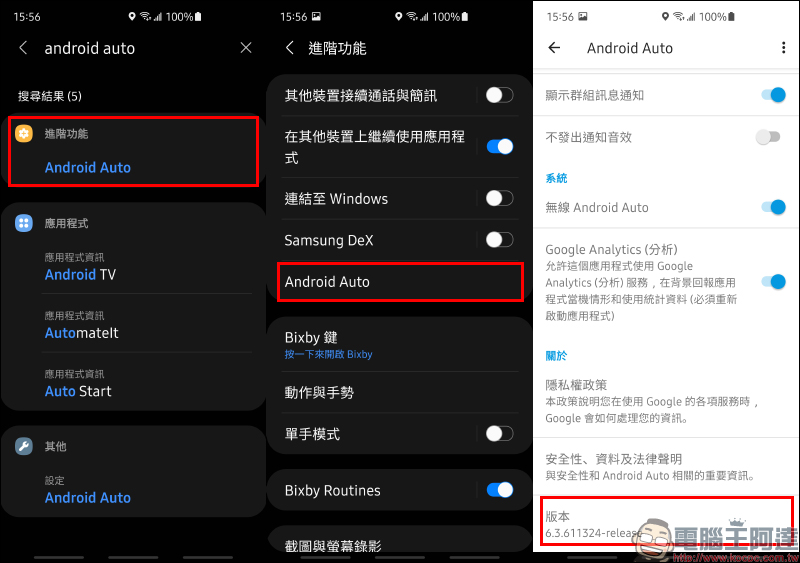
Click 7 times in a row to activate developer mode:
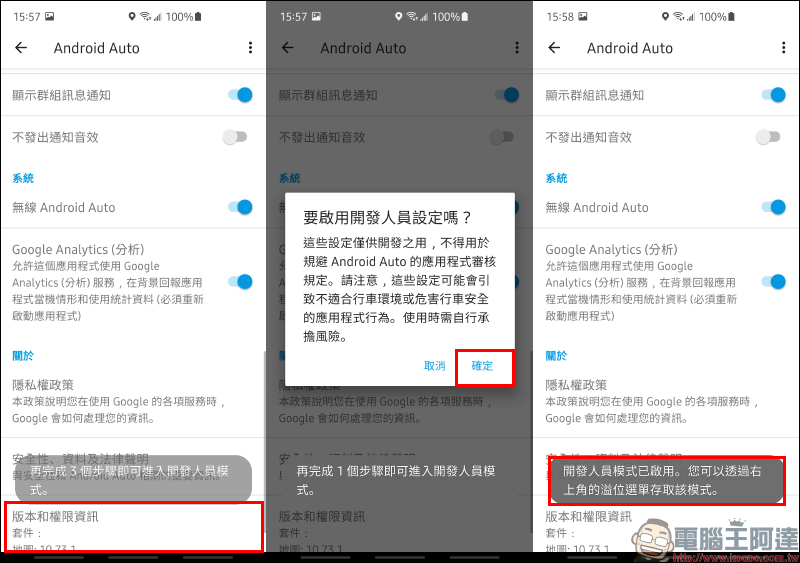
After the developer mode is enabled, click the application menu in the upper right corner and select “Developer Settings”. In the developer settings, first adjust the “Application Mode”:
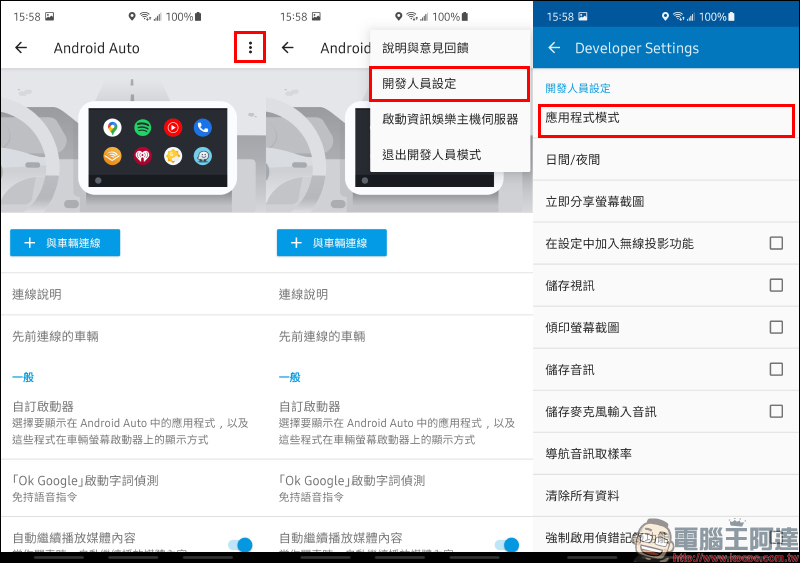
Set the application mode to “Developer Mode” and turn on “Allow Unknown Sources” under Developer Settings:
Preparation – Download AA Store & AA Mirror
After processing the Android Auto version, go to download the AAStore APK file and install the application on your phone (Click here to download)。
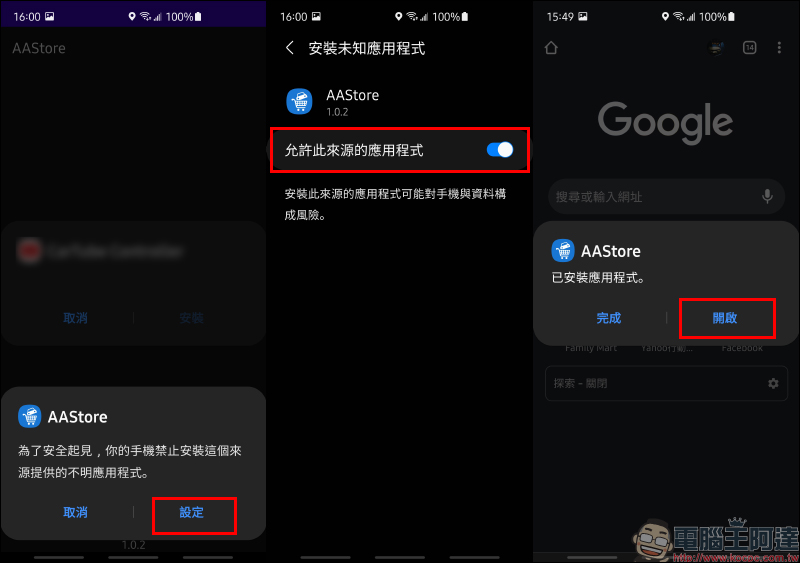
Then open the AA Store application, and the screen will prompt that Android Auto version 6.4 may block the apps downloaded here, but because of this we have solved it in the previous paragraph. There are several apps available for vehicles in the AA Store. In addition to the “CarStream” introduced in the previous article, this article will introduce the “AA Mirror”. Here we choose AA Mirror 1.0 (slashmax) for installation.
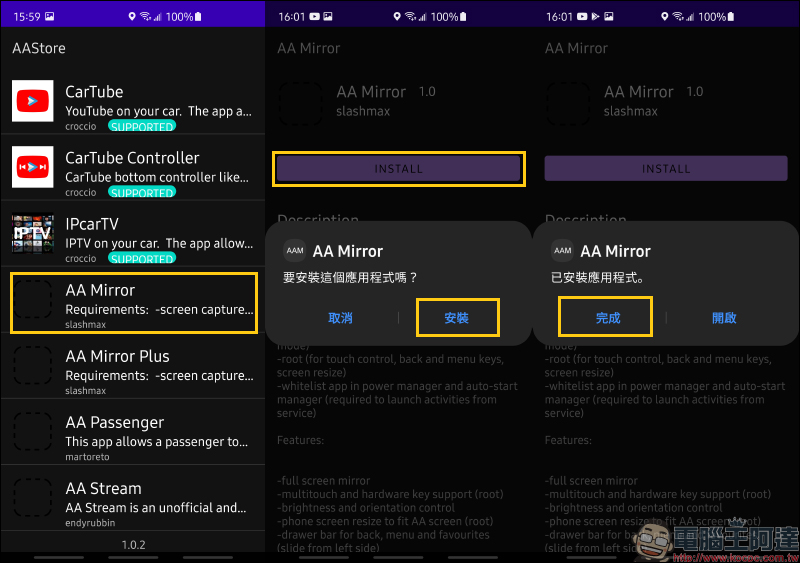
Then allow AA Mirror related permissions.
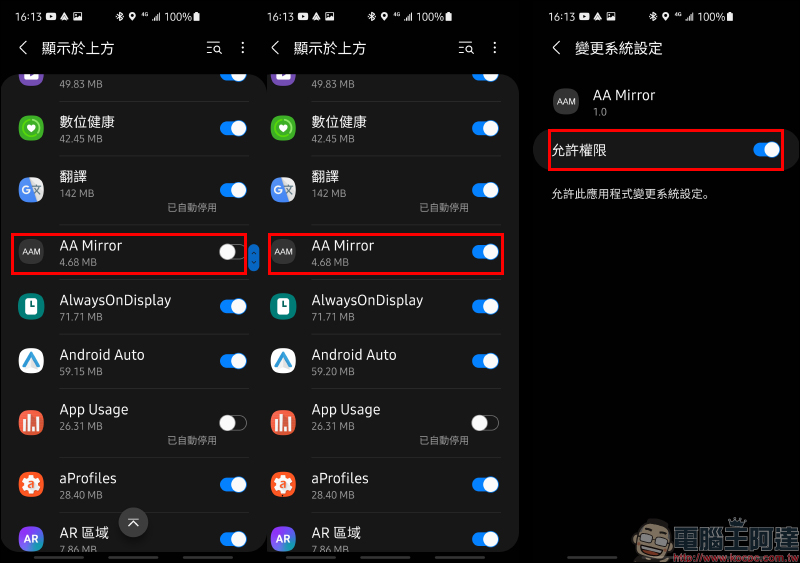
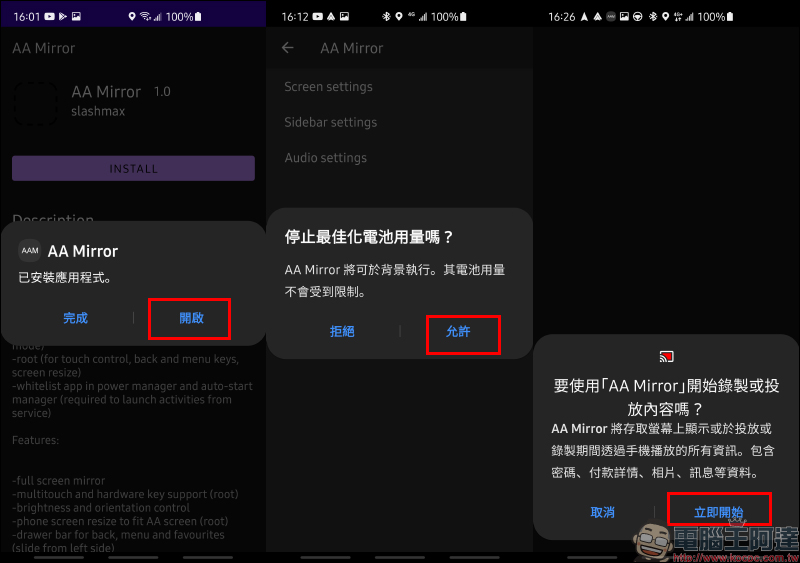
In addition to allowing relevant permissions to be accessed, after connecting to Android Auto and opening the AA Mirror app on the car, the phone will display the screen on the right as shown below.
At this point, just click “Start Now” and the screen delivery will begin!
How to use AA Mirror to watch YouTube videos on Android Auto?
Although the final result is to play YouTube videos on the car screen, the method this time is actually quite different from the previous CarStream where the main control was touch operation on the car screen. Essentially, AA Mirror is an application that allows Android phones to mirror the screen. However, after a period of actual trial use, the author found that the performance is actually quite good if it is just playing YouTube videos, and the smoothness is even better than CarStream.
(*Tips: Do not use your mobile phone while driving. If you want to watch videos while driving, please do so when the vehicle is stationary and safe.)
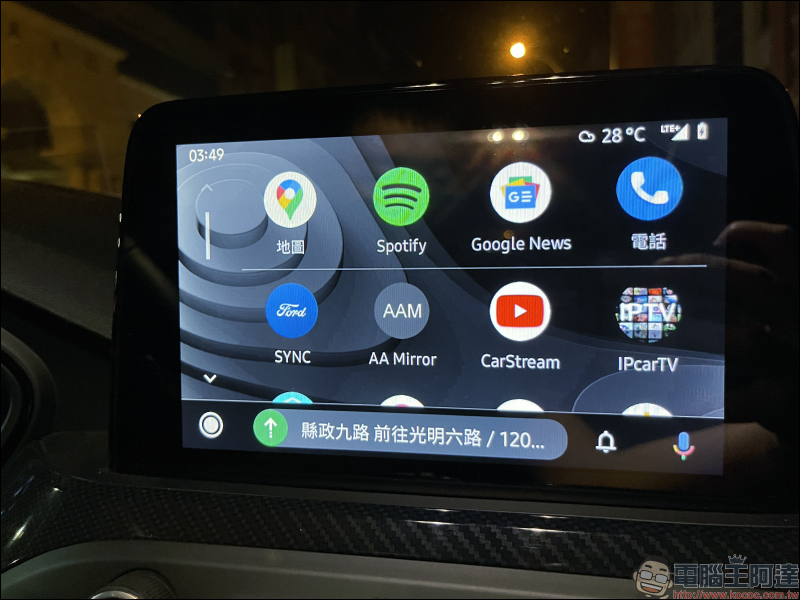
After completing the above preparatory work, you can view the AA Mirror application on the home screen after connecting to Android Auto. At this time, click on the AA Mirror on the car to open it.
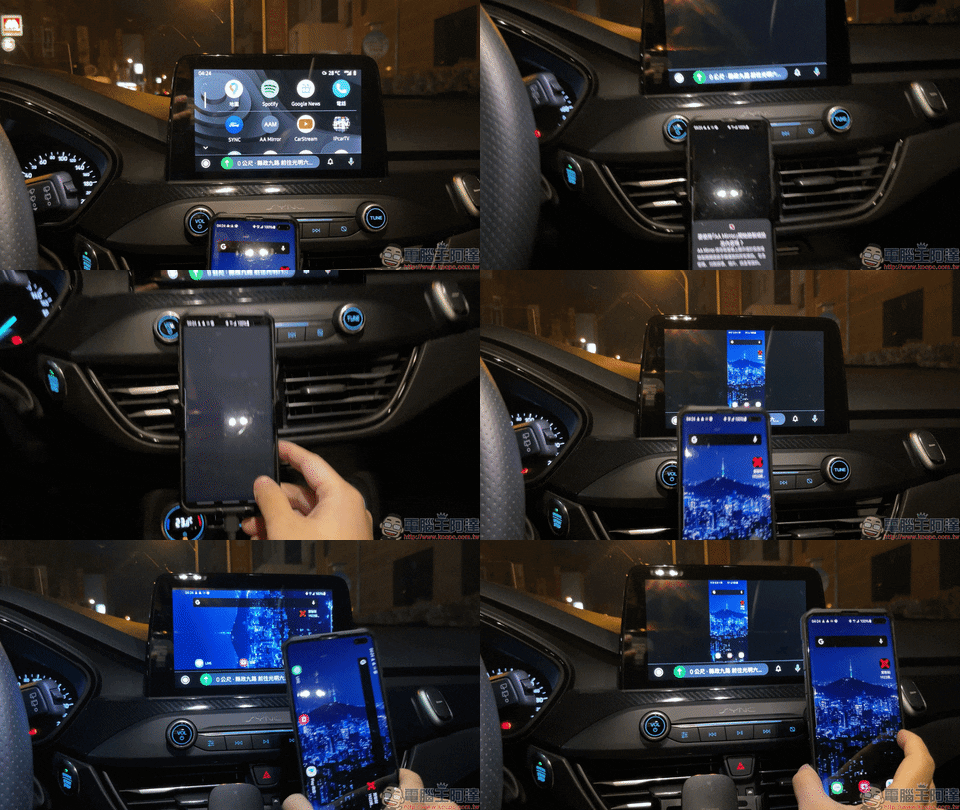
During the actual connection process, it can be found that the screen will rotate freely according to the display angle of the user’s mobile phone.
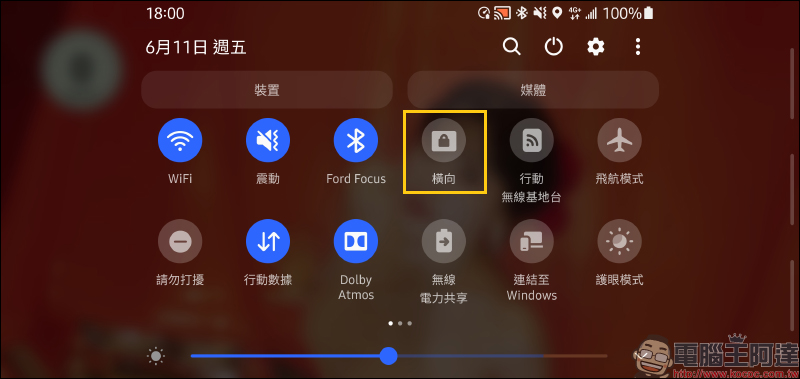
If you want to prevent the screen from rotating synchronously with the position of the phone while the vehicle is driving and affecting the viewing experience, it is recommended to pull down the function menu and temporarily lock the phone screen in landscape orientation.
Then just open the YouTube App on your phone, and the screen will be synchronized to the car screen. At this time, you can just use your phone to swipe YouTube to search and select the video you want to play.
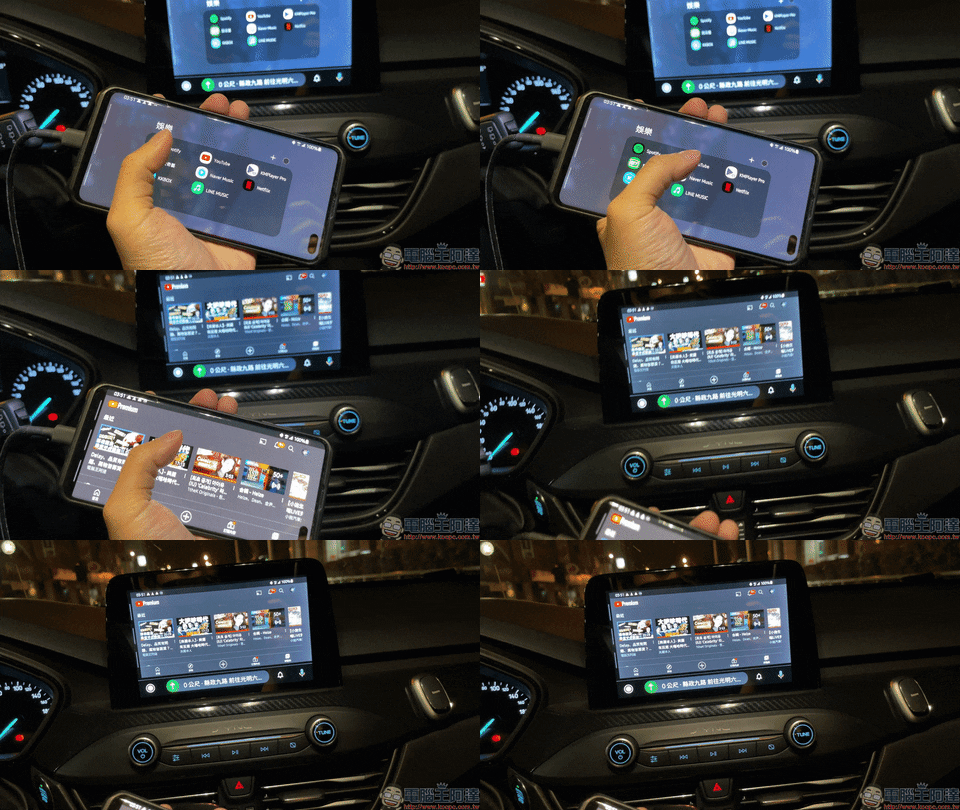
Due to screen mirroring, the display interface is the same as that of an Android phone.
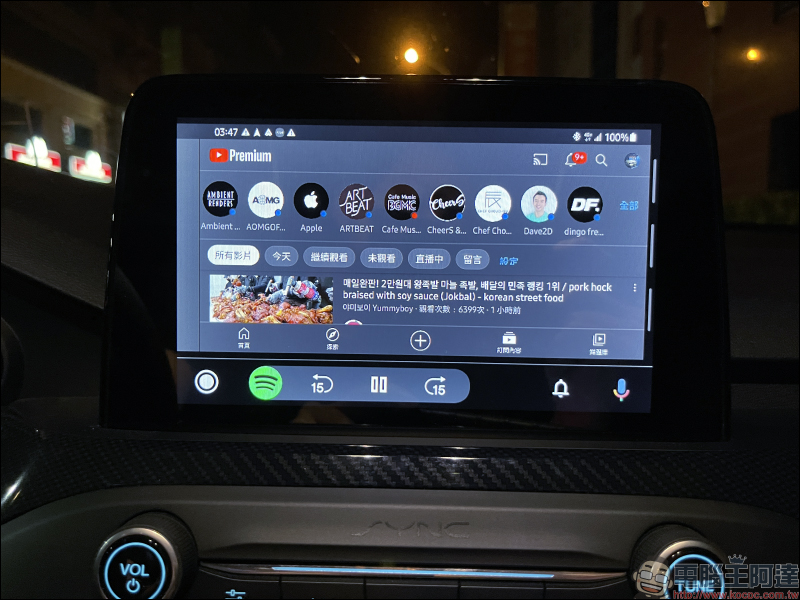
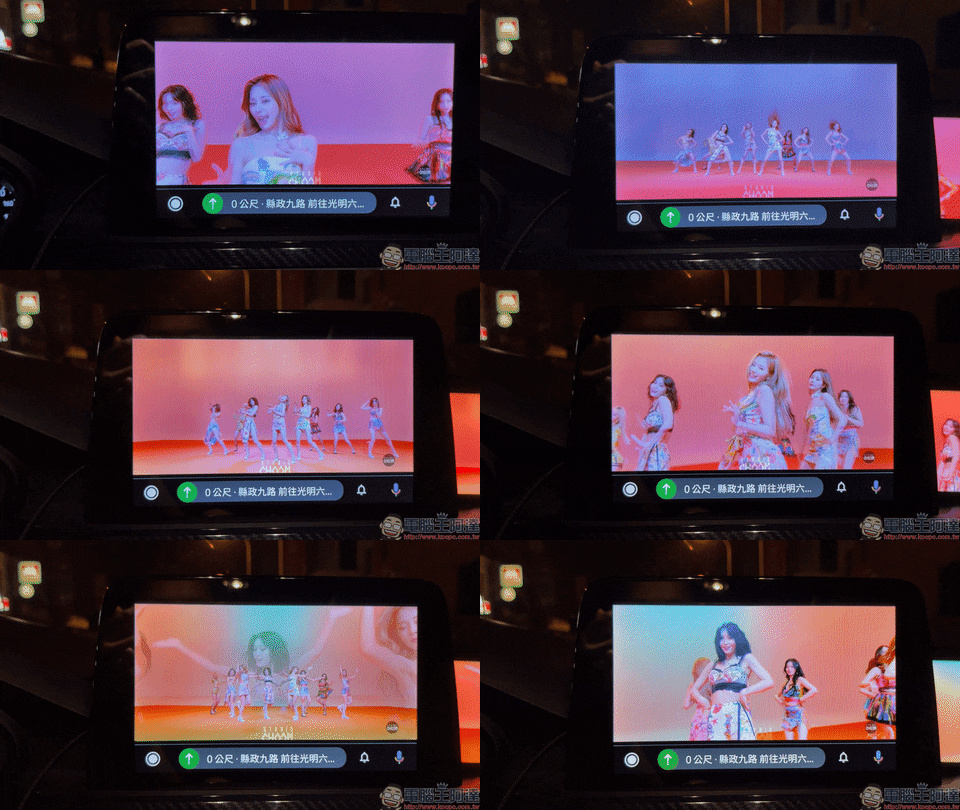
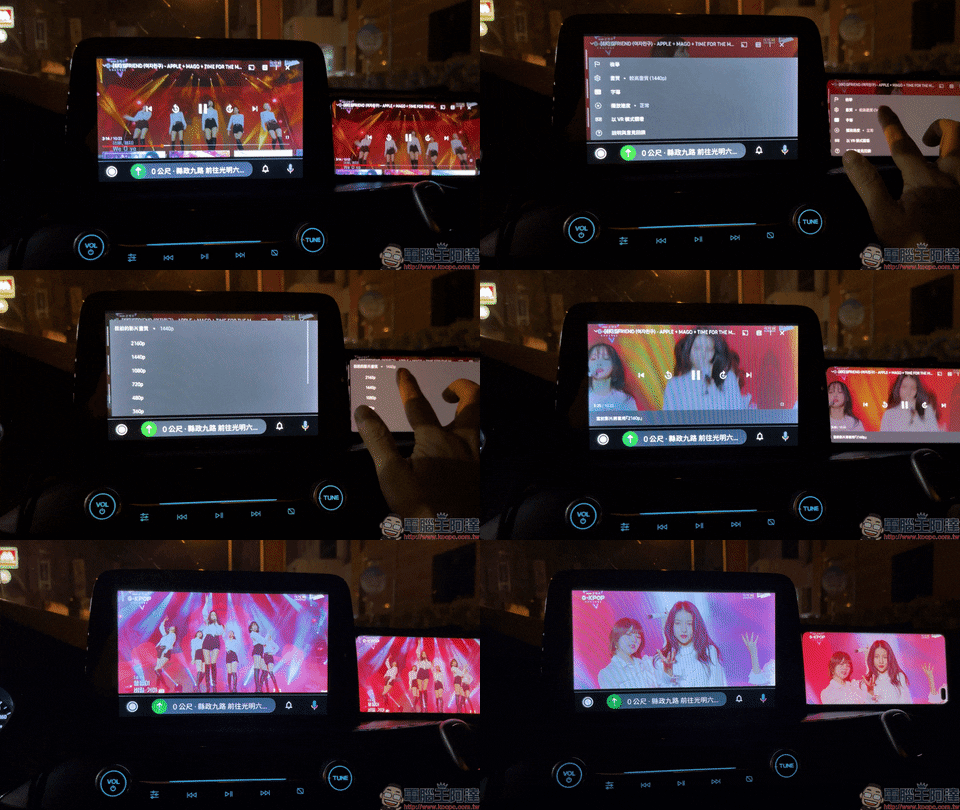
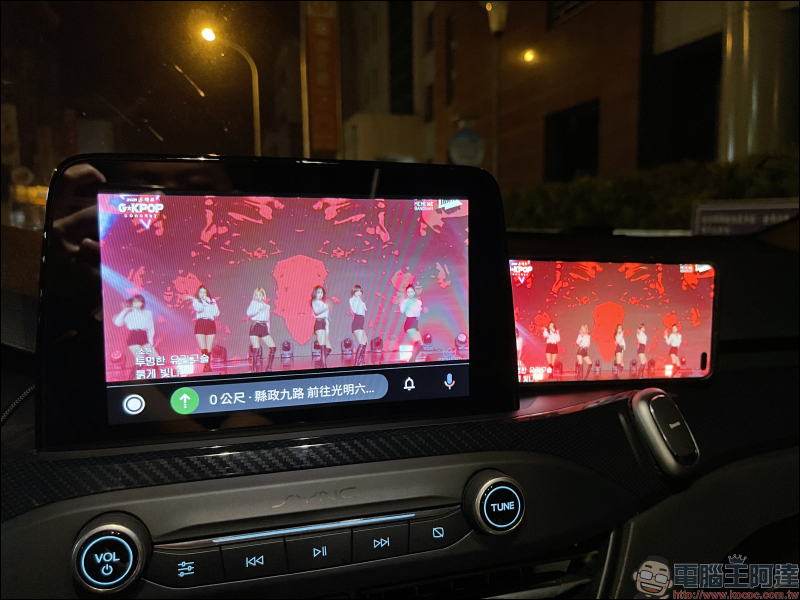
The effect of video playback is as follows. Overall, it is quite smooth.
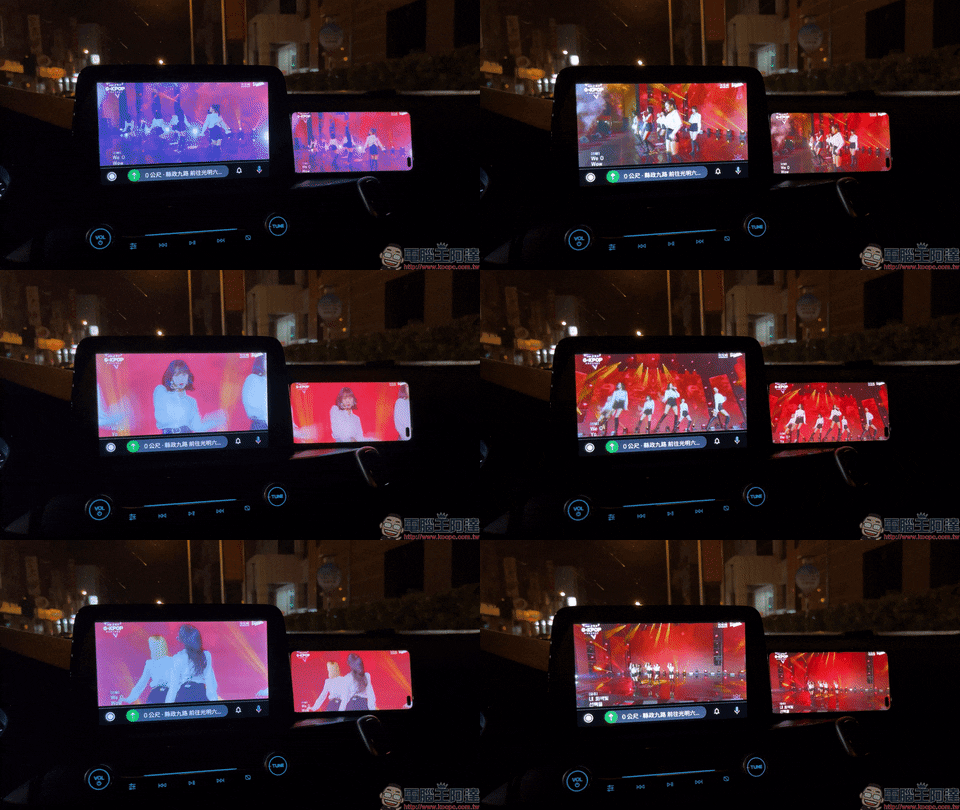
In order to make it easier for everyone to compare the synchronization status of the mobile phone screen mirror to the car screen, the mobile phone is placed next to the car screen for comparison.
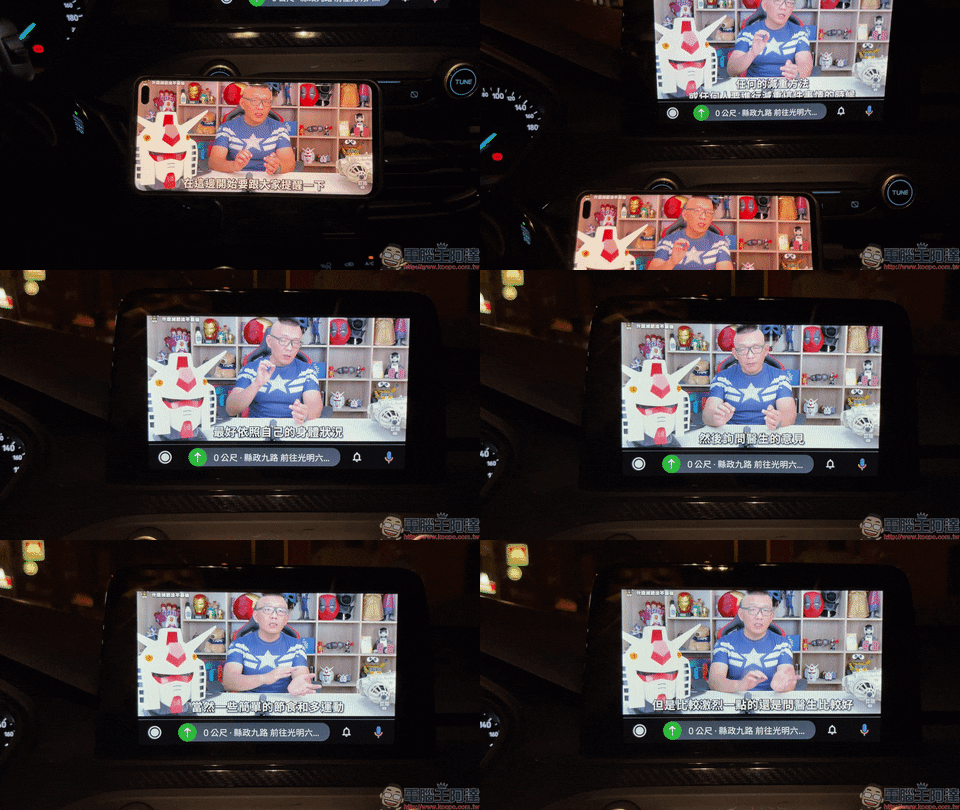
In addition, the current video quality can also be adjusted on the mobile phone, but it is recommended to set it to 1080p, which can also reduce the delay of the video and audio being out of sync.
summary
The method introduced this time can also play YouTube videos on the car without modifying the car or mobile phone, and the screen mirroring method also makes the operation closer to the daily use of mobile phones by ordinary people. This method can also be applied to more people who may have different YouTube account login playback needs, so that everyone connected can use their own mobile phone to play the YouTube channels and videos they subscribe to, and searching for videos is easier than directly operating the car phone. In the near future, the author will continue to share more advanced application tutorials on CarStream and AA Mirror, making this car screen more fun and driving safer.
If you like this teaching, please share this article and tell other car owners these methods!
Finally, I would like to remind you: “Please do not use your mobile phone or watch videos while driving. Please concentrate on driving to ensure your and my safety.”
(Supplementary) Frequently Asked Questions
Q: What should I do if AA Mirror sometimes displays a black screen that cannot be displayed when turned on?
A: First return to the homepage in Android Auto, and at the same time turn off AA Mirror from the background of the mobile phone (turn on multitasking, and confirm that AA Mirror is not displayed in the drop-down menu), then re-click AA Mirror on Android Auto to reconnect. If the display still cannot be displayed after restarting with the above method, turn off the AA Mirror again, disconnect Android Auto, wait a few seconds and then reconnect.
Q: It could be used before, but one day it suddenly became unavailable?
A: First confirm whether the Android Auto version has been accidentally updated to version 6.4 (inclusive) or above. If it has been accidentally updated, you can uninstall Android Auto first, and then download the Android 6.3 APK file for installation (it is recommended to confirm again and turn off “automatic updates”).
Further reading:
Watch YouTube video tutorials on your Android Auto car for free! Root-free phone!
Source: KOCPC Chinese