


For car enthusiasts, if they want to use a car player to watch online videos in the car, they usually have to spend money to modify the Android car player, or jailbreak and root the phone. But for those who don’t want to spend money and are afraid of trouble, today I will share a tutorial on how to easily use Android Auto with a car player to watch YouTube videos in the car at zero cost and without rooting! Of course, this convenient function is mainly provided for passengers to enjoy and use in the car, so that passengers will not be afraid of boredom in the car. Drivers should still concentrate on driving and not be distracted!
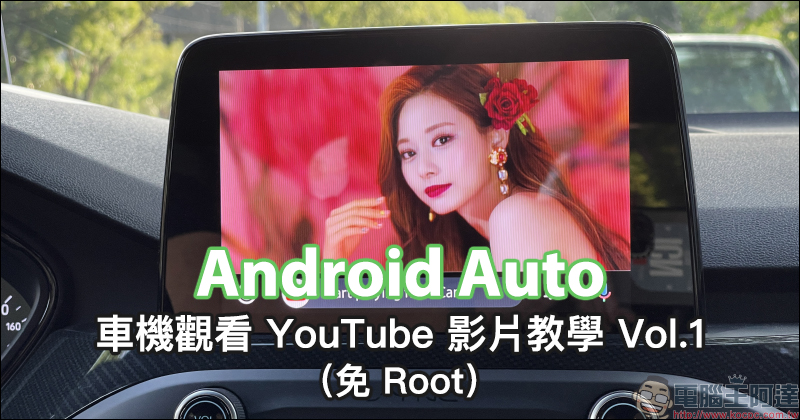
Tutorial on watching YouTube videos on Android Auto (without root)
If you also want to watch YouTube videos directly on the car without modification, today I want to share the first tutorial on how to watch YouTube videos on the car. The most important thing is that this tutorial can be easily set up for free without rooting or spending a dime!
(*Tips: Do not use your mobile phone while driving. If you want to watch videos while driving, please do so when the vehicle is stationary and safe.)
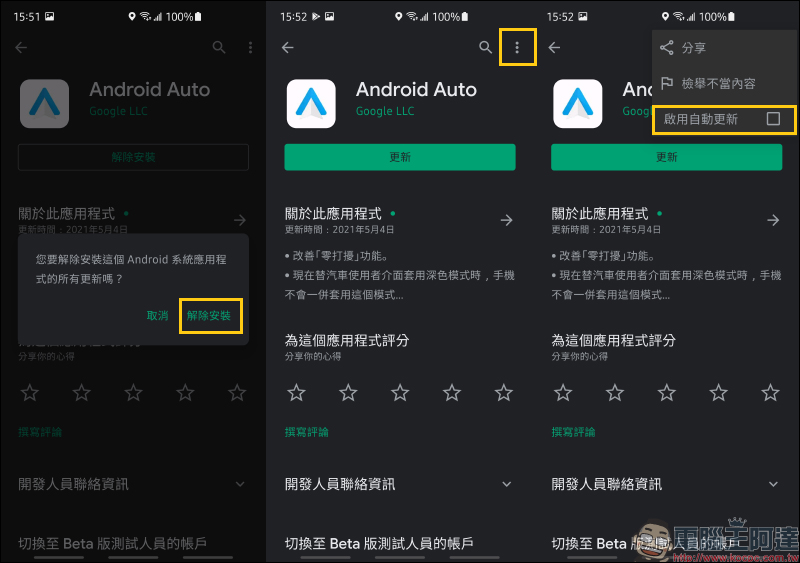
Get ready — Android Auto rolls back to version 6.3
Before this, owners whose vehicles support the Android Auto function and use Android phones must have downloaded the Android Auto App. However, because this method cannot be used in Android Auto app version 6.4 or above, we need to go to the Google Play Store to find the Android Auto App and uninstall it first.
After uninstalling, you also need to click the function menu in the upper right corner of the App page to turn off the “Enable automatic updates” function to prevent the app from automatically updating in the future.
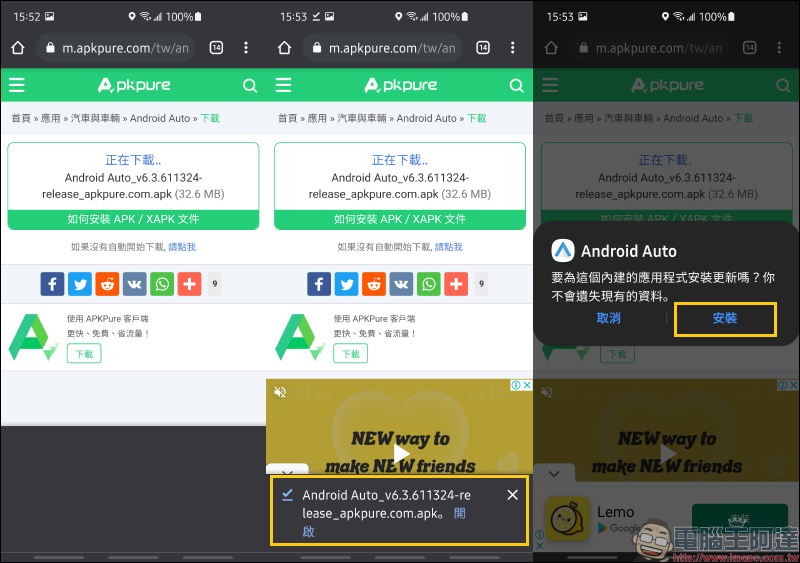
Next, look for the Android Auto 6.3 version APK file on the Internet to download and install. Here I also share the download source I found (Click here to download)。
After the installation is complete, go to the phone system settings to find “Android Auto”, and then find the version information at the bottom of the About category.
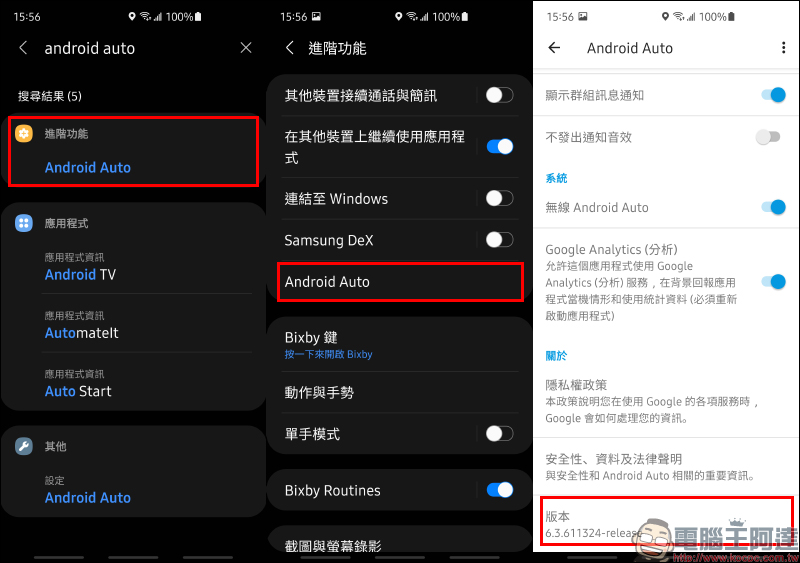
Click 7 times in a row to activate developer mode:
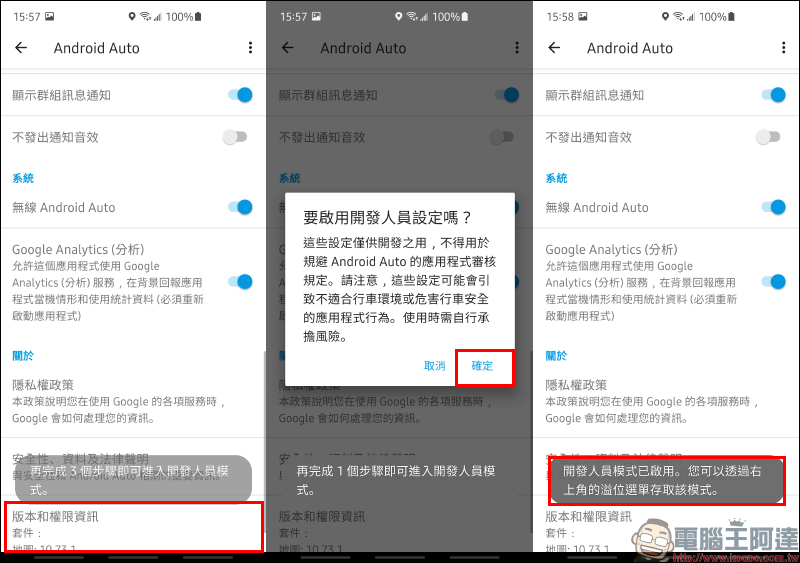
After the developer mode is enabled, click the application menu in the upper right corner and select “Developer Settings”. In the developer settings, first adjust the “Application Mode”:
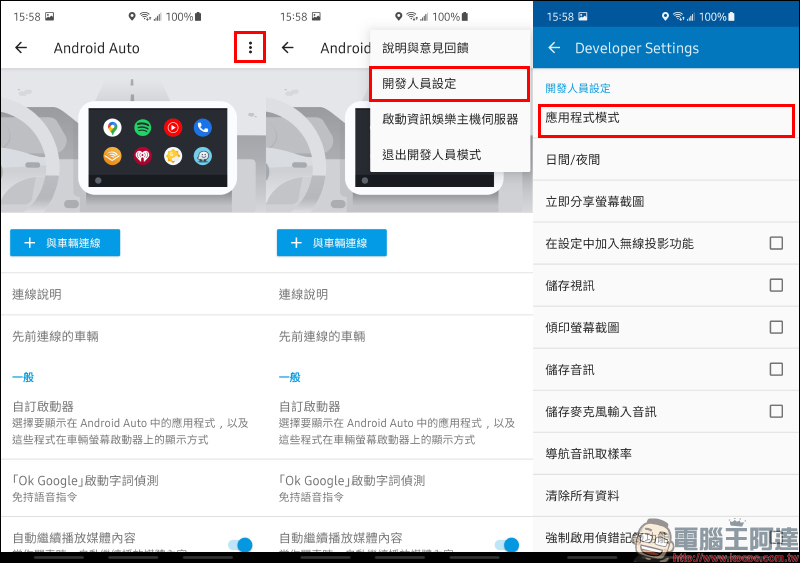
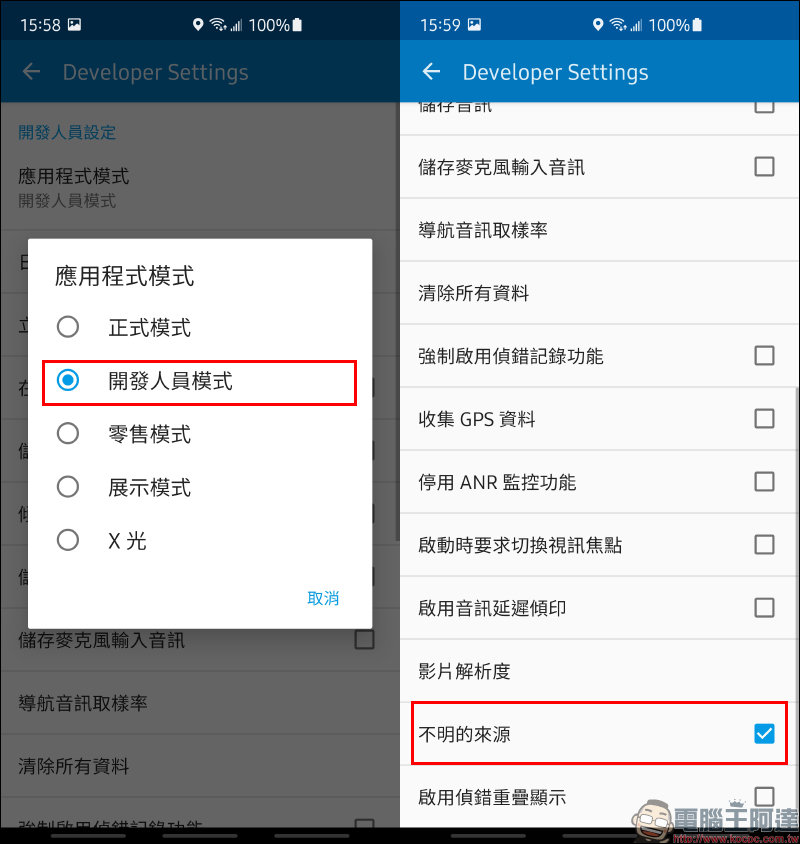
Set the application mode to “Developer Mode” and turn on “Allow Unknown Sources” under Developer Settings:
Be Prepared—Download AA Store & CarStream
After processing the Android Auto version, go to download the AAStore APK file and install the application on your phone (Click here to download)。
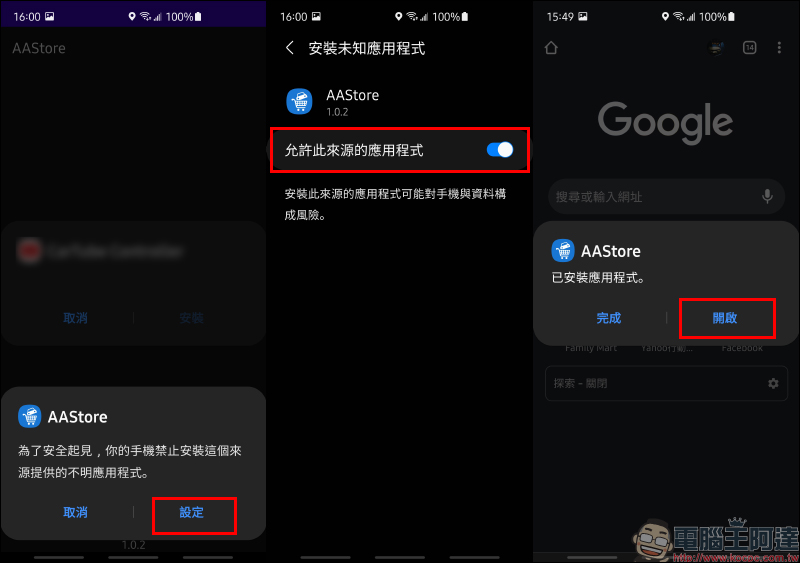
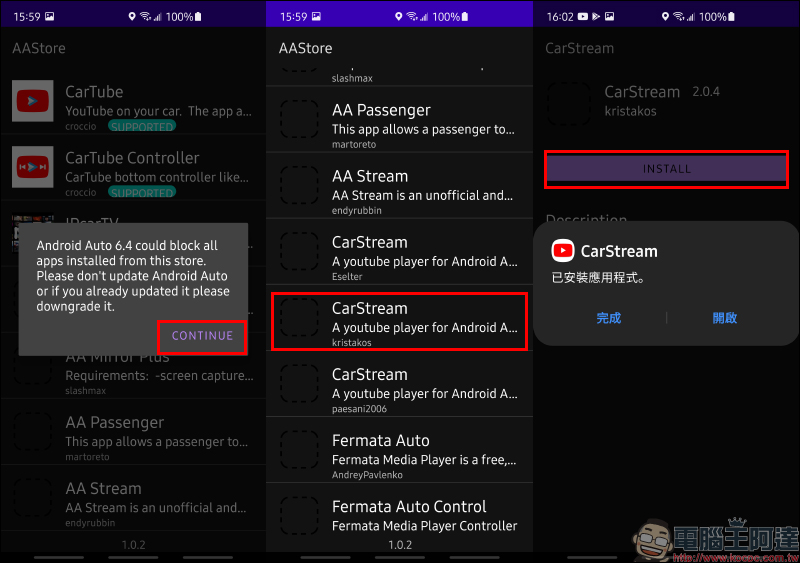
Then open the AA Store application, and the screen will prompt that Android Auto version 6.4 may block the apps downloaded here, but because of this we have solved it in the previous paragraph. There are many apps available for vehicles in the AA Store. In this article, we first introduce one of them, “CarStream”. Here choose CarStream 2.0.4 (kristakos) for installation.
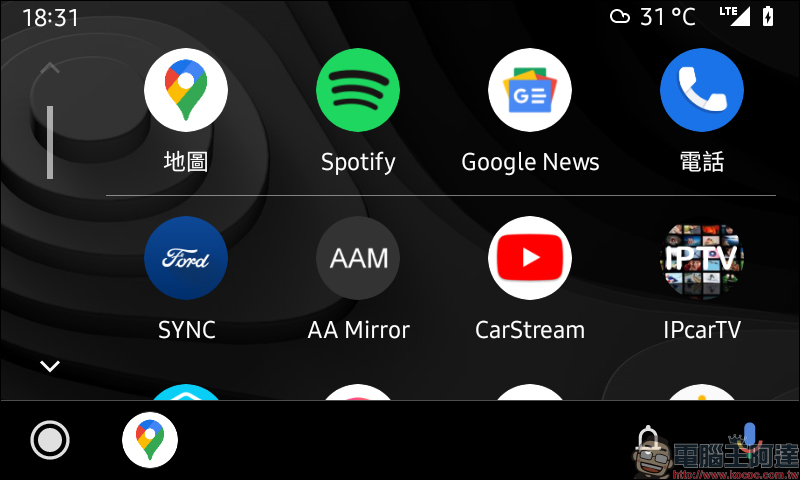
How to watch YouTube videos on Android Auto using CarStream?
After the installation is complete, you can see the CarStream App on the Android Auto page! Next, I will share with you how to use CarStream to watch YouTube videos, as well as some more important operation methods.
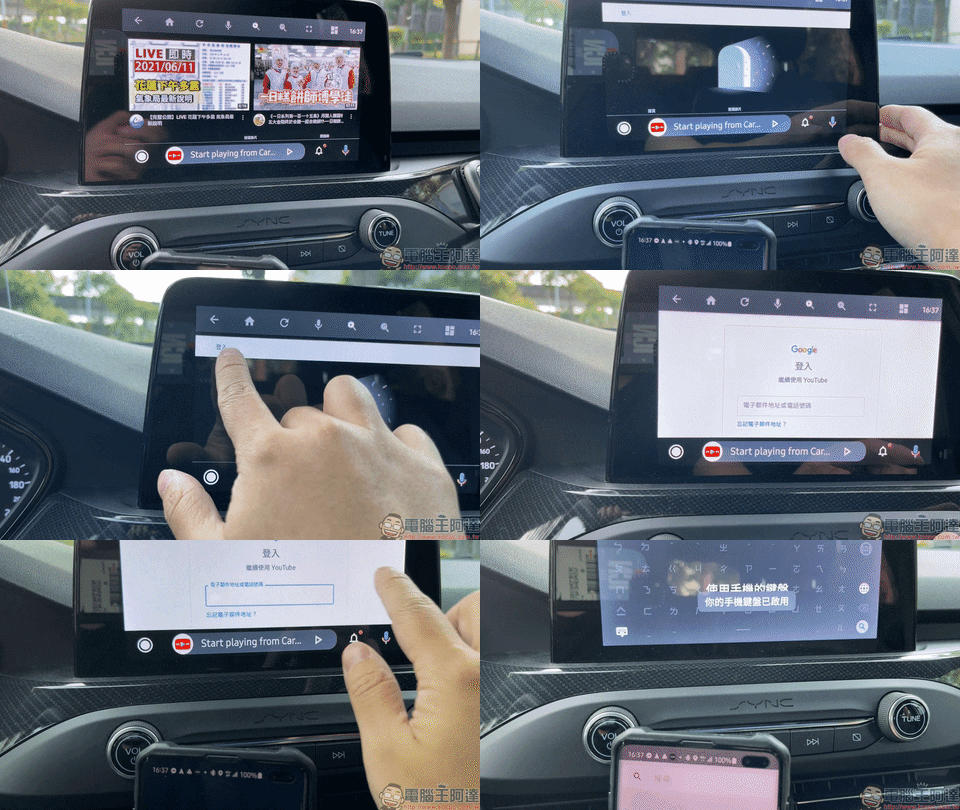
First of all, if you want to enjoy a better viewing experience and more conveniently watch the YouTube channels you have subscribed to, of course you must log in to your YouTube account first! Open the CarStream App and enter the YouTube page, click “Media Library” in the lower right corner of the screen and select “Log In”. At this time, the Google account login page will appear. After clicking the email (account) input field, the keyboard will be automatically opened on the mobile phone. At this time, you only need to enter the account number and password on the mobile phone to complete the login.
As an aside, if you are a heavy user like me who watches YouTube for more than 10 hours a day on average, then you must be a user who is already on YouTube Premium and can also enjoy the advantage of being free of advertisements. As someone who has no intention of saving on this subscription fee, the monthly individual membership plan is NT$179. However, we have previously shared instructions on how to save more money and own YouTube Premium for only NT$50 per month (Click me to review)。
After logging in to your YouTube account, you can quickly find your subscribed channels and exclusively recommended YouTube videos. There are also four pages at the bottom of the screen: homepage, fever videos, subscription content and media library.
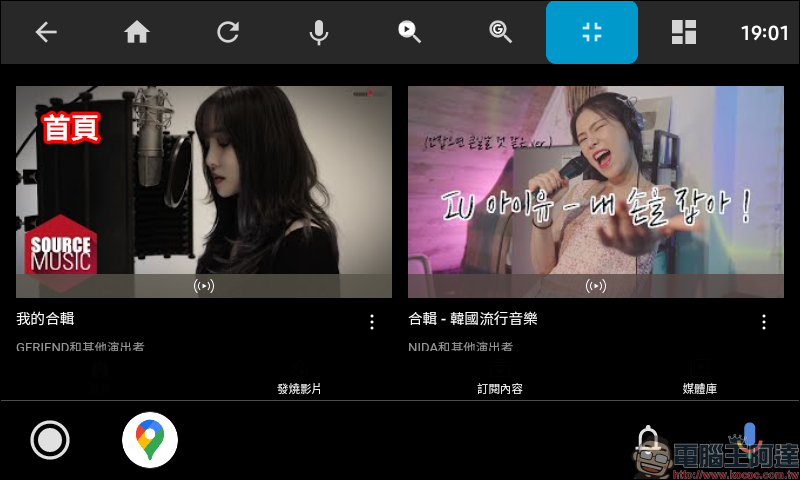
Everyone will be able to get started with this part of the operation soon. If you want to watch a video, you only need to touch the screen of the car to start the video playback. If the screen of some cars cannot be touched, you can operate it by yourself through the control buttons.
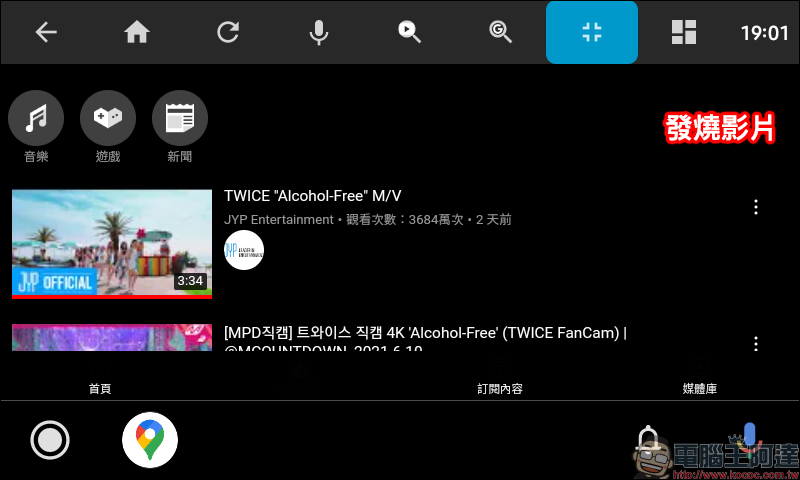
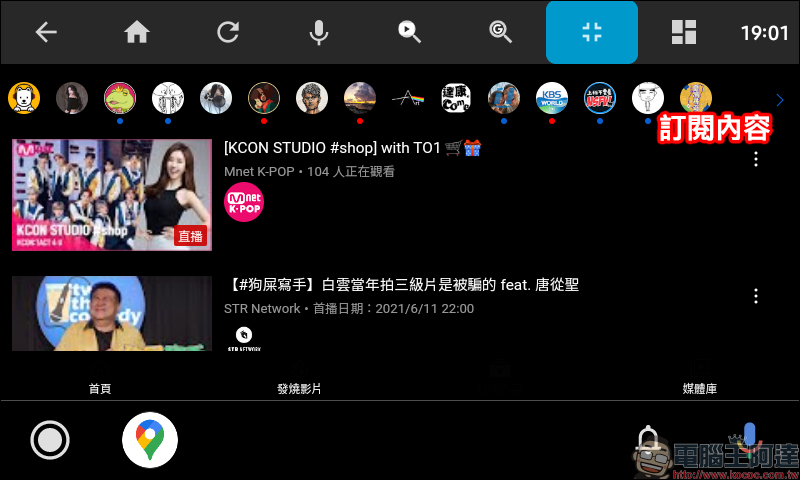
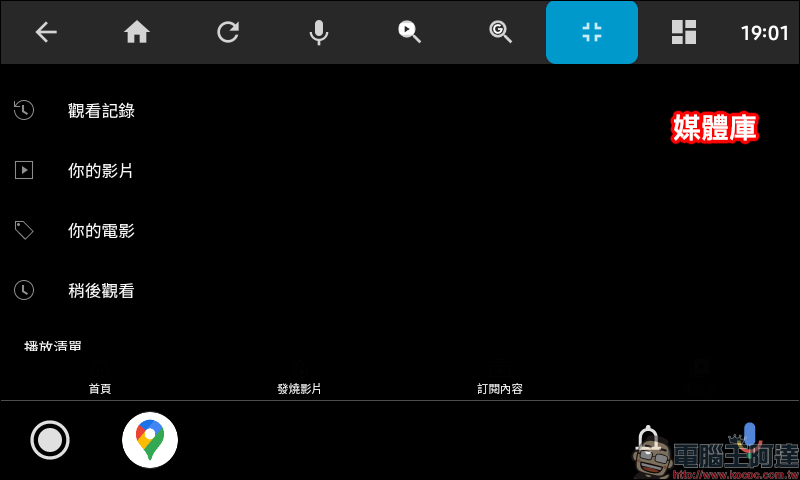
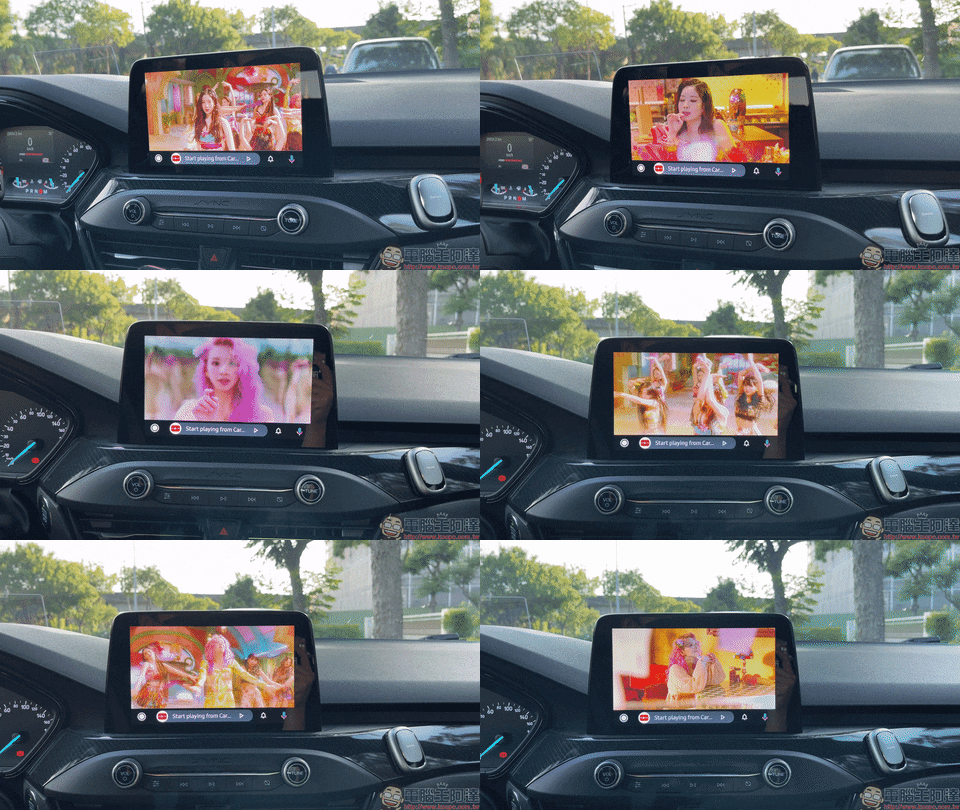
I would also like to remind you again that for the sake of driving safety, this function is mainly for watching videos for the co-pilot or back seat passengers while driving. It is not recommended for drivers to watch videos while the vehicle is moving. Just play it as background music while driving.
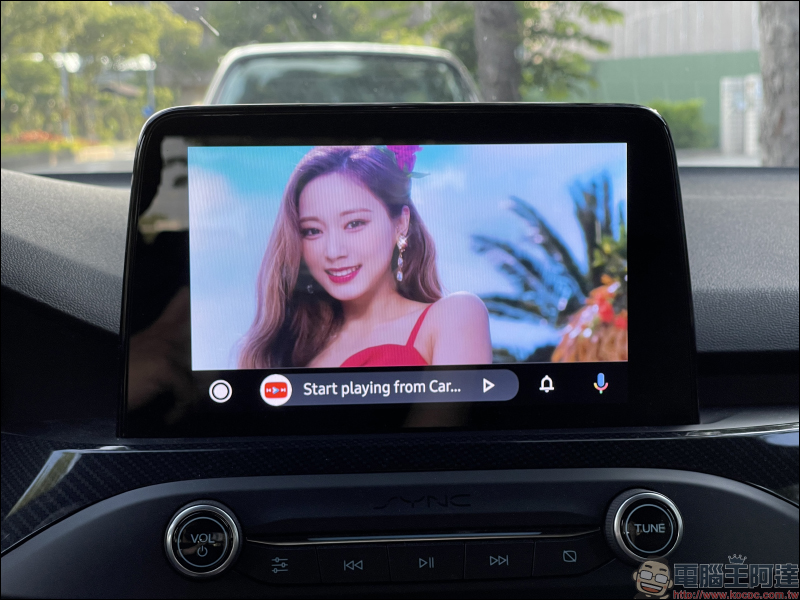
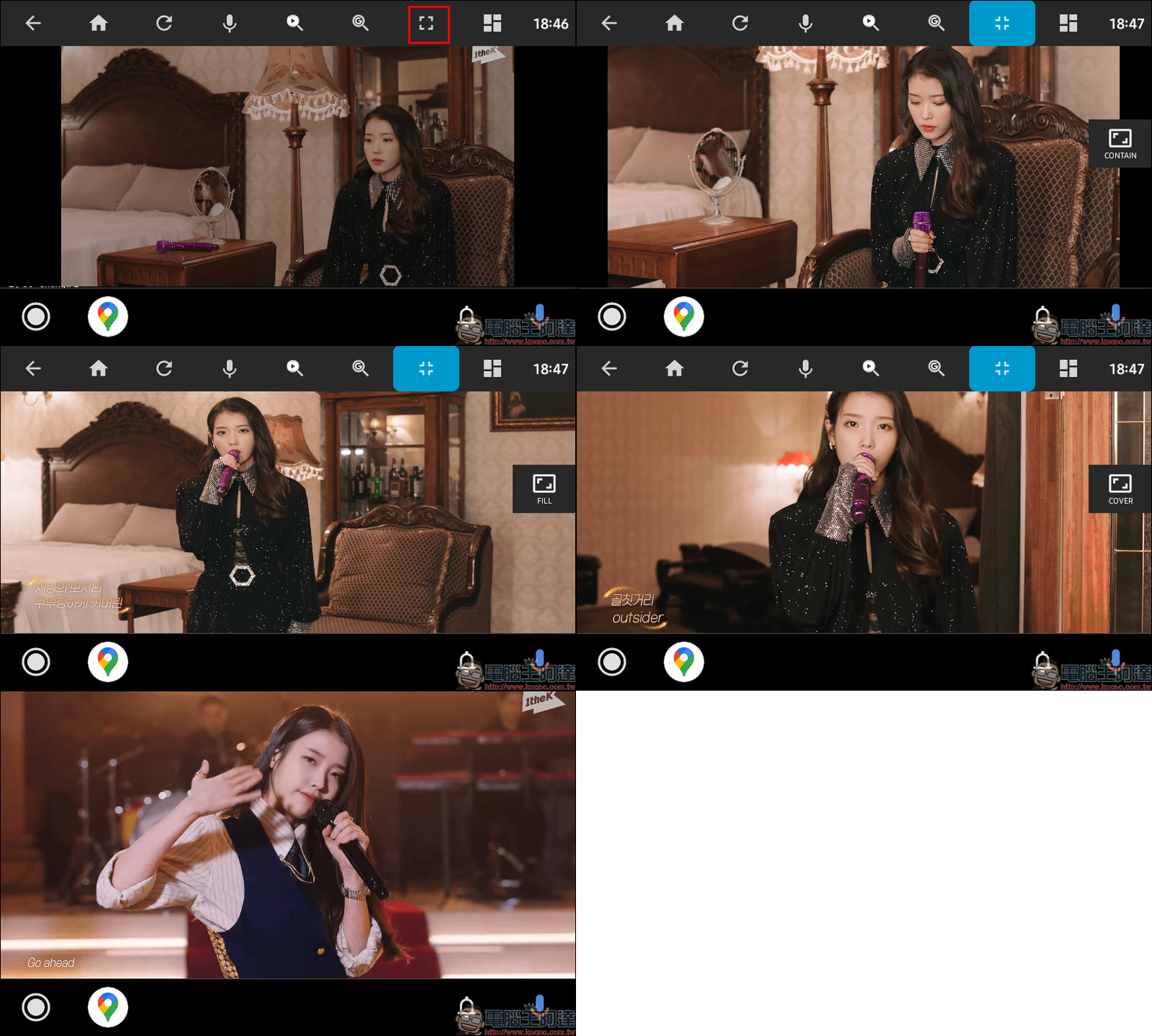
Depending on the differences in the in-car system screens of different vehicles, the display ratio of each vehicle’s screen may be different. Here we also share how to adjust the display ratio of video playback. First, click the screen aspect ratio button at the top of the screen, and then different aspect ratio effects will be displayed on the right side of the screen.
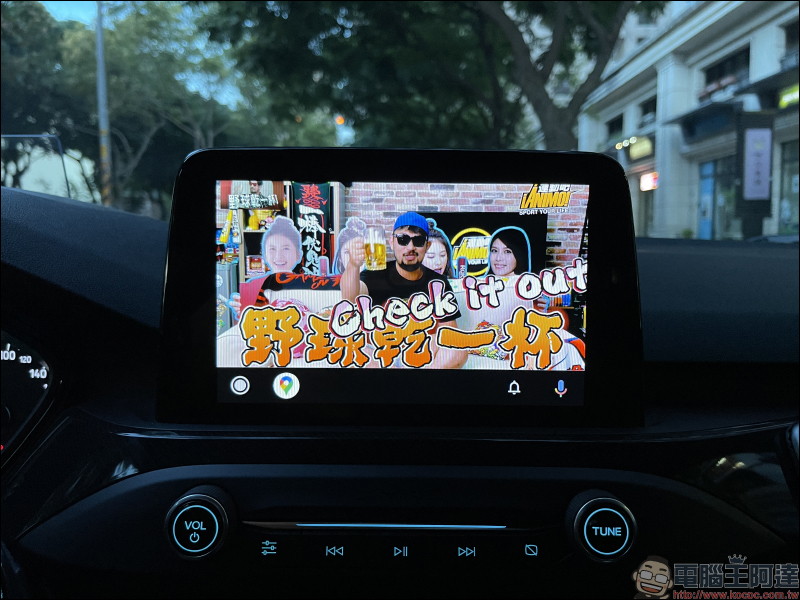
As for using CarStream to play YouTube videos, will it affect the use of the original Google Maps navigation function? In fact, no, because simple navigation information will also be synchronized at the bottom of the Android Auto page.
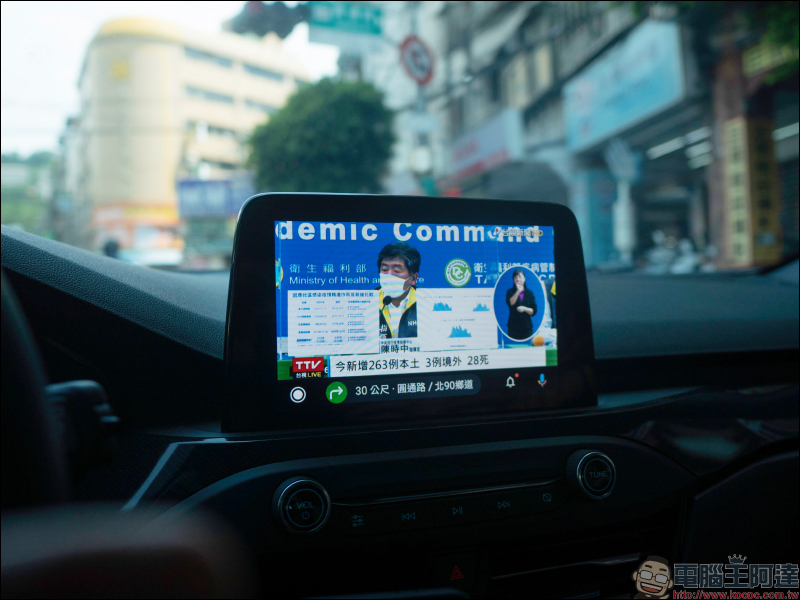
Android Auto CarStream playback test
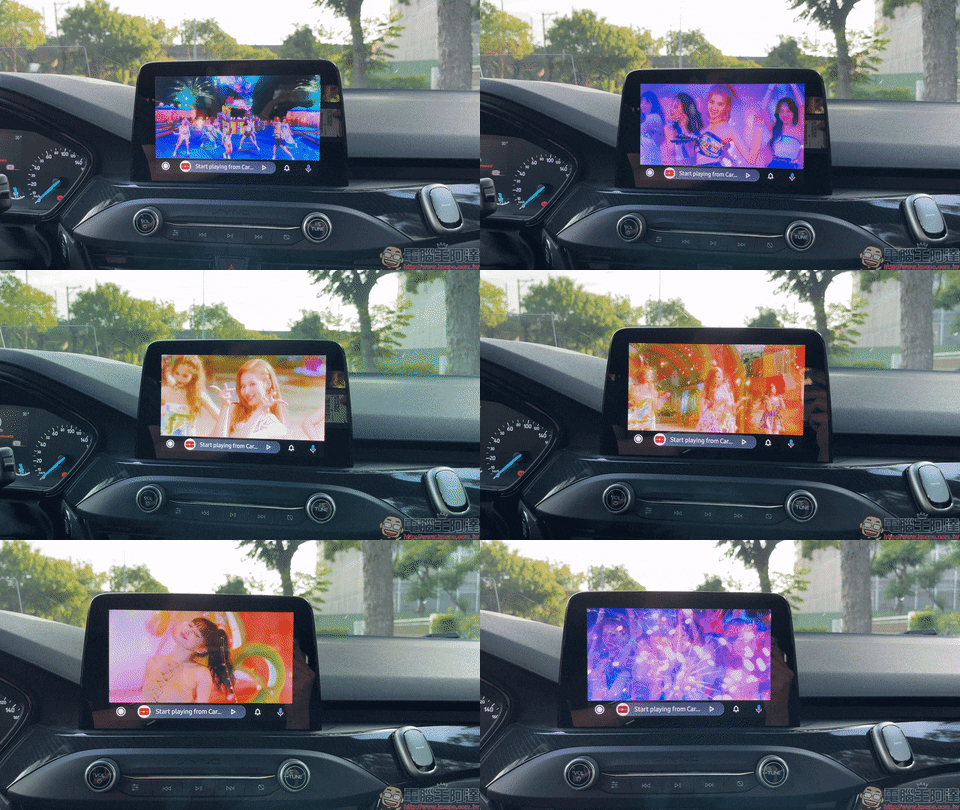
The actual effect of playing YouTube videos is as follows. You can observe that the audio and video synchronization part is actually quite ideal. Overall, it is very smooth. Of course, this is also due to the differences in image quality and processing speed of the car systems of different vehicles, but it is quite sufficient for people who want to watch YouTube videos in the car.
summary
In summary, if you don’t want to modify your car or mobile phone, but you just want to play YouTube videos on your car, CarStream can meet most of your needs for playing YouTube videos. However, YouTube operations are still performed on your car, which requires you to take some time to get used to it. However, it actually has little impact on letting the co-pilot fully use this function. The driver should concentrate on driving!
If you are still used to using your mobile phone to select the YouTube videos you want to play, you can also look forward to the fact that we will also share another tutorial with you recently (which is why this article is titled Episode 1). If you like this tutorial, please share this article and tell other car owners how to use Android Auto to play YouTube videos on your car for free! The author will also share more advanced application tutorials on CarStream in the future, so you can look forward to it.
Finally, I would like to remind you: “Please do not use your mobile phone or watch videos while driving. Please concentrate on driving to ensure your and my safety.”
(Supplementary) Frequently Asked Questions
Q: After following the steps, CarStream cannot be used?
A: It is recommended to reconfirm the Android Auto App version and developer-related settings. Small reminder: The Android Auto used here is the car version, not the Android Auto mobile screen version.
Further reading:
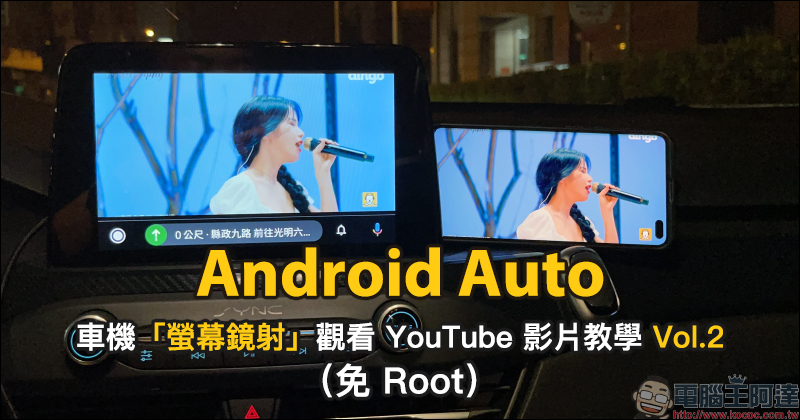
Use Android Auto “Screen Mirroring” to watch YouTube video tutorials for free, and your phone does not need to be rooted!
Source: KOCPC Chinese