


Speaking of the most amazing features of this year’s WWDC, I personally think(True) Universal Controls Across iPadOS and macOS(Universal Control) function, definitely one of them. However, after seeing the official demonstration, it seems that the devices have the function of detecting each other’s positions, so I immediately guessed, “Is this a function limited to the M1 SoC?” And as the macOS 12 Monterey preview pageAfter it was released, I discovered that Apple had used a little cleverness (in a good way) to make this feature directly support “all” models that can use Sidecar – yes, it can be used on MBPs as early as 2016! Read on for a sneak peek at the details on universal controls for easy switching between Mac and iPad.
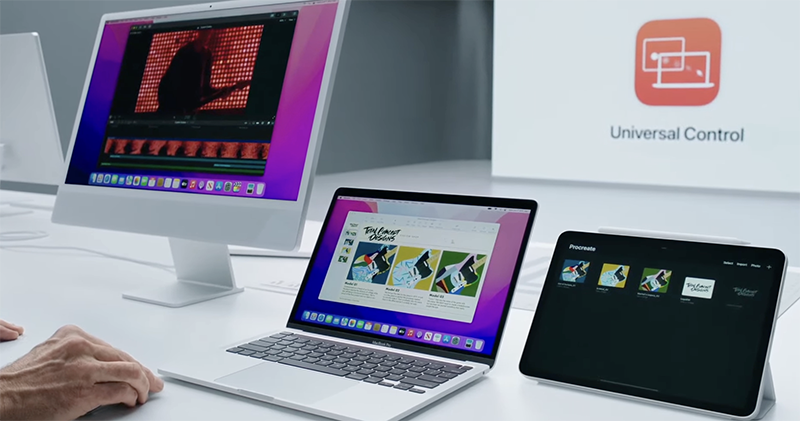
▲Image source: Apple
Not exclusive to M1! Universal controls for easy switching between Mac and iPad, preview of feature details
I believe that friends who followed the Apple Developer Conference this time will be deeply impressed by this seemingly magical KVM function. Frankly speaking, using software to share mouse and keyboard operations between devices, and even copy information is not a new thing – even Mac and Windows interoperability are available. There are two main points why the built-in universal controls in macOS Monterey and iPadOS 15 look amazing from the official DEMO.
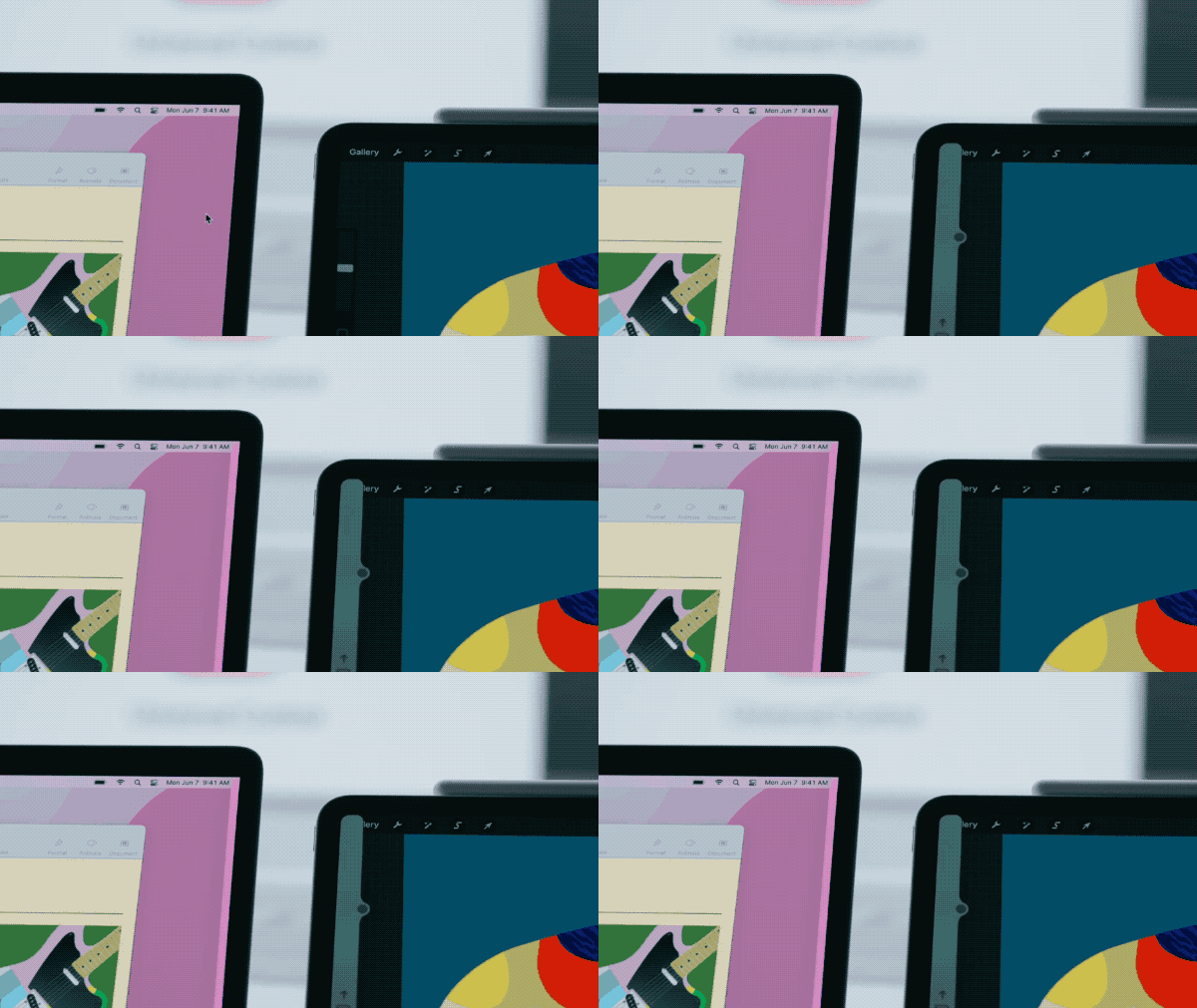
Firstly, it can detect that the device is on one side; secondly, how does it know the relative position of the screen? Because it looks like the mouse is directly aligned as soon as it passes through it – these characteristics make people think that universal control requires a special positioning chip like U1. However untilThe official list of support, I found that things didn’t seem so complicated. Because it is basically the same as the “parallel” support list of macOS Big Sur, and is not limited to Apple Silicon models (sigh of relief):
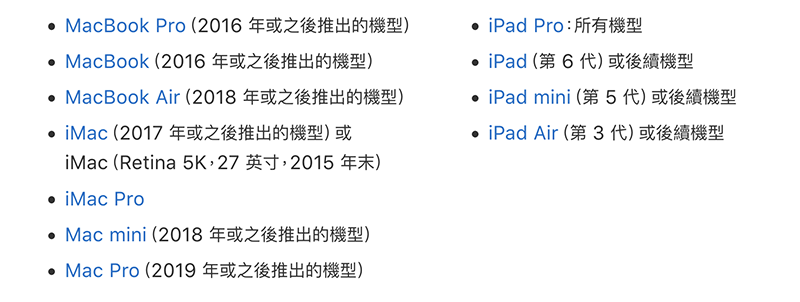
▲ Picture: BecauseParallel description pageIt’s organized quite nicely, so I’ll quote it directly. Looks to be exactly the same (Source: Apple)
So how is the universal control of macOS Monterey achieved? First, the system will detect devices within a connection range of about 10 meters, and will also confirm the proximity of the device based on the signal. At this point, the user only needs to slide the mouse to both sides of the screen like DEMO and will see the breakthrough on the other device. stratosphere Screen border effects. This also answers the first “magical” point, which is which side is the device on? It actually depends on which side the user moves the mouse – yes, it’s that simple XD.
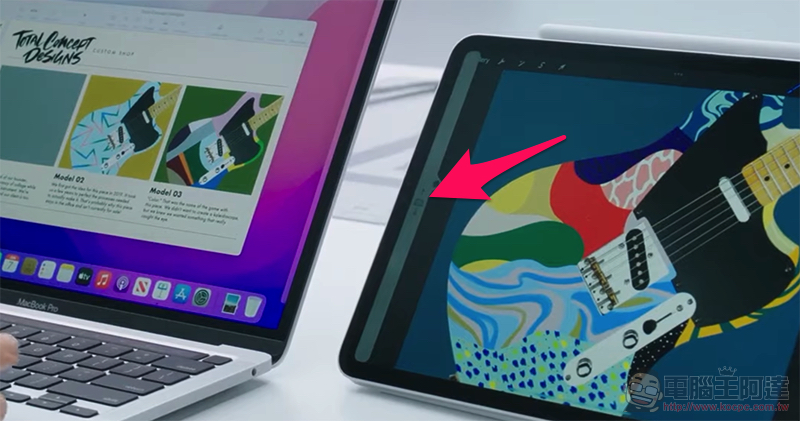
How do you know the gap between the screens? Basically, the interface that breaks the boundaries is not just good-looking (although it is really handsome). The up and down arrow marks in the center of the gray border are an adjustment interface that allows users to quickly correspond to the height difference between the borders of the two screens. To put it simply, although there are no automatic functions except for connection strength detection, Apple uses a very intuitive interface to allow users to quickly and painlessly complete KVM settings.
It can only be said that although it is not as smart as imagined, it is still a very smart solution. At least it does not require too special specifications to achieve it, and it also allows the supported device range to maintain “parallel” hardware support.
Small details of universal control: up to 3 devices, “wired” connection possible
After understanding the principle, there are actually some small details of universal control that are worthy of confirmation before everyone officially updates macOS 12 and iPadOS 15 in the future.
First of all, to activate this function, the devices must be logged in to the same Apple ID / iCloud account, and both devices must have the two-stage authentication mechanism enabled. If you want to use it wirelessly, you need to activate the Wi-Fi/Bluetooth connection (not supported when hotspot sharing is enabled) and the Handoff function. according toInformation from foreign media The Verge, you can also specify preferred universal controls in system settings.
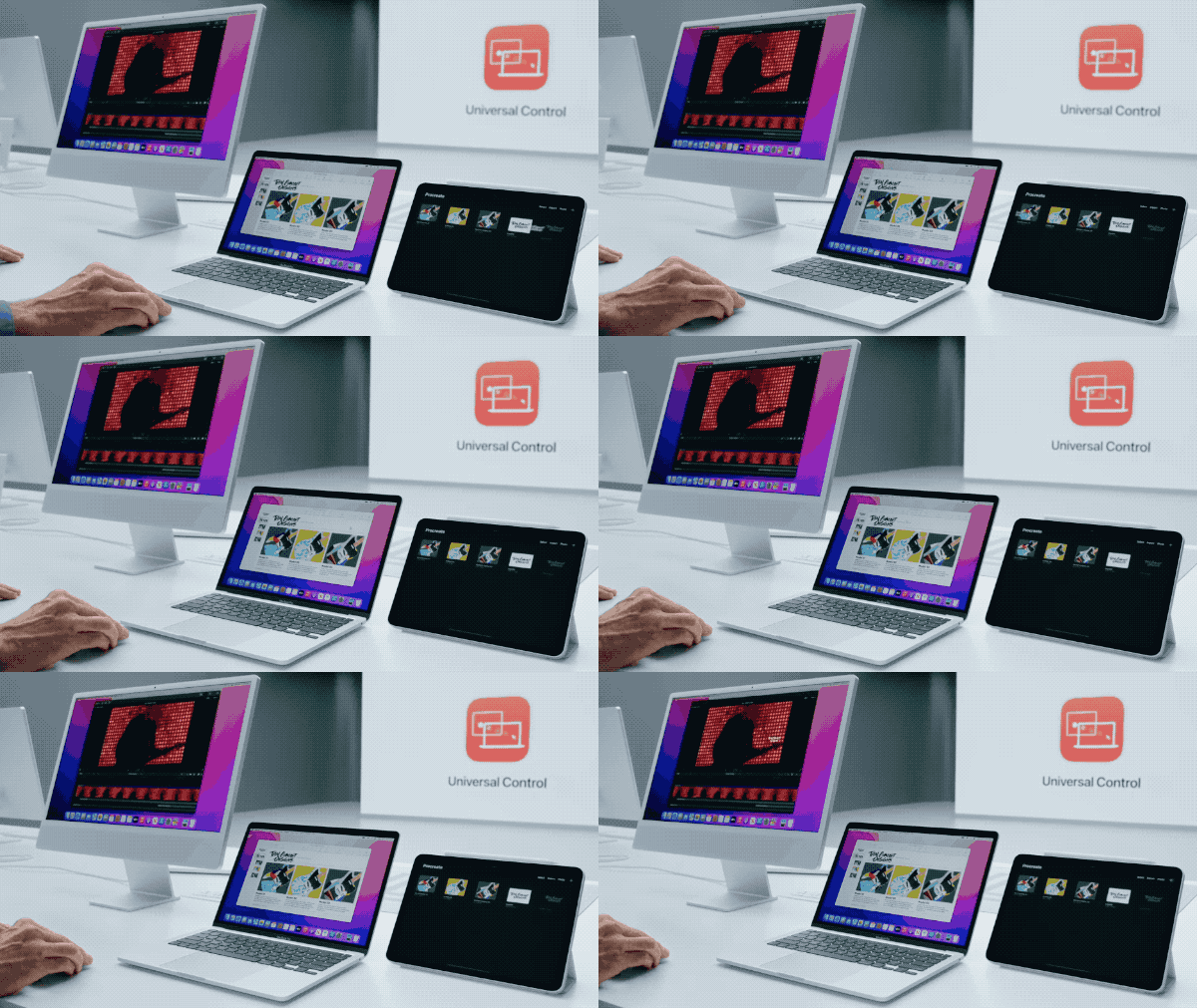
▲Picture: You can use a single device to control three devices across the board, and you can quickly drag and drop files to each other. It’s really super convenient! (Source: Apple)
Seeing that it can be used wirelessly, you should be smart enough to think that the “Universal Control” this time is also the same as the “Parallel” and can also be used via USB connection. When connecting via wired connection, you need to confirm that it is selected as a trusted device – seems to be relatively simple? In theory, wired response will be better, so it seems to be a good choice! You have to wait until the update is officially released before trying it again.
Finally, according to our Computer King Ada team’s understanding, universal control can support up to 3 devices, and the connection must be initiated by a macOS device. So whether the two sides are matched with two Macs or two iPads, or a mix and match like DEMO, it is actually possible. As for why it doesn’t support iPhone, it’s easy to understand. After all, iOS doesn’t have as friendly keyboard and mouse support as iPadOS.
Further reading:

Hongjiateng’s new Ai smart tram will be “unboxed” online for you to see on 6/17

Source: KOCPC Chinese