


In the past we have taught how to Install Whisper AI Model on Windows 11 / Windows 10Although this method is the most recommended, not only does it offer the fastest conversion speed, but if you have a dedicated graphics card, you can also use it for conversion, which is much faster than CPU. However, the operation is slightly more complex and requires using the command prompt. If you’re looking for an easier way to use the Whisper desktop version, the Buzz we’re introducing in this article is a great option. It’s a free, open-source software based on the OpenAI Whisper model that supports both Windows and Mac. Not only can you import video or audio files, but it also supports real-time microphone conversion, which is really great.
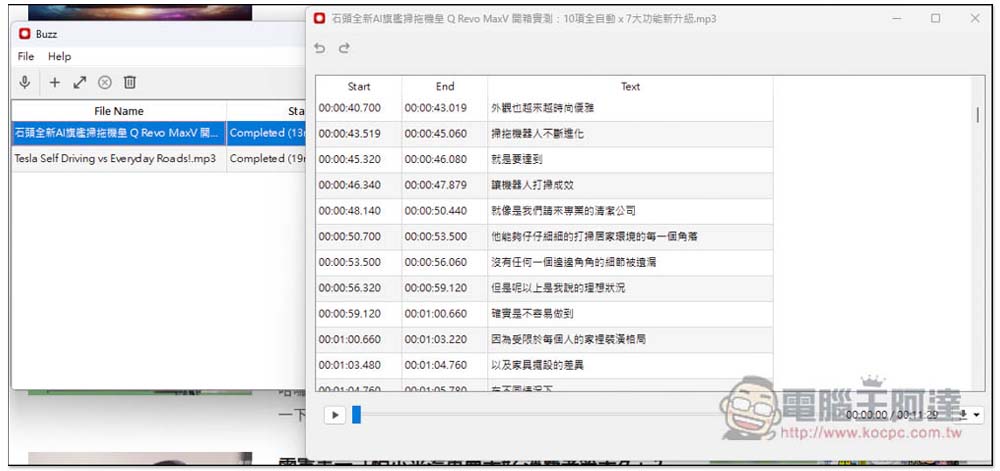
Buzz is a free, open-source speech-to-text tool based on OpenAI Whisper that supports both file import and real-time transcription.
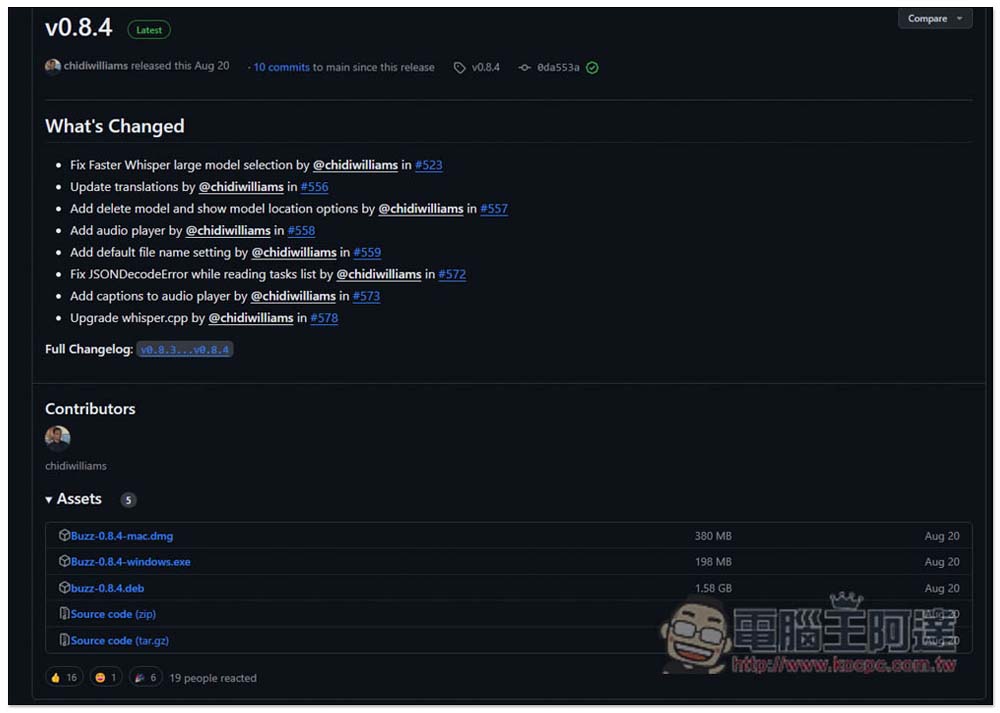
After clicking the link above, you’ll be taken to Buzz’s download page. For Mac users, there’s an App Store version available (though it requires payment). The interface is reportedly better. You can also download the open-source version. Using Windows as an example, the current latest version is v0.8.4:
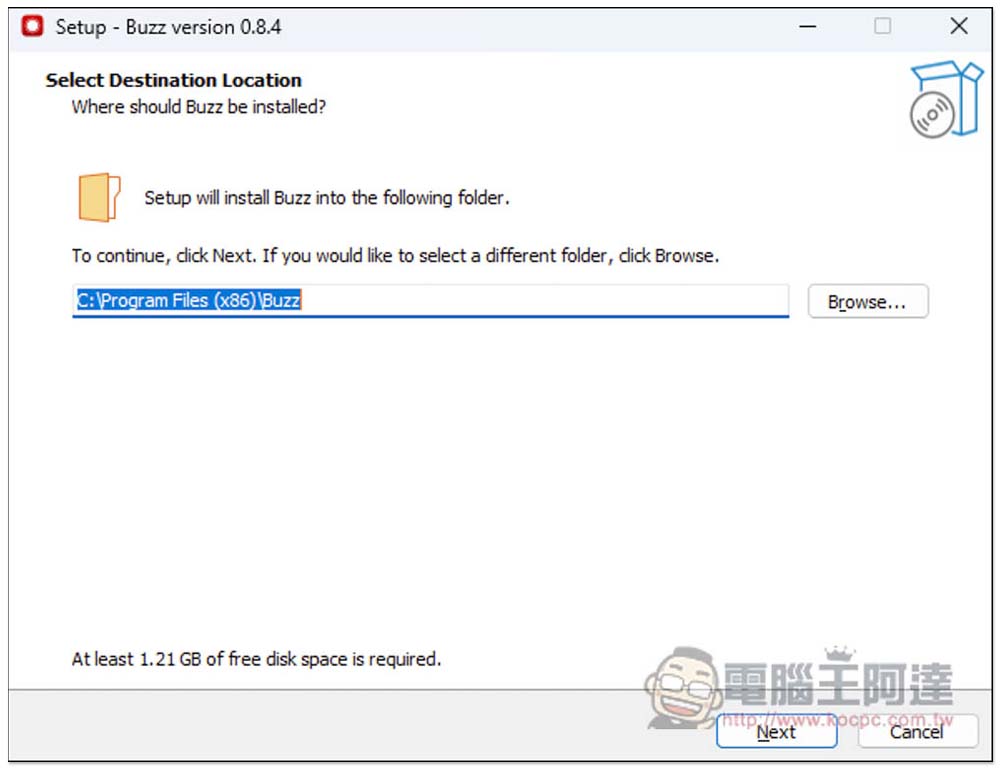
If you don’t have any special requirements, just keep clicking Next during the installation:
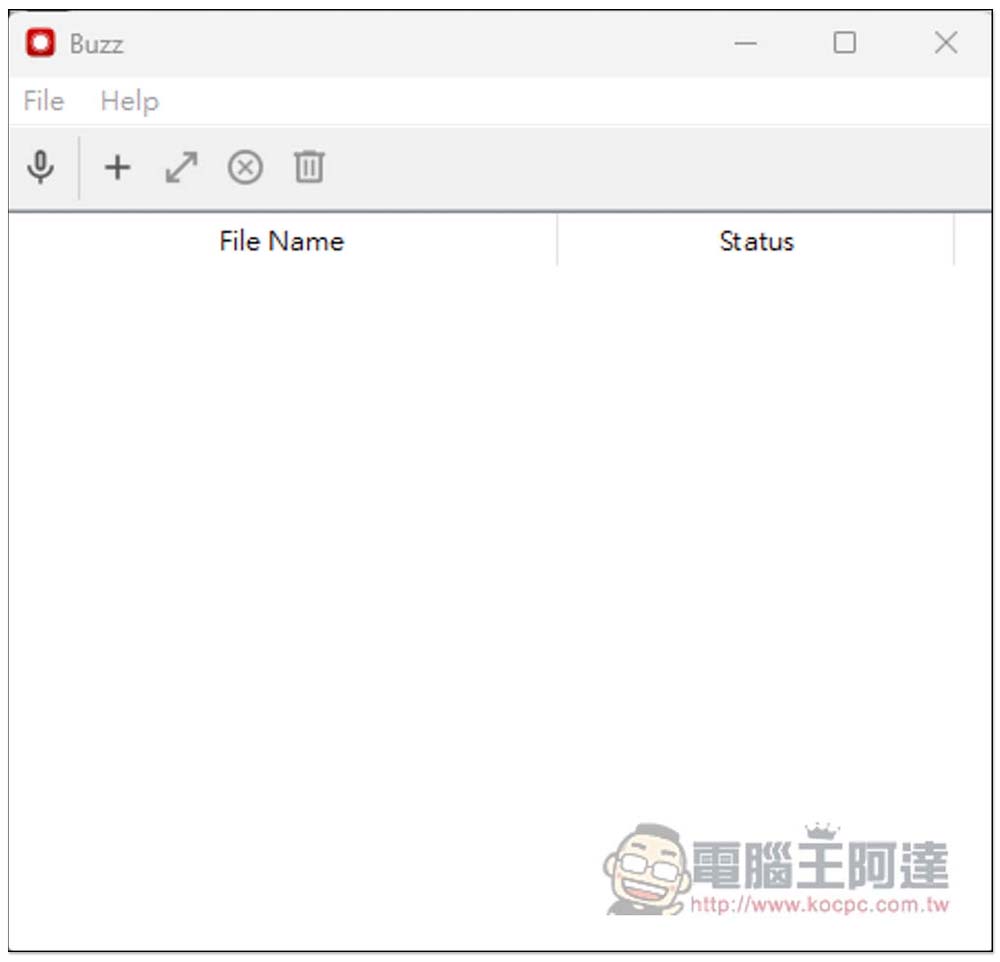
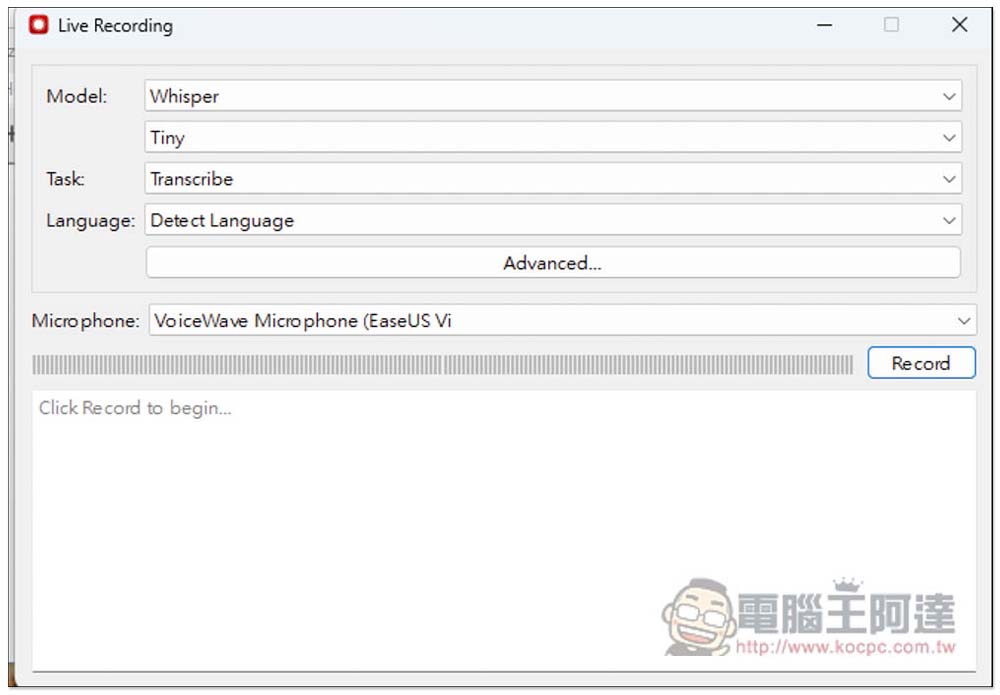
After installing and opening it, the interface is very simple to use. If you want to record with the microphone in real-time, click on the microphone icon in the upper left corner:
Set up your model and microphone input source. For the Language section, you can just use the default Detect Language auto-detection — the accuracy is pretty high. The models supported are Whisper, Faster Whisper, and Hugging Face. Whisper offers five sizes: Tiny, Base, Small, Medium, and Large.
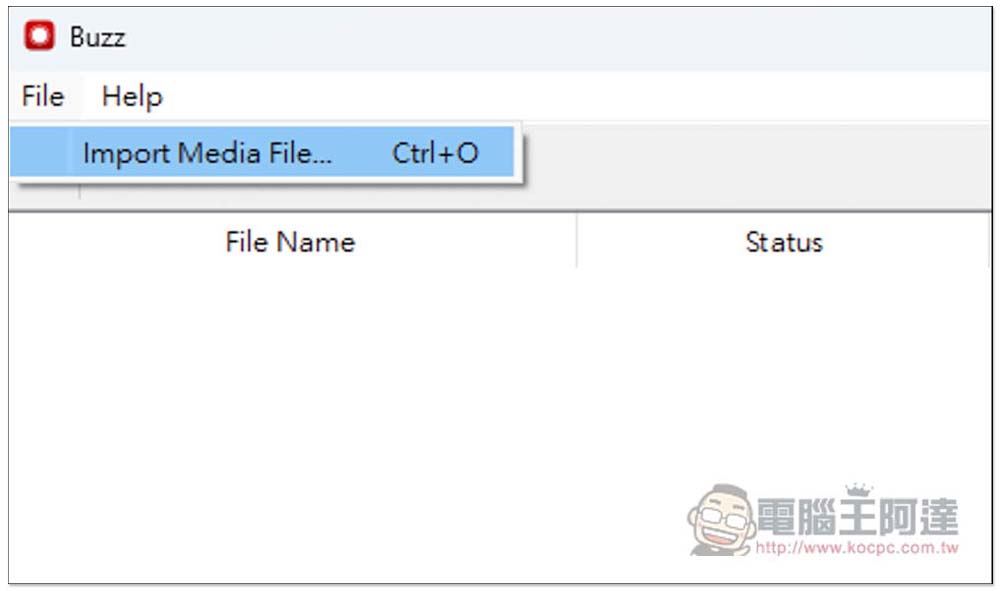
There are two ways to import video or audio files: one is to click the + icon, and the other is to click Import Media File in the File menu:
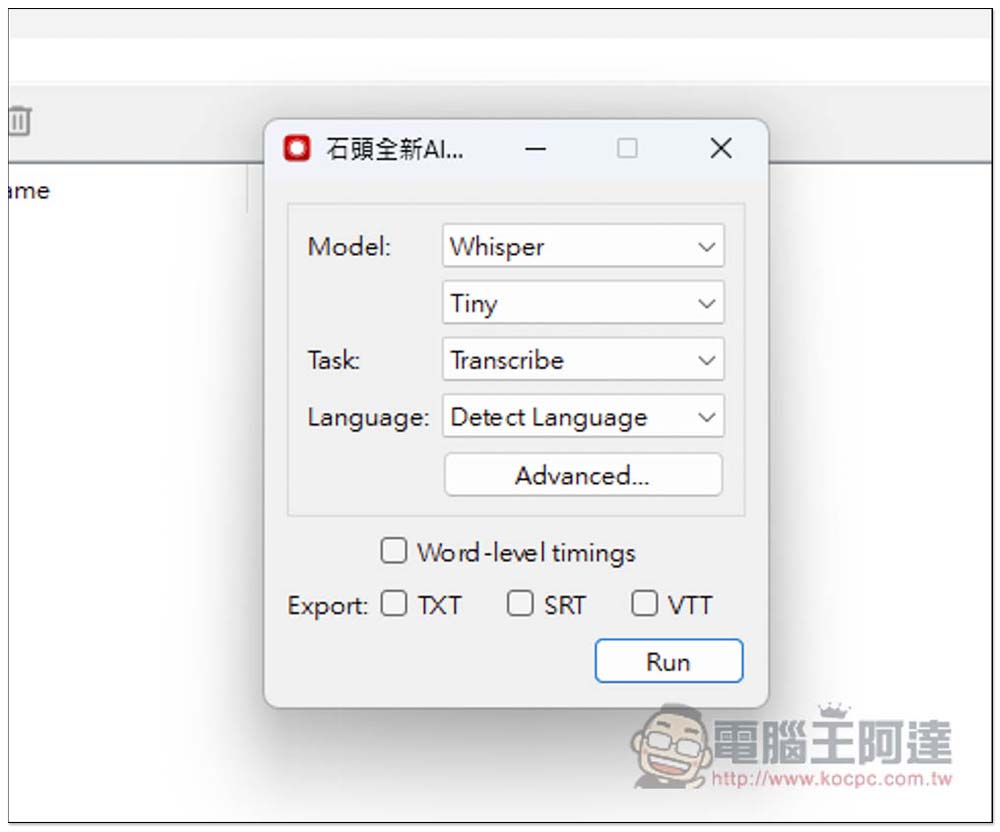
Set your desired model, language, etc. as usual. The output supports TXT, SRT, or VTT formats, and will be automatically saved in the folder with the same file name. Press RUN if everything looks good:
Processing is about to start. Wait until In Progress reaches 100% to complete. The transcription time will vary depending on the length of your video or audio.
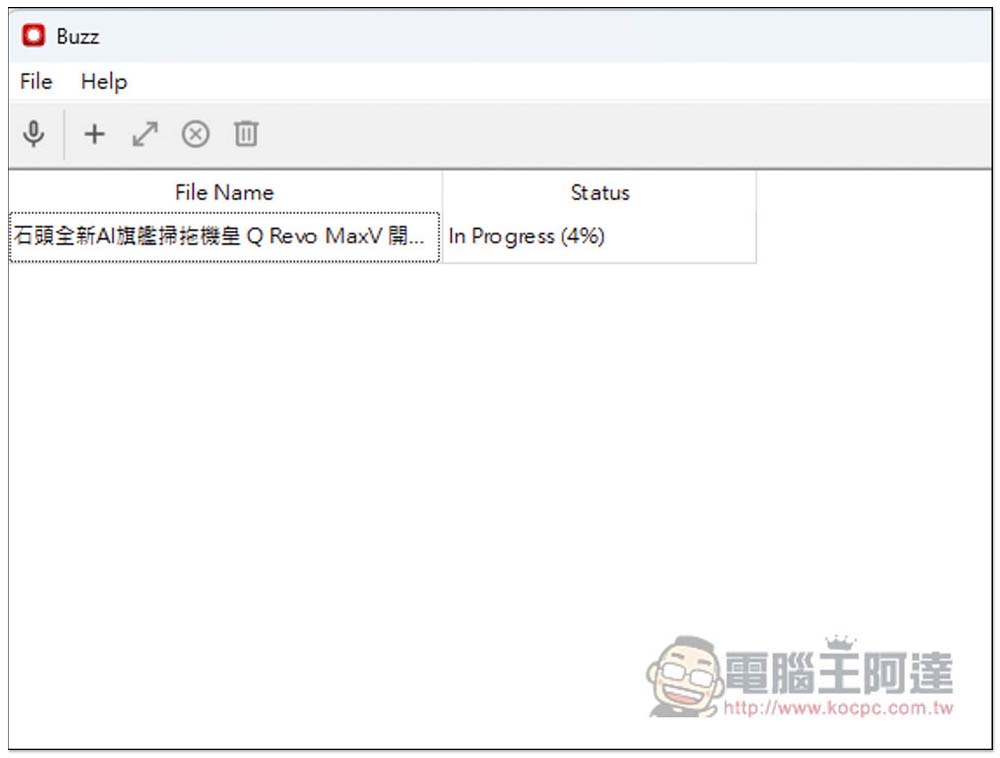
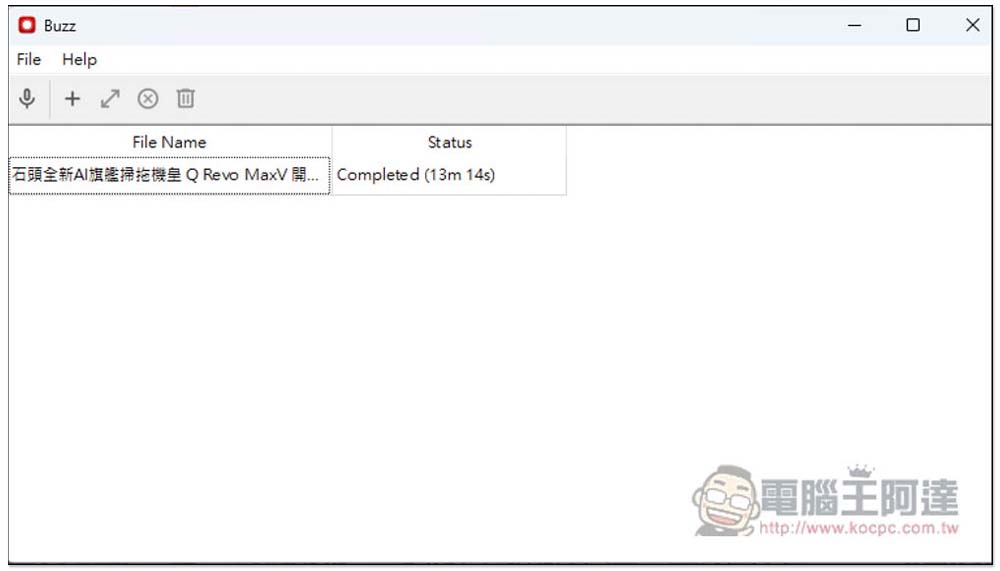
My 11-minute file took 13 minutes and 14 seconds, which is noticeably slower compared to Whisper installed on my computer, even though both use CPU transcription. However, it consumes fewer resources, which might be why it’s slower:
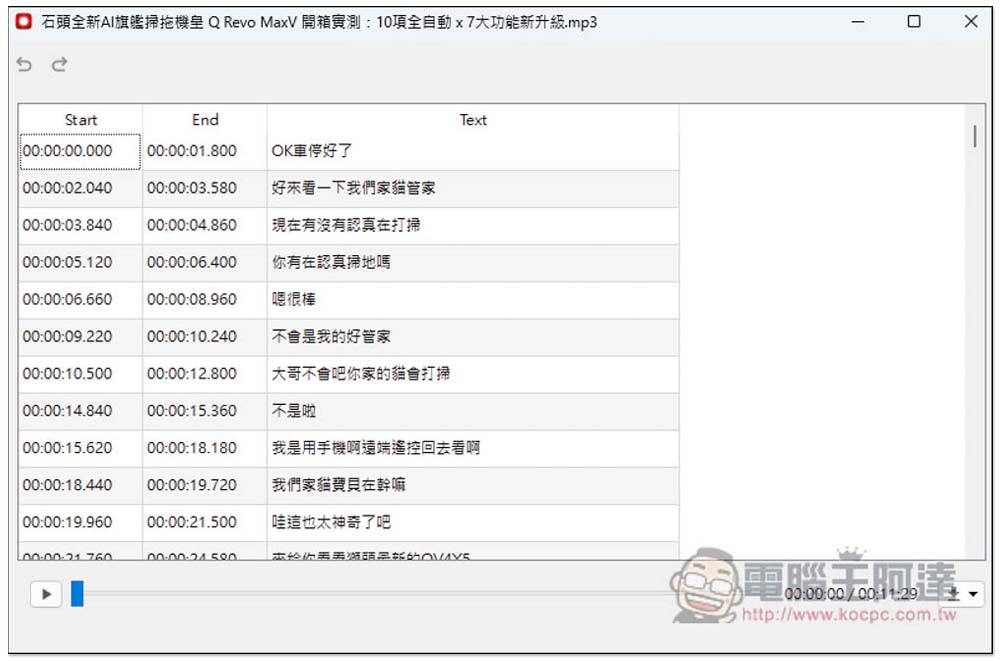
Double-click to view the transcribed text content, though editing is not supported. Additionally, if you previously only had SRT set up but suddenly want TXT, you can also save it as other text formats here—click the inverted triangle icon in the lower right corner.
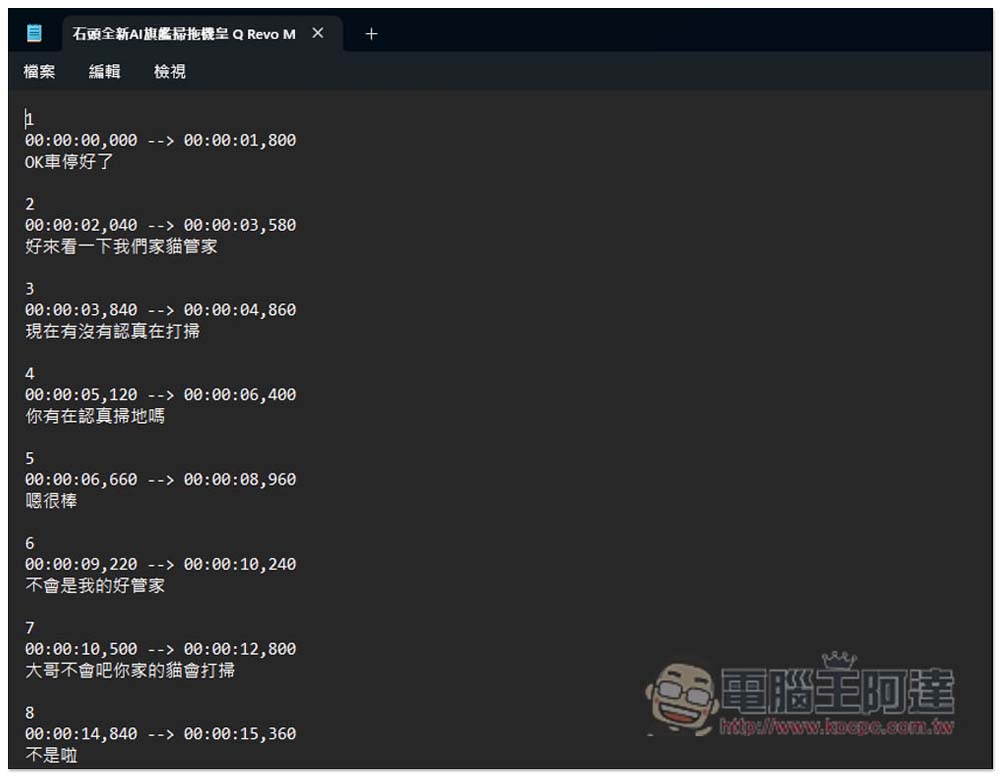
The subtitle file can be used directly without any modifications:
For the Whisper model, if you’re transcribing Chinese, it’s recommended to use Large; for English, you can choose a smaller size.
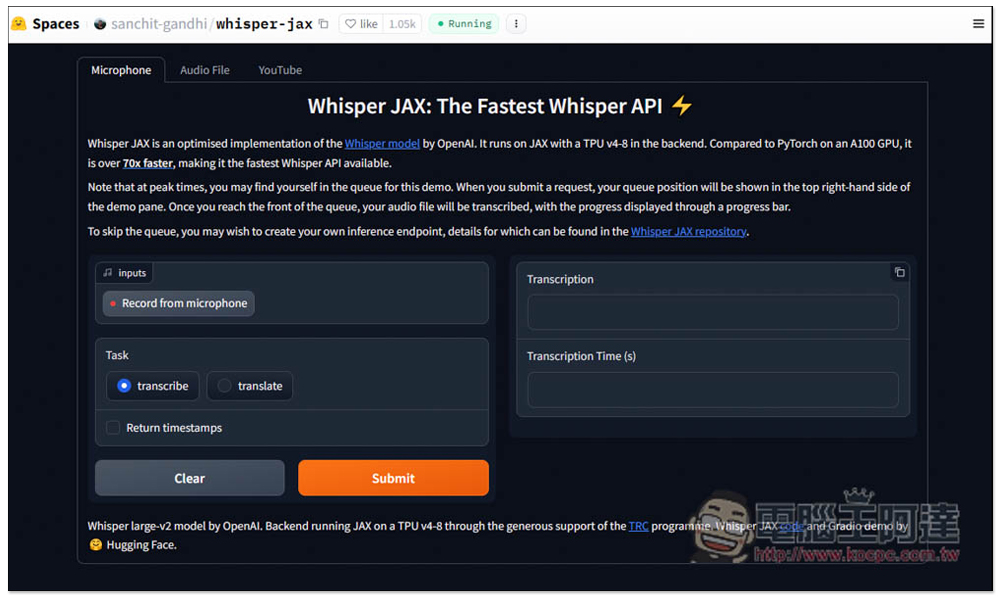
We also introduced another one earlier Whisper JAX For the online version, if you just want to convert audio or YouTube videos to text files, you can also use this online tool:
Source: KOCPC Chinese