


Many years ago, we introduced a trickTutorial on making a mobile phone barcode carrier into a ticket card and storing it in the wallet app, but for people who live without a personal computer, what should they do if they want to do it directly on their iPhone? This time I want to share with you another simpler new method, so that you can more easily deposit the mobile phone barcode carrier directly into the wallet app and use it. After scanning the barcode, you can directly change the card and use Apple Pay to check out!
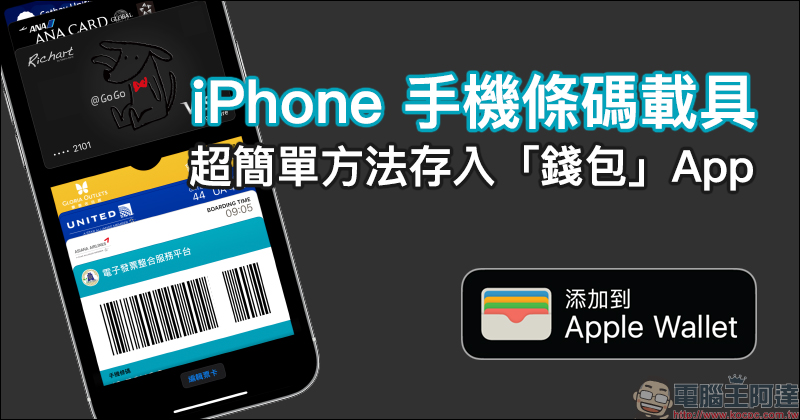
The iPhone barcode carrier is a super simple way to store it in the “Wallet” App, and you can check out directly with Apple Pay after scanning (tutorial)
We have previously shared a tutorial on how to set up the Apple Watch invoice carrier barcode, so that you can directly use Apple Watch to scan the invoice carrier during checkout (Click me to review). However, for users who only have an iPhone, if they want to pay with Apple Pay directly on their iPhone and scan the vehicle barcode, most people may choose other unified invoice-related apps such as the “Water Drop Invoice” App introduced in the past and use it with desktop gadgets starting from iOS 14.
If you don’t want to save the invoice carrier on the iOS home screen at any time, this time I will share a simpler method, so that you can directly save the mobile phone barcode carrier to the “Wallet” App, and scan it at Apple Pay checkout more conveniently!
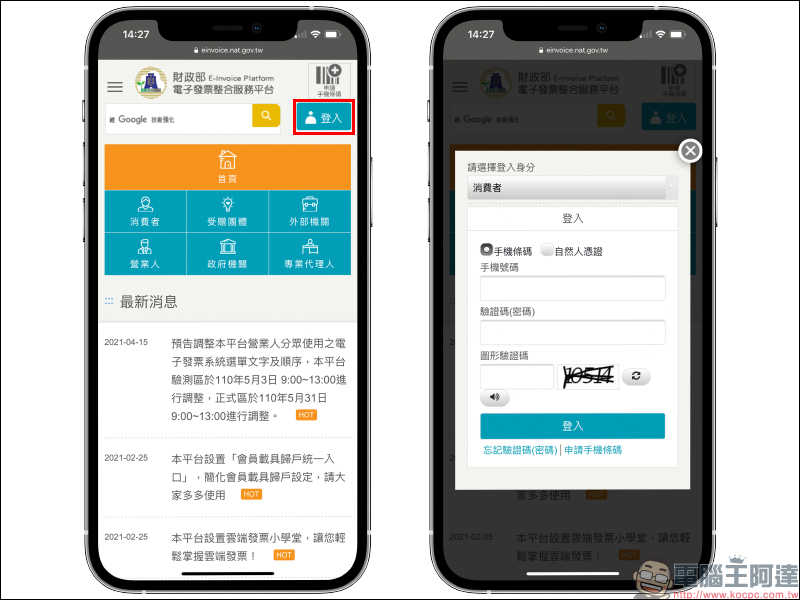
First, use the Safari browser to open the Ministry of Finance’s “Electronic invoice integration service platform (click here to go)”, then click the “Login” button in the upper right corner of the screen and log in with your mobile phone number. (Tips: Since it is currently not possible to add tickets to the wallet using the Chrome browser, it is recommended to use the Safari browser.)
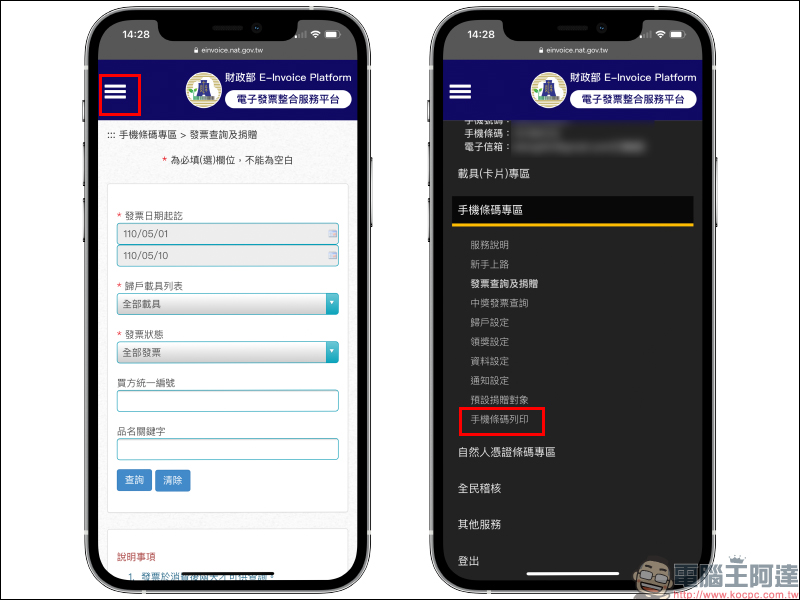
After logging in, click the upper right corner of the screen to expand the function list, and then select “Mobile Barcode Printing” under the mobile barcode area category:
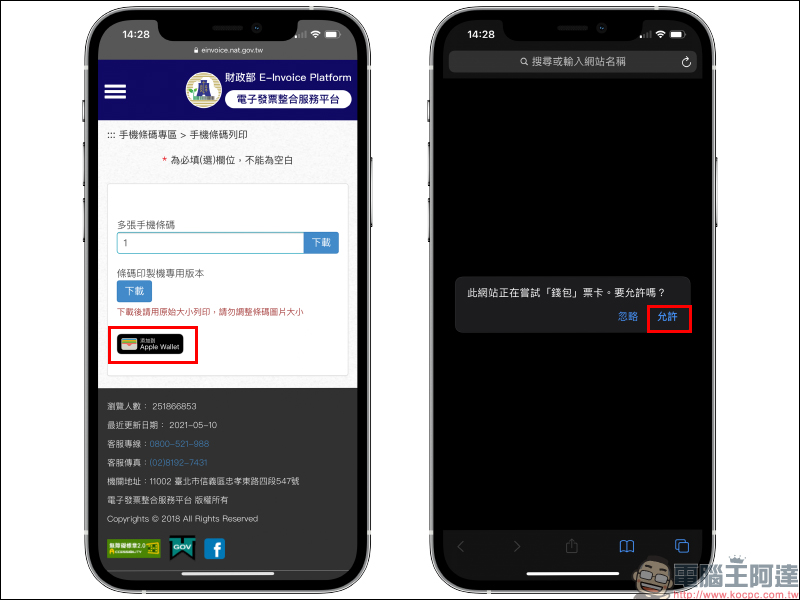
Then click the “Add to Apple Wallet” button on the screen, and the screen will jump to the inquiry window to add the ticket to the “Wallet”. Select “Allow”:
Then just click the “Add” button to save the mobile barcode carrier directly to the ticket card of the wallet app!
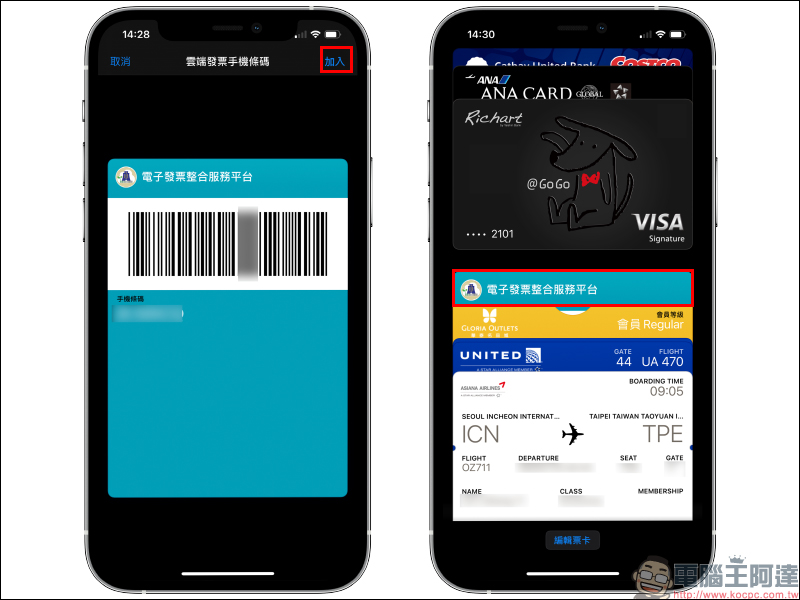
To use it, just click on the mobile barcode carrier to expand the ticket card display barcode carrier. Users can also adjust the order of the ticket cards according to their own usage habits. If they change to the first ticket card, they can actually directly display the barcode by opening the wallet app!
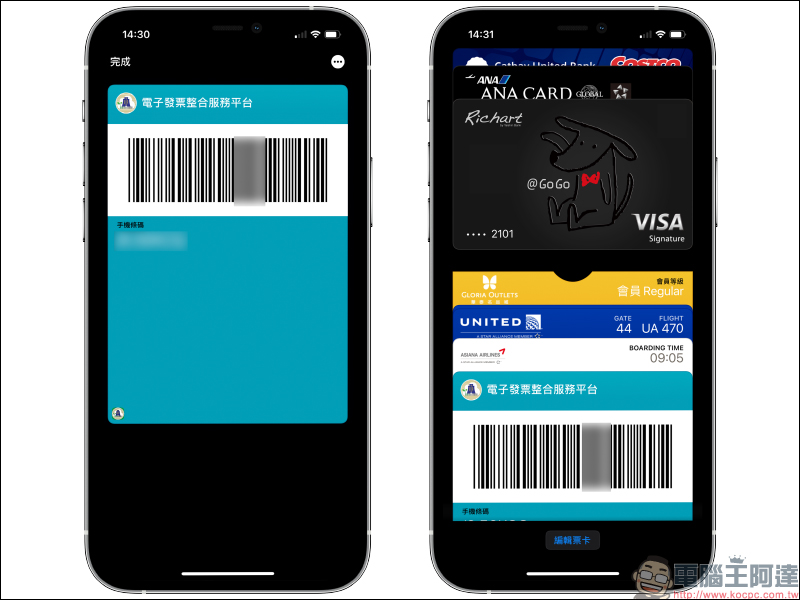
Using the above method is most suitable for users who are accustomed to using iPhone’s Apple Pay for mobile payments. This way, there is no need to find the invoice carrier stored in the iOS desktop gadget when checking out. Scan the barcode and pay all in the Wallet App.
Electronic invoice integration service platform (click here to go)
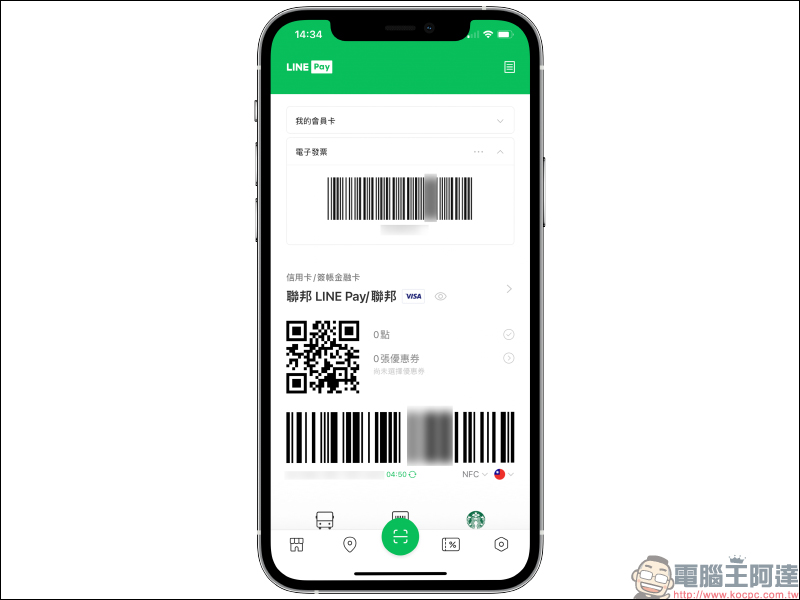
In addition, for users who are accustomed to using LINE Pay to pay, in fact, the checkout page of LINE Pay can also directly display membership cards, electronic invoices and payment barcodes (Click me to review):
Further reading:
Tips for using AirPods: How to improve the sound quality of AirPods and make the sound clearer in AirPods Pro | Max Transparency Mode?

Source: KOCPC Chinese