


A lot of efforts have been made in terms of security in Windows 10. The built-in security protection Windows Defender has high integrity and is also the first line of defense for many people to eliminate and prevent computer intrusions. Many people install specific software or store specific files on their computers due to work or study needs, but it is inevitable that they will be misjudged by Windows Defender. Today I will teach you how to exclude specific folders and applications from security scans.
Are specific applications or folders often misidentified by Windows Defender? Teach you how to set exclusions
Windows Defender, Windows 10’s built-in antivirus tool, can be used to eliminate threats, detect behaviors, and use machine learning to automatically detect and block suspicious files, folders, and processes. But sometimes the specific software or folder you use is clearly clean, but it is still identified as a threat by Windows Defender, causing it to be quarantined and unable to run. What should you do now? In fact, false alarms are very common in the tools used by various network security researchers, so there is no need to be too nervous, come on! Let’s learn how to set exclusions together! (But please make sure that the objects you want to exclude are really safe and reliable!)
- Select “Update & Security” in Settings

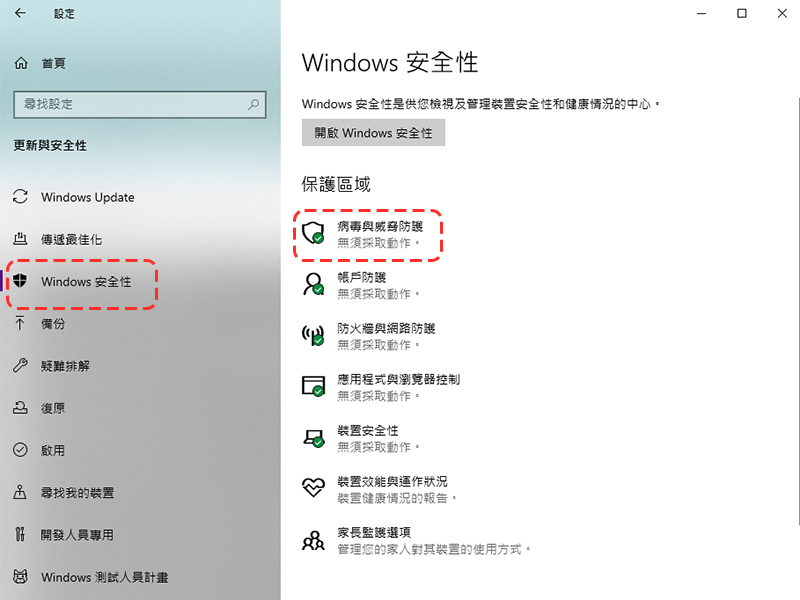
- Select the “Windows Security” item in the sidebar, then select “Virus & Threat Protection.”
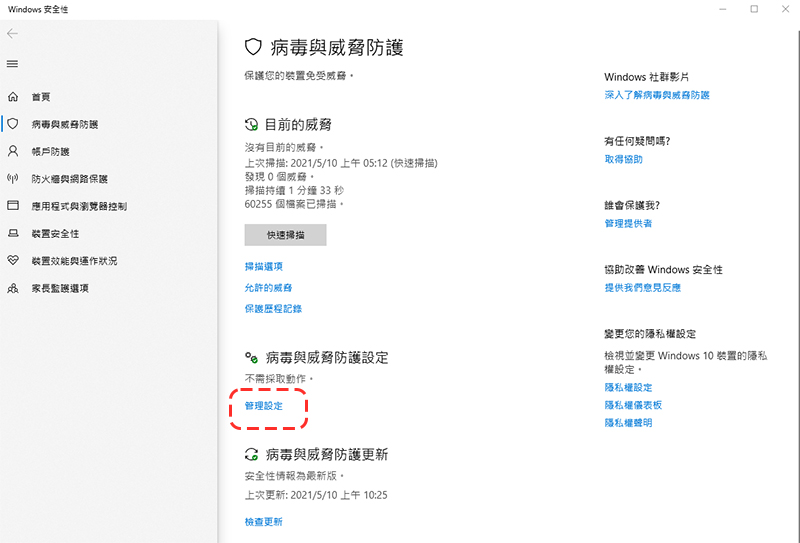
- Click “Manage settings” under the “Virus and threat protection settings” item.
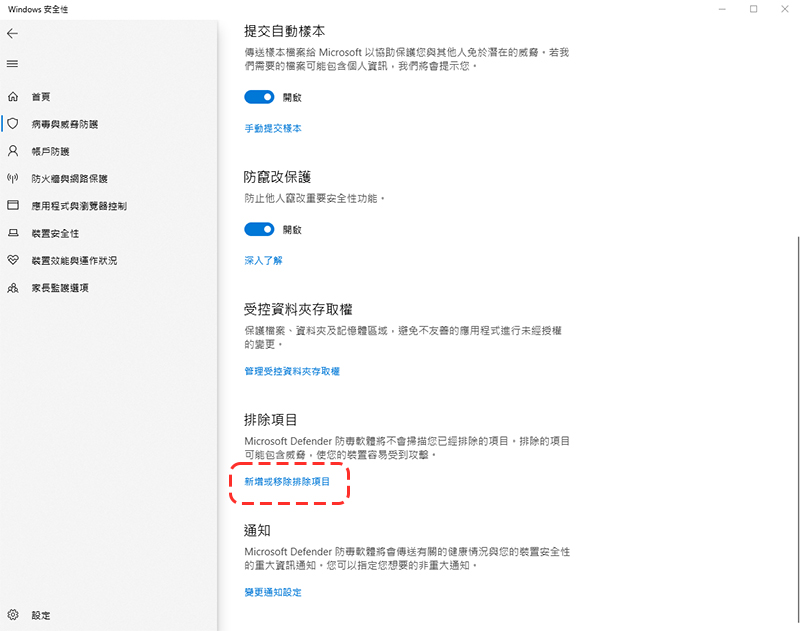
- Scroll down to find “Exclusions” and click “Add or Remove Exclusions” below.
- Click “Add Exclusion Range” and select the type of items you want to exclude.
When excluding files or folders, you will be asked to select the files/folders you want to exclude.
If you want to exclude file types, you need to specify the file type extension to exclude, for example “.txt” will exclude all files of type .txt scanned by Microsoft Defender.
If excluding a handler, the full path to the executable should be entered, for example “C:\exclude\test.exe”.
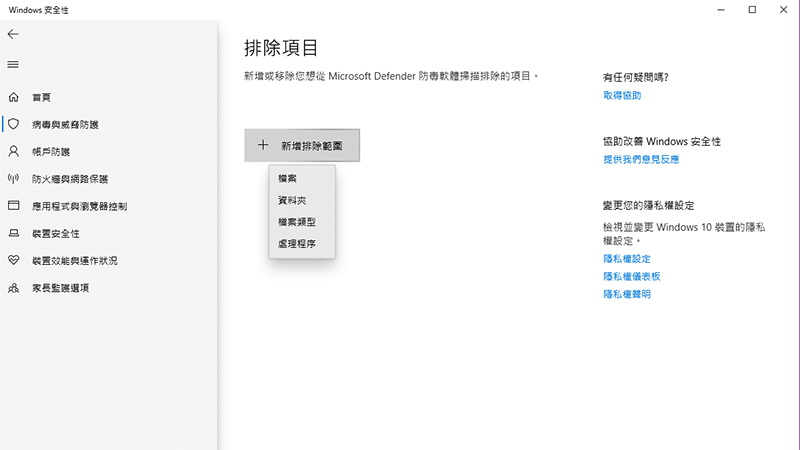
- After completing all the above steps, you can close the window! Items added to the list will be excluded from Windows Defender scanning. Also note that if you select a folder, all subfolders within the folder will also be excluded.
Here we must remind you again and again, please make sure that the files, documents, and programs are completely safe and trustworthy to avoid being infringed by malicious software or unscrupulous people due to carelessness!
Source: KOCPC Chinese