


Sometimes when you leave your seat and want to enter the lock screen of Windows 10, you usually use the [Win+L] or [Ctrl+Alt+Del] shortcut keys to manually lock the screen, or use “Screen saver settings” to automatically enter the screen lock screen. But for people who are accustomed to using browsers, of course they want the mouse to control all operations without touching the keyboard. A kicked passerby will tell you how to use the mouse to control all operations in Windows 10. lock screen Pin the selection to the start screen and taskbar.

用 Telegram 訂閱【挨踢路人甲】最新文章:https://t.me/itwshare
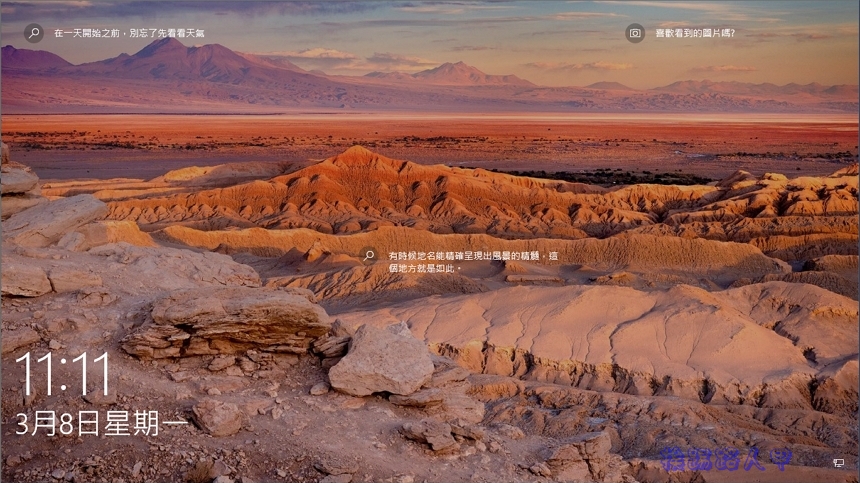
The screen lock of Windows 10 is quite creative. In addition to being able to replace beautiful background patterns, it also has link prompts for date, weather, pictures and other places. In fact, these are not the key points. In fact, not everyone likes the lock screen. Some people even want to “Turn off or skip the Windows 10 lock screen”, but on computers in the office, the screen lock screen is very practical. For example, the author sometimes leaves his seat and does not want others to watch, so he keeps using it.Dynamic Locking for Windows 10, but often the mobile phone is placed next to the computer and left temporarily, so the effect is not achieved. Finally, I return to using keyboard shortcuts. Now it has evolved. The lock screen function is pinned to the start screen and taskbar. Keyboard shortcuts or mouse can easily activate the screen lock screen.
To lock the screen pin on the start screen and taskbar, first right-click an empty space on the desktop and select [Add], and then click [Shortcut].

Fill in the text “Rundll32.exe user32.dll, LockWorkStation” in the input item position and click [Next] to continue.

When the shortcut name appears, the author fills in “Lock” (you can define the name yourself) and press [Finish].

When you see a Lock shortcut icon appearing on the desktop, click Execute to enter the lock screen immediately.

Once the lock screen appears, you don’t have to worry about leaving your seat to prevent someone from breaking in.
The author saw that the icon was a bit monotonous, so I wanted to change the shortcut icon, so I right-clicked the shortcut icon and selected [Content].

Switch to the shortcut paging screen and click [Change Icon].

Click Browse to load the icon. For the icon style, you can use Google to find image files similar to lock.ico.

The author found an icon of a lock, downloaded it and loaded it!

Finally, select [Apply] and press [OK] to change the icon.

To pin this shortcut icon to the start screen or taskbar, just right-click the icon and the menu you will see includes “Pin to Start Screen” and “Pin to Taskbar”. You can process them separately.

Once completed, there is no need to use the keyboard. You can easily click on the start screen or taskbar to enter the lock screen.

Further reading:
Source: KOCPC Chinese