


We have introduced previouslyImplement similar Airdrop method, iPhone and Windows can transfer data to each other through WiFi wireless networkmethod. At that time, many readers hoped that there would also be an Android version of the tutorial, and this article is it! And it’s not just Android and Windows, but also Android and Mac.
Photo by Jonathan Kemper on Unsplash
Unlike the iPhone, Android needs to install a free app of Cx File Manager to achieve this setting. Please firstClick me to Google Play Download and install. Remember that Android, Windows, and Mac must be connected to the same wireless network.
Android and Windows transfer data directly to each other through WiFi wireless network
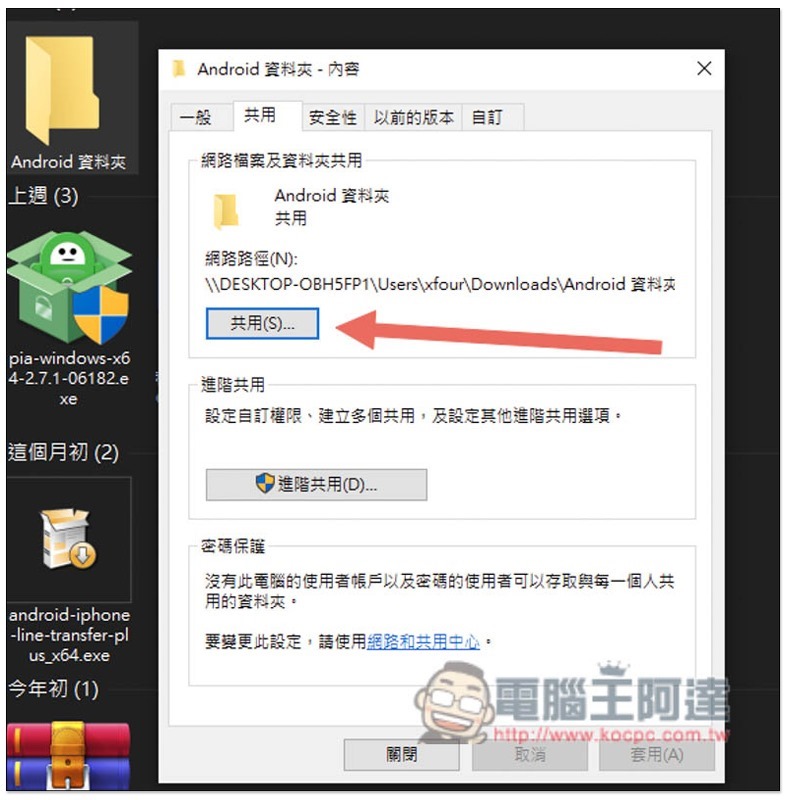
First of all, please create a folder in Windows where you want to store the file. It depends on the path and name you want to put it in. Then open the content of the right-click menu and click “Share”:
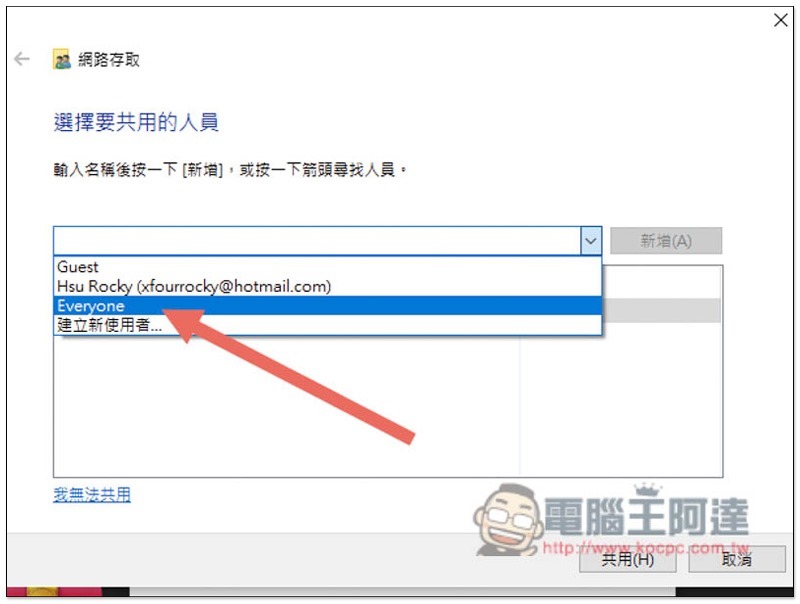
Open the middle menu and select Everyone:
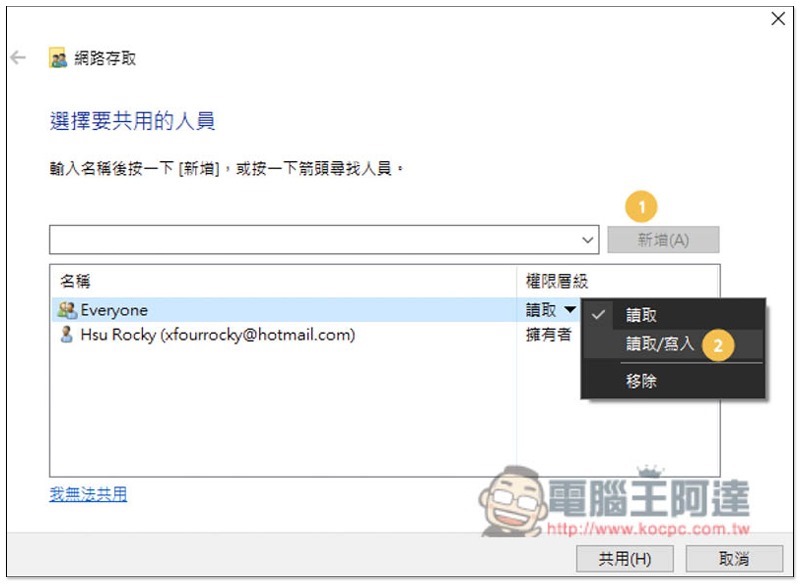
After clicking Add, change the permission level to “Read/Write”, and then click below to share:
Then when Android connects to the Windows folder, if you don’t want to enter the account and password and can open it directly, you need to turn off the password protection.
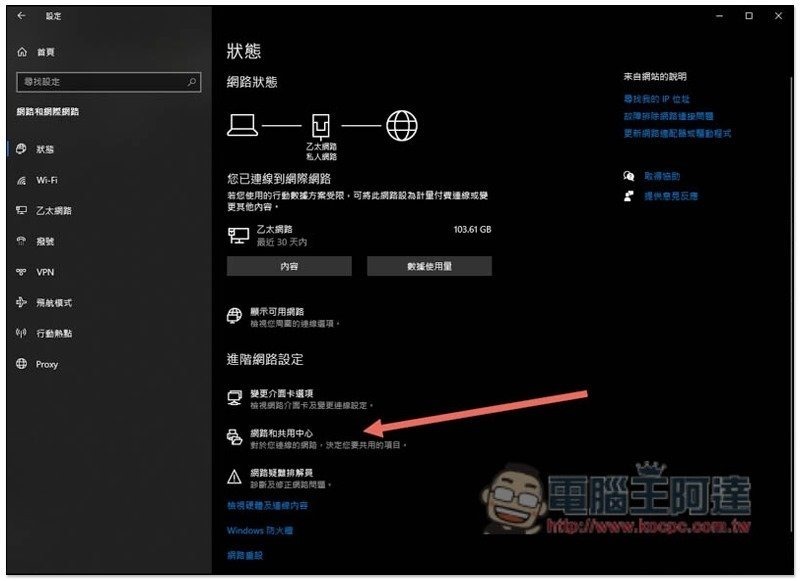
Open Network and Internet in Settings and click “Network and Sharing Center”:
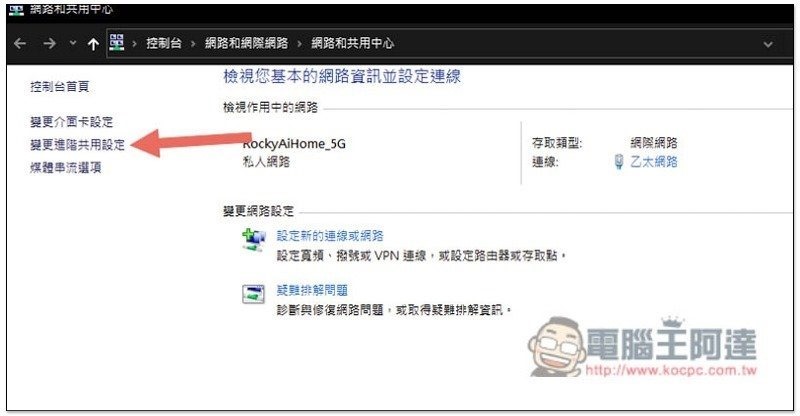
Click “Change advanced sharing settings” on the left:
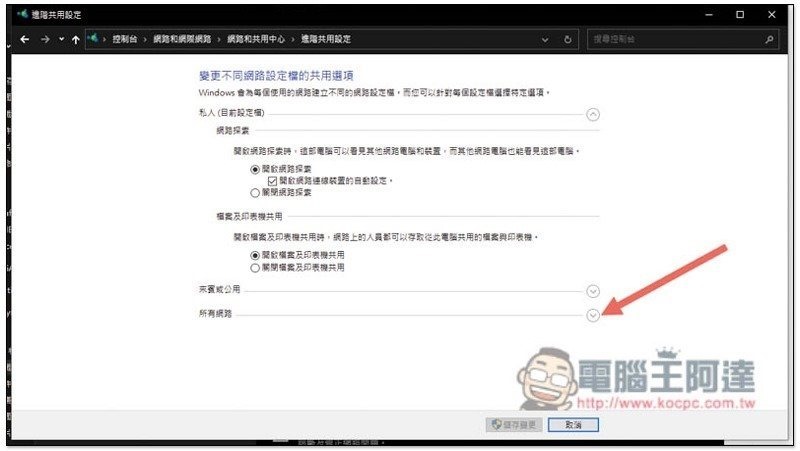
Expand all networks below:
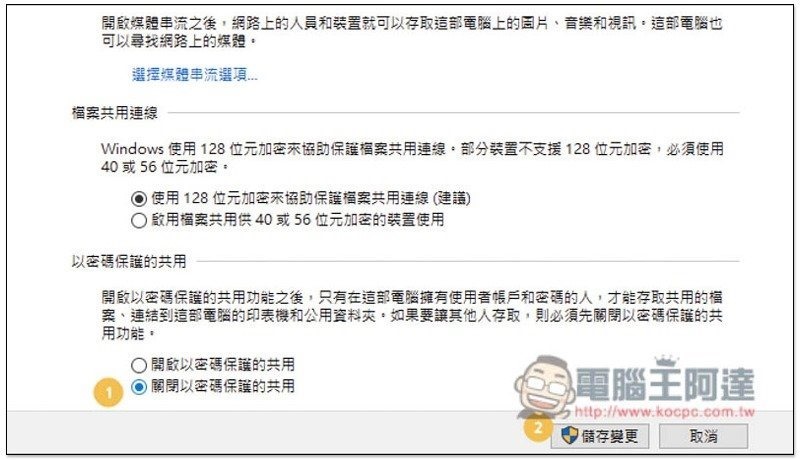
Change it to “Turn off password-protected sharing” and click Save Changes to turn it off:
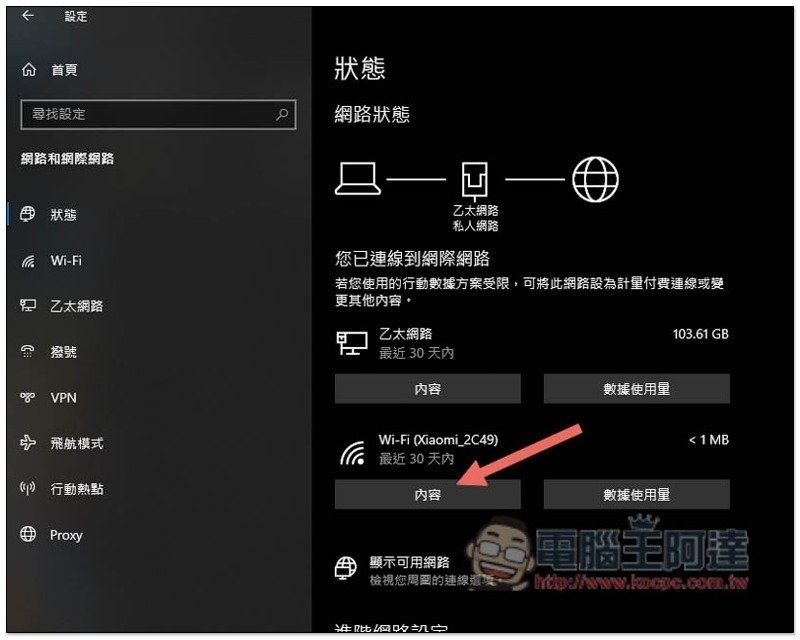
The next step is to obtain the IP address of your computer. After returning to the Network and Internet homepage, click the “Content” option under the wireless network you are currently using:
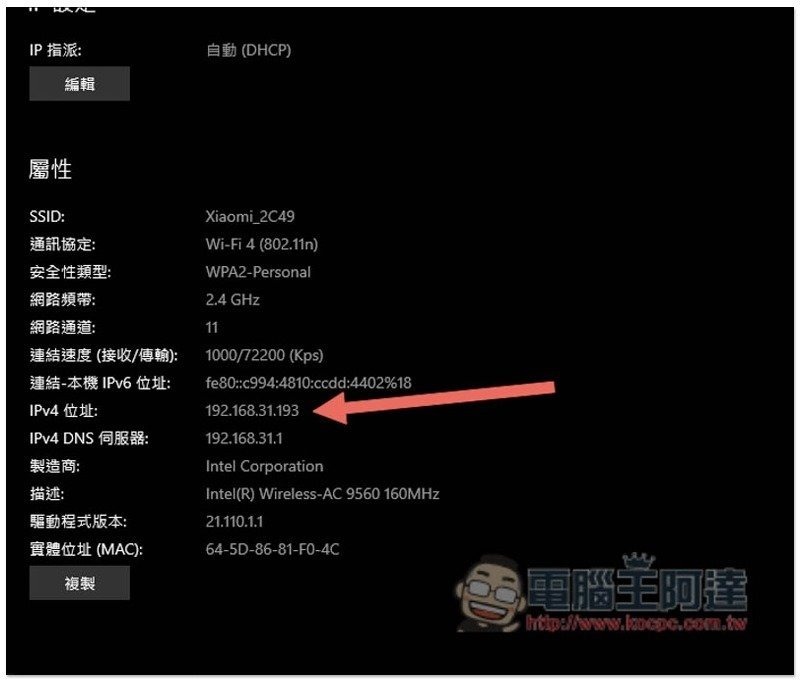
Scroll down and write down the IPv4 address:
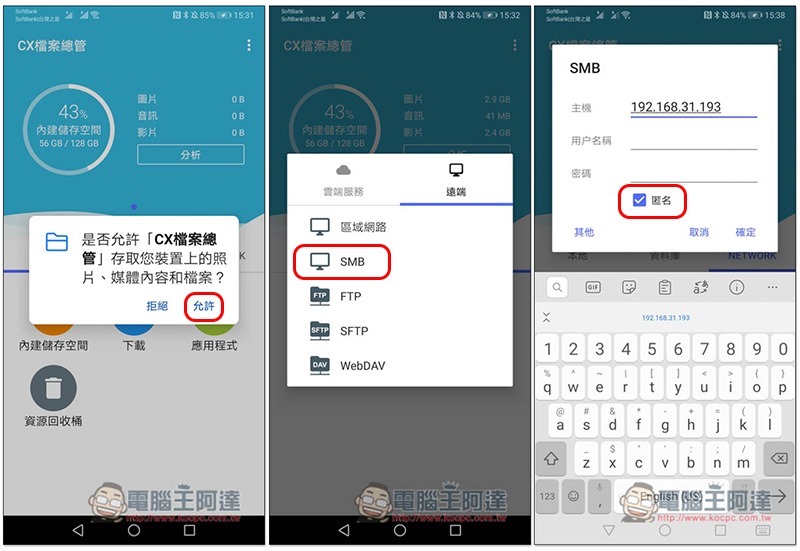
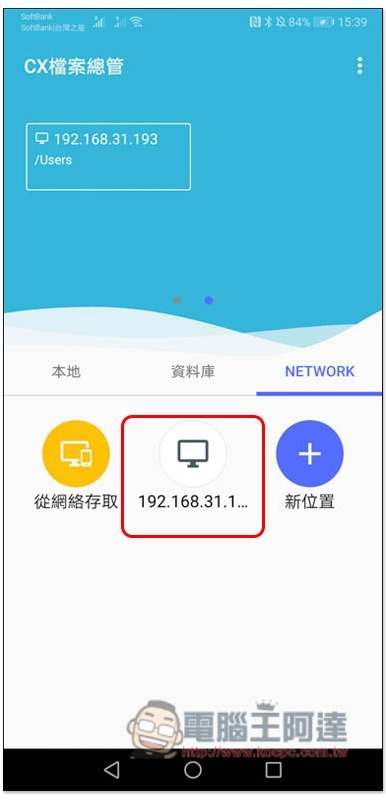
Open the CX file manager of your Android phone. The permission settings will pop up when you use it for the first time. Remember to select Allow, then open the NETWORK menu, select “SMB” in the remote list, enter your Windows IPv4 address in the host field, check Anonymous below and click OK:
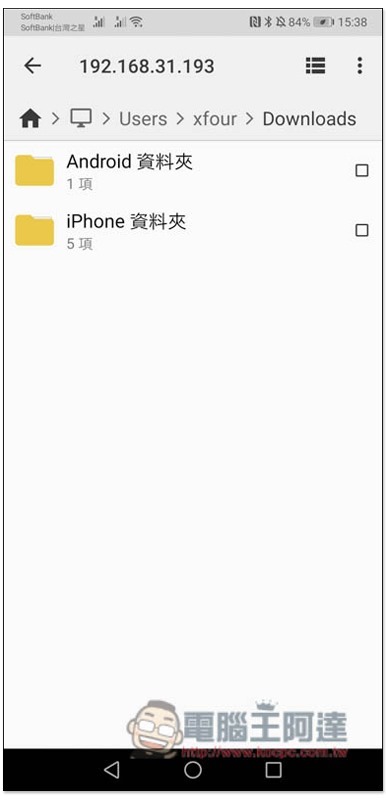
In this way, you can find the shared folder set by Windows. I named it Android folder:
After returning to the homepage, NETWORK will also remember this IP address to facilitate your quick use in the future:
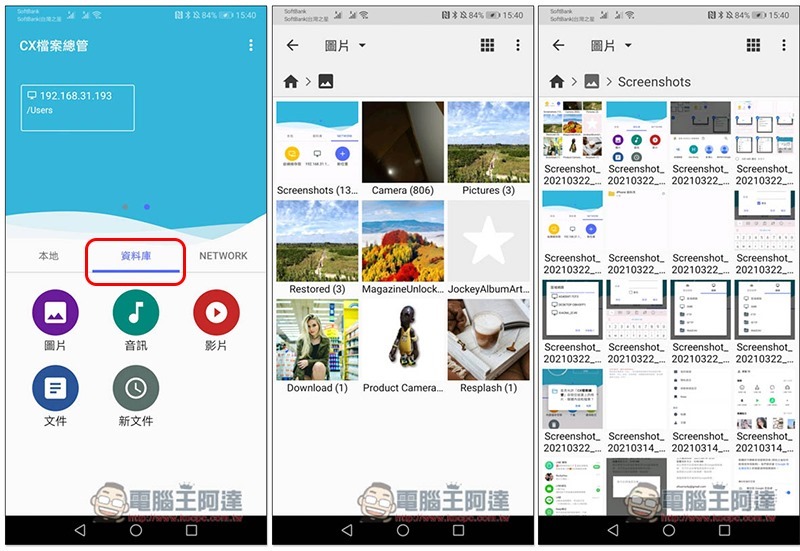
The way for Android to transfer data to Windows is directly through this CX File Manager App. After clicking the database menu in the middle, the file categories in your Android phone will be listed below, such as: pictures, audio, videos, etc. Taking pictures as an example, the album name is displayed after entering:
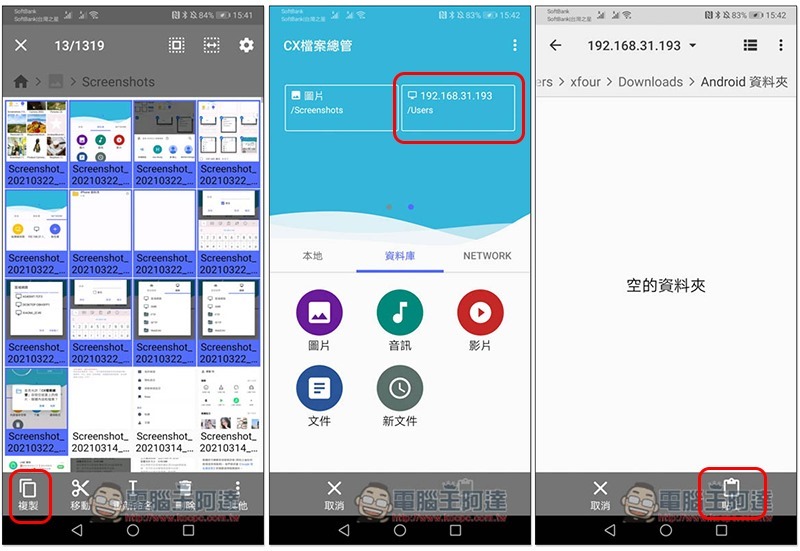
Long press to select multiple files at once. After selecting, press the lower left corner to copy, and then return to the CX File Manager homepage. The locations you have visited in the past will be recorded at the top, so I click here for quick access, then go to the Android folder, and press the lower right corner to paste:
The file will start to be copied and transferred:
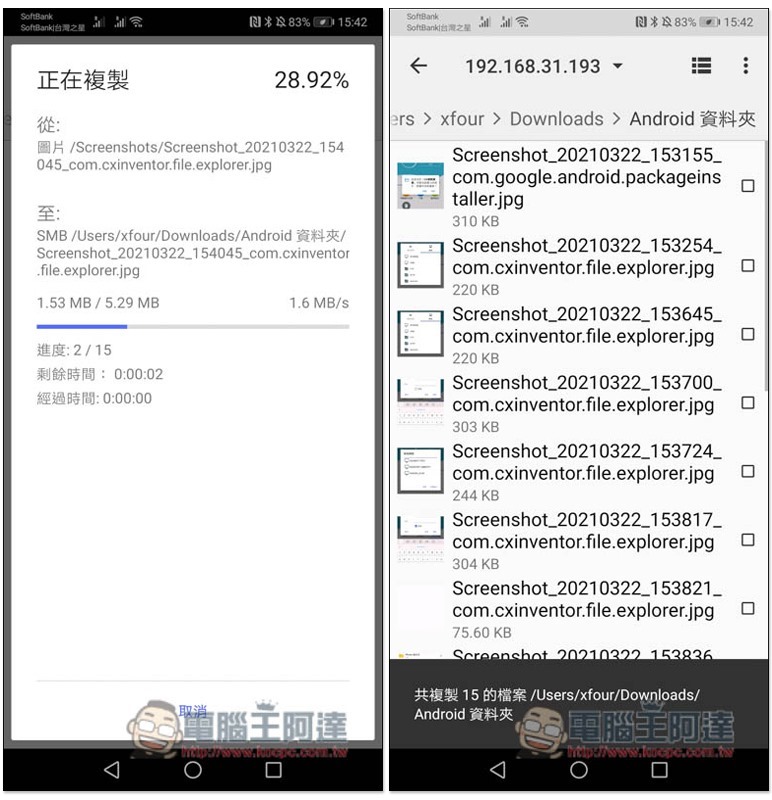
After completion, open the shared folder on your Windows computer and you will see the file you just transferred:
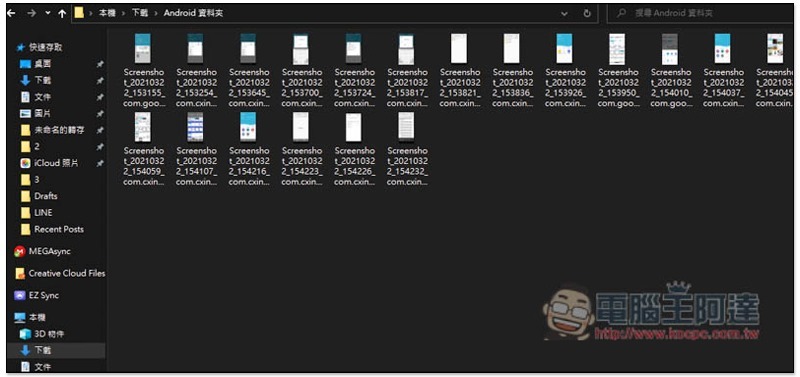
Android and Mac transfer data directly to each other through WiFi wireless network
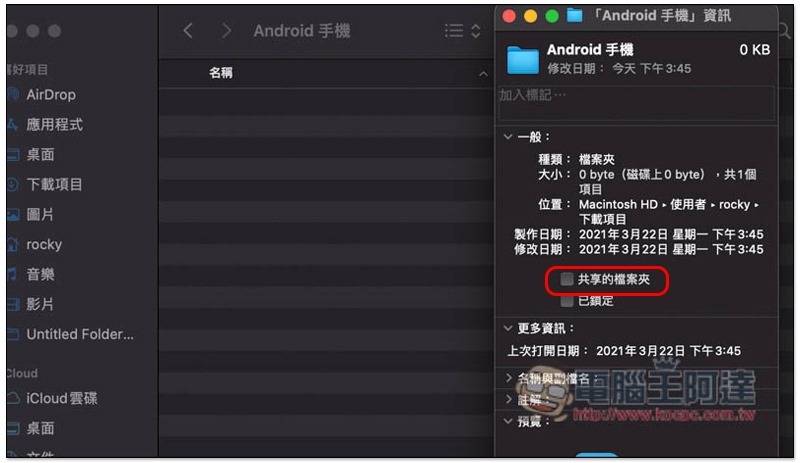
The setting operations on Mac are also similar. After creating the shared folder, open the right-click menu and click Get Data to find the “Shared Folder” option:
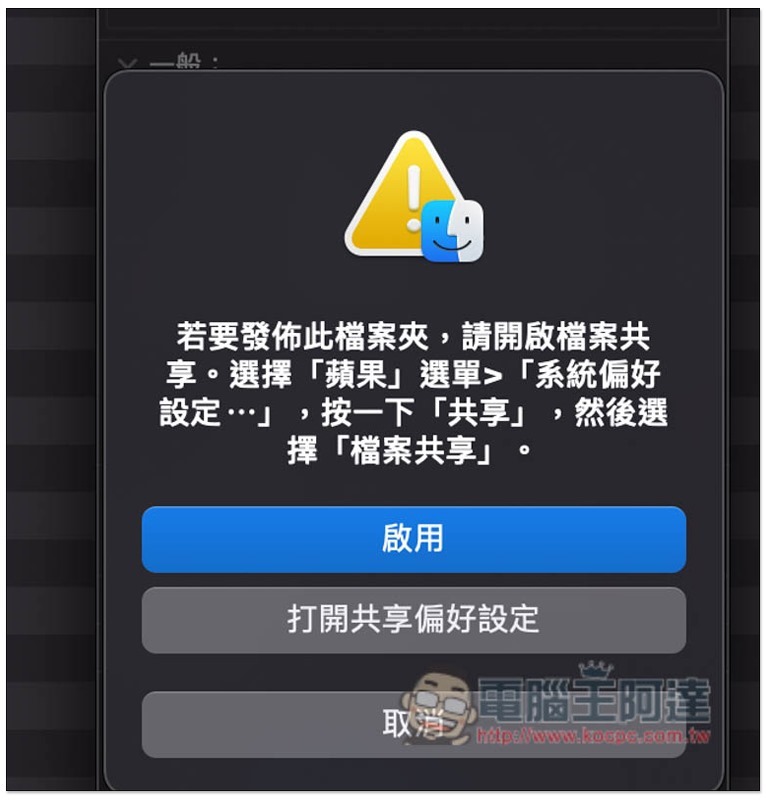
Click “Enable”:
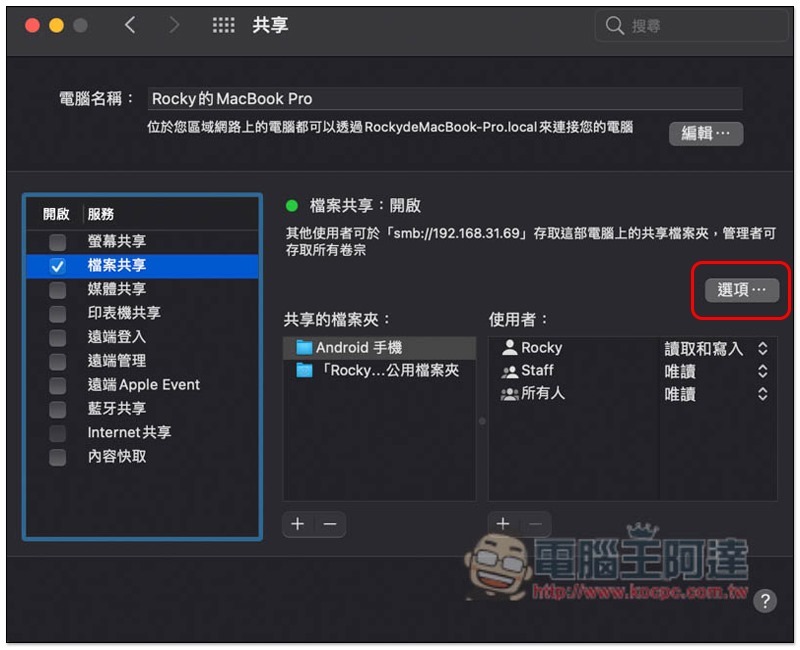
Then please open “Sharing” in Mac settings and click the option in the upper right corner. In addition, please write down the IP address in “xxxxx” that other users can use above (smb:// is not used):
The screen will display your Mac account name, click the box on the left:
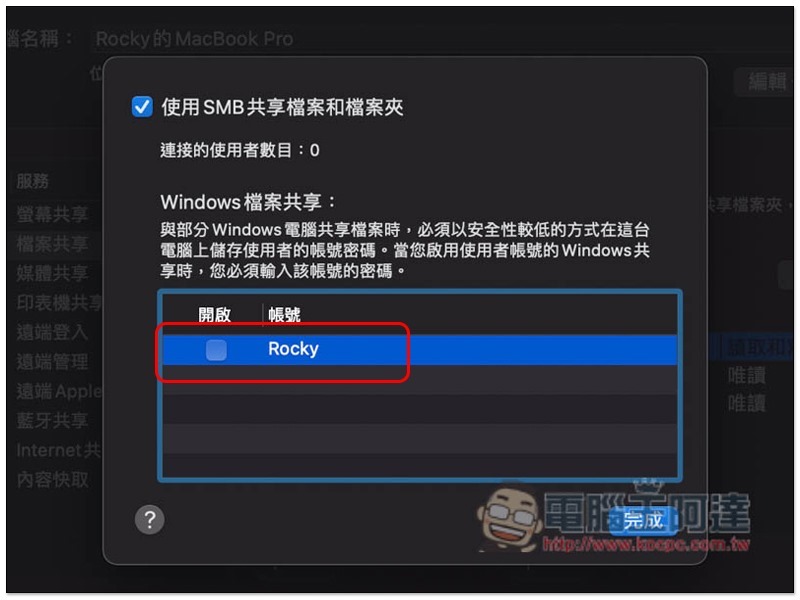
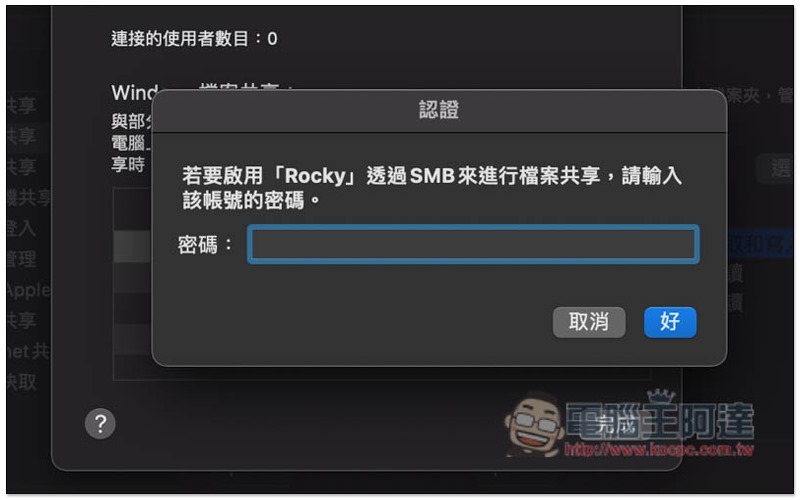
You will be asked to enter your login password:
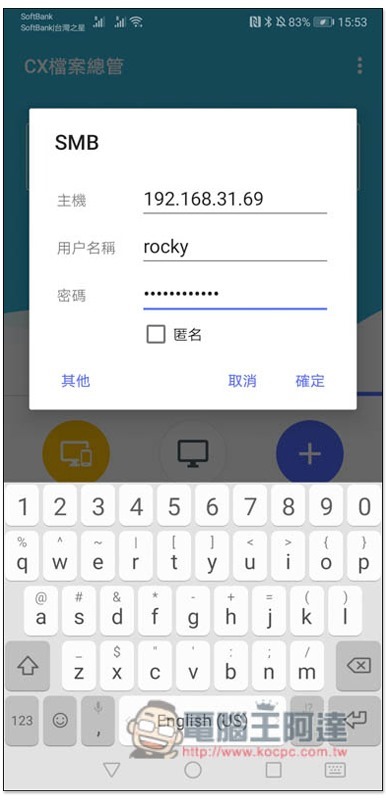
Next, open the SMB settings of CX File Manager NETWORKS, enter the Mac IP address you just noted down in the host field, and fill in your Mac login account and password below. At present, my test Mac seems to be unable to log in anonymously:
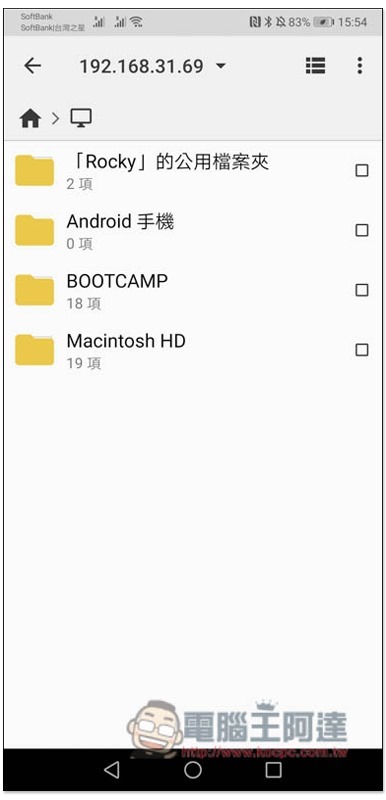
Your Mac shared folder will be connected! I also named the Android phone:
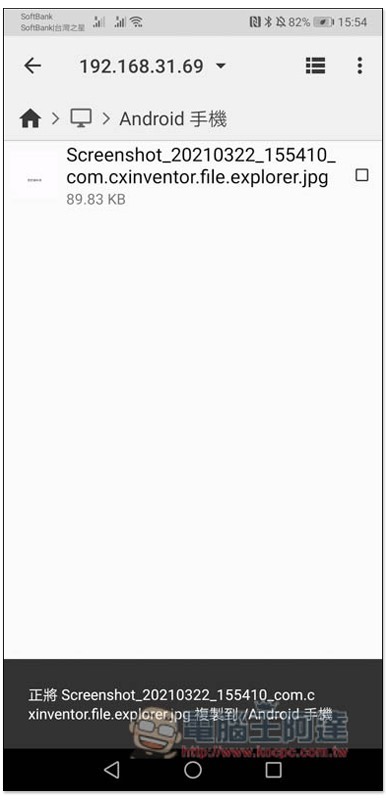
The data transfer method is the same as Android to Windows, so I won’t explain it here. Those who don’t understand can look up the Windows operation steps. Currently I have transferred a screenshot to this folder:
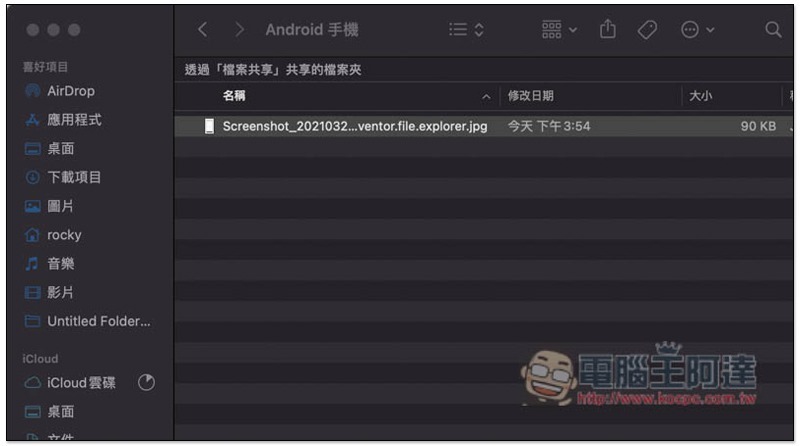
After opening the Mac computer, I saw this screenshot:
Summarize
Although this method may be a little troublesome to set up for the first time, as long as you spend a little time, you will be able to transmit directly through the wireless network in the future without using a transmission line. It is much more convenient and there is no need to install any Android data transfer software on the computer.
Source: KOCPC Chinese