


There are many on the market these days AI Voice inputSoftware, like the ones we introduced before Handy、Wispr Flow etc., they’re all pretty good to use, but they all have one small drawback – they transcribe everything you say verbatim. This means if you repeat yourself or speak unclearly, you still need to manually edit. Typeless, on the other hand, is different. Not only does it have incredibly fast speech-to-text speed, but it also uses AI to analyze what you’re trying to say, ultimately producing results that clearly convey your ideas, so you don’t have to spend much time editing. Plus, it automatically removes repeated words, content, and pauses from your speech. Simply put, this is a more “AI-powered” voice input software. Currently supports iOS、Windows and MacAndroid is still under development.
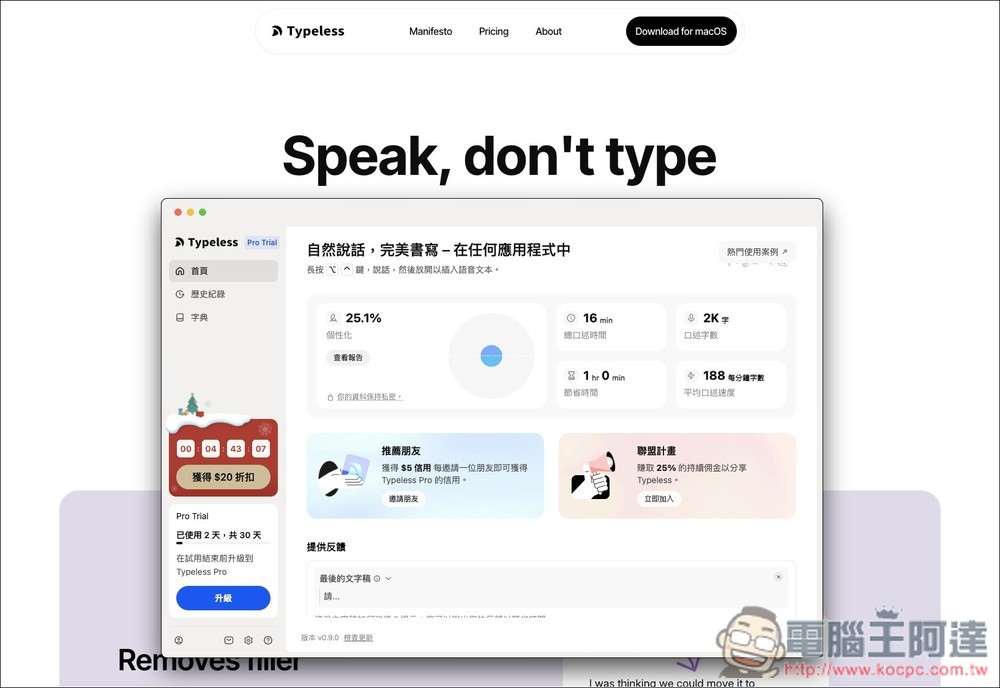
Typeless is currently the strongest AI voice input software — it doesn’t just transcribe, it also removes pauses, repetitions, and meaningless content
Typeless is a revolutionary AI voice dictation software that lets users speak naturally to instantly convert spoken words into polished, professional text. It leverages AI technology to understand context, automatically edit and optimize content, enabling input speeds of up to 220 words per minute—over 4x faster than traditional typing—significantly boosting productivity.
During voice input, you don’t need to worry about pauses, repetition, or spontaneously changing what you’re saying—AI handles all of that automatically, so you can focus on your ideas instead of how you’re expressing them. Typeless even supports automatic formatting, turning your spoken words into a complete structured list. It works in any application: browsers, email, chat software, document editors, code tools, and AI chat interfaces (like ChatGPT).
It also emphasizes privacy protection with a zero data retention policy, meaning dictation content won’t be used for model training, and history is stored only locally on the device. Whether you’re a professional, writer, developer, or everyday user, this software is excellent for creating all kinds of content more easily, and it’s received rave reviews on platforms like Product Hunt. I fell in love with it after trying it out. The only downside is that it’s not completely free—the free version currently offers 4,000 characters per week, and unlimited access requires upgrading to the paid version. Right now, they’re offering one month of the paid version to try out, so feel free to give it a shot.
Main Features
- Auto Filler Word Removal: Eliminate verbal fillers like “um”, “ah”, or “you know” for more professional, clearer text.
- Automatic deduplication: Detect and remove redundant words to ensure concise content.
- Smart Correction: When you change your mind midway, AI only keeps your final intent.
- Auto-formatting: Automatically organize dictated lists, steps, or key points into structured text.
- Find the Perfect Expression: Help users clearly convey ideas and make messages easier to understand.
- Context-aware tone: Automatically adjusts writing style and tone based on the app you’re using, whether it’s work email or chat.
- Supports 100+ languages: Can speak any language or mix them together, auto-detecting and transcribing.
- Personal Dictionary: Add custom vocabulary for AI to permanently remember and accurately recognize.
- Privacy-first design: zero data retention, not used for model training, history stored locally only.
Next, I’ll show you how to register and use it. First, go to the official website:
Typeless Official Website
Next, register an account and then download the app. First, click “Pricing”:
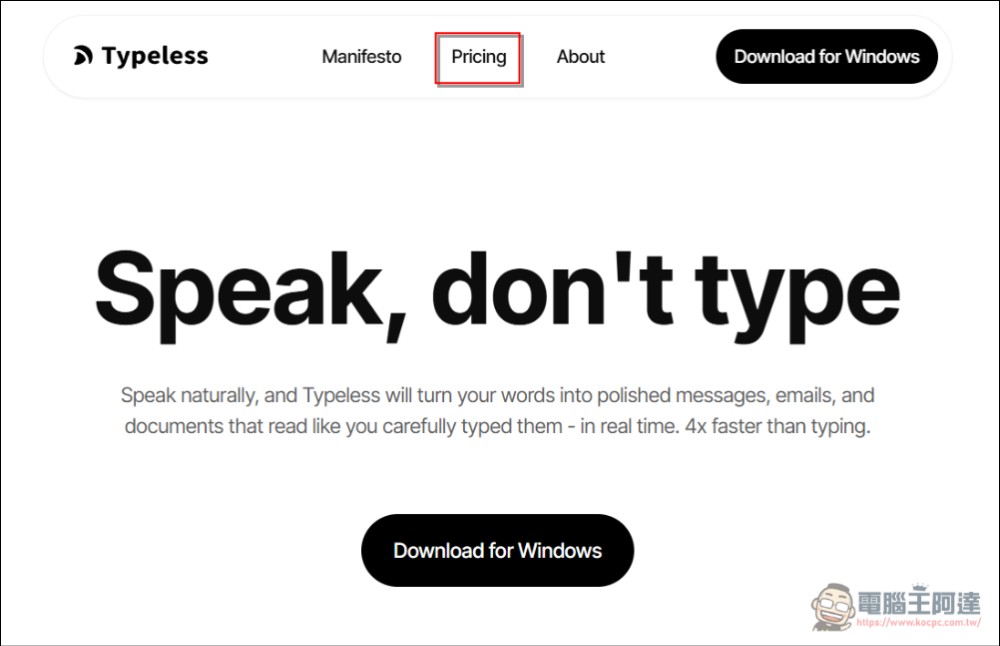
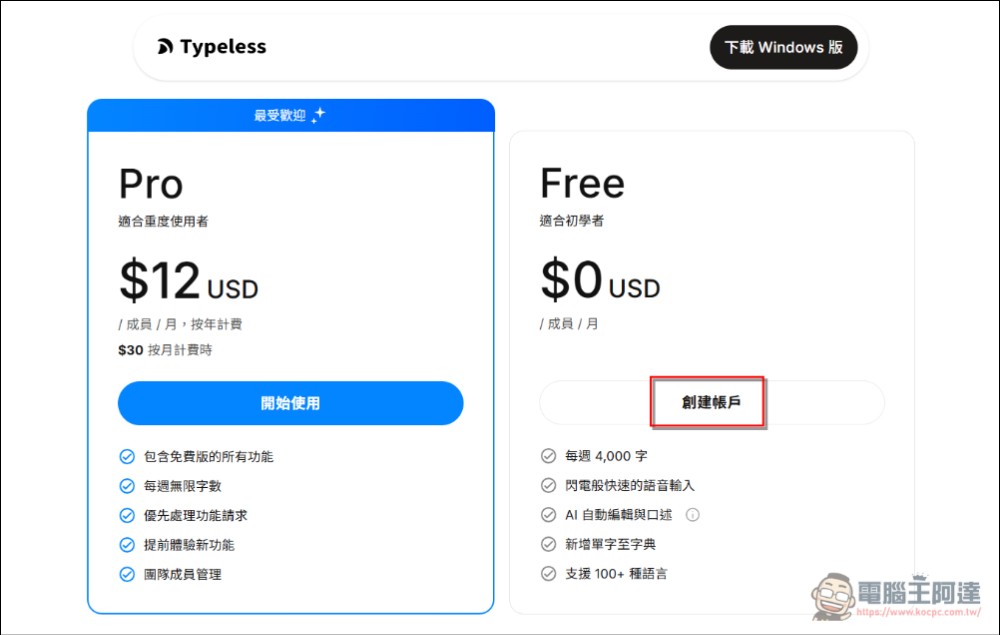
Next, choose the free option. Free users can input 4,000 characters per month. My personal suggestion is to just start with the free version—if you really think it’s great and want to buy it, then go ahead. You can also continue using your original input method as usual.
Finally, select Sign in with Google account:
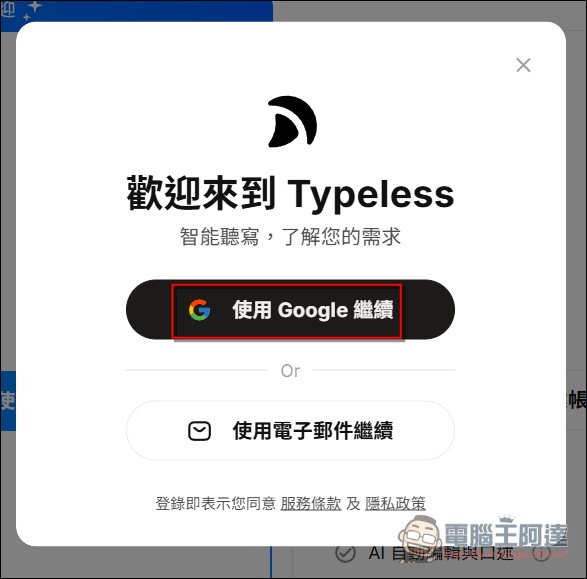
Then you can download the software:
Click here for Windows version
Android (unreleased)
These two are what I find most useful about Typeless. Let me give a quick demo:
1. Auto-format
Below is text converted by another AI voice input software. As you can clearly see, voice input only converts every word I say into text without any optimization, nor does it automatically format into lists or structured layout.
是否可以幫我把這頁面改成一個可編輯的工具,然後我希望就是在左側部分可以新增或刪除分類,然後右側的區域嘛我可以針對每一個分類進行編輯還有像是新增跟刪除。除此之外,我希望我在操作的這些過程中,都不會影響到版型。最後是修改完之後,我可以將這個程式碼,一件複製然後貼在我的網站上。
After switching to Typeless, the content has become more concise and can be used directly without any further modifications:
是否可以幫我把這個頁面改成可以編輯的工具?
具體需求如下:
1. 左側欄位:可以新增或刪除新的分類
2. 右側區域:針對每一個分類進行編輯,例如新增或移除工具
3. 介面維護:操作過程中不會影響到現有的版型
4. 匯出功能:修改完成後,可以一鍵複製程式碼並貼到我的網站
2. Delete duplicates, fill in blanks
If I repeat myself while speaking, for example: “Regarding this content that contains error text, I think we can ask another colleague to help revise it,” Typeless would change it to: “Regarding the parts with errors in this content, I think we can ask another colleague to revise it.”
“Well… about this revision policy… I think there are still some areas worth optimizing” gets converted by Typeless into: “About this revision policy, I think there are still some areas worth optimizing.” I think this is pretty good. It means that while we’re speaking, we don’t have to rush to finish our thoughts. And during the thinking process, even if there are meaningless words or pauses, Typeless will omit them.
Typeless Software Interface Overview
Next, let’s look at the Typeless software interface.
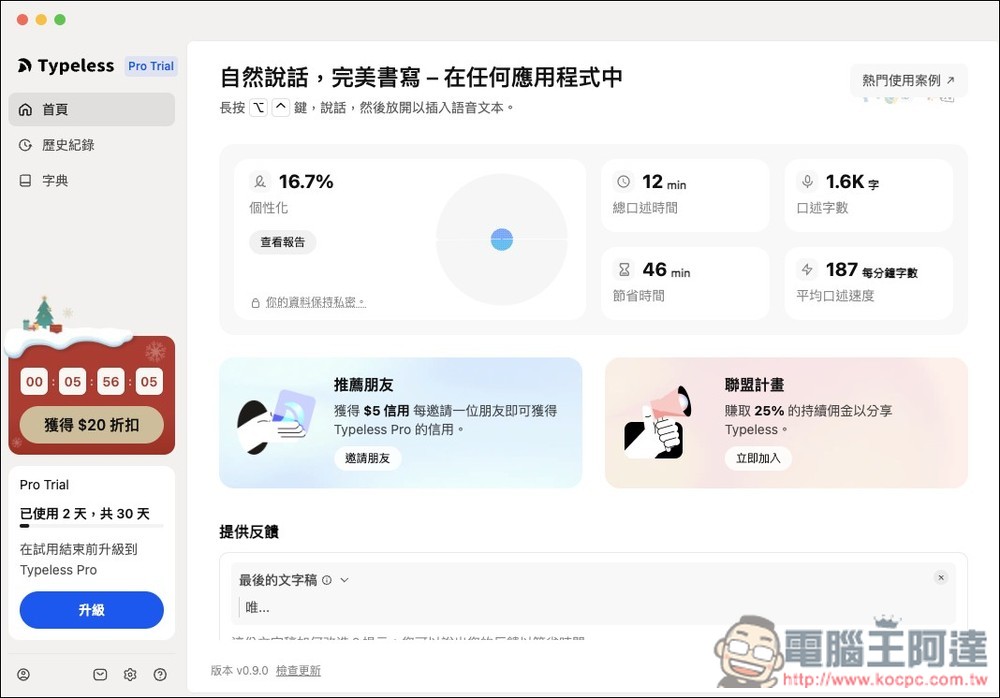
In the main interface section, you’ll see a real-time statistics report showing the total time spent using Typeless for voice input, the number of words you’ve spoken, how much time you’ve saved compared to typing on a keyboard, and your words per minute for voice input. On the left side, there’s a personalization percentage indicator—as you use it longer, the software automatically makes personalized adjustments based on your habits. Of course, all data is stored locally and won’t be uploaded to their servers.
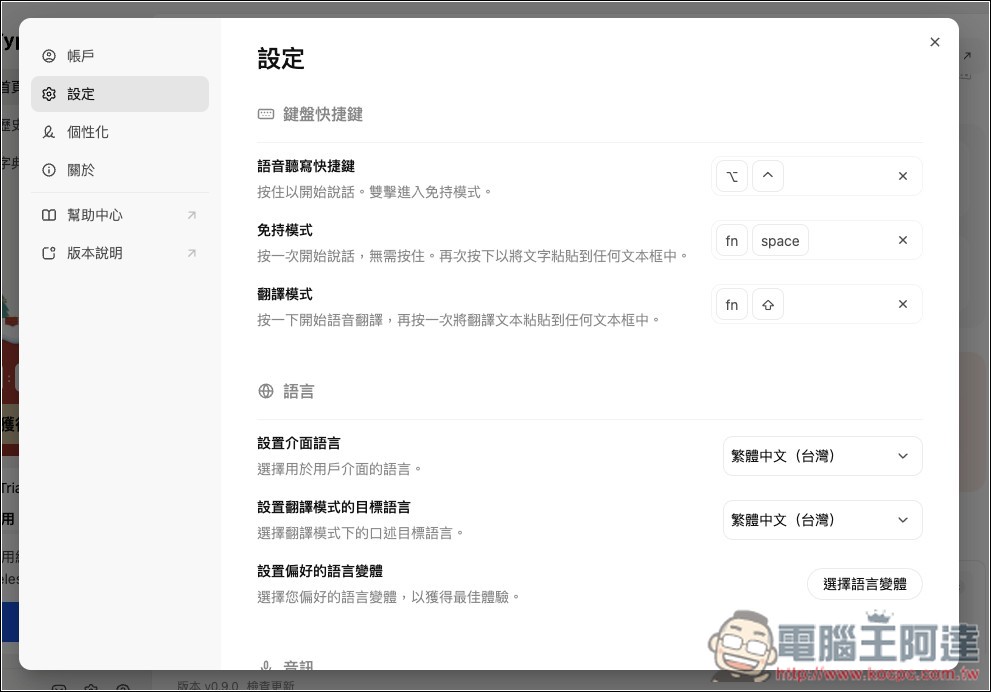
After installing the software, you’ll be prompted to set up keyboard shortcuts and take a quick tour. If you need to make changes later, you can find the relevant options in the settings menu. One thing to note: in the language settings, make sure to change the target language in translation mode to “Traditional Chinese,” and also configure “Set preferred language variant”:
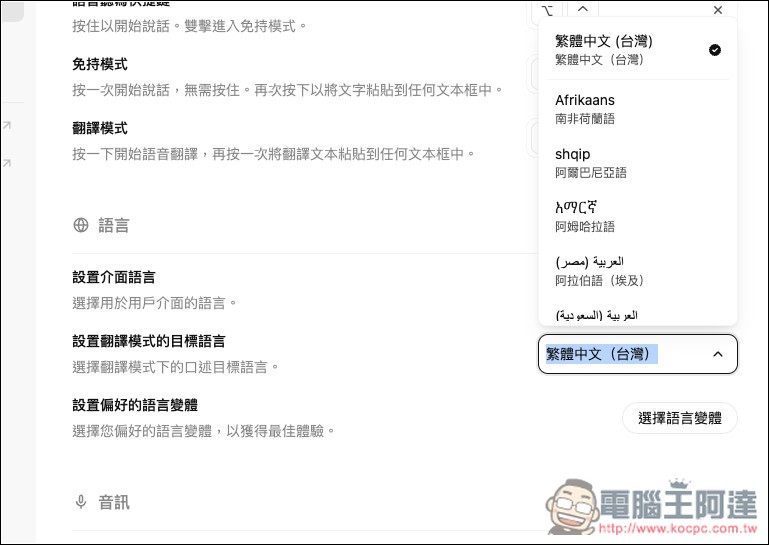
Supports a very large number of languages, including Traditional Chinese:
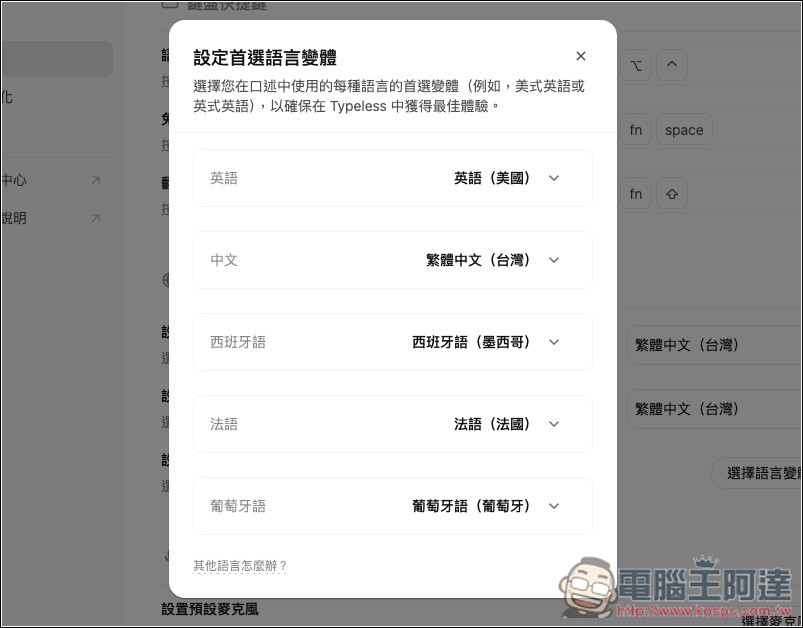
Remember to set all language variants to the language you normally use, especially Chinese. This way, your voice input will prioritize these language variants, so you won’t have to worry about your spoken content becoming Simplified Chinese.
All your past transcribed records will be stored in “History” and are saved forever by default:
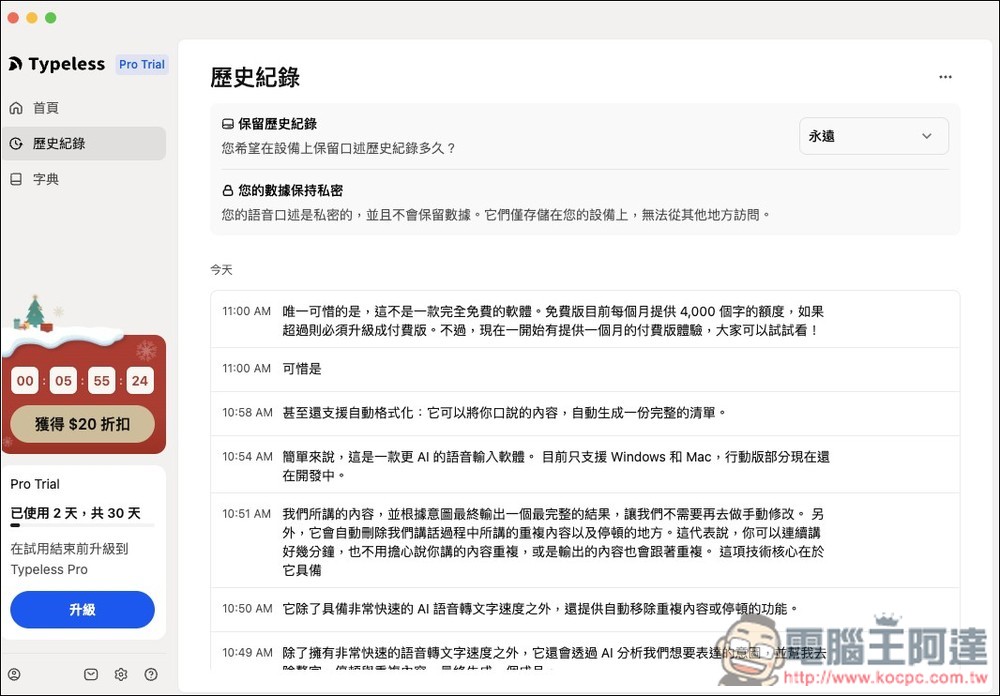
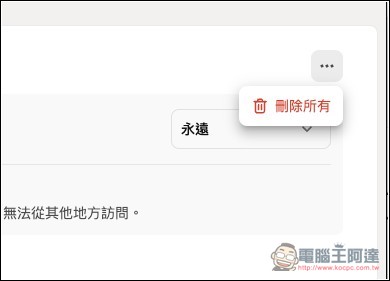
In addition to being able to manually delete records you don’t need, you can also delete all records at once:
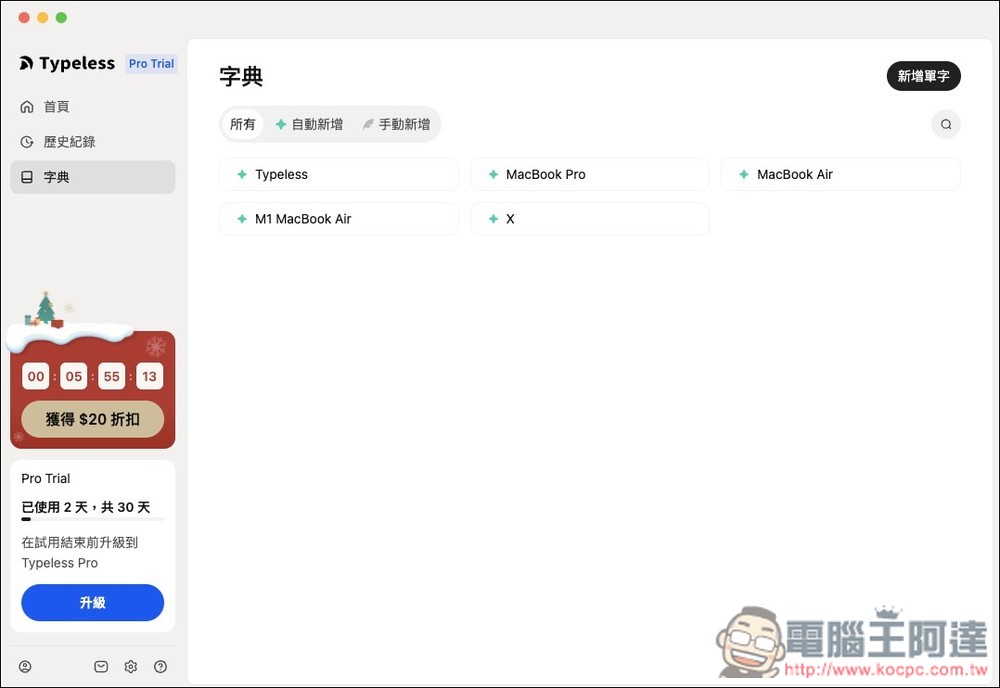
In the dictionary section, besides being able to manually add entries, the system will also automatically detect your commonly used words each time you convert speech to text and add them to the dictionary.
Get Typeless
Source: KOCPC Chinese