


For most apps, adding AI is often seen as unnecessary bloat rather than a practical feature. But when done right, it can be a genuinely helpful addition to some of the apps we use every day. Google is sprinkling Gemini everywhere, and not every instance is well-received—but there are 4 apps that are the exception.
4 Google Apps That Got Better After Adding Gemini
Gmail
In my view, Gmail serves as the best practical case study for Google integrating Gemini into its own applications. The most direct impact of this integration comes from the “Help me write” feature. This tool goes beyond simple autocomplete suggestions—it can generate complete email drafts based on brief prompts. You simply input your request, and Gemini produces a polished, full message. This functionality also extends to refining existing text, allowing users to shorten lengthy drafts depending on the recipient, or adjust the tone to sound more professional or more detailed.
Gemini also significantly reduces email burden through advanced summarization features. Long, complex discussion threads with multiple participants can be instantly condensed into concise summaries highlighting key decisions and outstanding action items. This is especially helpful for people returning from vacation or joining a project mid-stream, as it eliminates the need to scroll through dozens of messages to understand the current situation. The system identifies the most critical information, such as scheduled meeting times or specific project deadlines, and clearly presents them at the start of the conversation.
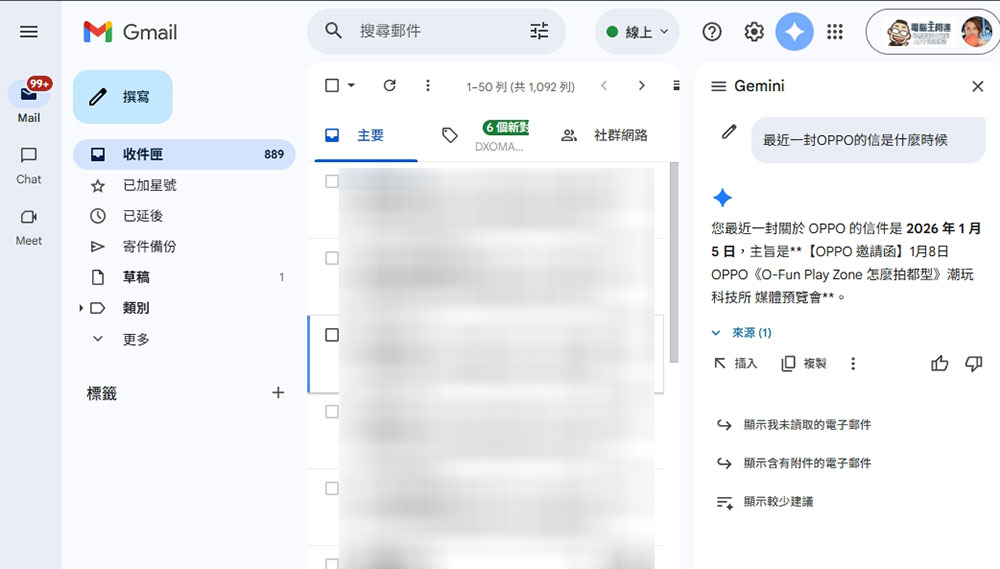
The Gemini sidebar is also a smart assistant that can query your entire inbox. Instead of traditional keyword searches, you can ask questions in natural language, like “What’s the number of the last shipping invoice from Vendor XXX?” or “When is my flight to Tokyo?” Gemini will scan through emails to find specific answers and reply directly, usually with a link to the original message for verification. When it works well, it’s much easier than scrolling through various old and new emails using traditional search.
Google Meet
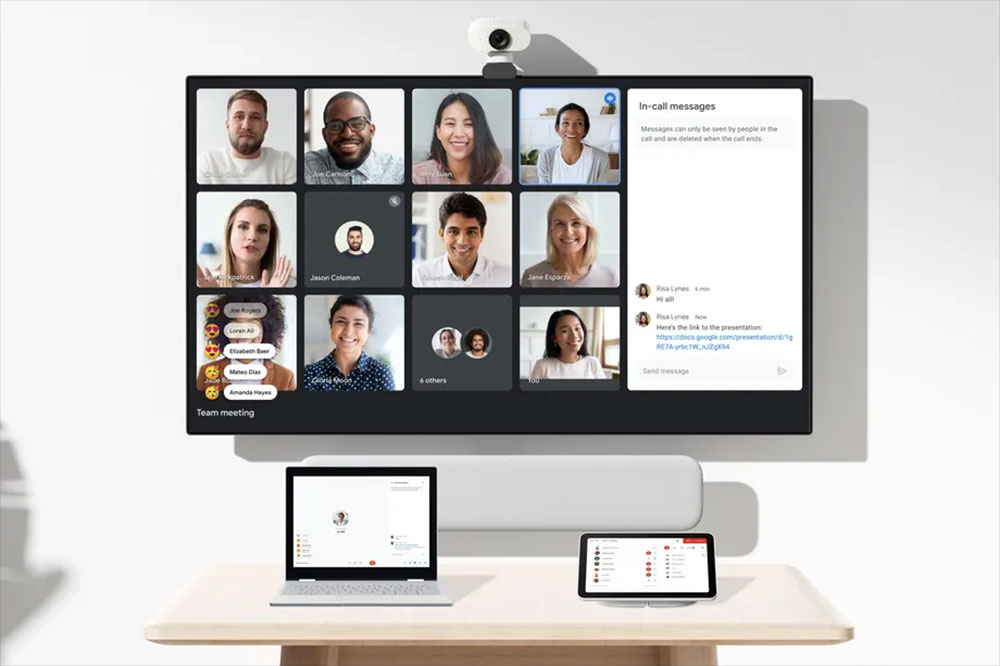
Google Meet’s most prominent Gemini feature is “Take notes for me.” It acts like an automatic secretary, actively listening to meeting content and generating notes in real time, capturing the essence of the discussion. It doesn’t just transcribe verbatim—it synthesizes the conversation, identifies key points, decisions, and action items assigned to specific participants. After the call ends, these notes are automatically saved to Google Docs and attached to the calendar invite, ensuring a reliable record exists even without someone dedicated to taking notes.
For people who arrive late to meetings, the “Ask Gemini” feature provides a discreet way to participate in discussions without disrupting the conversation flow. You simply type questions in the sidebar, such as “What are we discussing?” or “Did anyone mention the budget?” Gemini reviews the previous discussion transcript and provides a quick summary, allowing latecomers to get up to speed.
Additionally, Gemini supports adaptive audio and studio-grade video adjustments that run in the background, enhancing the professional quality of your content. It can isolate sound from background noise more effectively than standard filters, and automatically adjusts lighting to compensate for poor environments.
Google Docs
When I first saw Google adding AI to Workspace apps, I felt it was a bit awkward—in some ways it was, but also quite practical, and at least it worked in Google Docs. The “Help me write” prompt lets you generate outlines, blog posts, or project proposals from scratch based on simple instructions. It’s equally effective at expanding on ideas, transforming rough notes into coherent paragraphs. This generation capability isn’t limited to text—it can also create custom images directly within documents, helping visualize concepts without searching external image libraries.
The editing and refinement stage is where Gemini significantly boosts productivity. You can highlight specific passages and ask the AI to rephrase them for greater clarity, fix grammar errors, or completely change the writing style. For example, a technical paragraph can be rewritten for general readers, or a casual memo can be elevated to an executive-level summary. The system can also instantly summarize long documents, which is extremely useful when reviewing large numbers of reports or academic papers. If desired, these summaries can be directly inserted into documents as summaries or executive summaries.
One of Gemini’s most powerful features in documents is perhaps its ability to access information across the entire Google Workspace ecosystem. Through the side panel, you can ask Gemini to reference specific email threads or files in Drive and pull that information into your current document. This means users can draft project status reports in a document, instructing Gemini to “summarize updates from the weekly team emails” or “pull sales data from the Q3 spreadsheet.”
Google Drive
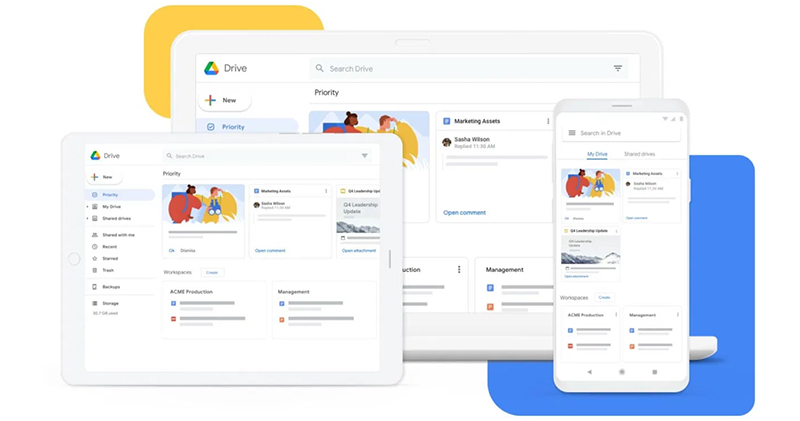
Finally, Google Drive also has Gemini integration, which is actually more useful than you might think. Traditional file-finding methods involve remembering filenames or navigating complex folder hierarchies. However, Gemini introduces a natural language search and query system that operates on the content within your files. You can open the Gemini sidebar and ask high-level questions like “What are the main differences between the 2024 and 2025 marketing plans?” The AI will scan relevant documents, PDFs, and presentations, provide a comprehensive answer, and cite the specific files where that information is located.
What’s particularly cool is that it lets you extract summaries without opening the file. Users can select lengthy PDF contracts or dense research reports and ask Gemini to “summarize the termination clauses” or “list the main competitors mentioned,” and the AI will process the document content and provide the needed information in real time.
Gemini also enhances cloud drive organization and management. It can analyze the content of disorganized folders and suggest logical structure methods, or propose file names that accurately reflect the document content.
Source: KOCPC Chinese