


Although the Siri voice assistant built into iPhone and iPad is also very useful, some users who have switched from Android to iPhone, or if you use a lot of Google services, may prefer Google Assistant.
Generally speaking, if you want to use Google Assistant on iPhone and iPad, you need to manually open the Google Assistant App before you can perform voice operations. In fact, there is a little trick that can be used to replace Siri with Google Assistant, which allows you to quickly and long press the power button to use it. I will teach you below.
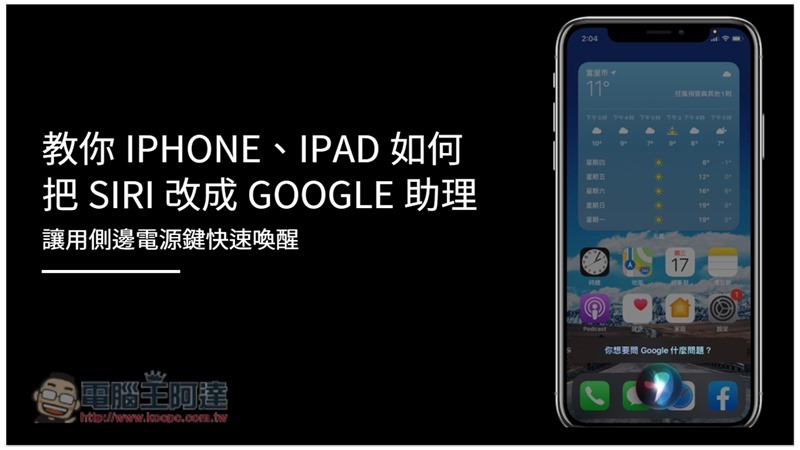
Tutorial on how to turn iPhone and iPad voice assistants into Google Assistant
iOS and iPadOS themselves do not provide voice assistant modification options, so the way to implement this is through the “Shortcut” function. You must first download two apps: “Shortcut” and “Google Assistant”.
- Shortcut App:Click here to download
- Google Assistant:Click here to download
After downloading Google Assistant, open it to complete basic settings and allow related permissions (such as access to the microphone, etc.). You will need to log in to your Google account:
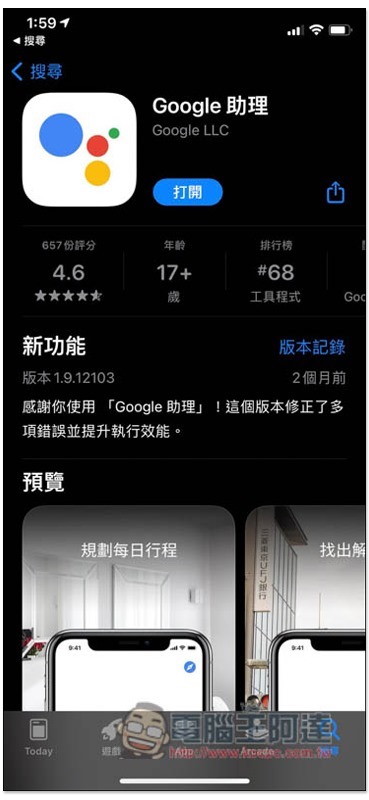
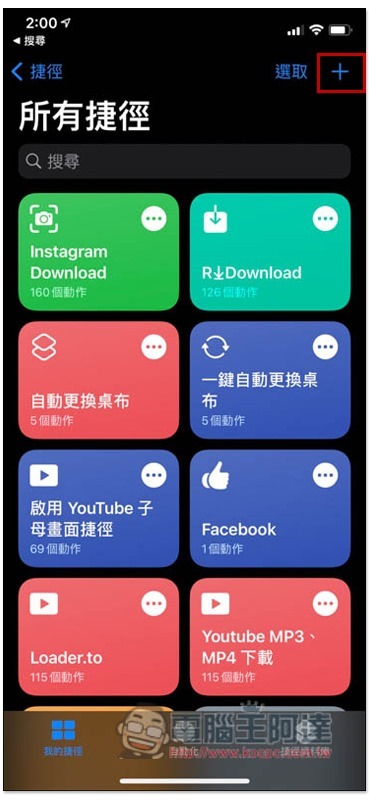
Then open the Shortcuts App and click the + in the upper right corner:
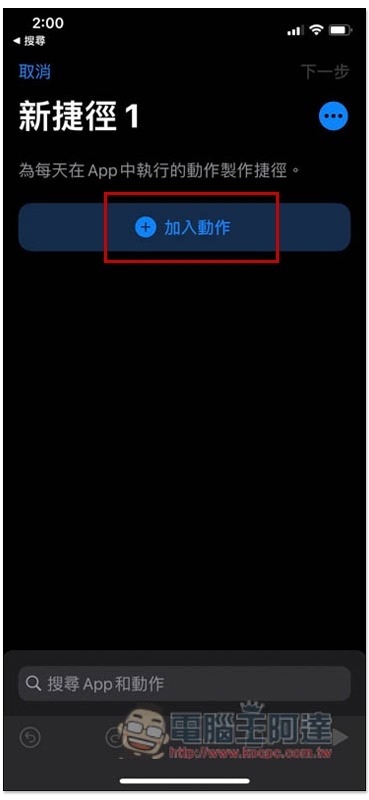
A new shortcut will be added. Press “Add Action” on the screen:
Enter the Assistant keyword in the search field. You will see the “Ok Google” option below, please click it:
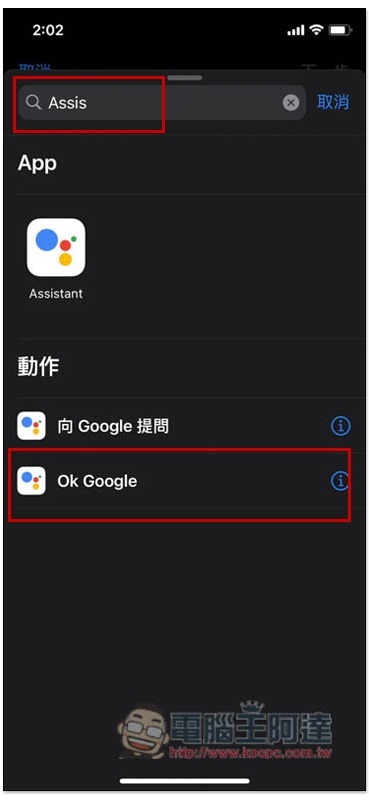
Then click Next in the upper right corner:
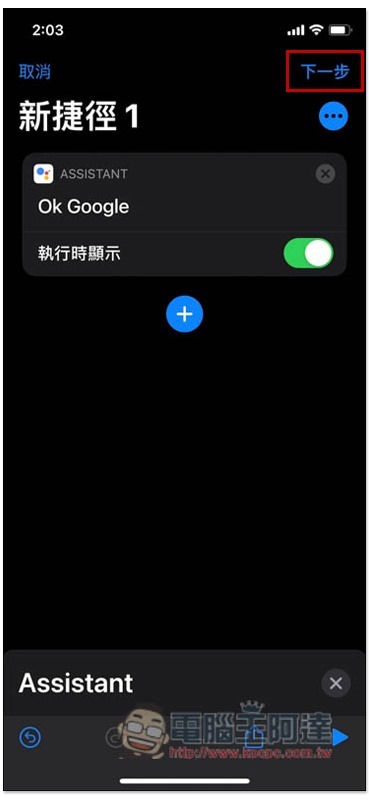
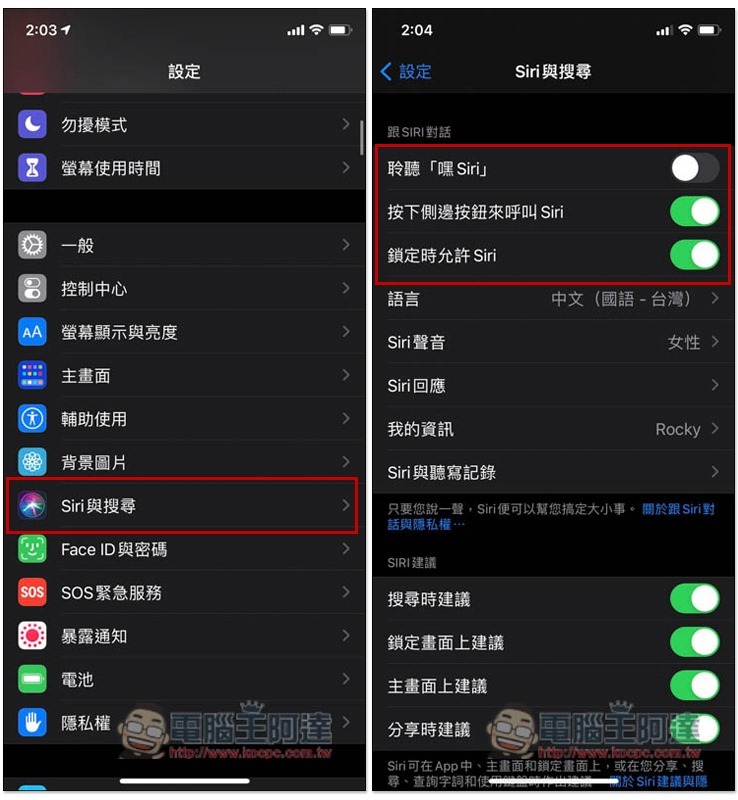
In this way, the shortcut is created and ready to be used. Before using it, remember to confirm whether you have turned on the Siri function. If you are not sure, you can go to the Siri and search options in the settings and see if the conversation with SIRI is turned on above:
Then please press and hold the side power button or say “Hey Siri”. The Siri listening icon will pop up at the bottom of the screen. At this time, please say OK Google:
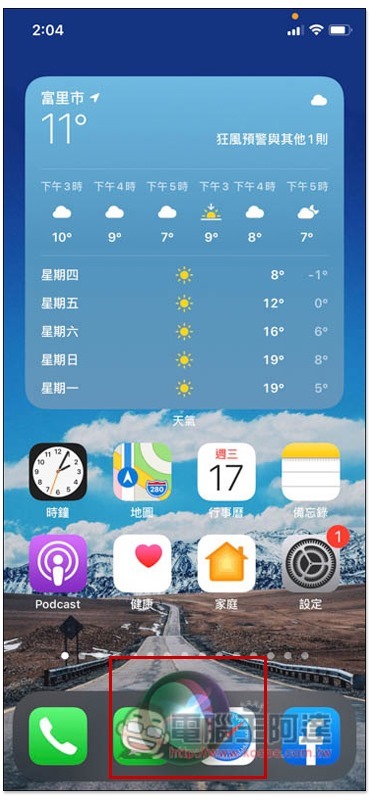
It will become Google Assistant:
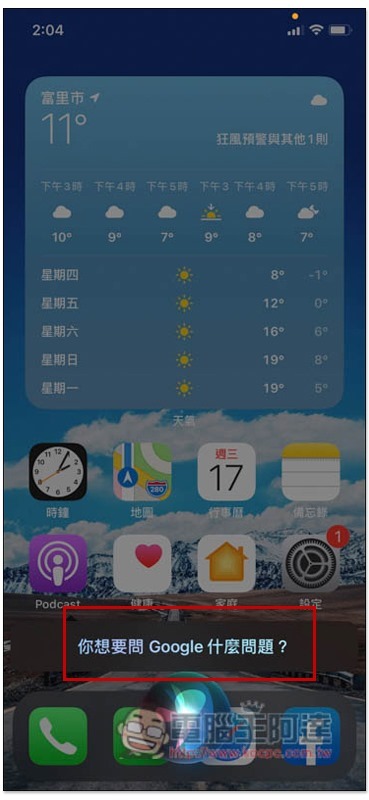
After asking the question, the Google Assistant app will automatically open:
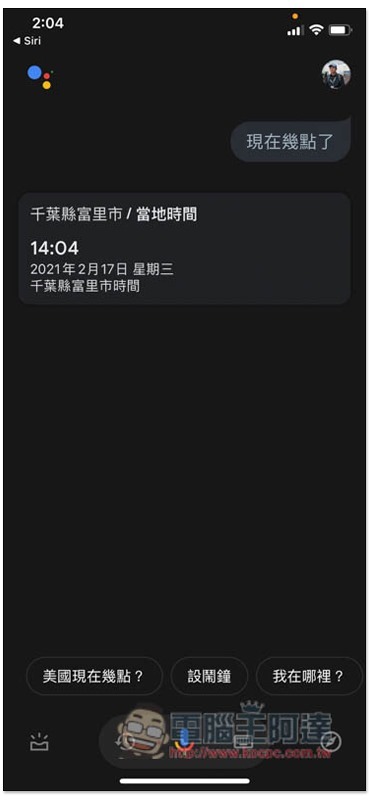
Therefore, in the future, you can directly wake up Google Assistant through the side power button or Hey Siri command, without having to manually open the app as before.
In addition, this setting will not really replace Siri, which means you can use Siri or Google Assistant at any time depending on the situation, which is quite convenient.
Source: KOCPC Chinese