


Taking care of eager to imagineUse Apple Watch to assist unlocking(Face ID model) iPhone users, Apple quickly launched a Public Beta version that general users can use first within a few days after releasing the developer version of iOS 14.5 / watchOS 7.4. The computer king Ada team also updated and tried this function for the first time. In addition to teaching you how to start it, I also share my thoughts and feelings after using it for a few days – the coolest thing among them is that I can unlock it even while wearing a safety helmet. Continue reading iPhone Mask Unlocked and available to play now! Enable Apple Watch mask unlocking instructional report text.
Apple Watch Series 6 official website (available for 12-month installment at 0% interest rate)
How to enable mask unlock on iPhone in iOS 14.5, see here
The Face ID biometric facial unlocking function, which has been equipped since the iPhone However, in this epidemic prevention period when everyone is wearing masks, it has become a bit useless, and it instantly makes people miss Touch ID for fingerprint unlocking (eh).
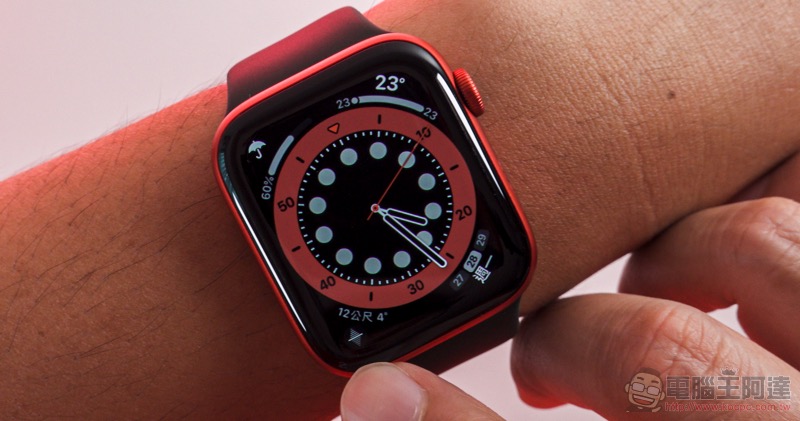
In response to such inevitable changes in usage requirements. Apple thought of using the “proximity” Apple Watch quick unlock function provided in macOS, and began to provide similar functions in iOS 14.5 and the accompanying watchOS 7.4. Face ID will be able to detect faces wearing masks or that are partially covered, and can be unlocked when it detects an Apple Watch that has been set to activate this quick unlock function within the Bluetooth connection range.
Step 1: Install iOS 14.5 / watchOS 7.4 public beta version (you can skip this step when the official version is launched)
First of all, it is also a relatively tedious step, that is, your iPhone and the unlocked Apple Watch must be upgraded to the public beta version. You can skip this step when iOS 14.5 and watchOS 7.4 are officially launched in the future (but you still need to upgrade to the latest version).
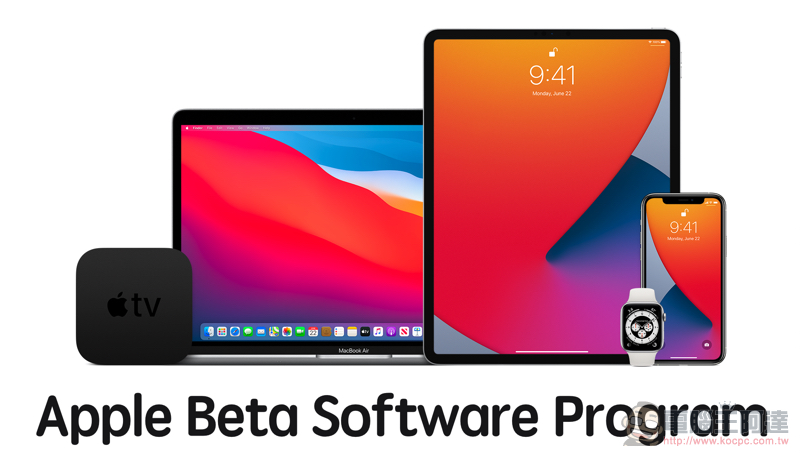
iOS 14 specific public beta launch tutorialYou can see this. To put it simply, we must firstDownload public beta profiles for iOS and watchOS, then you can see the option to upgrade to Public Beta on iPhone and Apple Watch. After pressing Install Update, please wait for downloading and installation.
Step 2: Enable the Unlock with Apple Watch setting
After successfully upgrading to a system version that supports unlocking iPhone with Apple Watch (after iOS 14.5), you can find the option “UNLOCK WITH APPLE WATCH” in the “Settings > Face ID and Password” option – the name and description of the public beta version are currently displayed in English, and the official version should correspond to Chinese.
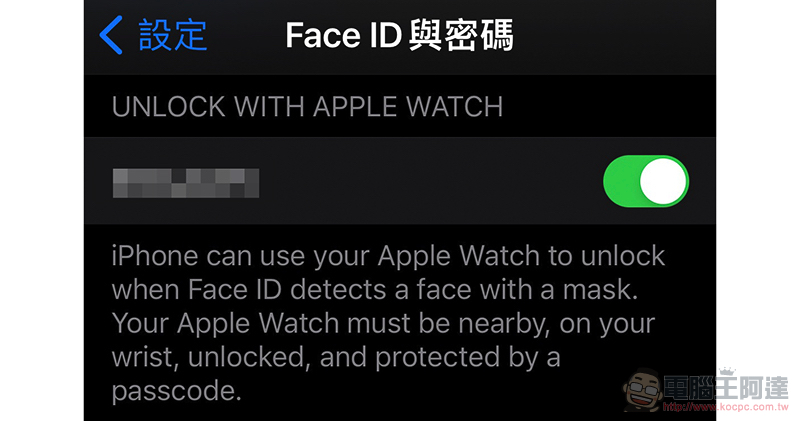
Here you can see a list of all Apple Watch devices connected to this iPhone. If you want to unlock your iPhone through your Apple Watch, you can activate this option—if your Apple Watch has not been upgraded to watchOS 7.4 or later, this option will show that you need to upgrade your Apple Watch. Then go back to the previous step and upgrade watchOS to use this feature.
How to use and pay attention to unlocking iPhone with Apple Watch
Once you’ve upgraded your system and enabled this feature, you can start using it similar to unlocking your Mac with a nearby Apple Watch. To use this function correctly, you need to pay attention to the following two points:
1. The Apple Watch must be powered on, unlocked, worn on the wrist, and within the Bluetooth connection range of the iPhone
2. Face ID will activate Apple Watch detection only when it detects a face wearing a mask.

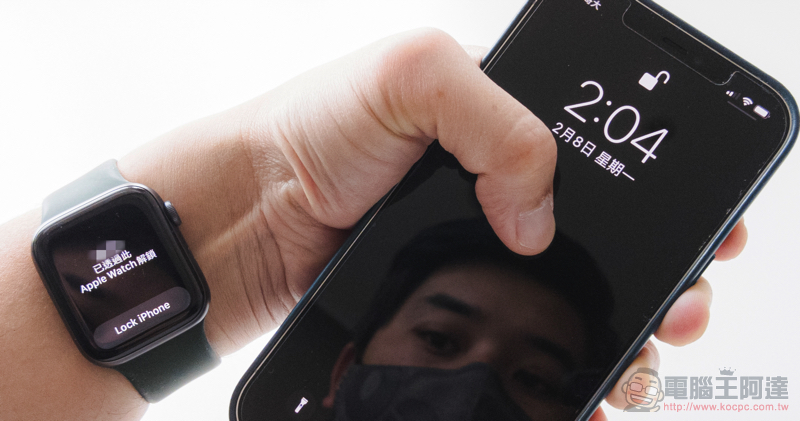
After the setting is completed, it is really simple to use. Turn on the iPhone for face detection. As long as you wear a mask, you will feel the Apple Watch on your hand vibrating as it is unlocked. The screen will also display “(Your iPhone) has been unlocked through this Apple Watch”. There will also be a “Lock iPhone” button underneath that can immediately lock the iPhone. To prevent the phone from being mis-locked due to sensing the face + Apple Watch connection when someone else takes a look at it, you can immediately lock it and enter a state where you need to enter a password.
After seeing this, everyone should realize that in fact, the function of unlocking iPhone through Apple Watch can be used as long as Face ID detects faces and senses the Apple Watch unlocked on the wrist in the list. And according to our tests, not only can it be done with eyes closed, but also the Apple Watch can be sensed to unlock even if the face is covered with hands.
The coolest thing is that I also tried wearing a full-face helmet directly, and it was able to sense without any problem (I still wore a hood, so it was fully covered) – in this way, this function should become an artifact for motorcycle riders. After all, fingerprint recognition cannot be used if you wear gloves. This time the iPhone with Face ID can be said to have won one victory (eh).

It is said that since this is used for “quick unlocking”, the security level is obviously still lower than the actual unlocking through Face ID, so the official has classified it to avoid derivative security issues by not supporting functions such as Apple Pay and “password auto-fill”. And since you are already wearing an Apple Watch, if you want to make mobile payments, you can consider using Apple Pay on the Apple Watch; but if the password is automatically filled in, you need to enter the iPhone password or take off the mask to sense Face ID.
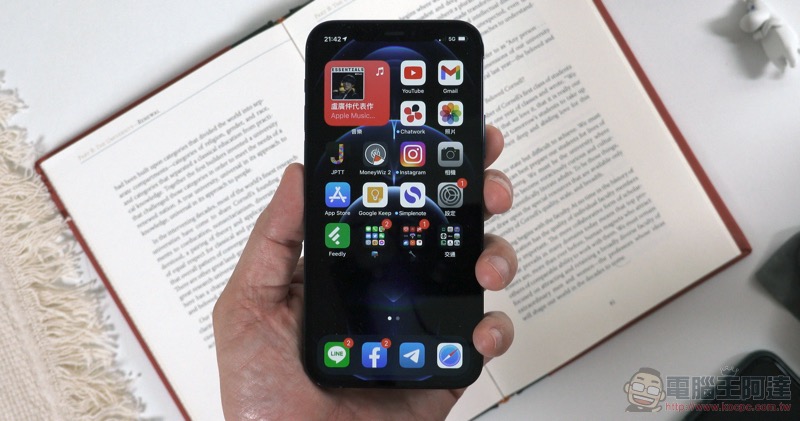
I’ve been using this feature for a few days, and it really makes life a lot more convenient during this period when you basically have to wear a mask all the time (it’s a magical discovery that it can even be used while wearing a safety helmet XD). However, it is still a beta version after all, so occasionally you will encounter a situation where it seems that you cannot quickly unlock it through Apple Watch. My personal solution is to restart the iPhone and it will work normally.
That is, judging from the current operating conditions. If you are accustomed to placing your phone in a location where it may be seen by others or accidentally accessed, I personally do not recommend turning on this feature. Although it is misunderstood that the lock can be re-locked through the button on the watch, and such unlocking cannot really use all functions. But after all, there is still a chance of accidentally ignoring the unlock reminder of Apple Watch, so it is better to wait until the phone is carried with you and cannot be accessed by others before activating this function! Or when you put your phone within sight, you can unlock the watch first to temporarily disable the quick unlock.
Apple Watch Series 6 official website (available for 12-month installment at 0% interest rate)
Further reading:

Older Apple TVs won’t be able to use the YouTube app, but there’s an alternative, don’t worry (?)
Source: KOCPC Chinese