


People who are new to MacBook often feel disoriented by the completely different operation logic between macOS and Windows, thinking “Why is this so hard to use?” In fact, the reason MacBook is so user-friendly lies in that row of seemingly unfamiliar keys: Command, Option, Control, and the rich and practical shortcuts they can create when combined. This article compiles the most useful MacBook shortcuts, covering basic operations, browser shortcuts, screenshots, window management, and additional tips, so you can go from a beginner to a pro in just one day.
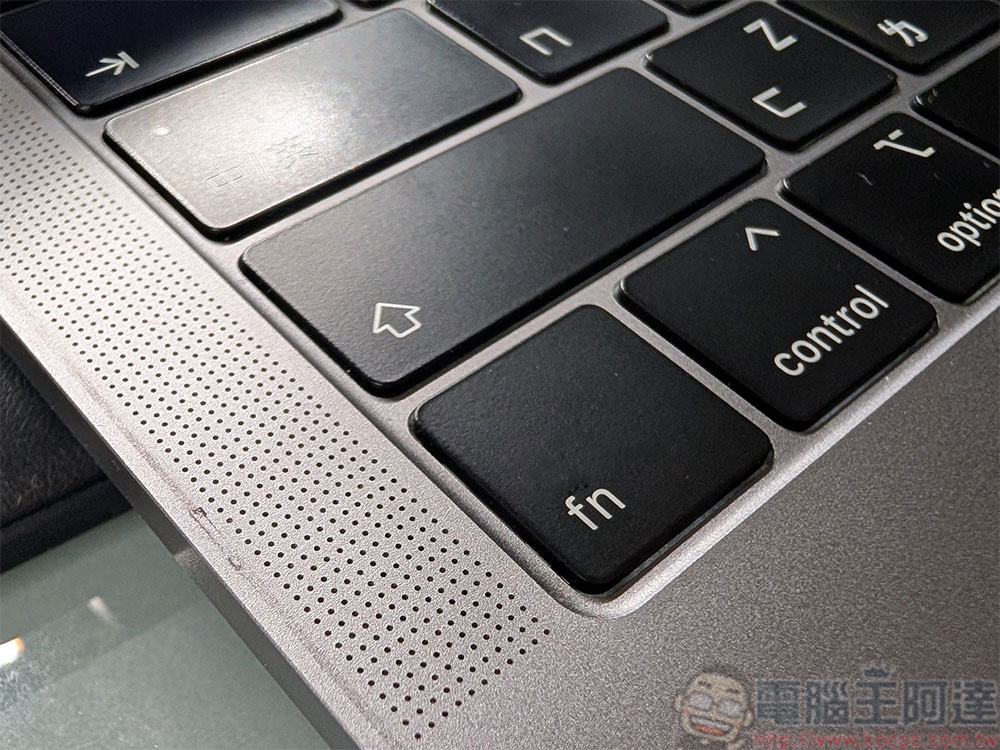
Mac Keyboard Symbols Quick Reference
Before we begin, let’s get familiar with the special symbols in macOS:⌘ Represents the Command key⌥ represents the Option (Alt) key⇧ Represents the Shift key⌃ Represents the Control key.⎋ It’s Escape,⏎ It is Return (Enter). Remember these symbols, and all shortcuts afterward will be immediately understandable.
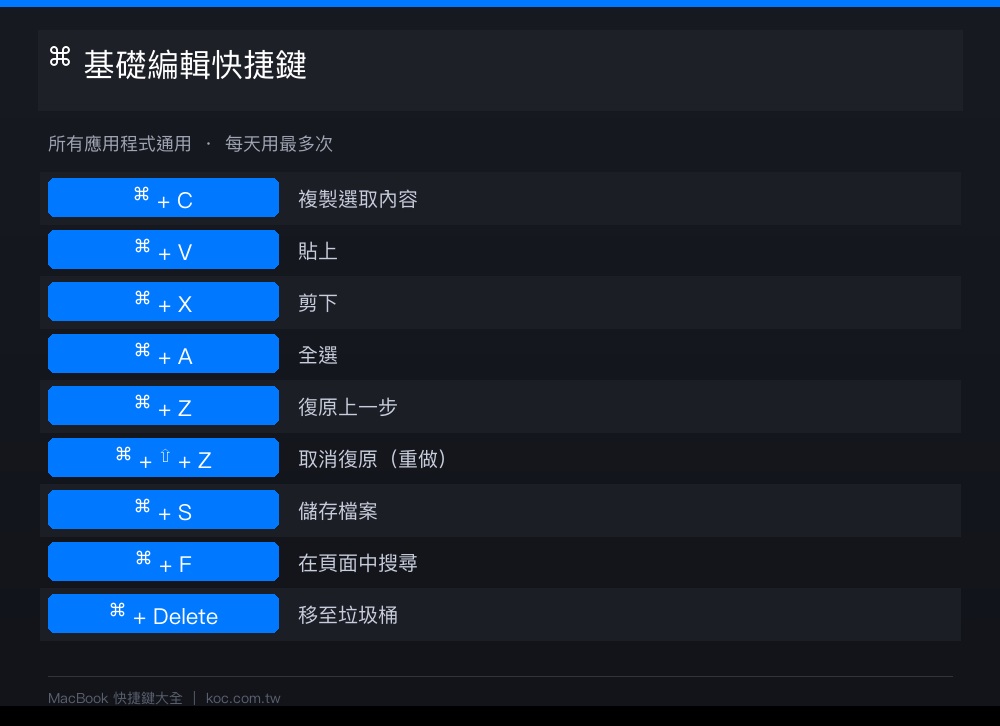
Basic Editing Shortcuts: Used Most Every Day
These keyboard shortcuts are universal across almost all applications, making them essential skills for MacBook users. For those switching to Mac, these shortcuts are the most important to memorize, as they’re used in every scenario—from Finder and browsers to Office word processing applications:
- ⌘ + CCopy selection
- ⌘ + Vpaste
- ⌘ + XCut (text only supported, file transfer looks atThis explanation)
- ⌘ + ASelect All
- ⌘ + ZUndo
- ⌘ + ⇧ + ZCancel/Undo (Redo)
- ⌘ + SSave file
- ⌘ + FSearch in current page
- ⌘ + DeleteMove selected files to Trash
Application Management and Window Operation Shortcuts
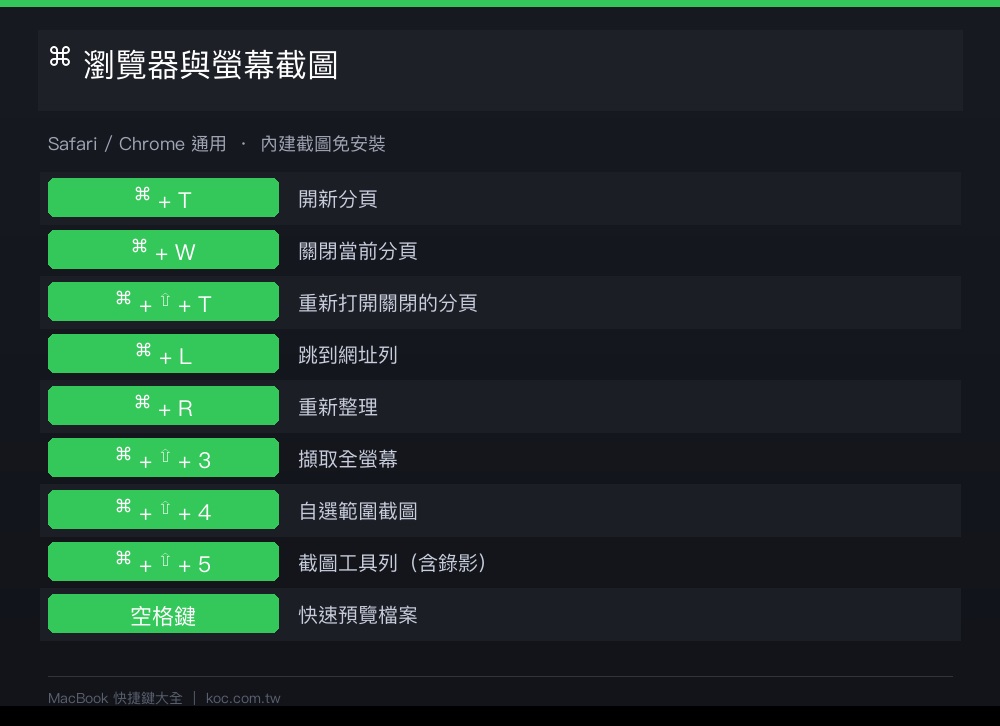
Managing multiple applications and windows is key to boosting work efficiency. macOS’s application management logic keeps previously opened apps running in the background, which differs from Windows’ quit-on-close approach. Mastering these shortcuts enables seamless switching:
- ⌘ + QQuit the application completely (different from closing the window)
- ⌘ + WClose current window (don’t exit program)
- ⌘ + MMinimize window to Dock
- ⌘ + HHide current application (quickly view the desktop)
- ⌘ + NOpen New File or New Window
- ⌘ + T: Open new tab (browser or Finder)
- ⌘ + TabQuickly switch apps (hold ⌘ to select)
- ⌘ + ` (backtick)Switch between multiple windows of the same application
- ⌘ + , (Command + comma)Open Current Application Preferences
Screenshot and recording shortcut keys
Web browsing is one of the most common tasks on a MacBook, and these keyboard shortcuts work universally whether you’re using Safari or Chrome. The screenshot tool built into macOS is actually quite powerful—you don’t need to install any third-party software. Since macOS Mojave, Apple has integrated screenshot and screen recording features into a single toolbar.
- ⌘ + ⇧ + 3Capture full screen
- ⌘ + ⇧ + 4Select area screenshot (after releasing the mouse, hold Space to move the selection box)
- Command + Shift + 4 + SpaceCapture specific window (with shadow effect)
- ⌘ + ⇧ + 5Open the full screenshot toolbar (including screen recording options)
- ⌘ + ⇧ + 6If using a Touch Bar model, capture the Touch Bar screen
Useful Browser (Safari / Chrome) Keyboard Shortcuts
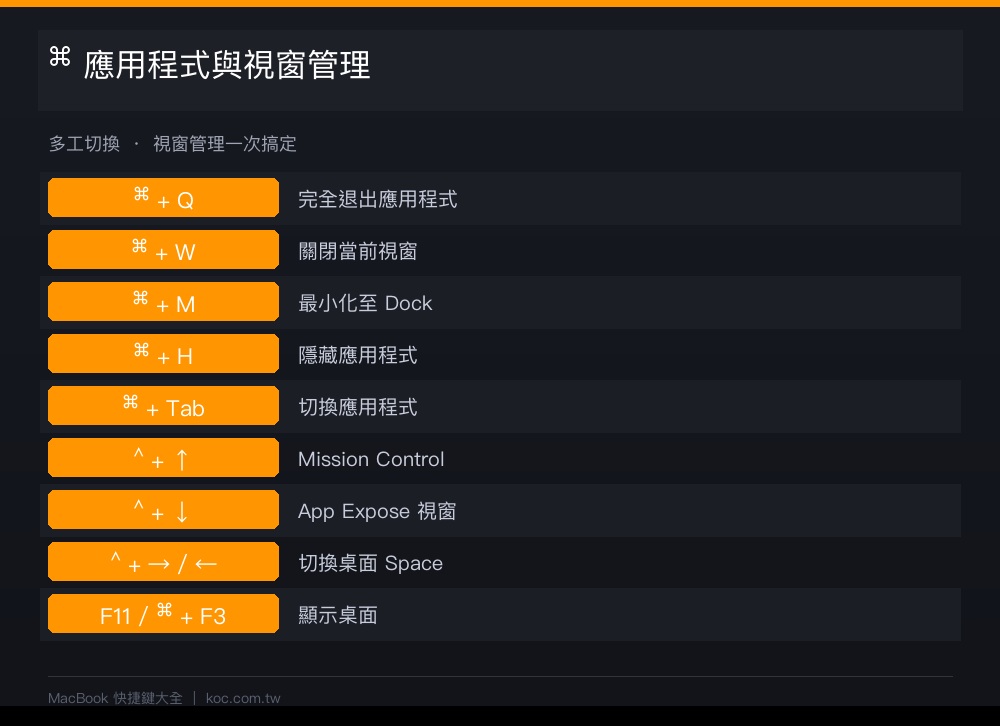
Web browsing is one of the most common tasks on a MacBook, and these shortcuts can significantly speed up your browsing. Whether you use Safari or Chrome, the following shortcuts work universally:
- ⌘ + LGo to the address bar (enter a URL or search keyword directly)
- ⌘ + RRefresh the page
- ⌘ + TOpen new tab
- ⌘ + WClose current tab
- ⌘ + ⇧ + T: Reopen closed tab (press multiple times)
- ⌘ + 1~9Switch to tabs 1-9
- ⌘ + + / –Zoom in/out of page
- ⌘ + 0Reset zoom to 100%
- ⌘ + YOpen browsing history
- ⌘ + ⇧ + RForce Refresh (Skip Cache)
- ⌥ + ⌘ + BShow/Hide Bookmark Bar
- ⌥ + ⌘ + LOpen download list
- ⌥ + ⌘ + SHide sidebar
Window and Desktop Management Shortcuts
macOS has enhanced window management since Sequoia, but the built-in keyboard shortcuts remain useful:
- ⌃ + ↑Open Mission Control (view all windows)
- ⌃ + ↓Show all windows of the current application (App Expose)
- ⌃ + → / ←Switch Desktop Space
- ⌘ + SpaceOpen Spotlight search (the fastest way to open apps)
- F11or ⌘ + F3Show Desktop
- ⌥ + ⌘ + DShow/Hide Dock
- ⌥ + ⌘ + HHide All Other Applications
Text Editing and Input Method Shortcut Keys
When editing large amounts of text, these shortcuts let you keep your hands on the keyboard without touching the trackpad or mouse, allowing you to complete all operations:
- ⌥ + ← / →Jump cursor by word (instead of character by character)
- ⌘ + ← / →Jump to beginning/end of line
- ⌘ + ↑ / ↓Jump to beginning/end of document
- Ctrl + SpaceSwitch input method (customizable in system settings)
- ⌥ + DeleteDelete previous word (instead of a single character)
- Fn + ↑ / ↓Page Up / Page Down to turn pages
- Fn + ← / →:Home / End

Conclusion
Above is a collection of the most useful keyboard shortcuts for everyday MacBook use, covering basic editing, app management, window operations, screenshots and recordings, browsers, text editing, and file management. Beginners don’t need to memorize everything at once—you can start with the basic editing shortcuts you use every day (⌘C, ⌘V, ⌘Z, ⌘A) and Spotlight (⌘ + Space), then gradually expand to window management and browser operations. Save this article or share it with friends who need it, keep it handy for reference, and over time you’ll discover that using MacBook with keyboard shortcuts can easily double your work efficiency!
Source: KOCPC Chinese