


In the past, we have shared some practical LINE tips with you from time to time. Before spending the New Year holiday in the new year, you might as well take the opportunity to organize your LINE account! This time we have compiled 10 practical LINE account organization techniques. If you have missed some of the teachings we shared in the past, you can make up for it again from this article! However, those of you who have watched the tutorial before can also review these usage tips again.
LINE application tips: 10 practical tips for organizing your LINE account
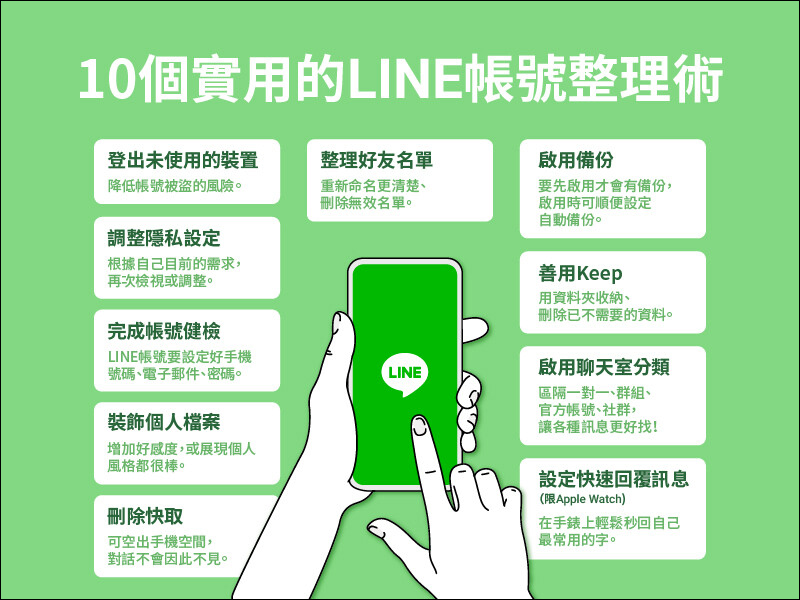
The 10 LINE account organization techniques this time are shared by LINE Taiwan’s official blog. Many of them are tutorials that we have introduced to you in separate articles in the past. Extended reading will also be attached below each technique to facilitate you to get more teaching content.
Organize friends list
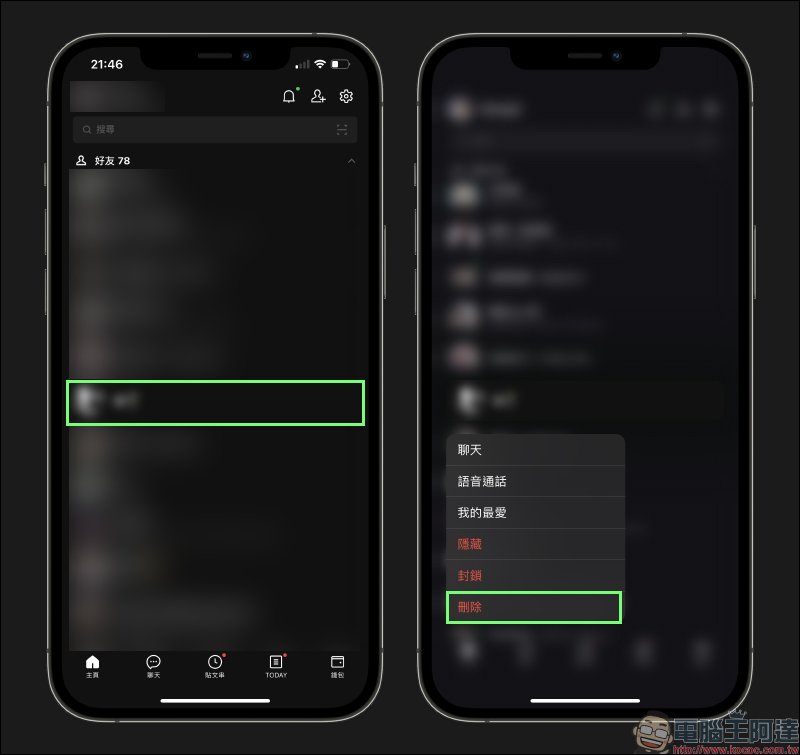
Since the number of online friends for each LINE account is 5,000, even though most users are unlikely to reach this upper limit, for some people with whom they have no contact at all, you can still consider taking advantage of the new year to sort out your friend list! After LINE optimized the interface before, it also reduced the steps to delete friends. Now you only need to “long press” on the name of the friend to be deleted and click “Delete” to delete the friend without blocking the friend.
(Further reading:Tips for deleting LINE friends with one click. Learn this trick to delete LINE friends without blocking them first.)
Sign out of unused devices
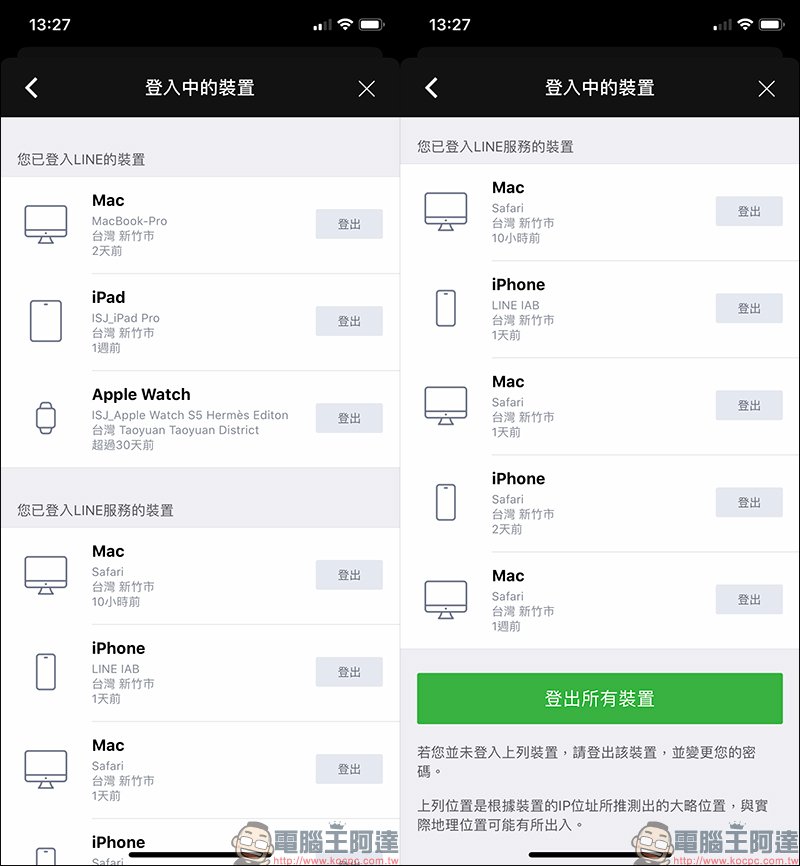
In order to reduce the risk of LINE account being stolen, we can check the devices currently logged into our account from time to time, log out of the device we are using first, and log in again when necessary in the future.
(Further reading:LINE application tips: “Remotely log out” of the LINE account on other devices from your mobile phone, so you don’t have to worry about all the LINE chat content being seen!)
Adjust privacy settings
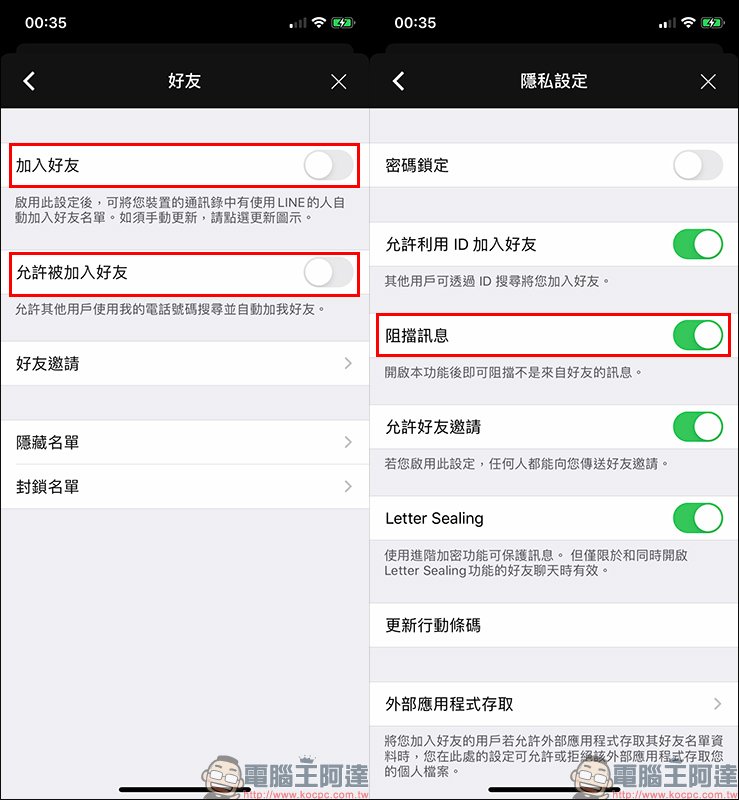
If you don’t want strangers to send messages on LINE and automatically add friends to cause harassment, you can actually set LINE settings that best suit your personal privacy needs. We have previously written a complete tutorial on friend and privacy settings, and we recommend that you review it again.
(Further reading:LINE application tips: Friends & privacy settings tutorial)
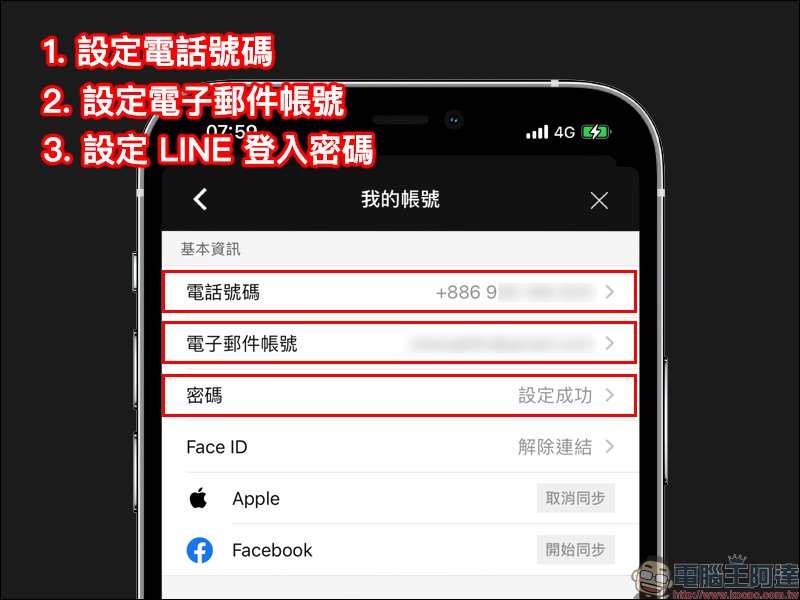
Account health check
Just like a vehicle needs regular maintenance, it is also recommended that you develop the habit of regularly confirming and checking your LINE account. This will not only make daily use more secure, but also make it smoother if you need to replace the device.
(Further reading:LINE account health check only takes 3 steps!)
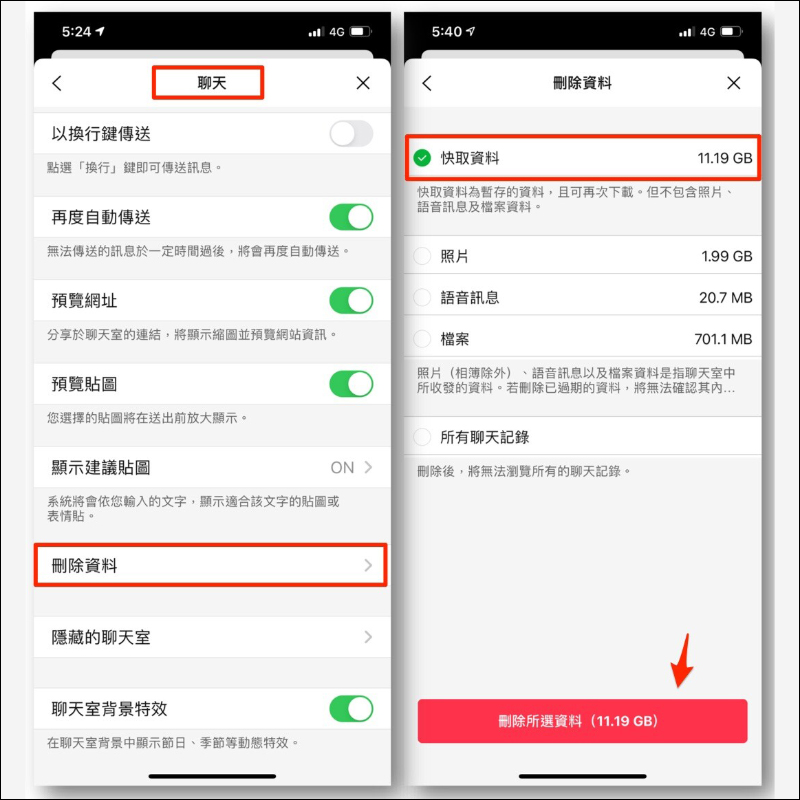
Delete cache
After using LINE for a period of time, you can use “Delete Cache” to free up more storage space on your phone. Taking the iOS version as an example, select “Delete Data” in “Chat” in the LINE App settings, then check “Cache Data” and press the delete button. If you have a backup of chat history, you will not be afraid that the chat history will be lost. For Android, you can select “Applications” > “LINE” in the settings of your mobile device and select “Clear Cache”.
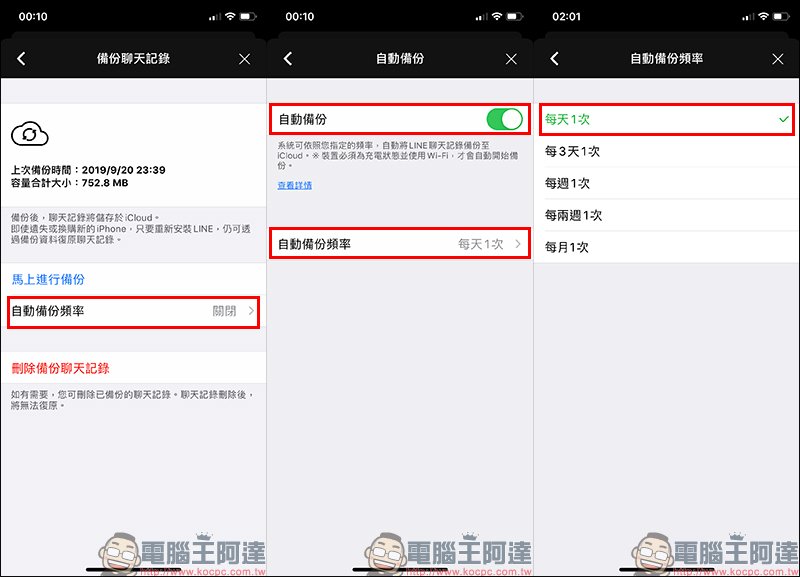
Enable backup
In addition to LINE providing users with backup chat messages, if you are still worried about forgetting to back up manually, it is recommended to enable automatic backup!
(Further reading:LINE iOS 10.3.0 version update: Added “automatic backup” function, users can set the frequency of automatic backup according to their needs|LINE Android 10.10.0 version update: Android adds automatic backup of chat history, multiple optimizations of sticker interface, Keep saves directly to special albums)
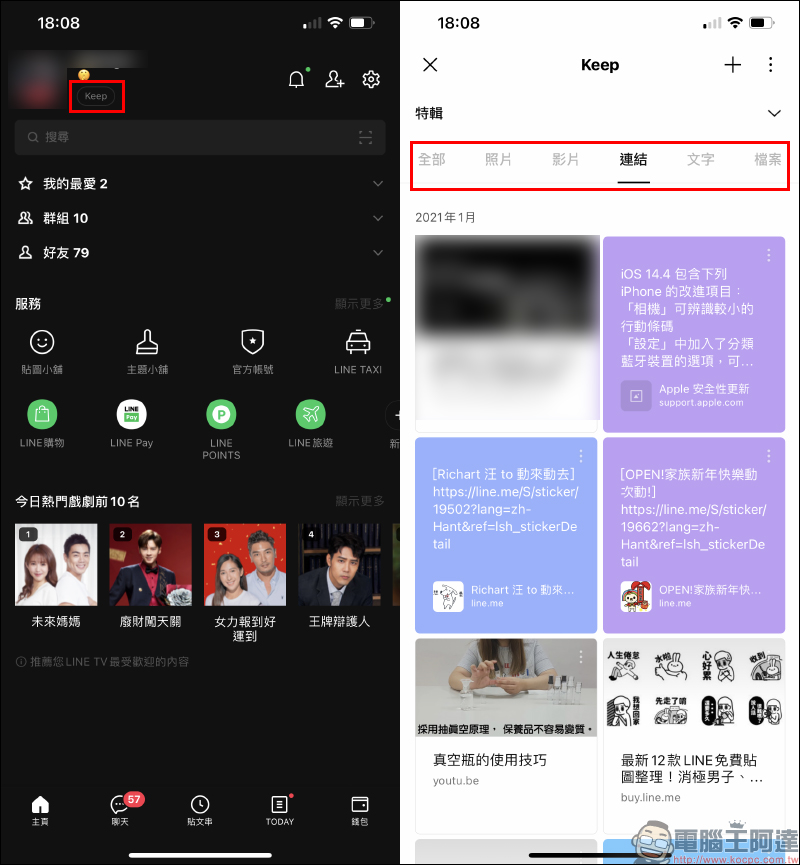
Make good use of Keep
LINE’s built-in Keep this“Free 1GB cloud space”, the content stored in Keep can be stored for 30 days except for files exceeding 50MB. Most other files can be stored.“Permanent storage”. Moreover, Keep can be used on mobile phones and computers, making it easy to access on different devices at any time. You can also take this opportunity to organize the contents stored in Keep and delete the contents that are no longer used.
(Further reading:LINE launches a new feature of “Keep Notes”: the new chat room implements a convenient Keep portal, which can include text, photos, videos or links.)
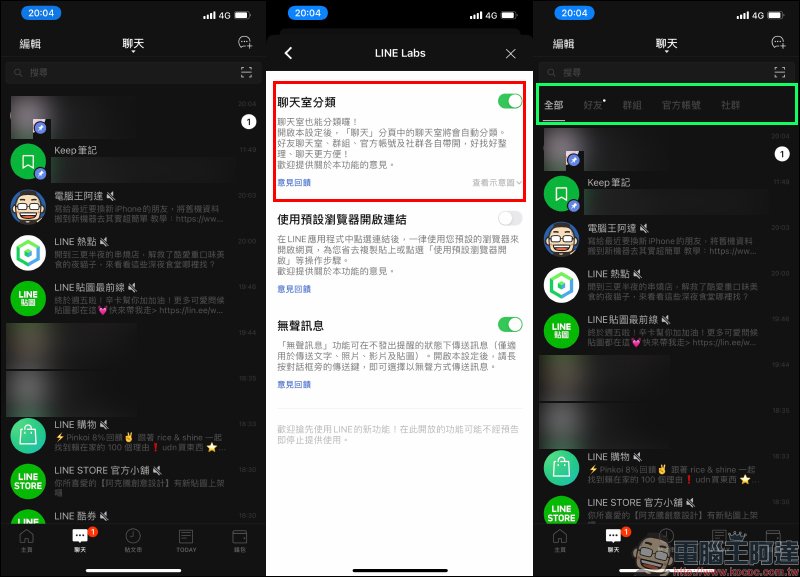
Enable chat room classification
In addition to LINE friends, groups, communities, and official accounts added to a LINE account used to be arranged on the same chat page, and the large number of official account messages could easily cause messages from LINE friends or groups to be “swamped.” Whether you are an iOS or Android user, you can now enable this experimental feature of “Chat Room Classification” through LINE Labs.
(Further reading:LINE Lab launches a new feature called “Chat Room Classification” to make it easier to find chat messages!|LINE iOS version also launches the “Chat Room Classification” experimental function: friends, groups, official accounts and social chats are automatically classified!)
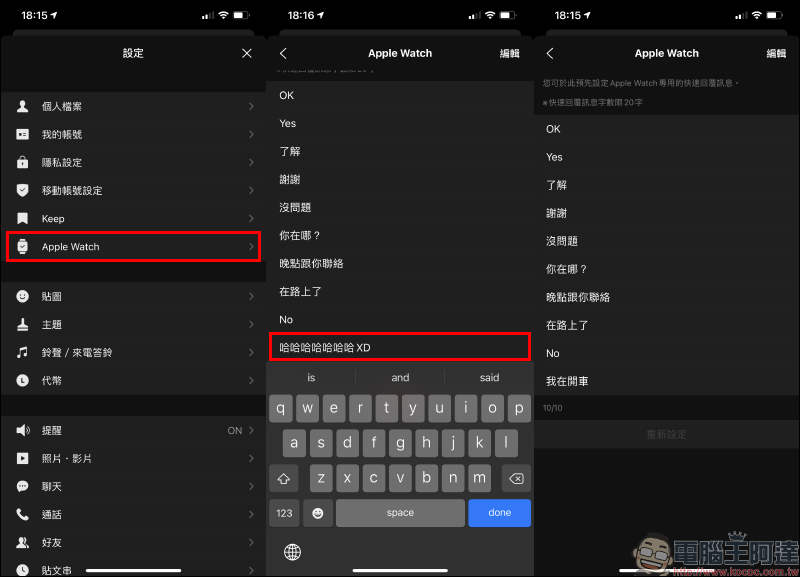
Set up quick replies (Apple Watch)
For iOS users who own an Apple Watch, sometimes they can use the Apple Watch to quickly reply to messages during meetings, driving, etc. when it is inconvenient to use their mobile phone to reply to messages. In addition to logging in to their LINE account on Apple Watch before starting to use it, users can also edit 10 quick reply message options on the iPhone’s settings page.
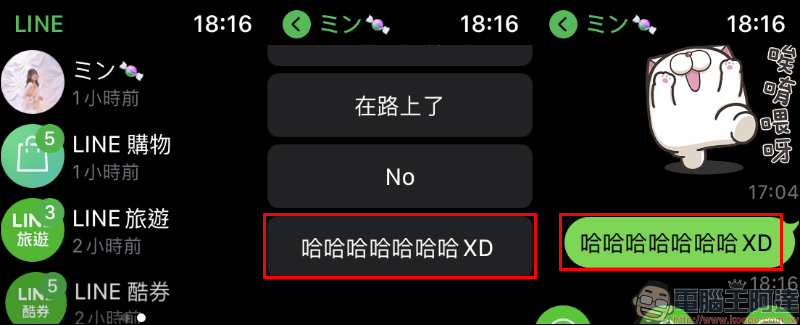
When you want to reply to a friend’s message or want to send a message to the other party, just open the LINE app on Apple Watch, and then click on the content of the reply to send the message.
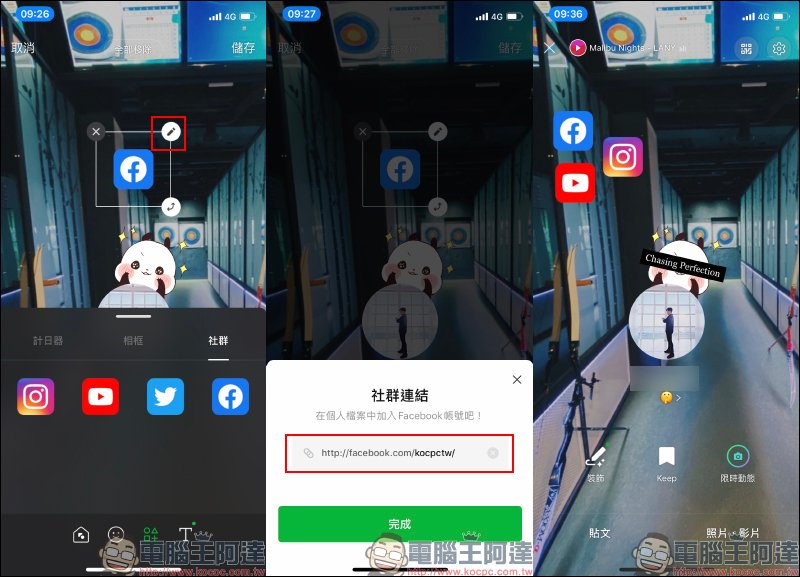
Decorate your profile
In addition to changing the LINE photo sticker, after optimizing the interface, LINE profiles can also be customized with more elements. In addition to avatars, link buttons and other settings can also be added.
Further reading:
- LINE 10.13.0 mobile version update: Personal profile page renovation, improved group video call function and other updated contents are organized, and the “LINE Conference Room” function is announced to be launched soon.
- LINE application tips: How to set up “Text-only photo stickers”, another option besides photos and avatars
- LINE avatar new feature is here! Create an exclusive Q version avatar (operation instruction)
Picture/Source:LINETaiwanBLOG
Further reading:
Collection of 14 free stickers for LINE: OPEN! Family, Chai Quotes and other stickers can be downloaded for free!

LINE Pay’s “My Membership Card” function adds more commonly used membership card options

Source: KOCPC Chinese