


When it comes to remote desktop, many people may think of TeamViewer and AnyDesk. In fact, Chrome Remote Desktop (or Chrome Remote Desktop) launched by Google is also good. If it is your own computer, you can quickly connect remotely with one click by binding a Google account, allowing you to easily use your home computer remotely through your iPhone, Android or other computers anywhere. Of course, the function of remotely operating other people’s computers is also supported. Let’s teach you how to use it.
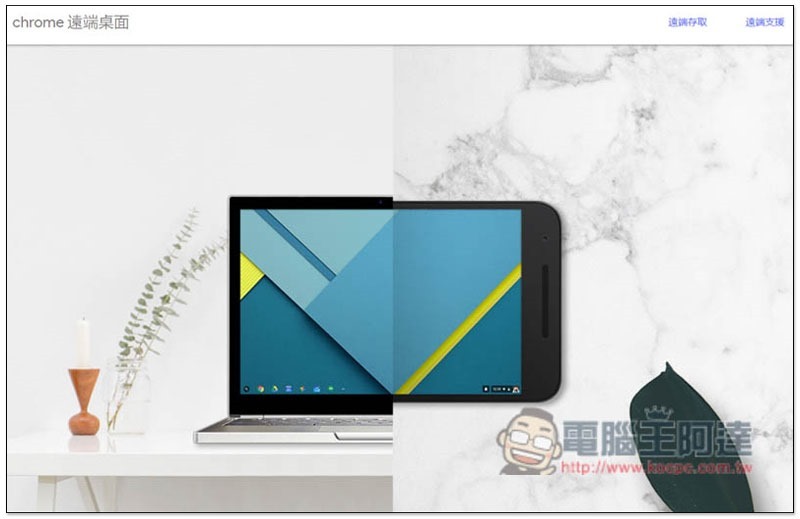
Chrome Remote Desktop remote desktop operation tutorial
Step 1: Install Chrome Remote Desktop on your computer
Whether it is the computer you are using now or the computer being operated remotely, you must install the Chrome Remote Desktop free tool to realize the remote desktop function. Both Windows and Mac can be used.
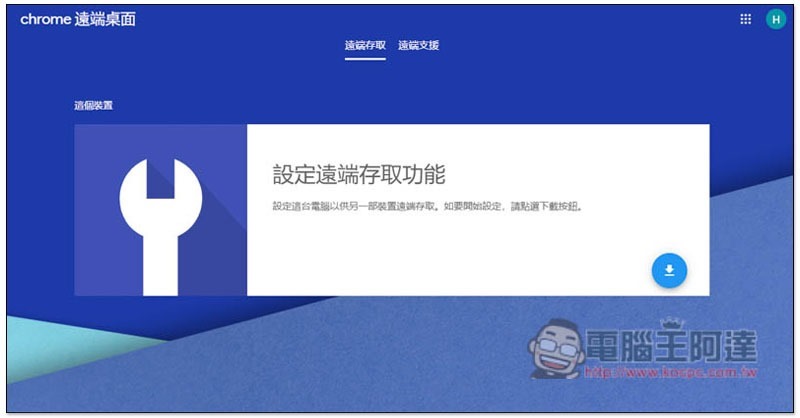
Go to Chrome Remote Desktop official websiteAfter that, click the download icon in the lower right corner of “Set up remote access”:
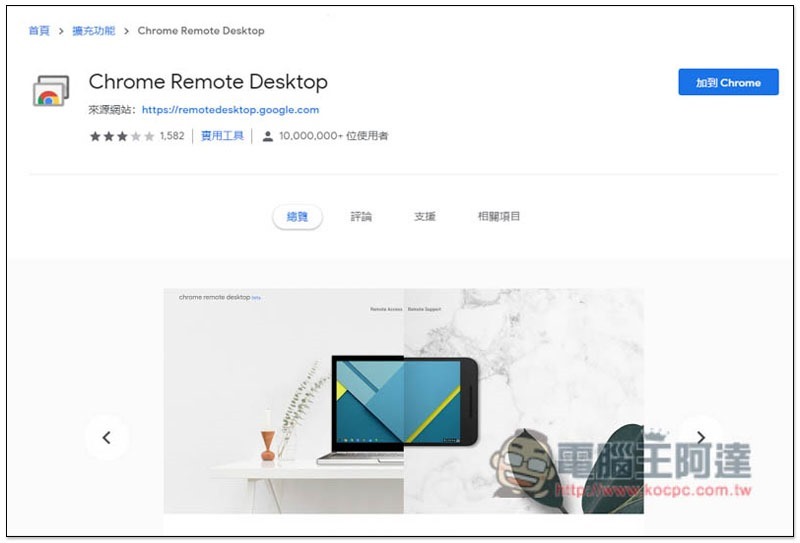
The extension plug-in page of Chrome Remote Desktop will open. Click on the upper right corner to add to Chrome, and an installation file will be downloaded:
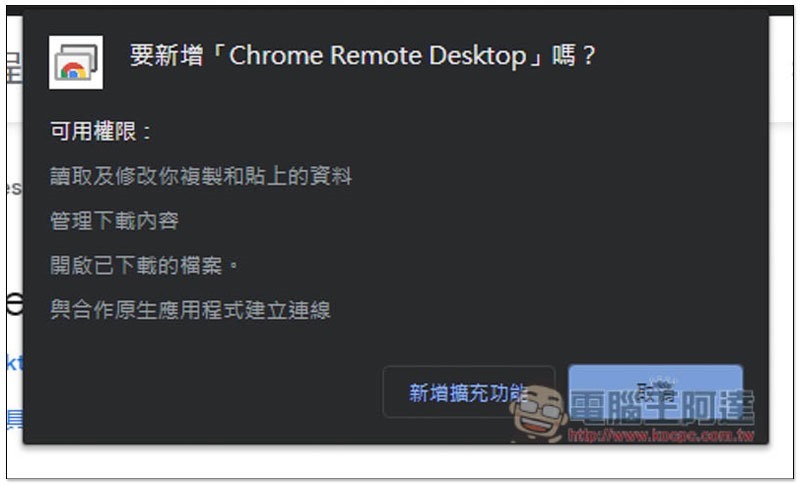
Click “Add extension”:
In addition, the installation method of this expansion plug-in is different from others. It is more like a general software installation, so after downloading the installation file, you need to open it and execute it.
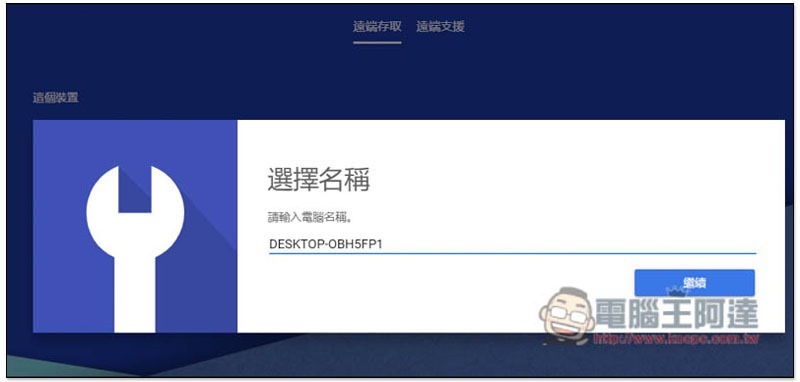
Only computers that are controlled remotely need to set the following steps. Please enter a name for this computer, whatever you want:
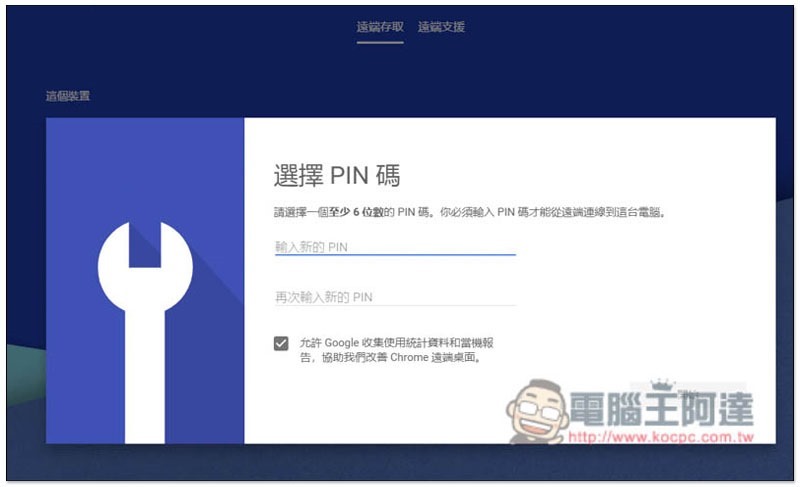
Set a security PIN code. After the connection is successful, you need to enter this PIN code to start using it to avoid the risk of the device being stolen:
After the screen is finished, the setting is successful:
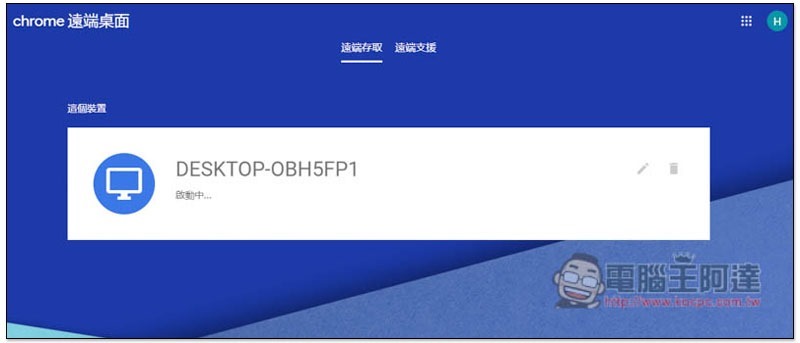
If your Chrome is logged in with a Google account, then this computer will be tied to your Google account. When you open the computer or mobile version of Chrome Remote Desktop in the future, if you are logged in with the same Google account, you will see this computer and you can quickly connect with one click. I will use iPhone as an example below.
Step 2: Turn on your device to remotely control this computer
Android and iPhone please come first Google Play or App Store Download the Chrome Remote Desktop App:
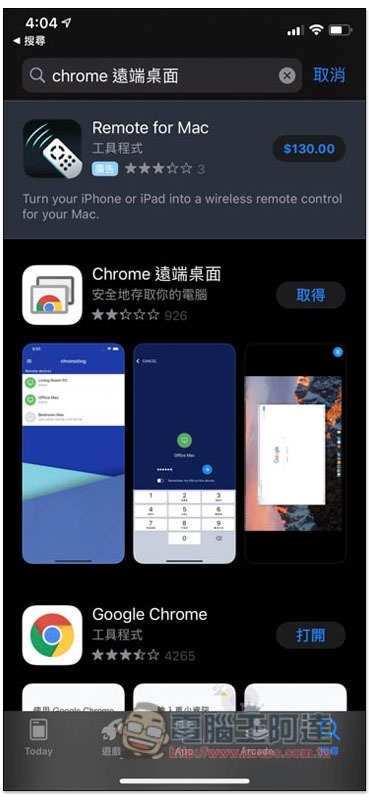
After downloading, open it and click login below:
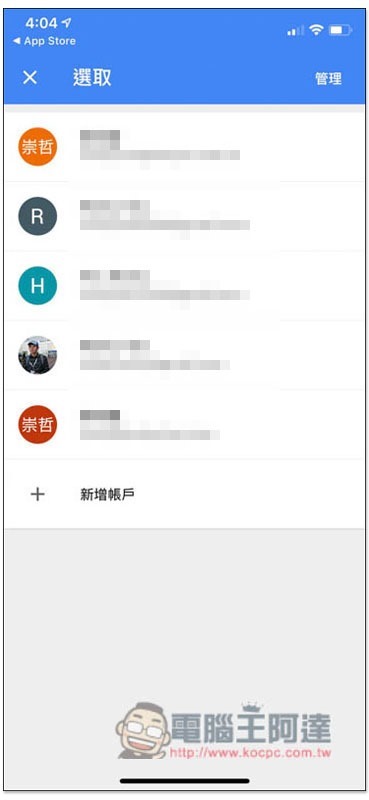
Select or sign in to the same Google Account as your computer:
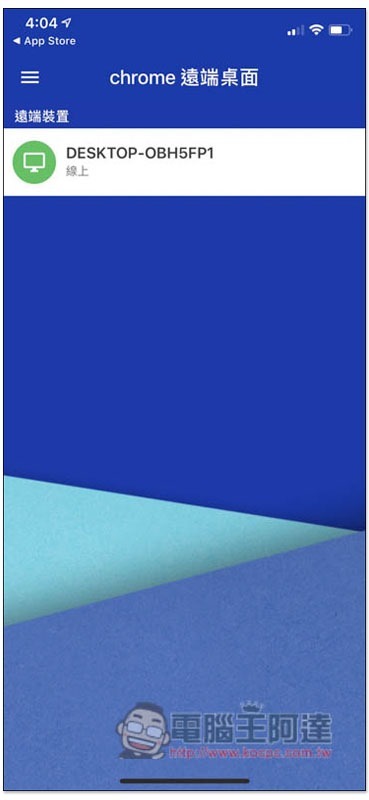
The computer you set will appear on the screen, click on it to connect:
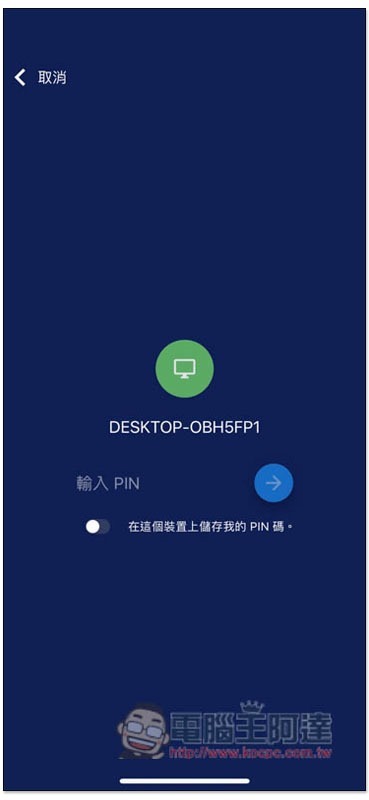
You will be asked to enter your PIN:
After inputting, you can start the remote operation:
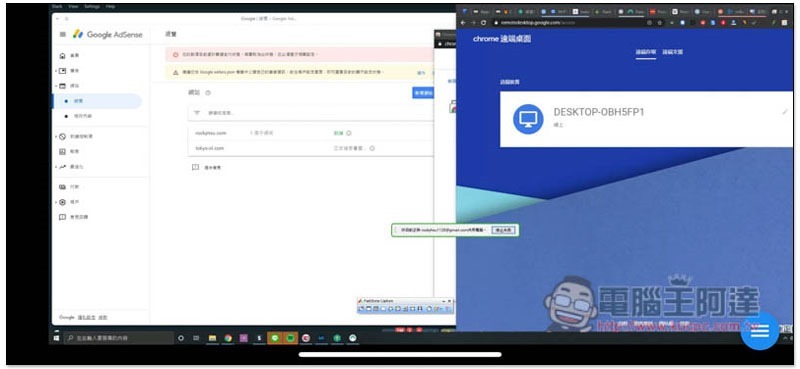
How to remotely control other people’s computers?
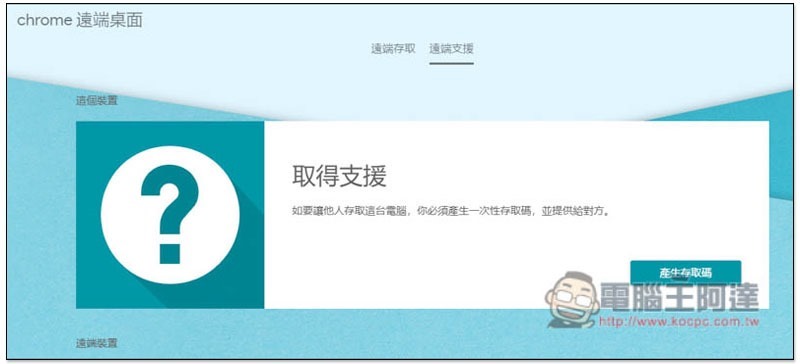
Also ask the other party to install Chrome Remote Desktop first, then go to the “Remote Support” menu and click “Generate Access Code” at the bottom right of Get Support:
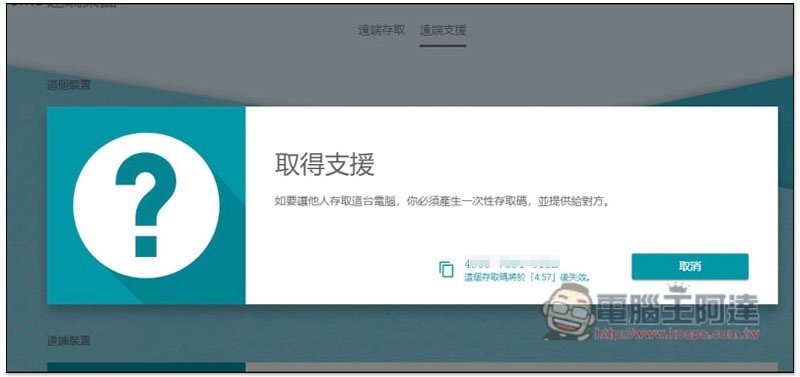
You will be given a set of numbers and ask him to tell you. Also remember that this set of numbers will expire after 5 minutes and must be regenerated after expiration:
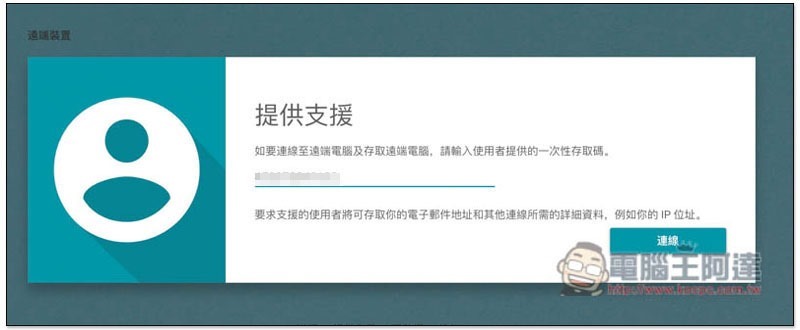
Open the Chrome Remote Desktop on your computer. At the bottom of the remote support menu, you will see “Provide Support”. Fill in the number and click Connect. (Remote control of other people’s computers only supports the computer version, the mobile version is not yet available):
This prompt will appear on the other party’s computer, please click “Share”:
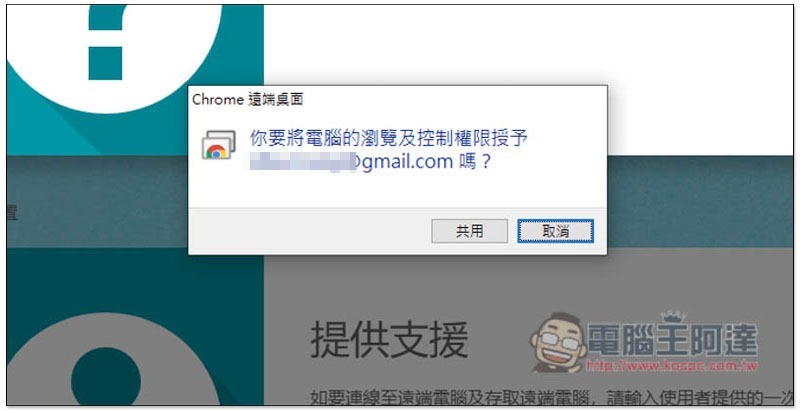
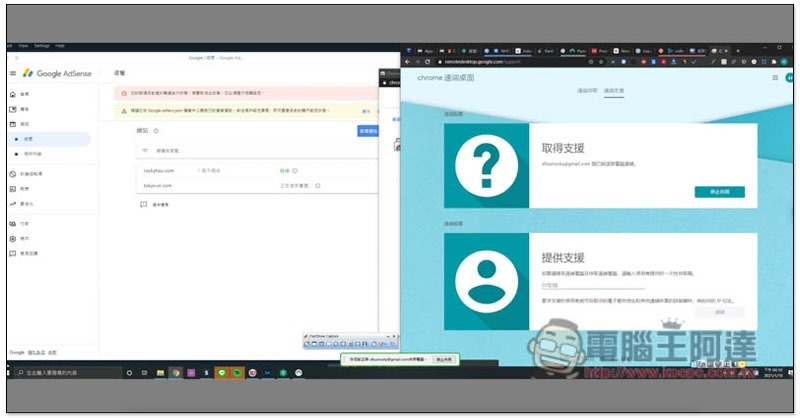
This is successful, and you can start helping the other person solve the problem:
Summarize
For those who are in need of remote desktop, it is highly recommended to try Chrome. The operation is really simple, and even people who are not familiar with computers should be able to get started quickly.
Source: KOCPC Chinese