


Adobe Flash is one of the main elements of the early Internet, bringing users a variety of animations, forms, and various interactive applications on web pages; entering 2021, Adobe Flash is no longer supported. Although you value your feelings, it is time to remove it from MacOS. This time I’m going to tell you how to completely erase this historical relic from MacOS.

Flash is dead, how to cleanly remove it from MacOS?
The reason why Adobe Flash was so popular at the beginning was that it provided web developers and media creators with more options than basic technologies such as HTML and GIF at the time. However, with the advancement of browser technology and the popularity of various open web technologies such as HTML5, WebGL, and WebAssembly, Flash as the dominant interactive method gradually declined, and more and more malicious software became rampant in the name of Flash Player installers, which accelerated the decline of Adobe Flash.
For iPad or iPhone users, since Flash is not supported, the presence or absence of Flash does not matter. Although web browsing is no longer supported and there seems to be no need to use it, users still have to go through some procedures to truly clear Flash from MacOS:
- First determine your MacBook operating system version and download the corresponding Adobe Flash removal tool.
Mac OS X version 10.6 and later,Click here
Mac OS X versions 10.4 and 10.5: Click here
【For more operating system versions, click here to find】
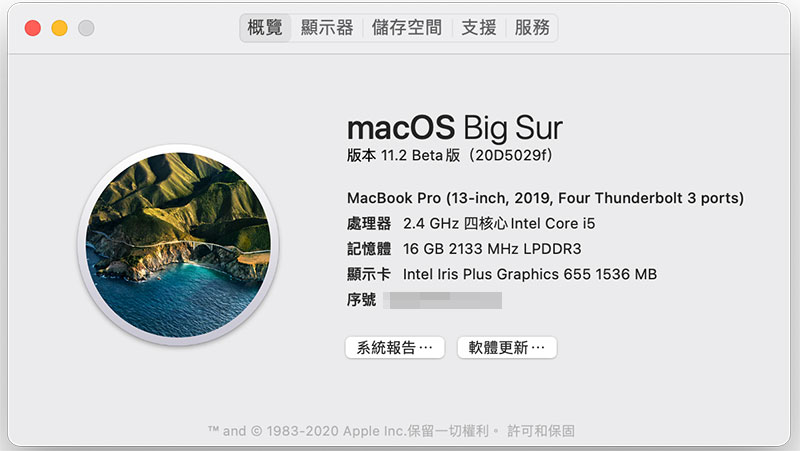
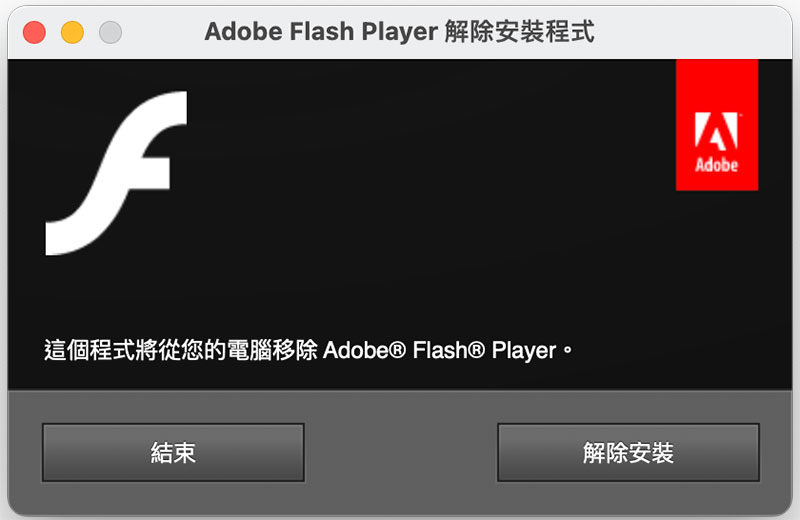
- After the removal tool is uninstalled, open a Finder window, select “Go to Folder…” from the Go in the function directory above, directly copy and paste respectively, find and delete the directories in the following two paths:
directory /Library/Preferences/Macromedia/Flash\Player
directory /Library/Caches/Adobe/Flash\Player - After restarting the computer, go to Adobe’s official page to verify whether Adobe Flash is still in the computer.
【Official page, click here】
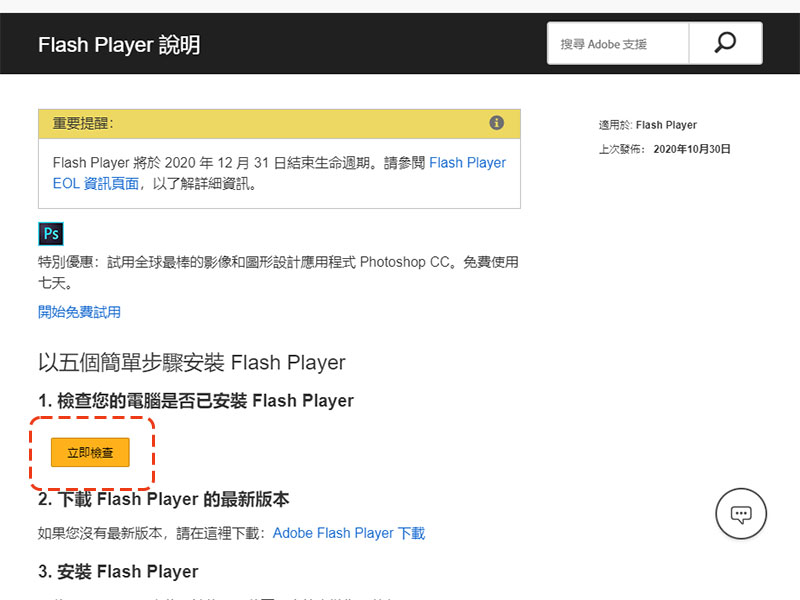
Every time you remove software or applications, the most annoying thing are the relics and residual files that are easily ignored. With this method, you can completely erase the traces of Flash on your computer. I hope it will be helpful to everyone.
Source: KOCPC Chinese