


Many people know that Google AI Studio can try in Gemini Live The voice function, in most cases, is probably just used for simple chatting or asking questions, and recently… YouTube Saw a pretty good application method on it, through Gemini Set custom prompts on Live to create something uniquely your own AI A real-time translation tool that lets you specify which languages to translate between, such as English-Chinese or Japanese-Chinese.
However, when I tested it recently, Gemini Live’s stability wasn’t that great. Sometimes it worked fine, but other times there were frequent connection errors, so the actual stability in real-world use still depends on Google’s performance.
Additionally, this real-time translation tool works better with headphones. If you use the phone’s speaker, sometimes Gemini’s translated speech might be picked up by the microphone and translated again, causing a loop or failing to correctly hear what you said.
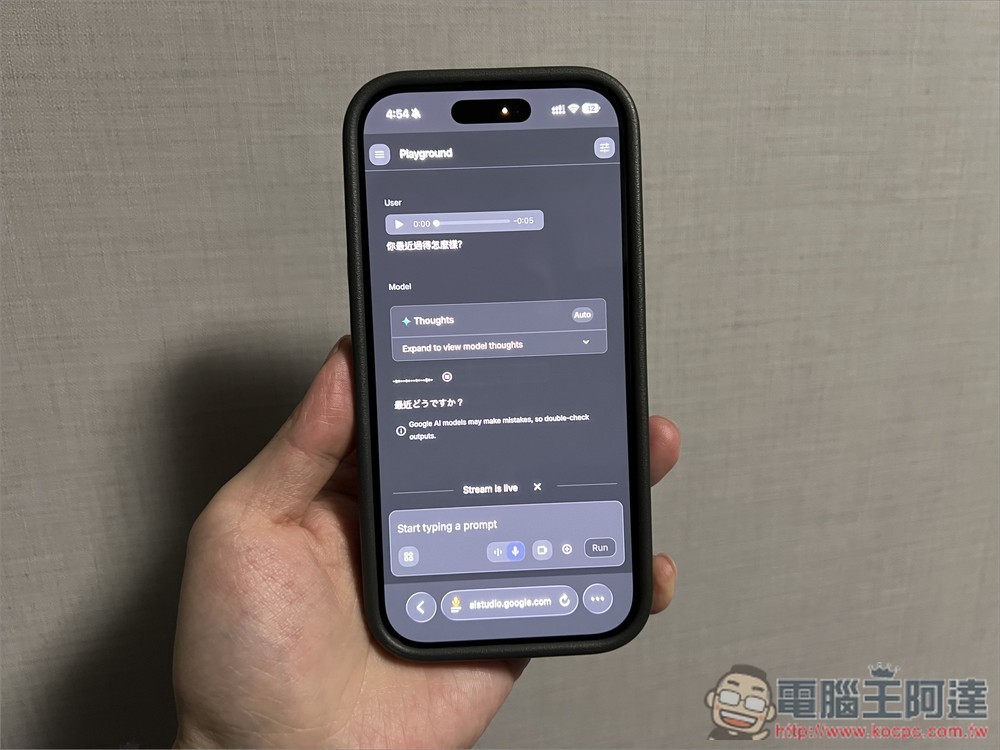
Learn how to build your own free Gemini AI voice real-time translation tool to easily communicate with foreigners
As mentioned earlier, this tool is implemented through Google AI Studio. Anyone with a Google account can build it for free, and it’s web-based, so both iPhone and Android users can use it.
A tutorial video I found on YouTube will also be included at the end for anyone who’s interested.
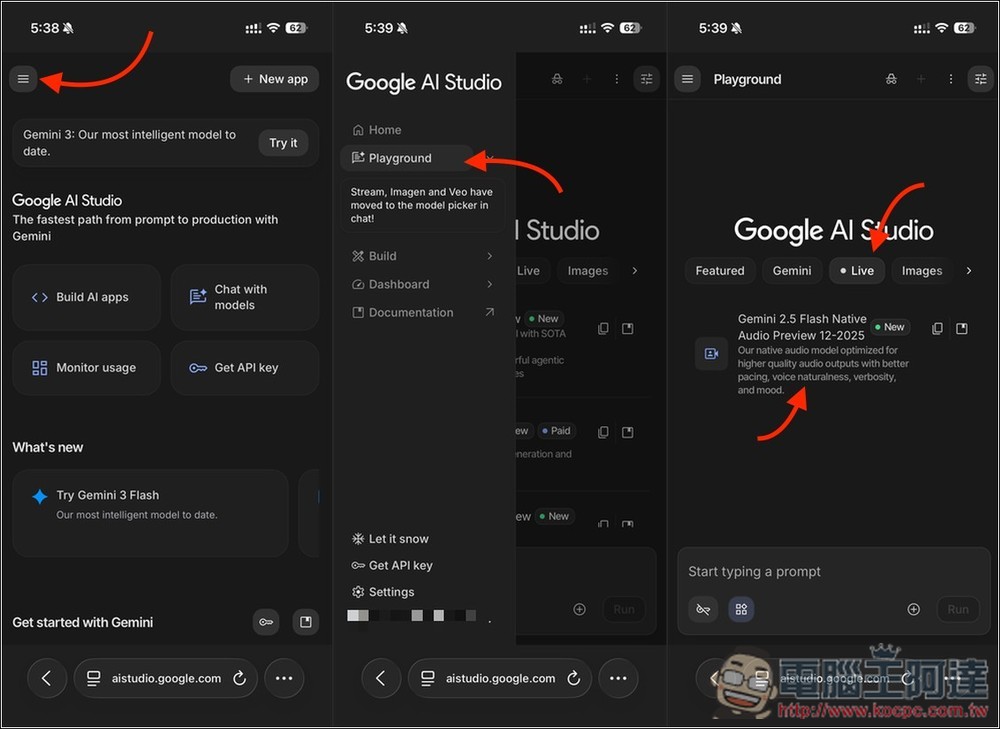
I’ll demonstrate the mobile version here. Open Google AI Studio via the link above, then open the three-line menu in the top left corner. Next, go to Playground, select Live mode at the top, and click on the Gemini Flash Native Audio Preview option on the screen.
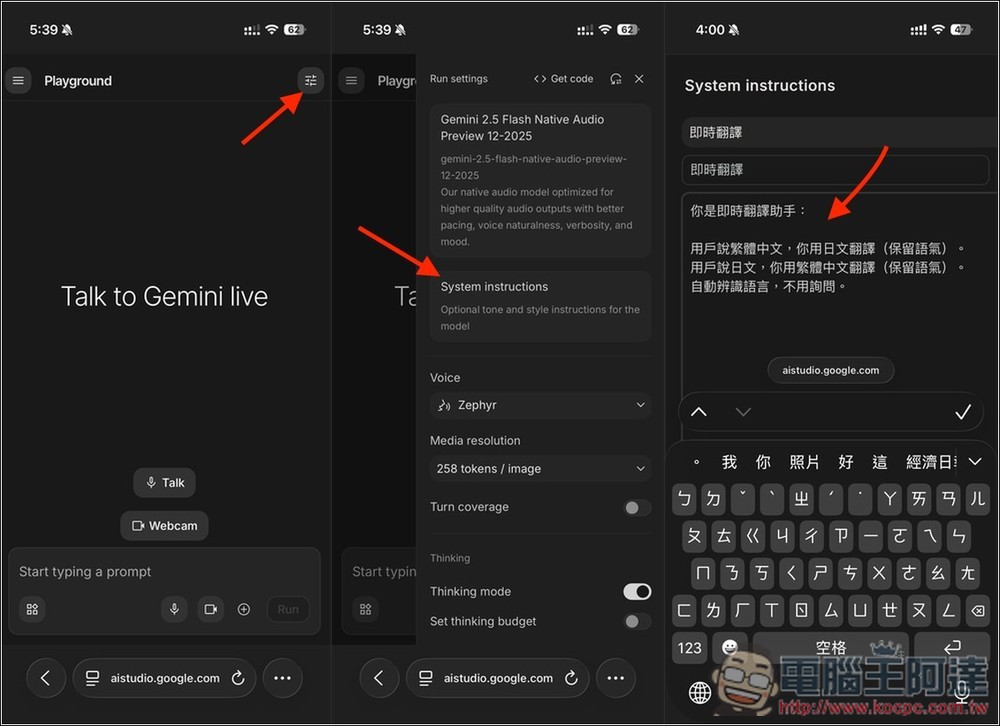
After entering Gemini Live, tap the menu icon in the top right corner to open a sidebar. Go to System Instructions, then enter a prompt for real-time translation. I’m using Japanese as an example here — if you want to translate English instead, just swap out Japanese for English.
You are an instant translation assistant:
The user speaks Traditional Chinese, translate to Japanese (preserve the tone).
請提供您想翻譯的日文內容,我會將其翻譯成繁體中文並保留語氣。
Automatically detect the language without prompting.
Remember to enter the title as well. This prompt only needs to be entered once—you can call it up anytime you want to use it next. When you’re done, just press the X in the upper right corner. Also in the sidebar, you can adjust the voice you prefer, in the menu below Voice—it’s set to Zephyr by default.
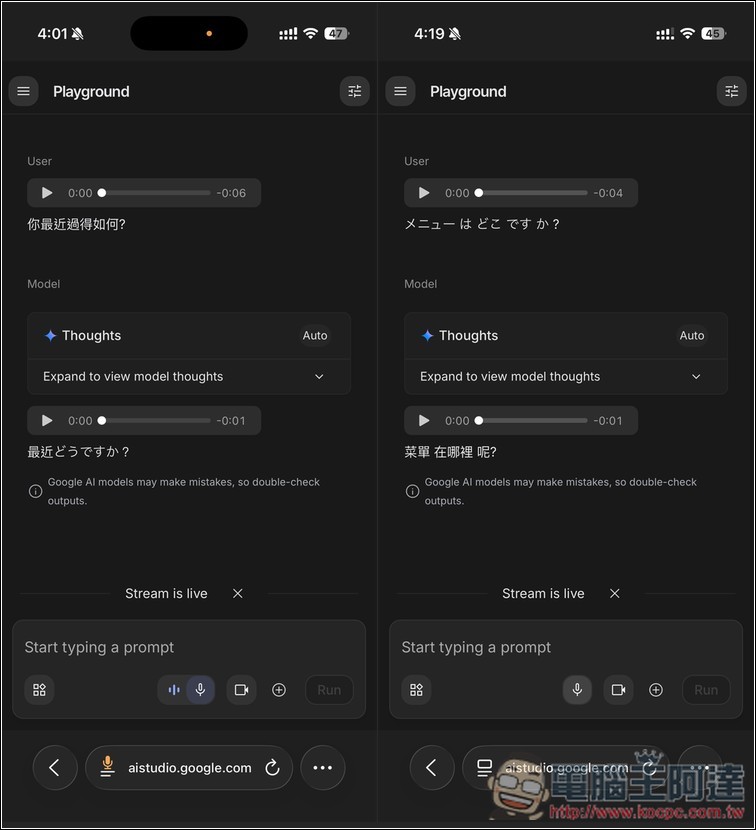
Next, go back to the Gemini Live screen, and you can start chatting. When I speak in Chinese, Gemini translates it to Japanese and plays it; then when the other person speaks in Japanese, Gemini translates it to Chinese and plays it:
For the actual demo effect, please refer to the video below:
Source: KOCPC Chinese