


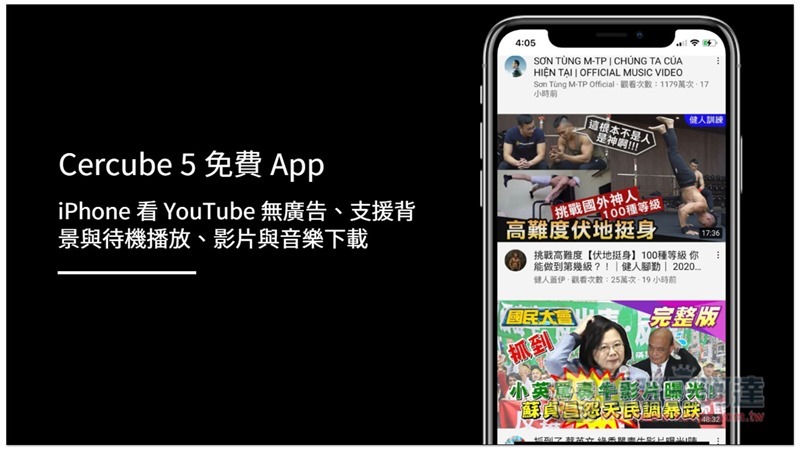
Cercube 5 is a free app that allows you to watch YouTube videos on your iPhone without any ads, and it can also play in the background. It can even download videos and music, just like YouTube Premium permissions. Of course, it is impossible for such a powerful app to be put on the App Store. In the past, if you wanted to install such third-party apps, you would need to jailbreak. But now you only need to use an AltStore to achieve it. Let me teach you how to use it.
AltStore + Cercube 5 usage tutorial
Install first AltStore You need to use a computer, either Windows or Mac. I will use Windows as an example below. In addition, when installing these two Apps, you also need to enter your Apple ID. This is mainly for developer authentication. Although AltStore claims that they will never record anything, for those who are worried, it is recommended to enter another unused Apple ID. It does not matter if it is different from the Apple ID used to log in to the iPhone. In my actual test, it can be installed.
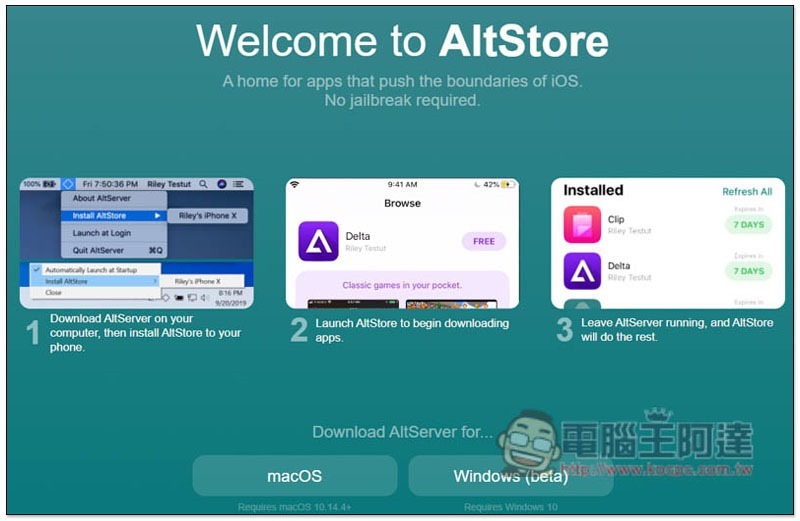
Turn on your computer, click me to enter the AltStore website, and download your operating system version:
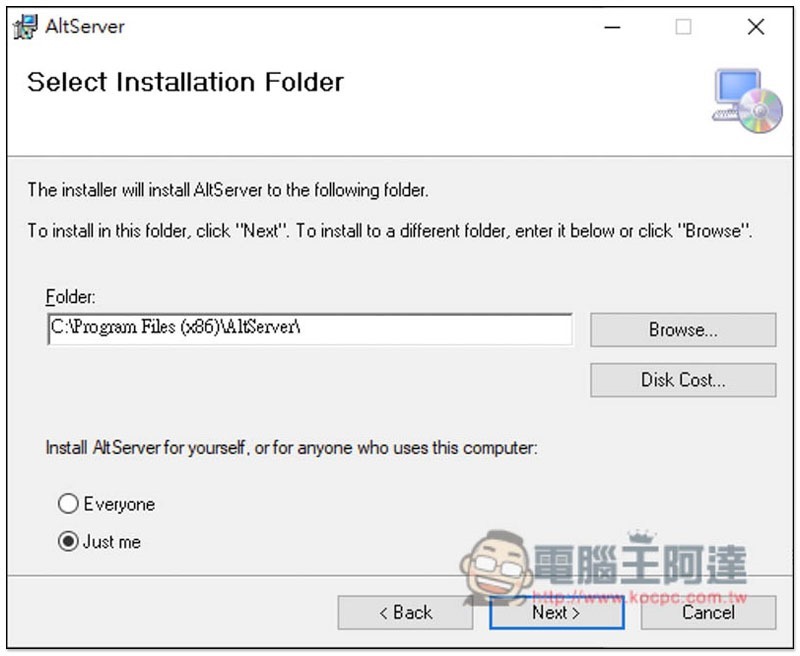
Just keep pressing Next during the installation process:
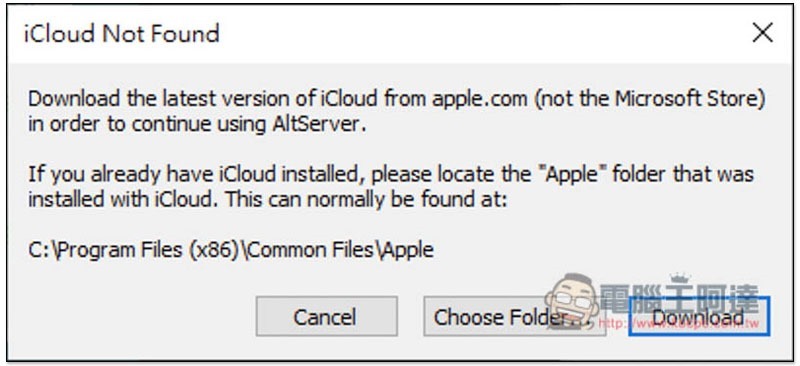
It will need to be paired with iCloud tools. My computer does not have it installed, so this message pops up. Click Download and the download will start:
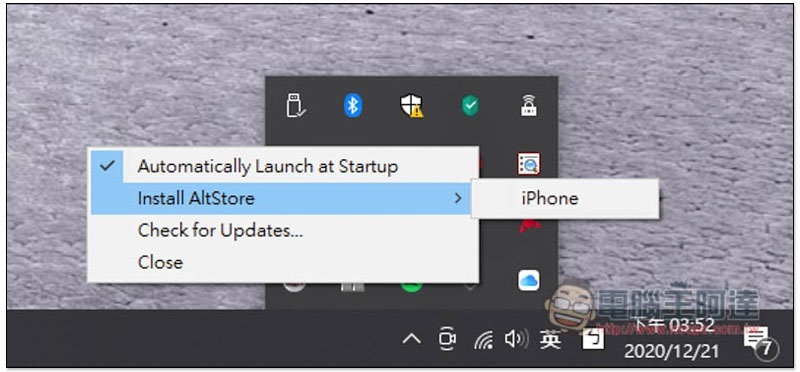
After iCloud is installed, connect your iPhone to your computer, and then find the AltStore icon in the lower right corner. You should see your iPhone in Install AltStore. Click to install:
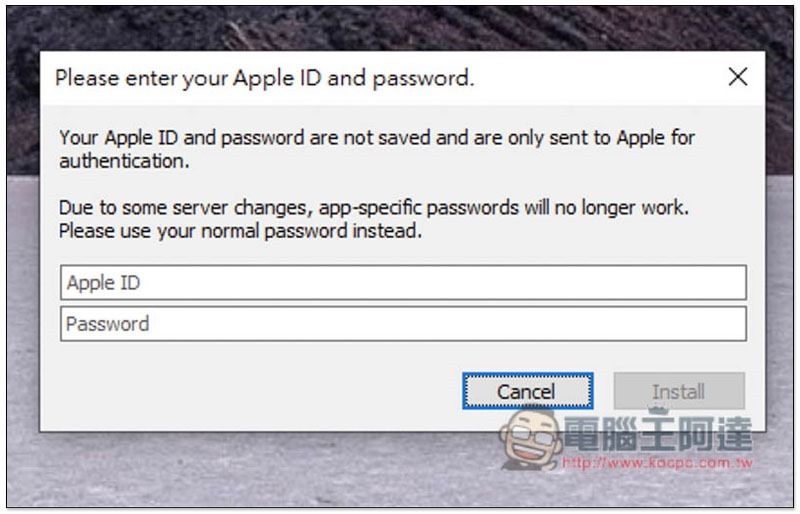
At this time, you will need to enter your Apple ID. It is recommended to use an Apple ID that you are not using:
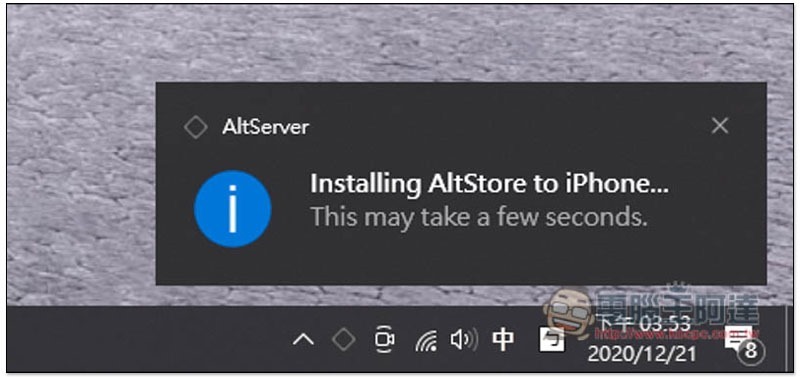
Once authentication is complete, AltStore will begin installation:
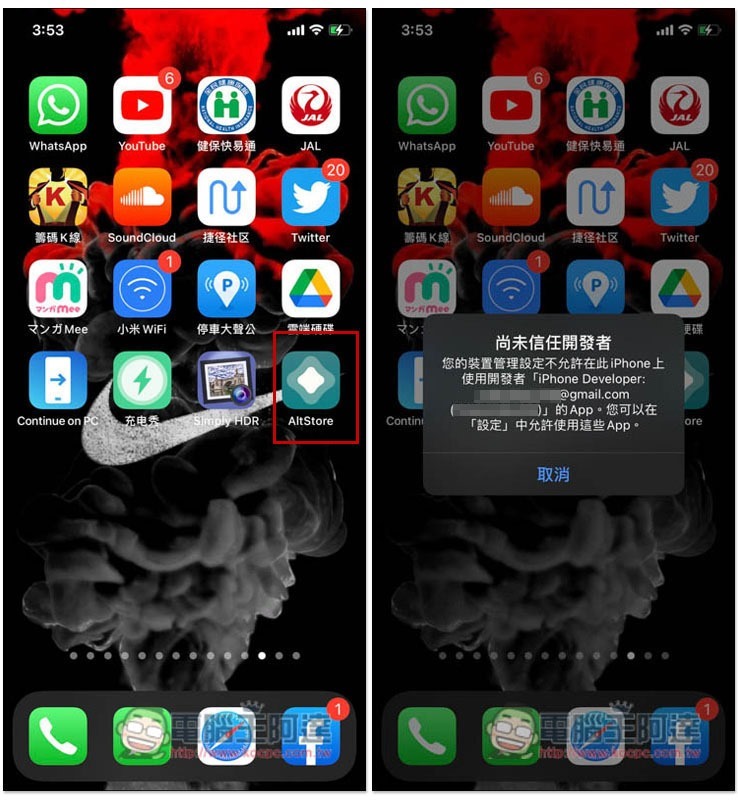
Then you can find AltStore on the iPhone screen, but you can’t open it at first. The developer will not be trusted yet, and the developer’s name is your Apple ID account:
Please open iOS Settings, go to General –> Profiles and Device Management, and click on the profile of your Apple ID account:
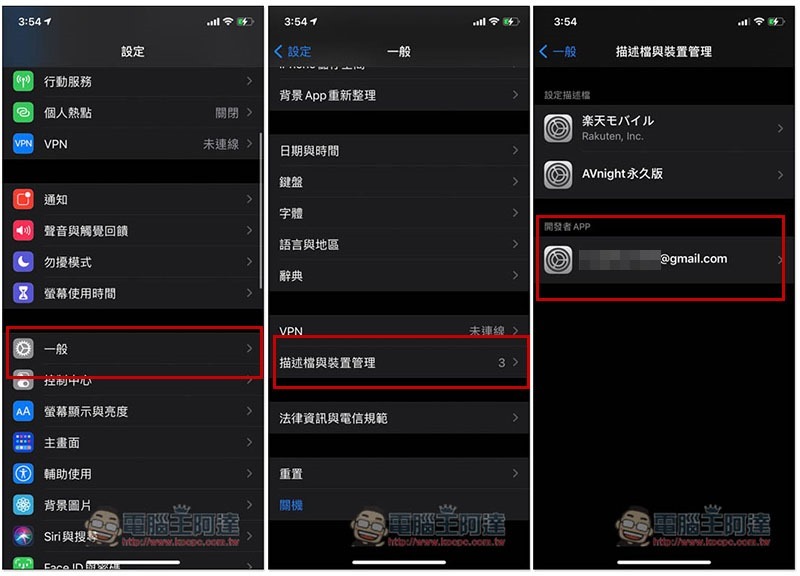
After selecting trust, you can open it normally:
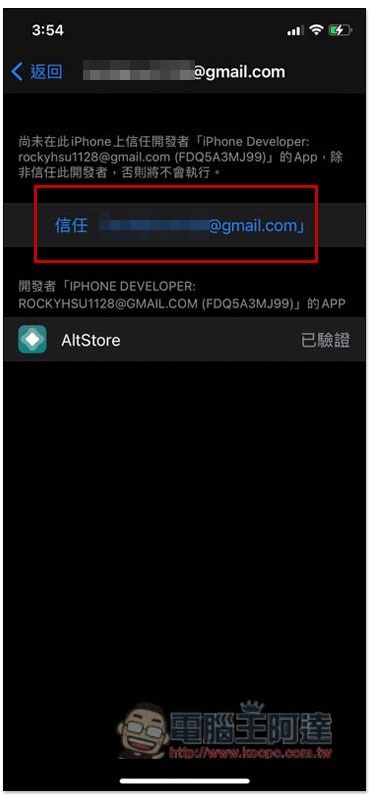
As shown in the picture below, however, Cercube 5 is not listed there. You need to download the installation file from another website:
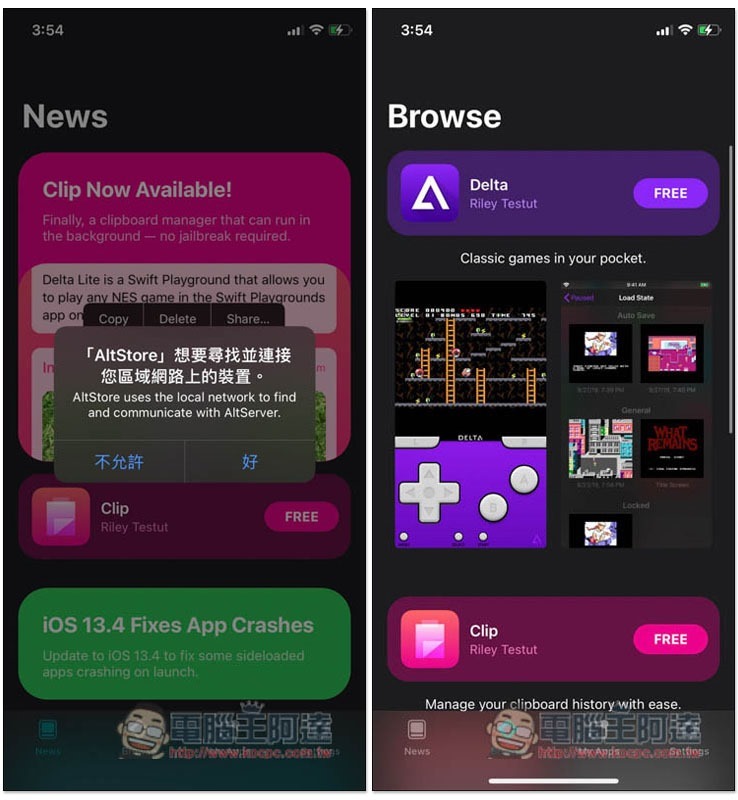
Click here to go to Cercube 5 download page, scroll down and you will see Download IPA, click Download File on the next page:
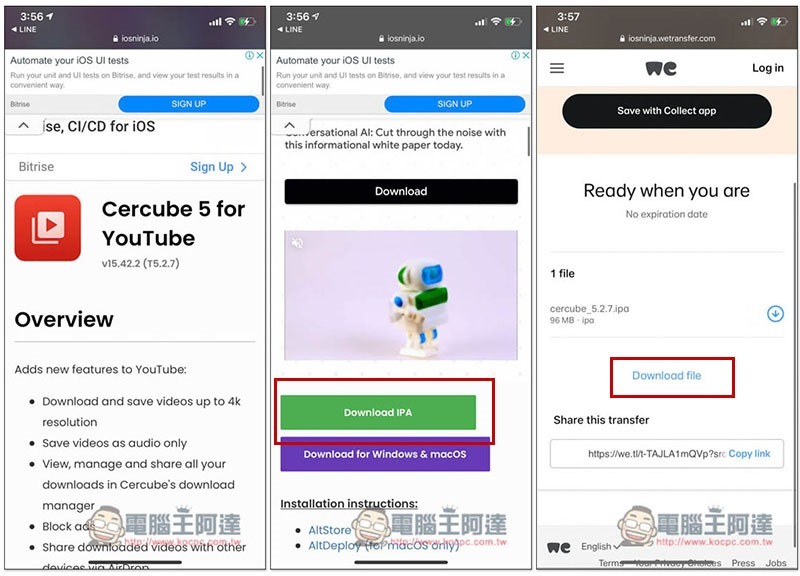
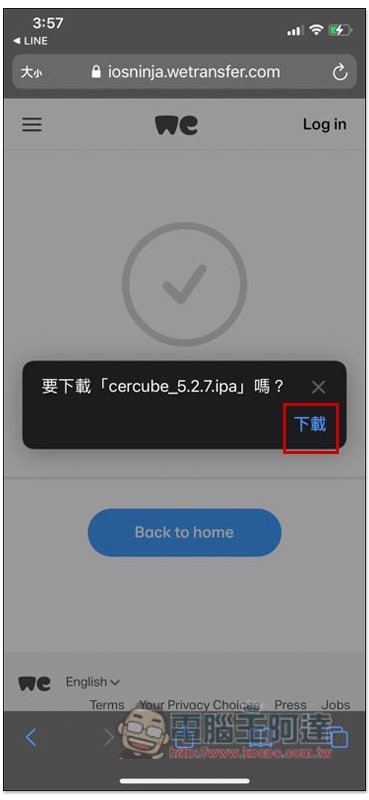
Click to download:
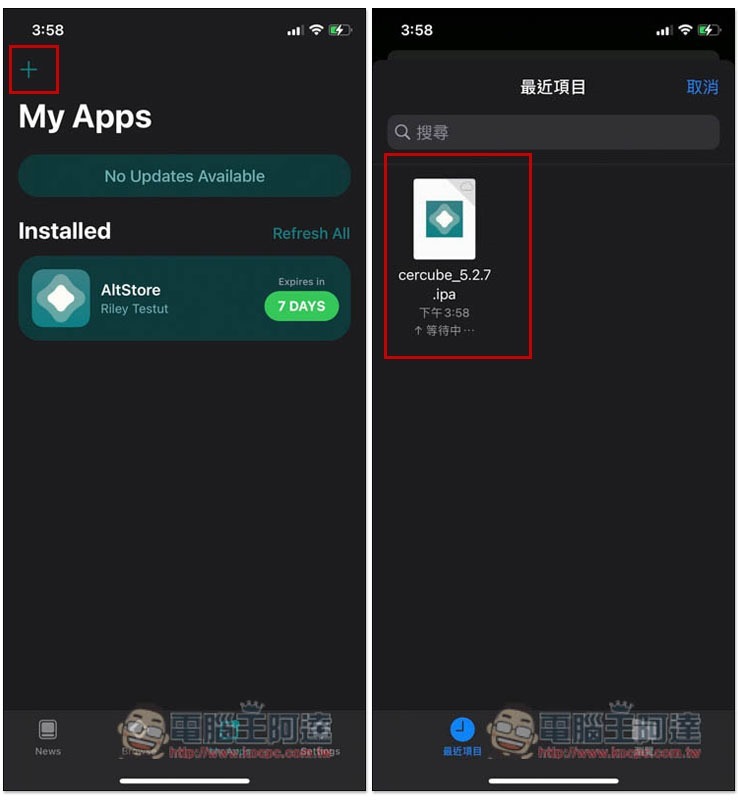
After the download is complete, open AltStore App, go to the My Apps menu and click + in the upper left corner to select the IPA file you just downloaded. During the installation process, the iPhone needs to be continuously connected to the computer, remember not to unplug it:
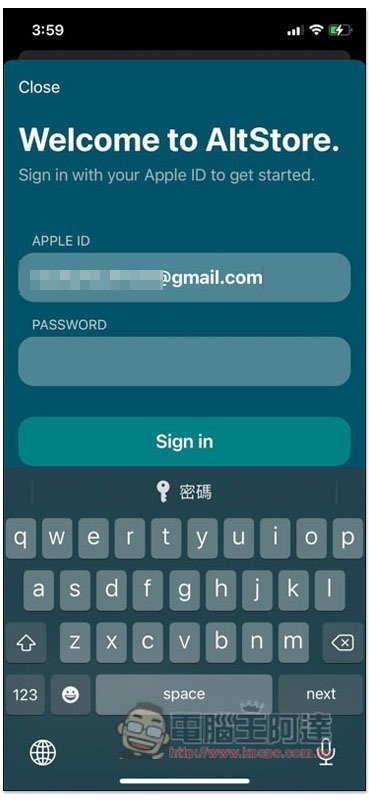
At this time, you will need an Apple ID. It is also recommended to enter the account you are not using:
Wait a few minutes for the installation to be completed:
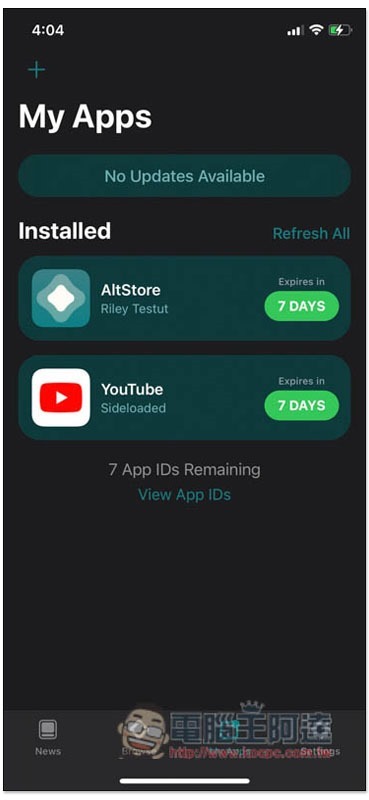
You will see a new YouTube App on the home screen. The upper one in the picture below is the official one from Google, and the one below is the YouTube App for Cercube 5:
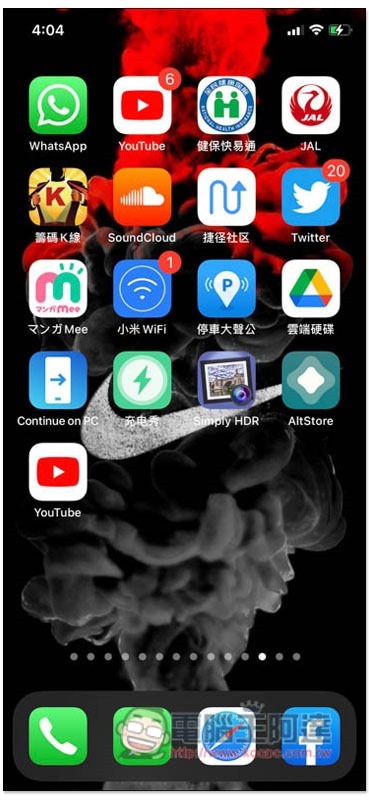
Once you open it, you can start enjoying an ad-free YouTube experience! Although there are no ads when watching videos or on YouTube pages, a small ad will still appear at the bottom of the app, but it will not affect the user experience:

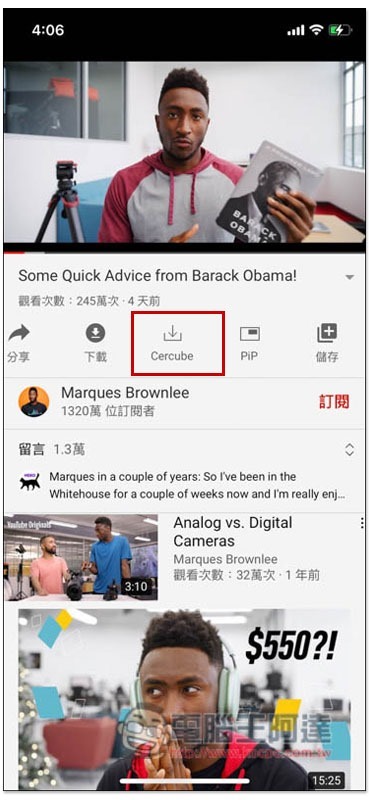
If you want to download YouTube videos or music, a Cercube download icon will appear below:
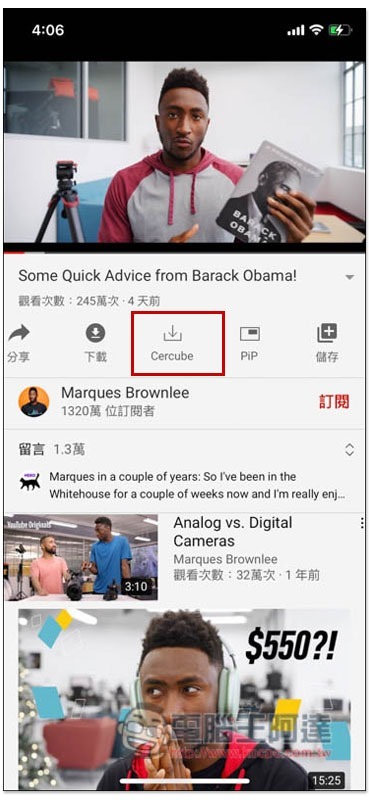
This feature requires a login account to use, and a free account is also acceptable. Click Proceed –> Login now, and you can see the Sign up registration below:
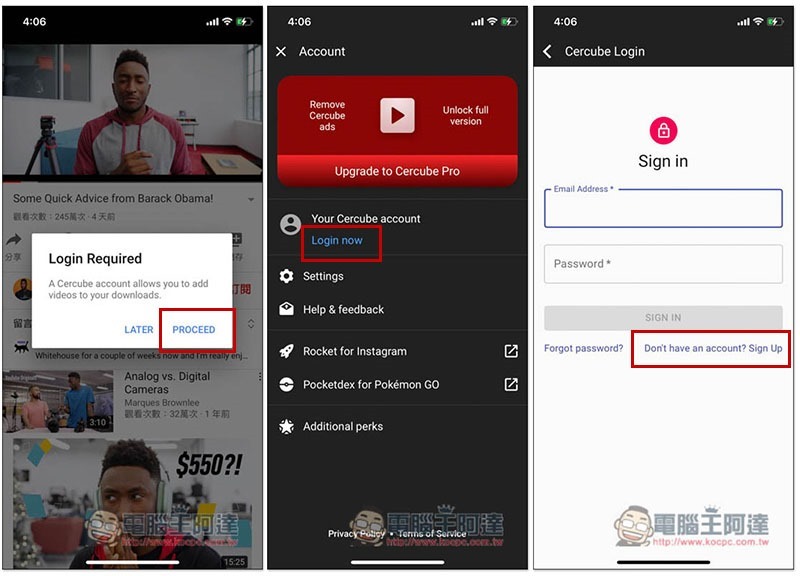
Log in after registration is complete:
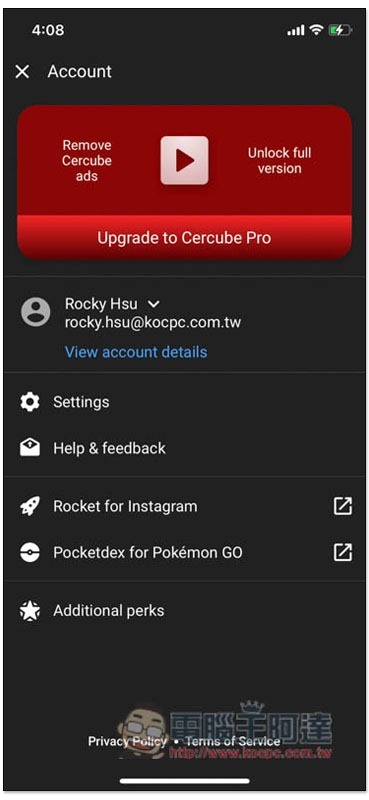
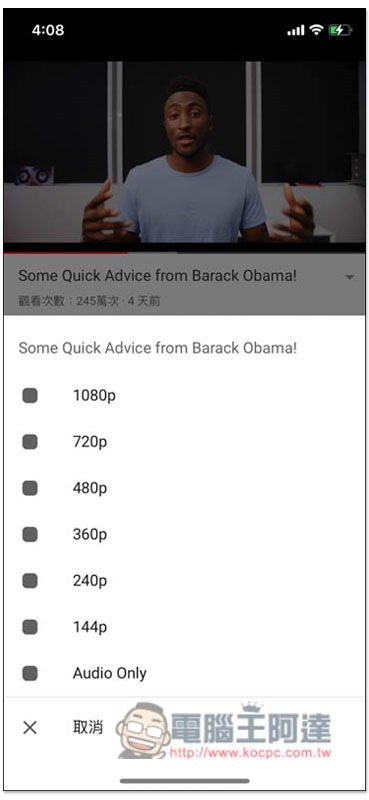
You can select the format you want to download, and the video supports up to 1080p:
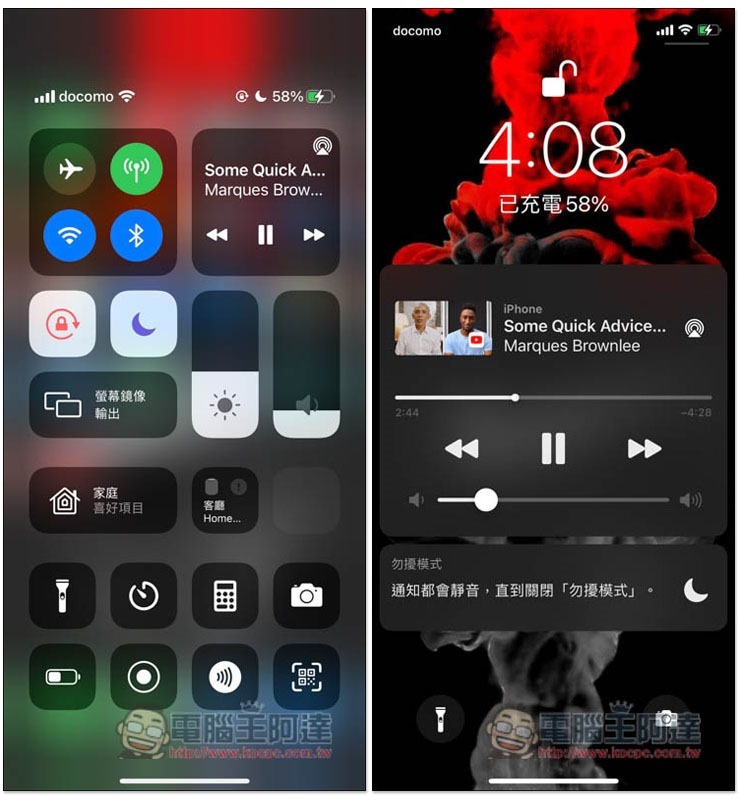
Tested standby playback and background playback are no problem:
Supplementary information
- AltStore download page:Click here to go
- Cercube 5 download page:Click here to go
Source: KOCPC Chinese