


This year, because the iPhone 12 series has multiple models to meet consumers with different budgets and needs, some old iPhone users are finally exposed to Face ID facial unlocking iPhones for the first time. At the same time, there are also many new users who have used Android smartphones in the past and are switching to the iOS camp for the first time. Although the Home Indicator at the bottom of the iPhone screen is very convenient to operate with one hand after getting used to it, when it comes to watching videos or playing games, this horizontal line can easily cause accidental touches or line of sight interference.
Today, I will share some tips on how to quickly hide/open this horizontal bar that exists on the iPhone screen. It may be of great help to your daily experience of using iPhone.

The horizontal bar at the bottom of the iPhone hides a small trick, so you no longer have to worry about accidental touches when playing games or watching videos on the full screen.
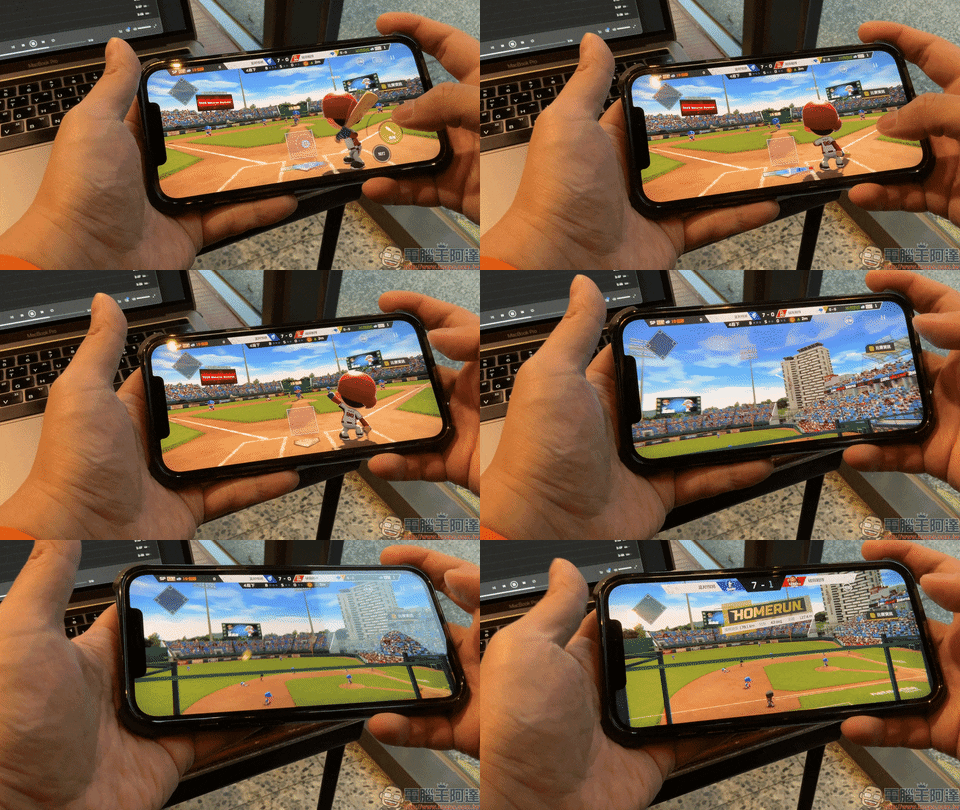
When playing mobile games on iPhone 12 series or other iPhones that previously used Face ID facial models, there is a Home Indicator at the bottom of the screen that can perform multi-tasking operations by sliding:
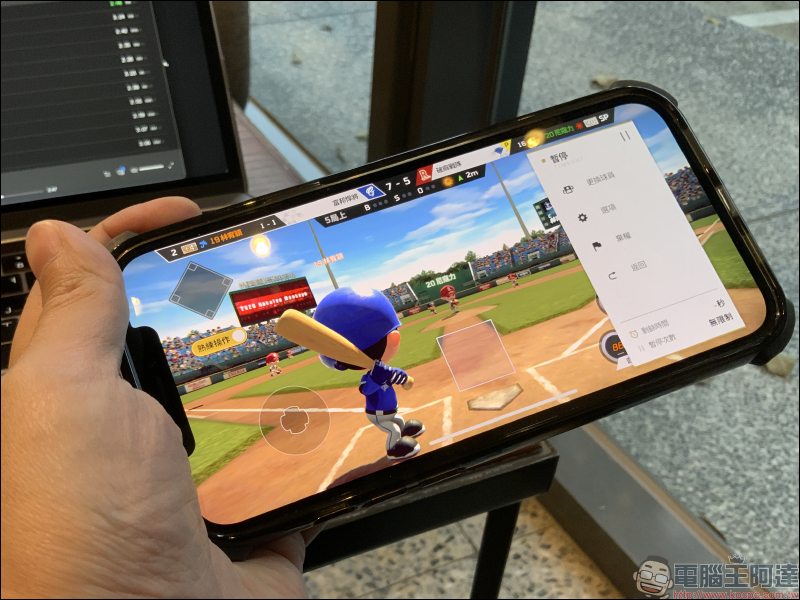
When playing intense games, you often accidentally activate multi-tasking operations by accidentally sliding your hands (like the picture below). At this time, if you face an important game, it may lead to the tragedy of losing. However, in fact, the horizontal bar at the bottom of the iPhone can be temporarily hidden. Next, I will share with you how to apply it.
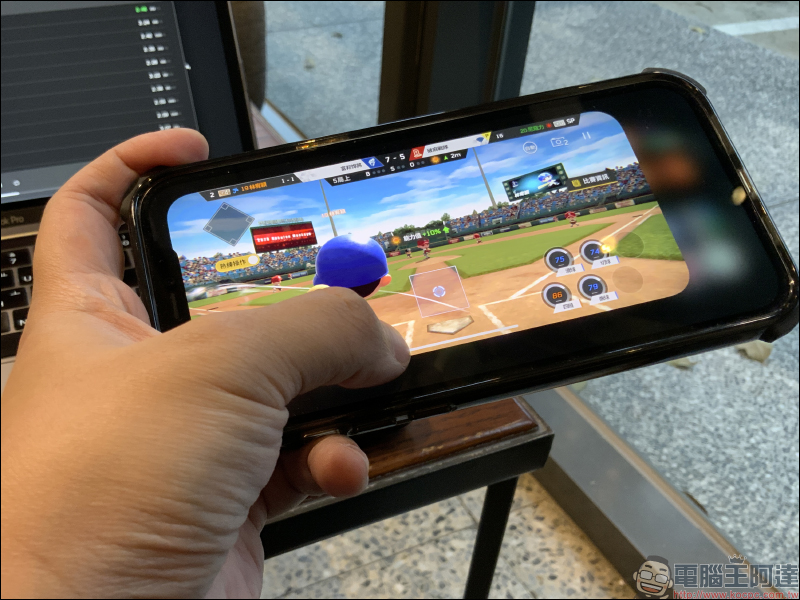
When using an iPhone, you need to hide the bottom bar of the screen, usually when watching videos, playing games, and other situations where you worry about accidentally touching the screen to open the multi-tasking background page.
First, go to “Settings” and select “Accessibility”, then click “Guided Usage Mode” to enter the next page, and then turn on the two settings “Guided Usage Mode” and “Accessibility Usage Shortcut Keys”. You can also see the “Password Setting” option on the screen, but even if you don’t set a password at this stage, the password setting screen will automatically pop up when you open it for the first time.
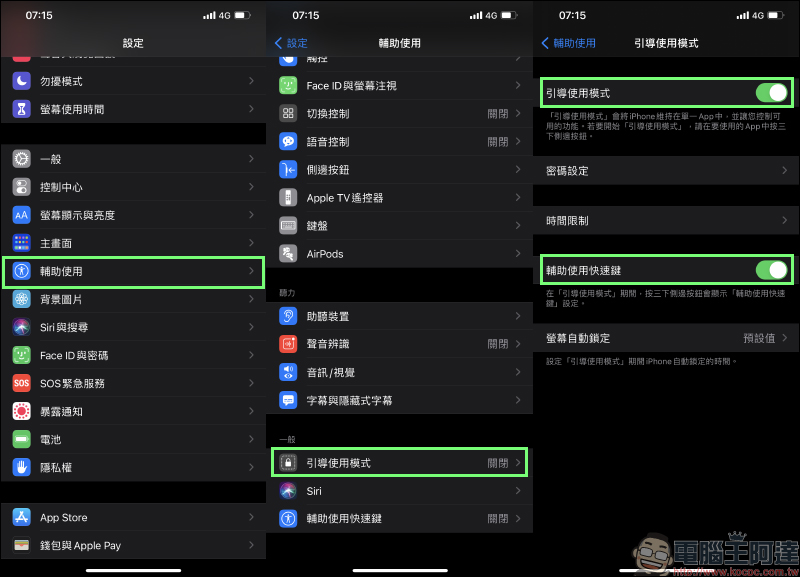
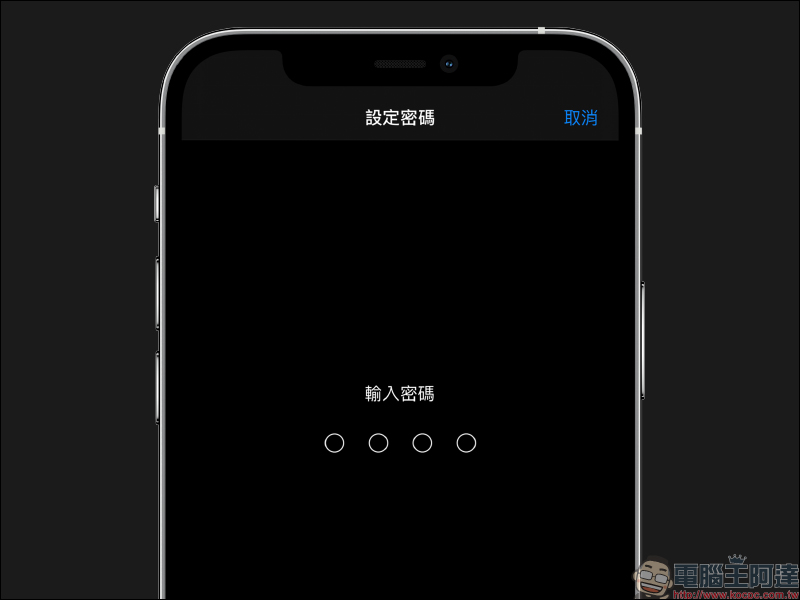
To turn on the “Guided Usage Mode”, you only need to press the side button (power button) three times in quick succession to activate it. If you have not set a password for the first time, you can set it at this time. Since this password can only be entered when switching to boot usage mode, it is recommended that ordinary users directly set the entered password.
Then you can open any application that you want to hide the horizontal bar at the bottom of the screen during use. Then press the side button (power button) three times in quick succession to activate the guided usage mode. Click “Start” in the upper right corner to enter the guided usage mode. You can find that the horizontal bar at the bottom of the screen disappears after entering the guided usage mode:
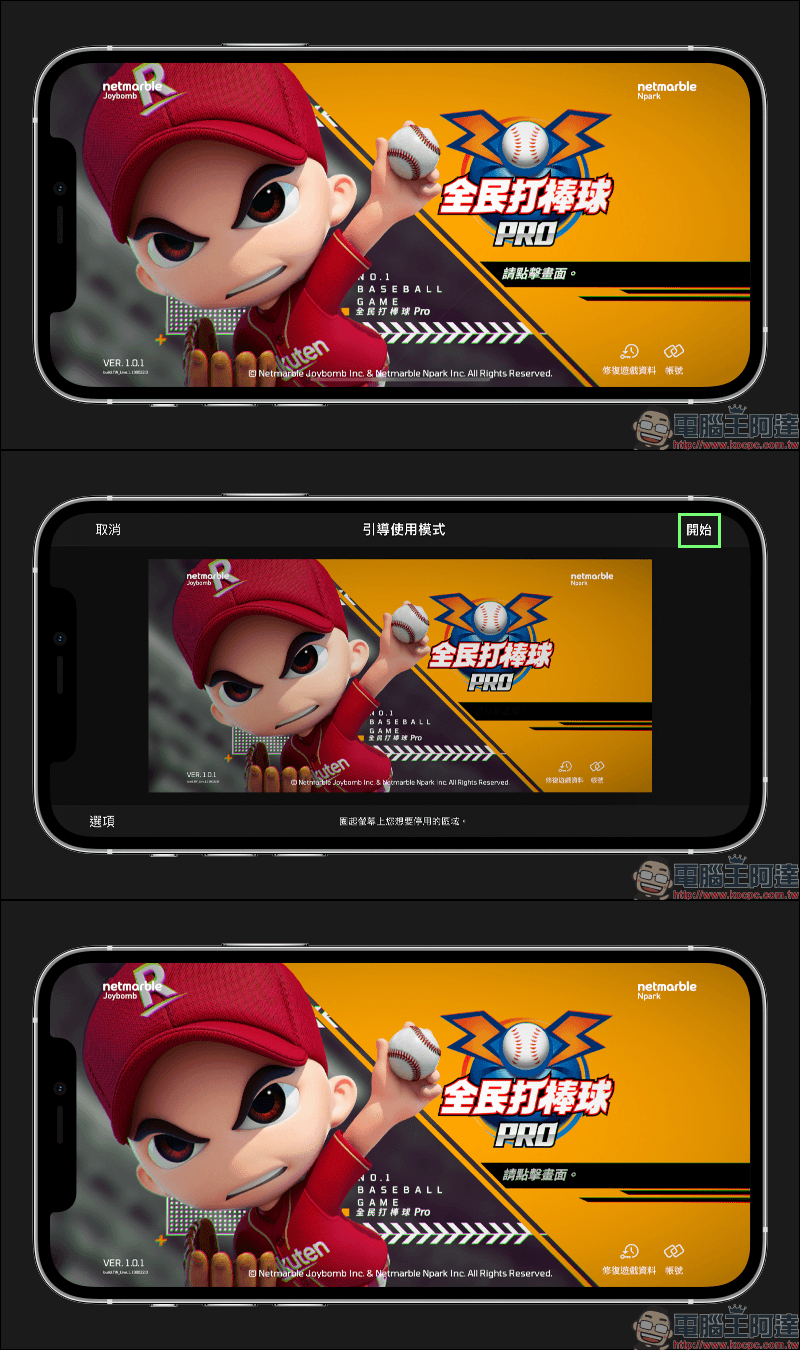
A simple comparison of the screen differences before and after hiding:

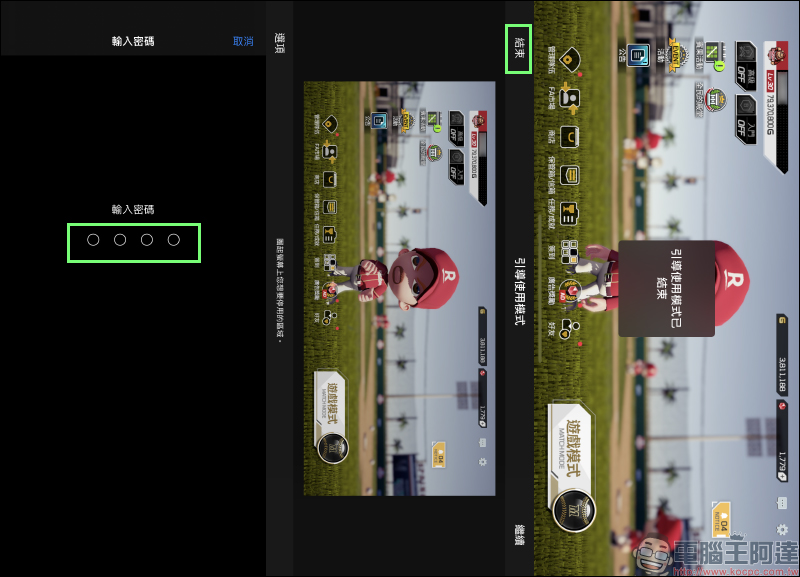
Since users cannot switch to multi-tasking applications in other backgrounds during the guided usage mode, when they finish playing games or otherwise want to end the guided usage mode, they only need to press the side button (power button) three times in quick succession again, then enter the password and press “End” to end the guided usage mode and return to the original usage method.
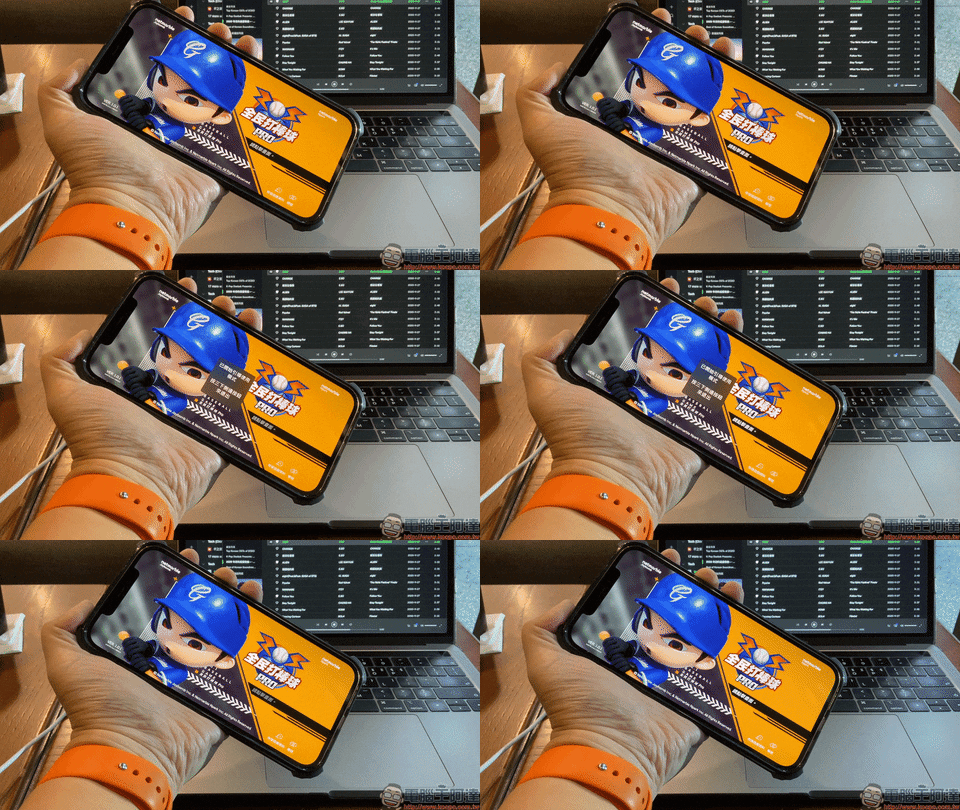
Turning on the guided usage mode later is faster than the first time. It only takes three consecutive clicks to turn it on:
When you want to end the guided use mode, click the side button three times again, enter the password, and click “End” to leave this mode.
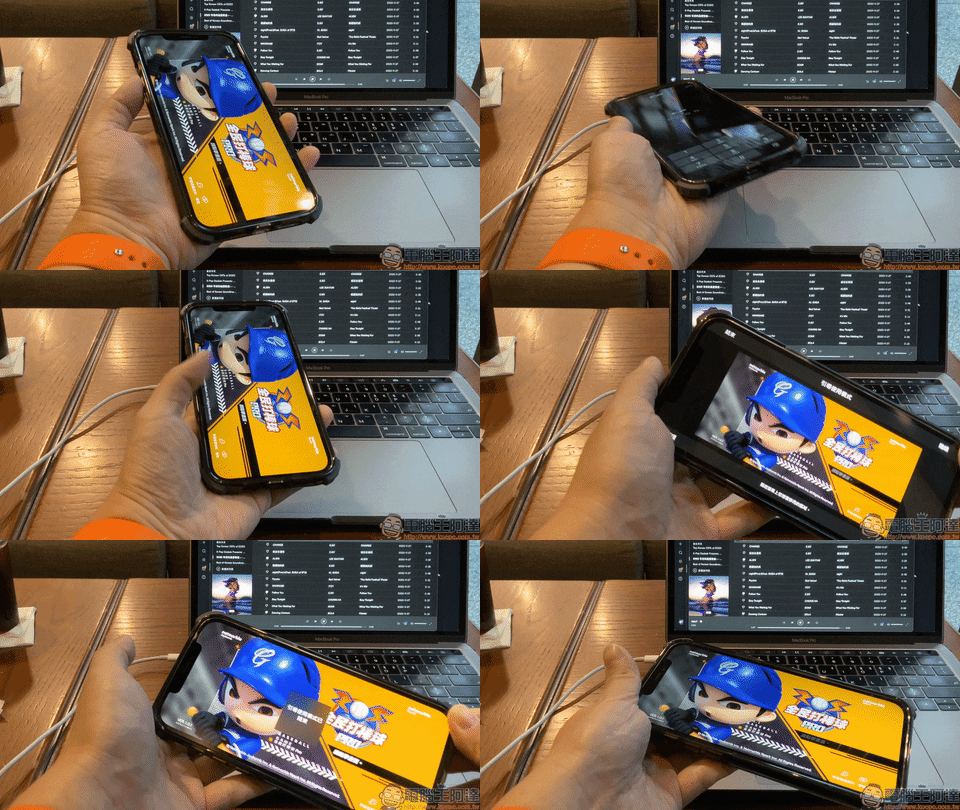
Compared with watching videos, which is only occasionally affected by vision, hiding the bottom bar on the iPhone has the most significant improvement in the operating experience of mobile games. In addition to no longer worrying about accidentally touching the screen to jump to other applications, game viewing can also be uninterrupted.
Further reading:
Tips for independently adjusting the alarm volume in iOS 14: no need to synchronize with the system volume, no longer afraid of missing the alarm sound

Source: KOCPC Chinese