


Sometimes when they are too lazy to swipe their phone to inquire about something, many iPhone users will use the Siri assistant to help answer their questions. However, since the iOS 14 version, the interface of Siri has changed somewhat. A small ball icon will be displayed at the bottom of the home screen when it is started. By default, it will not cover the entire screen, and will not display question content and text replies. Today I will share several settings for using Siri in iOS 14. You can return Siri to the past settings of displaying text, questions and answers, and full-screen mode according to your personal usage habits.
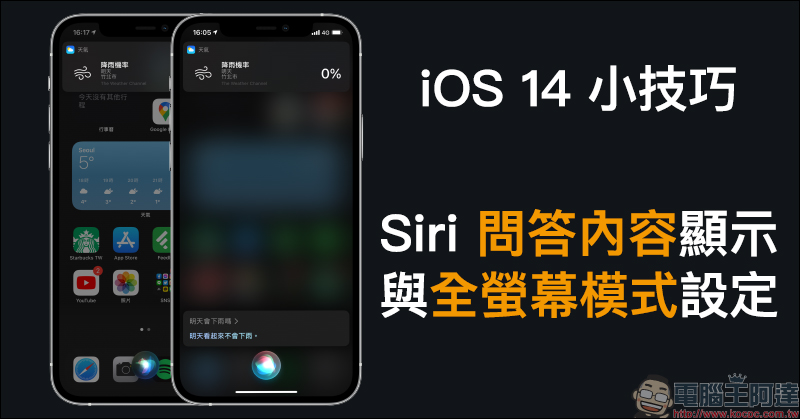
iOS 14 tips: Siri Q&A content display and full-screen mode settings
It is believed that iPhone users who have relied on Siri assistant for a long time in the past may still have trouble getting used to the new Siri after updating to iOS 14. For example, when waking up Siri to ask about the weather, Siri will answer directly by voice and display a weather message box on the screen. Without text, the content will inevitably feel a bit unreliable, and you are not sure whether the question you asked is correct. If you want to directly ask the next sentence, or edit the original question, it will be a bit inconvenient. This time I will share several ways to set up Siri in iOS 14, which may help you better understand the secrets of use.
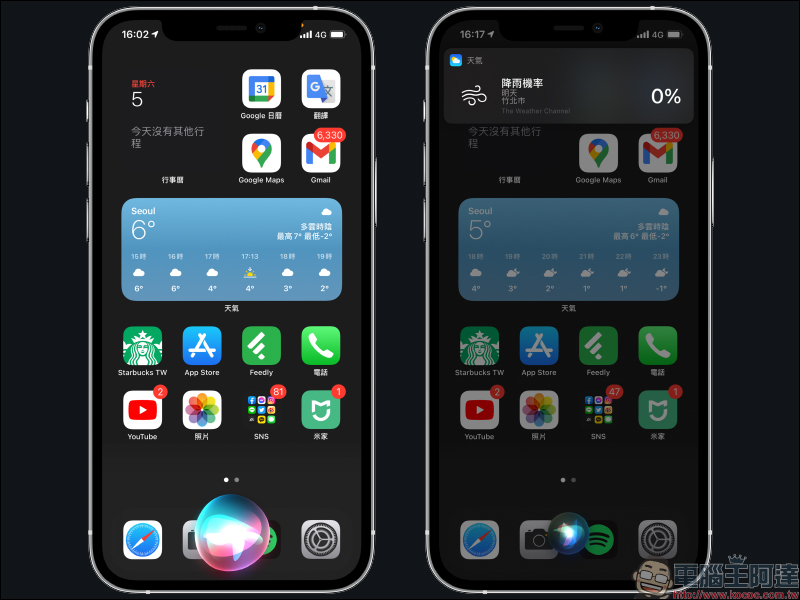
Ask Siri to show you the conversation
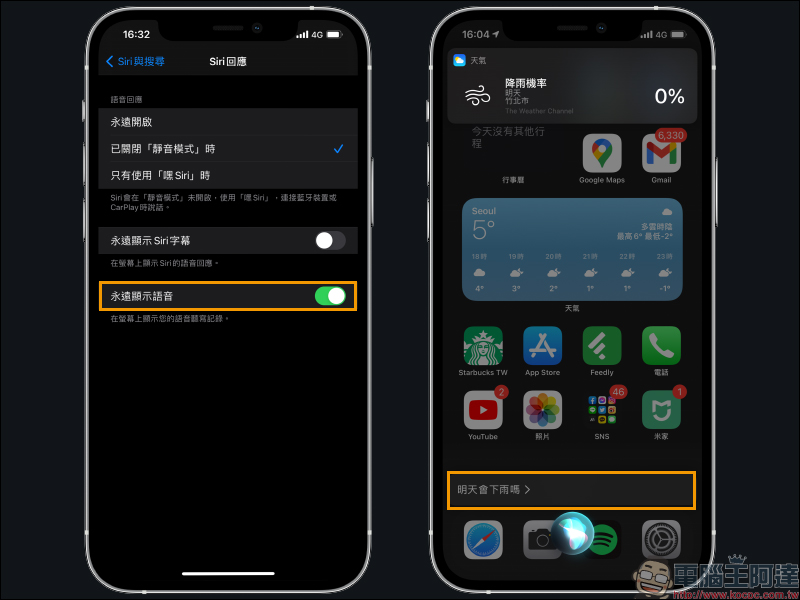
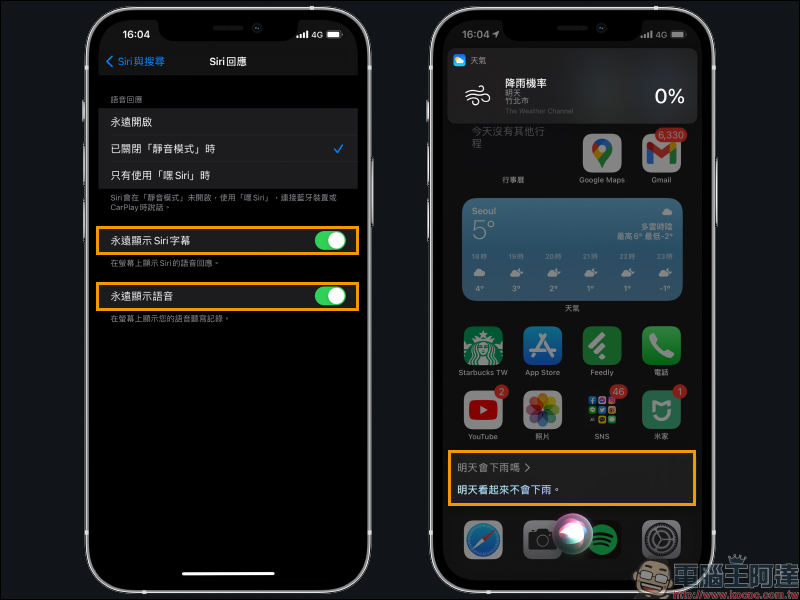
First, let’s take a look at how to retrieve the content of the question and answer conversation with Siri! First, find “Siri & Search” in “Settings”, then turn on the two functions “Always show Siri subtitles” and “Always show voice” from “Siri Response”:
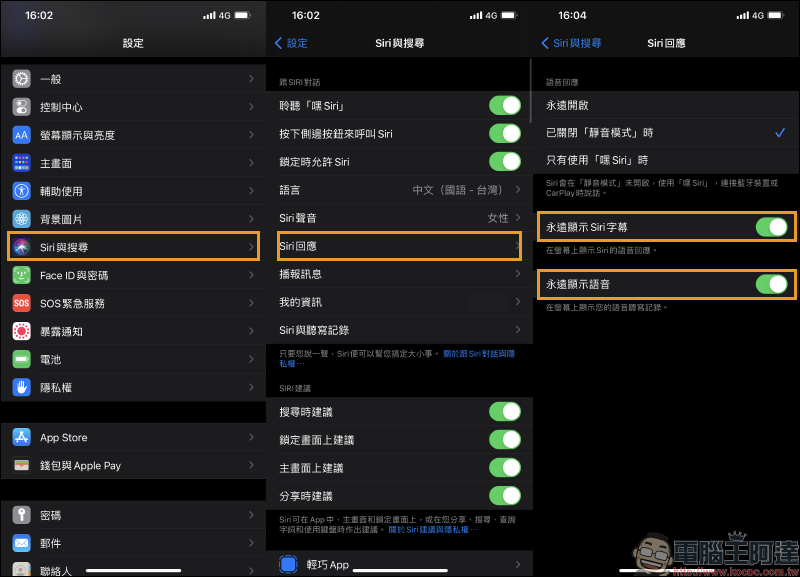
Why should these two settings be turned on? What effects will these two settings produce? If the user turns on “Always show Siri subtitles”, when Siri answers a question, the content of Siri’s answer will be displayed in text on the home screen.
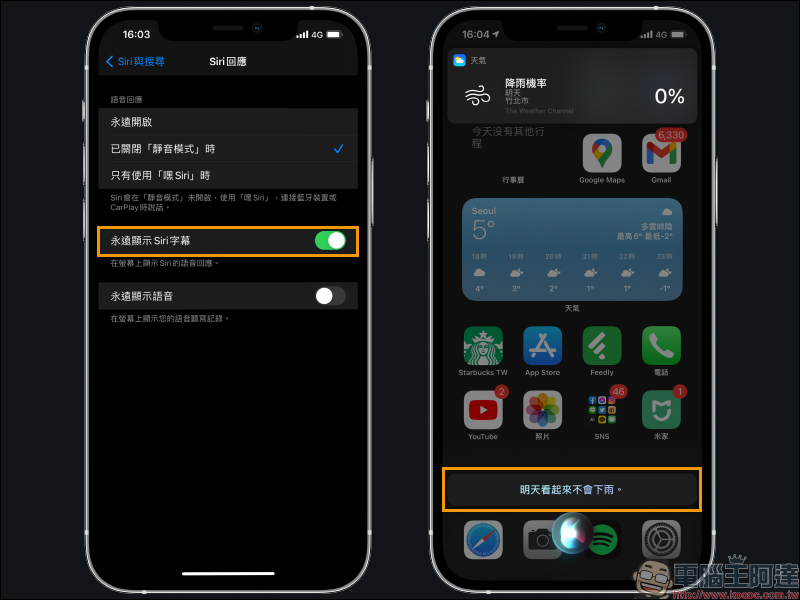
If only “Always display voice” is turned on, the user’s voice content will be displayed in text:
When the above two function settings are turned on, the user’s questions and the answers answered by Siri can be displayed at the same time!
Turn on Siri full-screen mode
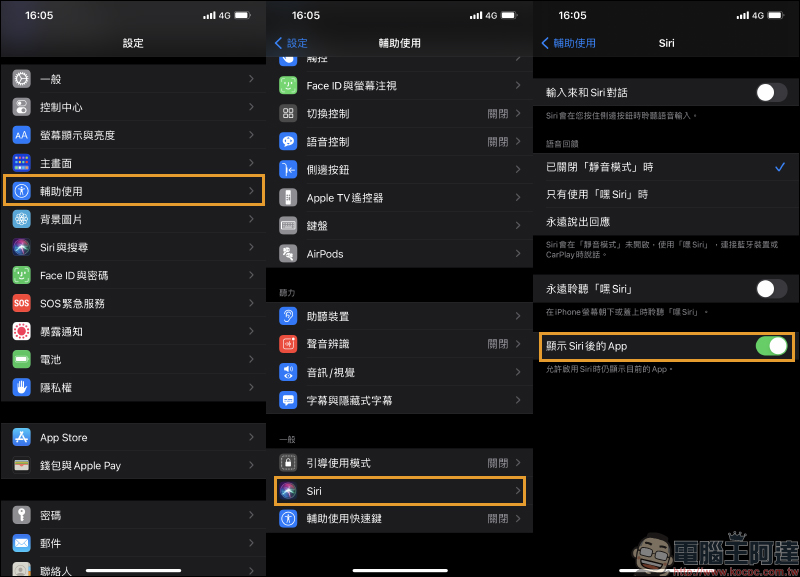
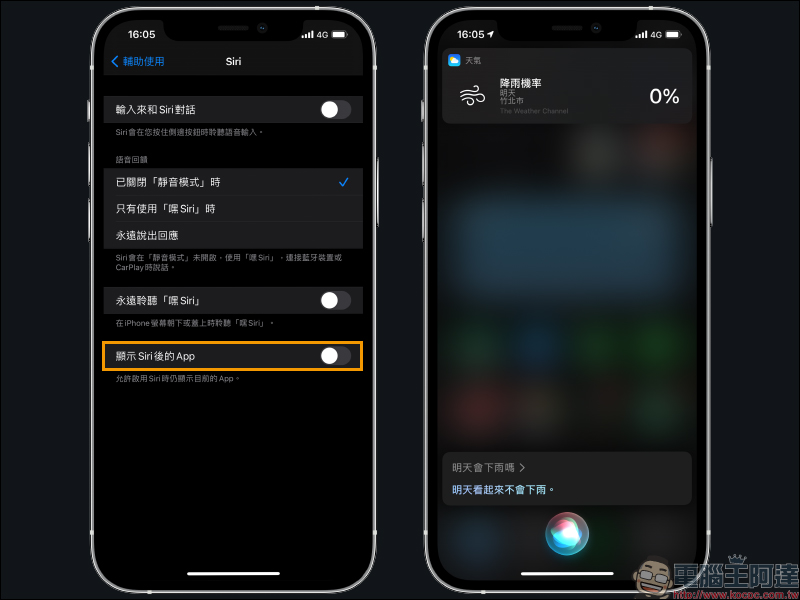
Many readers are used to the way Siri was displayed in full-screen mode when it was enabled in the past, but in iOS 14, the App behind Siri will be displayed. In fact, just go to “Accessibility” in “Settings”, select “Siri” and find the setting “Show apps after Siri”. This setting will be turned on by default in iOS 14. If you want to display it in full screen, just turn it off.
You can see that after closing, Siri will return to the familiar full-screen mode after starting it!
Further reading:
LINE application tips: How to set up “Text-only photo stickers”, another option besides photos and avatars
Source: KOCPC Chinese