


iPhone 12 / iPhone 12 Pro After the official launch, I think those who want to upgrade to a new phone should be greeted by the flagship performance of A14 Bionic, the fastest smartphone today. As everyone knows, when I opened Line chat, I encountered a lag when switching from the old phone to Chinese phonetic notation. Since I have already switched to a new phone and it still hasn’t smoothed out, it means it’s a software problem. We have also developed several solutions to this problem and share them with friends who have encountered the same problem. Continue reading After switching to iPhone 12, the Chinese keyboard still lags? 3 simple tips to solve the problem of typing lag on mobile phone and improve the content of reports.
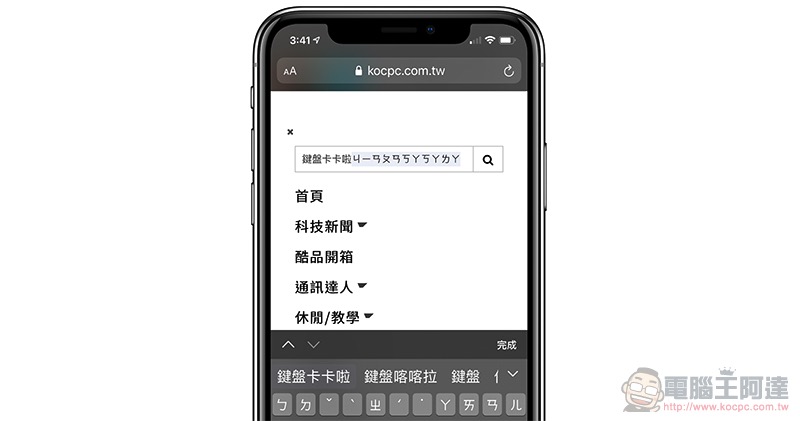
Changing to iPhone 12 Chinese keyboard still lags? 3 Simple Tips to Improve iOS 14 Input Stuttering Problem
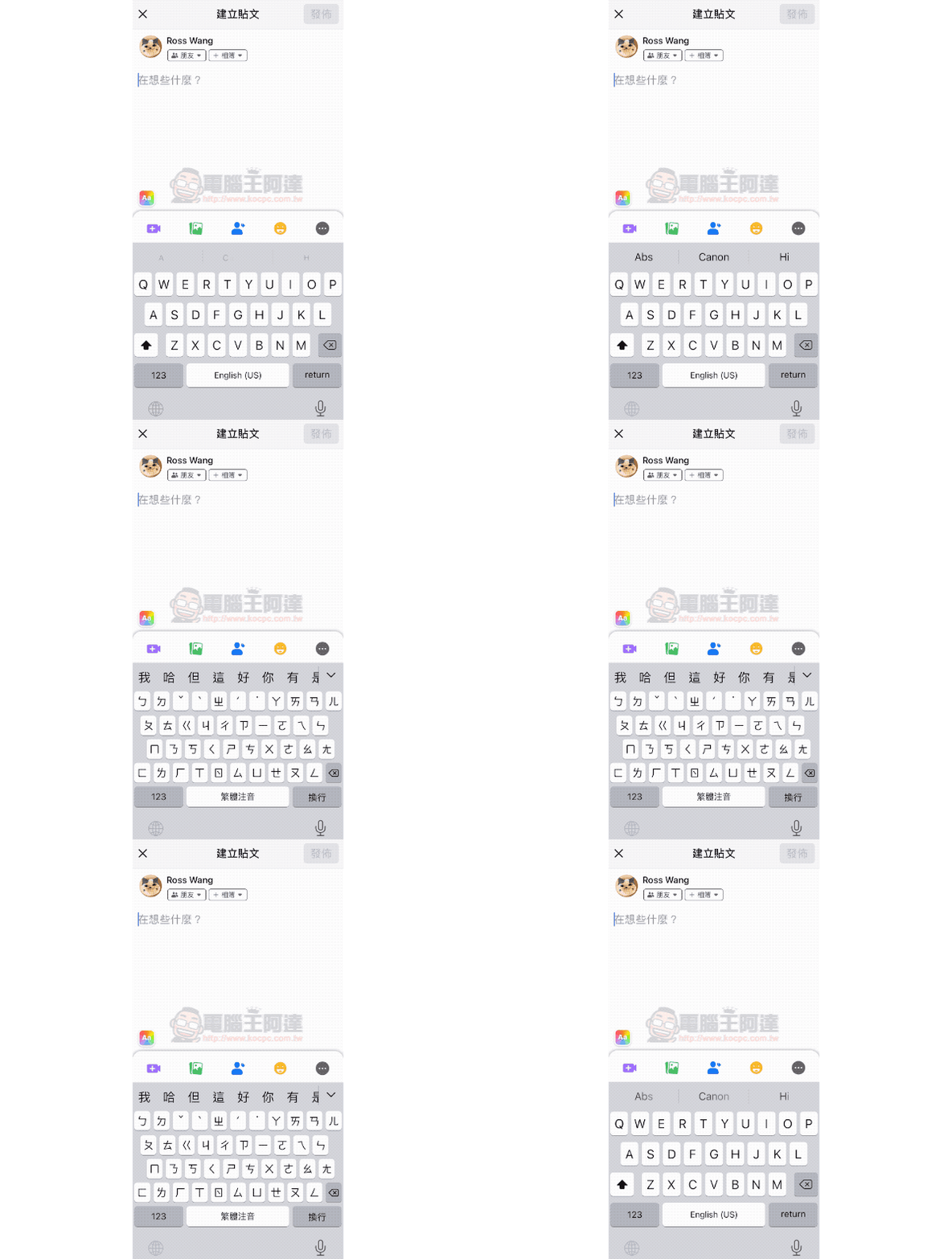
Miss the previous Chinese keyboard on iPhone/iPad/iPod Touch and the smoothness of switching between Chinese keyboards like the picture above? In fact, this is most likely just caused by a few basic software issues. Below, I will briefly share with you a few simple solutions – the editor recently encountered a similar situation and achieved improvement by following method two.
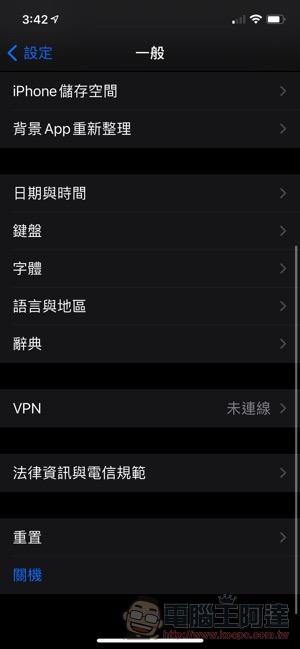
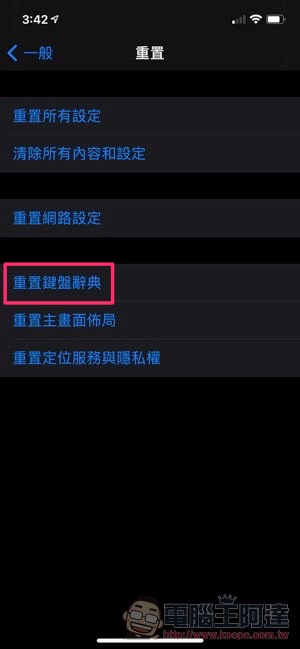
1. Reset keyboard dictionary
Since I encountered a problem when switching the Chinese keyboard, it is natural to think of the keyboard dictionary, which is usually not very accurate in prediction, and may be the culprit that interferes with the efficiency of use. So unless you really feel that the current input prediction is very good, you can consider resetting it (Settings > General > Reset Keyboard Dictionary), maybe the Lag problem will be solved.
2. Turn off automatic correction and spell checking
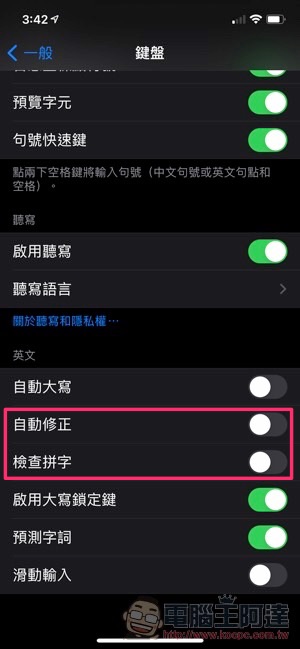
If there is no change after resetting the keyboard, then you can consider the next method. You can go to “General > Keyboard” and find the function options including “AutoCorrect” and “Check Spelling”. You can try turning them off to see if you can get a smoother keyboard experience. The editor’s impression is that my experience is that when I turn off the spelling check, everything suddenly becomes smoother.
3. There is nothing that cannot be solved by restarting (error). If there is, then force restart.
In fact, the editor has not reached this step (after all, it was solved in step 2). But if the iPhone keyboard in your hand is still Lag. You can also really consider “rebooting”. This is a great way to solve all device problems. And if you encounter a freezing problem caused by a miserable keyboard, you can refer toForce restart method on the official website。
👉 iPhone series equipped with Face ID and iPhone 8 / 8 Plus:
1. Press and quickly release the Volume Up button.
2. Press and quickly release the Volume Down button.
3. Press and hold the side button.
4. When the Apple logo appears, release the buttons.
👉 iPhone 7 / 7 Plus:
1. Press and hold the Volume Down button and Sleep/Wake button simultaneously.
2. When the Apple logo appears, release both buttons.
👉 iPhone 6s / 6s Plus and iPhone SE (first generation)
1. Press and hold the Sleep/Wake button and the Home button at the same time.
2. When the Apple logo appears, release both buttons.
Further reading:
Source: KOCPC Chinese