


For those who like to listen to music or podcasts on their mobile phones, this time Android 11 can permanently display the playback control card on the system notification page, which should be one of the update features that you are looking forward to. In fact, the editor also found this function to be surprisingly useful, but sometimes I still feel that it takes up a lot of space to stay at the top of the notification bar. Then I didn’t find out until I deleted the music application from the multi-tasking interface that after playing, the new version of the music control interface will still stay in the control bar waiting for continued playback (annoying). Fortunately, in this situation, there are actually hidden settings in the system. Continue reading Android 11 music control stuck in the control bar is very annoying, how to turn it off (tutorial)
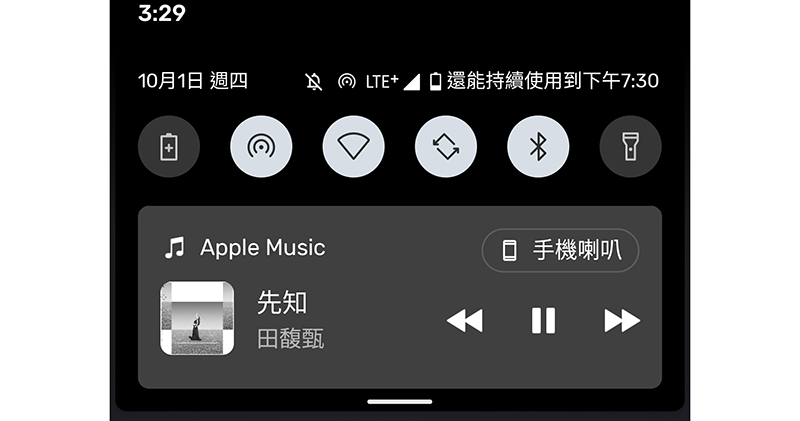
Android 11 music control stuck in the control bar is annoying, how to turn it off (tutorial)
Although Android 11’s music control permanent function is already slightly hidden in the bottom of the control bar that must be pulled down twice to expand. This allows users who want to continue listening to music, even when the app is not running in the background, to continue playing through this permanent music control interface. It is even convenient to switch and restore the previously played content of different playback applications.
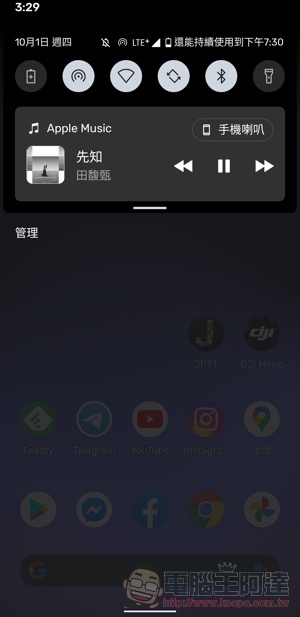
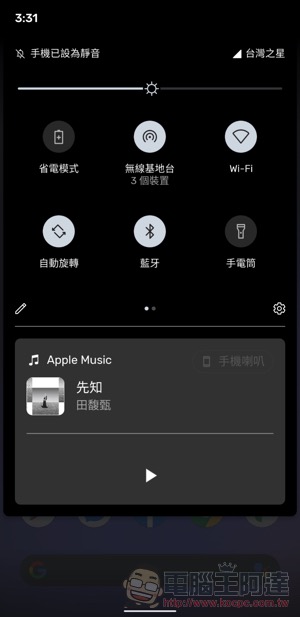
But there may be some people like the editor who see this card always in the control column and subconsciously think that the music application is still being executed, which makes them uncomfortable. Fortunately, it is not difficult to turn off this permanent function. Here we will briefly teach you about the hidden options we discovered – in this permanent interface for music playback control (pull down the notification bar twice), the playback card that would have disappeared by swiping left on the general notification bar will suddenly appear as a gear settings button.
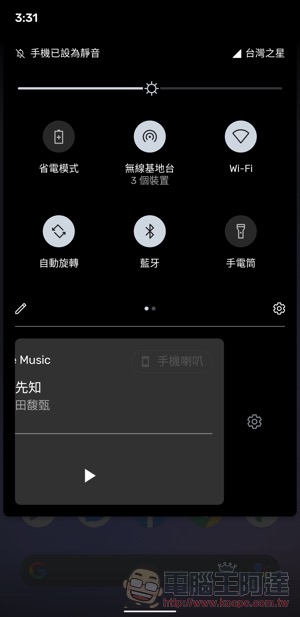
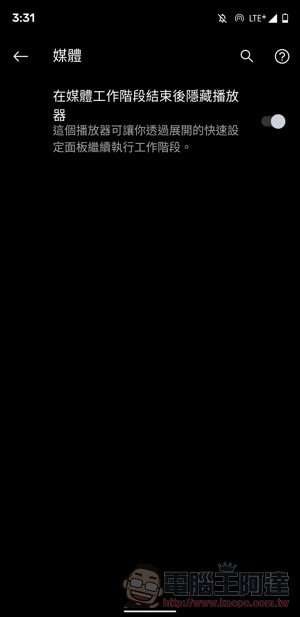
After clicking on the gear, you can see the only option “Hide player after media session ends”. Click the switch on the right to enable this hidden feature. After that, you just need to completely close the music app in the multitasking interface, and it will no longer appear in this media control interface. I hope this simple tutorial can solve the problem for everyone.
Further reading:
Apple Watch Series 6 unboxing experience: a new generation of smart watches for the whole family
Source: KOCPC Chinese