


Whenever a new version of iOS is launched, some users will report that iPhone battery life has deteriorated after the upgrade. This time iOS 14 is no exception. Although there are some sporadic complaints abroad, the number is not large, and there is no news about system bugs that may cause the battery to drain too quickly. Therefore, iOS 14 should not have this problem. In any case, if you really feel that your iPhone is running out of battery quickly after upgrading, before you find out the cause, this article has compiled 11 tips for extending battery life that you can try first.
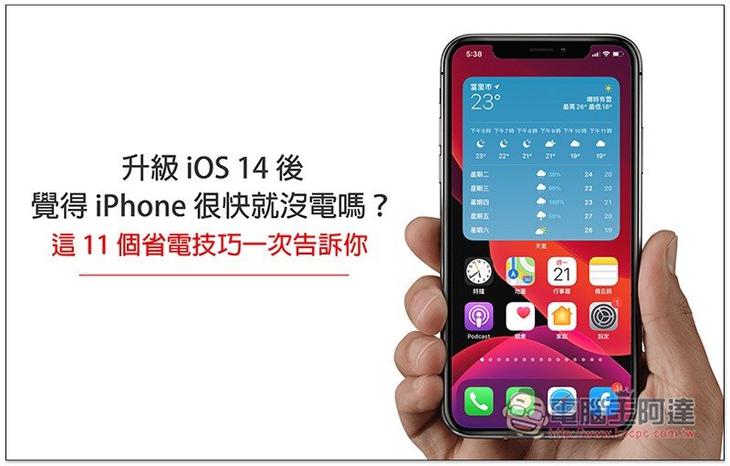
11 Battery Saving Tips for iOS 14
1. Go to the battery option in settings to find out which app uses the most battery usage
When you feel that your iPhone’s battery life is getting worse, the first step is to check which app consumes the most power. The first few versions of iOS have already added a very convenient “battery usage” function.
After opening the settings, select “Battery”. Scroll down and you will find the battery usage of all apps in the “past 24 hours” or “past 10 days”. Which app is at the top? Is it the app you use most? Is there any app with incorrect battery usage? For example: It is rarely used, but the percentage is quite high. If it is used, maybe it is caused by this app:

2. Check battery health
In the battery options, there is also a “Battery Health” that needs to be checked. This function will tell you the current health status of your iPhone’s battery. As the iPhone is used for a longer period of time, the battery will wear out more, so if the health level falls below a certain number, the battery life will of course become worse. According to Apple’s official recommendations, “If the maximum capacity of the iPhone battery is less than 80%” and you feel that the power consumption is abnormal, you can consider replacing the battery:

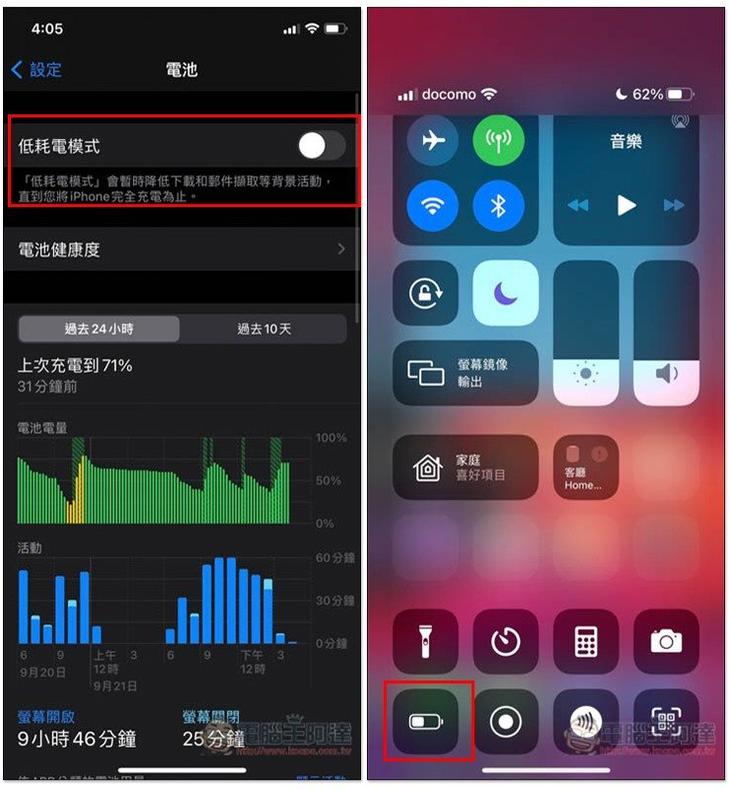
3. Turn on low power mode
Low power mode can be said to be a great helper for saving power. When turned on, it will automatically adjust various iPhone settings and background activities of Apps, such as reducing screen brightness, limiting background downloads, etc., thus extending the use time without affecting your normal phone calls and Internet activities.
There are several ways to turn on low power mode, “You can find it at the top of the battery options”, “Click the “battery” icon in the control center” or “Ask Siri to help turn it on”, it depends on which one you prefer:
4. Limit how often an app uses location services
In order to provide the best user experience, many Apps will ask for location service permissions to push the most appropriate content to users. When using it for the first time, four options will pop up for you to choose “Forever, While using the App, Next Time Asked, and Never.” If you forget which one you selected before, or if you have selected “Forever” for many, it is time to sort it out to ensure that Apps do not enable the location function all the time, resulting in abnormal power consumption.
After entering Settings -> Privacy -> Location Services, you can see the location service permissions you have previously set for all Apps below. Just turn off unnecessary ones or change them to “During Use”. Unless there are special needs, you basically don’t need to use “Forever”:

5. Update all apps to the latest version
After the official version of the new iOS is launched, many App developers will immediately update the version to improve known bugs, and these bugs may contain “abnormal power usage” issues, so remember to quickly go to the App Store to check whether there are new versions of installed Apps, especially those updates that advertise “iOS 14 compatibility.”
In addition, many people’s App Store should be set to automatically update. After upgrading to iOS 14, Apps will automatically update in the background, which will also cause abnormal power consumption. So if you have just upgraded, it may be caused by this, and it should return to normal after two or three days.
Open the App Store and click on the profile icon in the upper right corner to find “Are there any App update projects”:

If you want to cancel the automatic update of the App Store, go to Settings –> App Store and turn off the App update item at the top:

6. Manage or close background apps and refresh
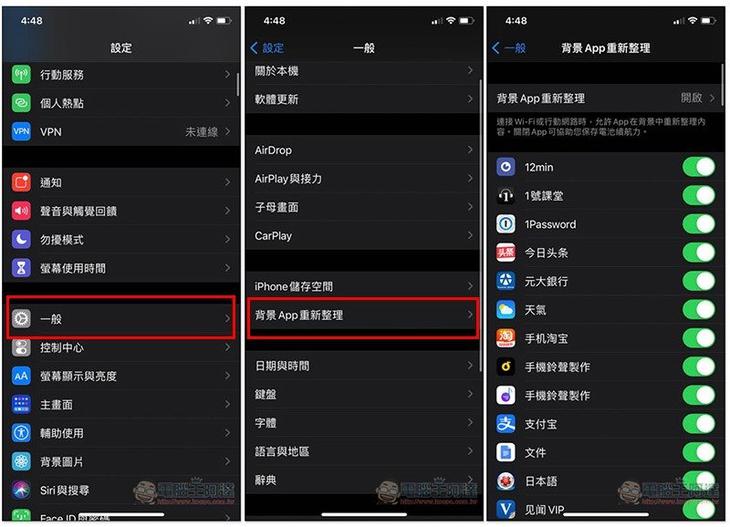
If an app is opened without being forced to close manually, it will be rearranged in the background to ensure that users can get the latest content without waiting the next time they open it. Although this is very convenient, it will also affect battery life. Therefore, closing unnecessary apps or turning off the entire background app rearrangement function can effectively extend battery life.
Open Settings –> General –> Background App Refresh to view the settings of all Apps:
7. Manage App notification styles
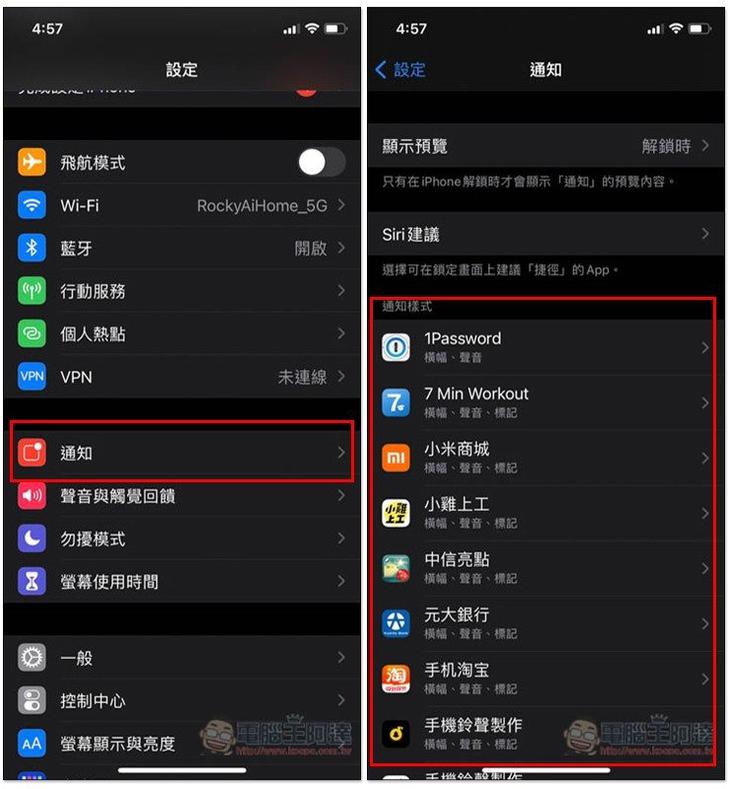
Although this does not affect battery life much, it helps somewhat. It is recommended to close Apps that you do not use or do not need to grant notification permissions, so that the iPhone will no longer pop up notifications from these Apps in the future. This will reduce power consumption and make it easier for you to use it without being affected by these unimportant notifications.
Open Settings -> Notifications to manage the notification styles of all Apps. If you don’t need notifications, just turn off “Allow Notifications”:
8. Reduce and turn off dynamic effects
The dynamic effect of iOS is a function that makes us feel smoother when using it. For example, when returning to the home screen, the App will have a shrinking dynamic effect. Although this is great, since it is dynamic, it consumes more power than having no effect, so if you want to have longer battery life, it is of course recommended to turn off this function.
Open Settings -> Accessibility -> Motion Effects, turn on “Reduce Motion Effects”, and keep the following two off:
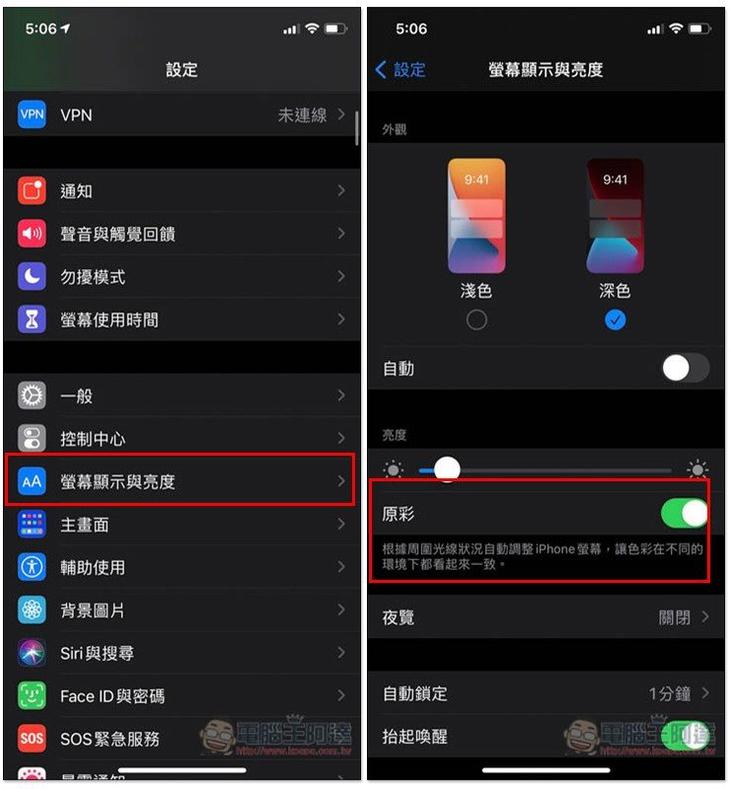
9. Turn off the original color function
The True Tone function will determine the brightness of the user’s environment and automatically adjust the brightness of the iPhone screen to make the visual effect better. But just like the dynamic effect, automatic adjustment at any time will certainly consume more power on the iPhone, so you can also consider turning it off. But if the situation is not serious, I personally think it’s fine to leave it on. After all, this is a great feature of the iPhone:
Open Settings -> Screen Display & Brightness, and turn off the True Tone function:
10. Manage automatic lock time and raise to wake function
There are two functions below the screen display and brightness that can be adjusted to extend battery life, namely “auto lock time” and “lift to wake”:

The automatic lock time is how long it will take before you enter the locked black screen when you are not using your iPhone. The shorter the time, the shorter the screen will be on when not in use, and the relative power consumption will be lower. Therefore, unless there are special needs, try not to set it for more than three minutes.
Raise to wake is a very considerate feature. It detects whether we are picking up the phone. If so, the screen will automatically light up. It is very useful for checking messages and time. However, sometimes you may just accidentally shake the phone, or just want to put it in another position, and the screen will stay on, which of course consumes more power. People who feel that it is not needed can consider turning it off.
11. Use dark mode
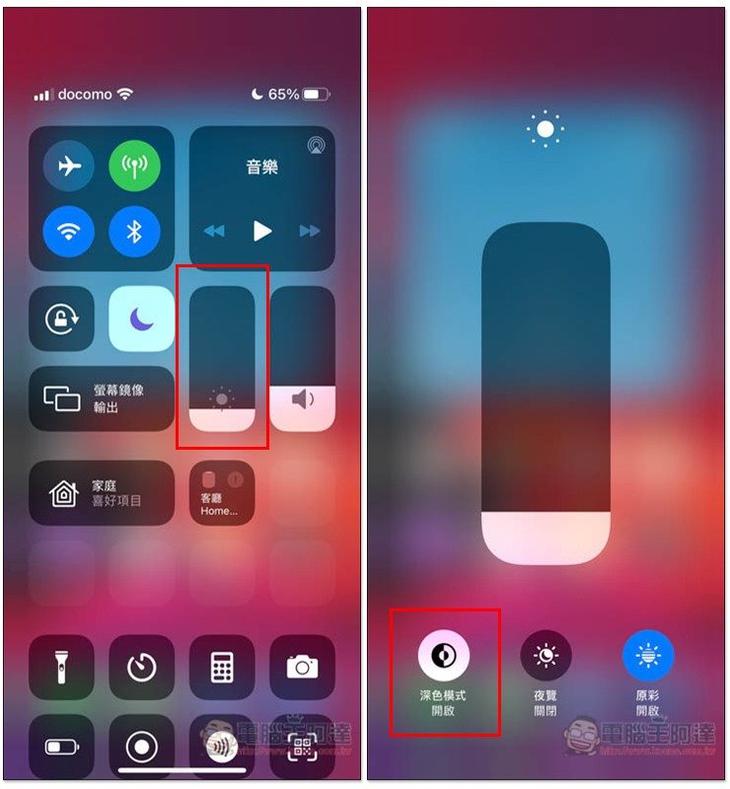
Dark mode has been added since iOS 13, which not only reduces eye irritation, but also saves some battery usage for iPhones equipped with OLED panel screens (such as iPhone X, iPhone XS, iPhone XS Max, iPhone 11 Pro and iPhone 11 Pro Max), so it is highly recommended.
There are two ways to turn it on. Open the control center and press and hold the brightness adjustment lever. You will see dark mode in the lower left corner:
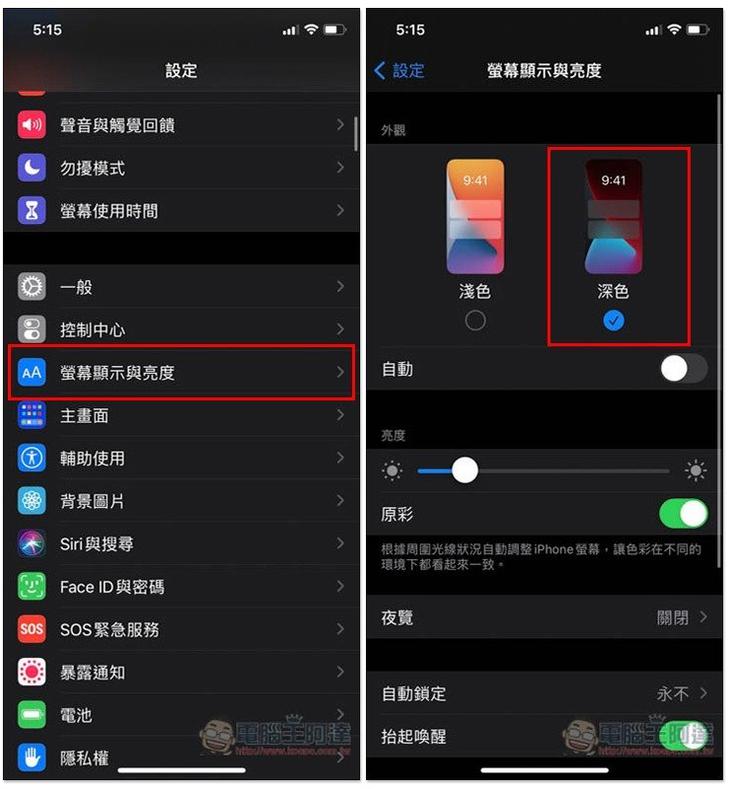
Open Settings –> Screen Display & Brightness, and switch the appearance to dark:
in conclusion
Although this article was written for iOS 14, in fact it is applicable to any iOS version, and even the future iOS 15 can be used as a reference. Of course, some features may not be available in older versions of iOS.
Source: KOCPC Chinese