


In the modern era where remote work and remote meetings have become popular due to the epidemic, it has become a trend to hold meetings with colleagues and clients in overseas offices through the Internet. Video chatting with relatives and friends living abroad is also a daily necessity. However, if a multi-time zone meeting is held, time zone restrictions must be overcome and an appropriate time can be found that is convenient for everyone to participate. Are you having trouble converting time between countries? Moleskine S.r.l has launched a useful tool “Overlap” that is available for iPhone, iPad and Mac. You can find the ideal meeting time through simple actions such as dragging.
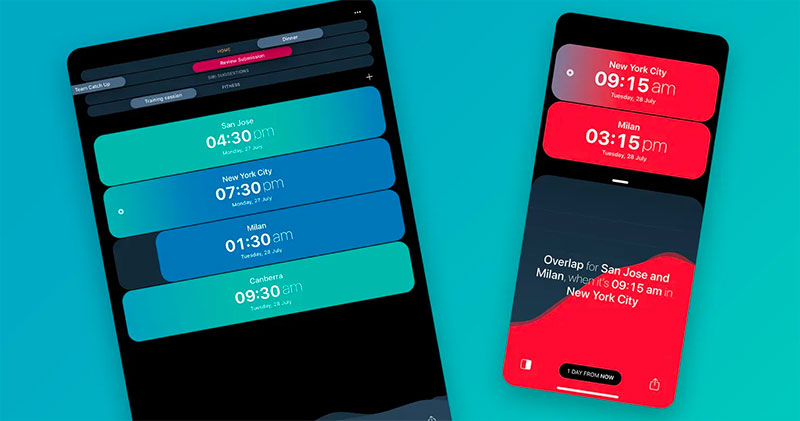
Struggling with time difference conversion? “Overlap” finds the most suitable communication time across multiple time zones
Although there are many time difference conversion tools, most of them have to enter them one by one or follow the same action to search them one by one, and they also lack some immediacy. Especially when discussing meeting times, this is quite a waste of time. The tool I want to recommend to you this time is intuitive, simple and easy to use. It can complete the troublesome multi-time zone conversion work without racking your brains for conversion.
Mac version:Click here
iPhone version:Click here
iPad version:Click here
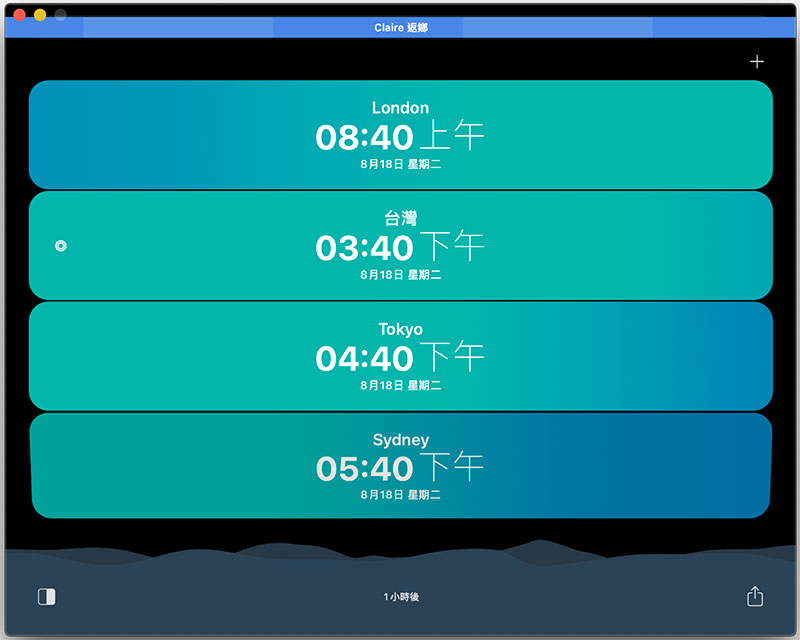
After installing it, open the app and that’s right! It has support for Traditional Chinese interface. On the homepage, you can see the time zones of various places displayed in large strips. Apart from text, why are some blue and some green? The green display represents suitable working hours, while the blue display represents off-duty hours, late at night, early morning, and other times that are not suitable for work and meetings. You can press the left mouse button in any time zone and drag left or right to find a time zone that is suitable for each time zone. The appropriate time period for each district can also be set by yourself, which I will talk about later.
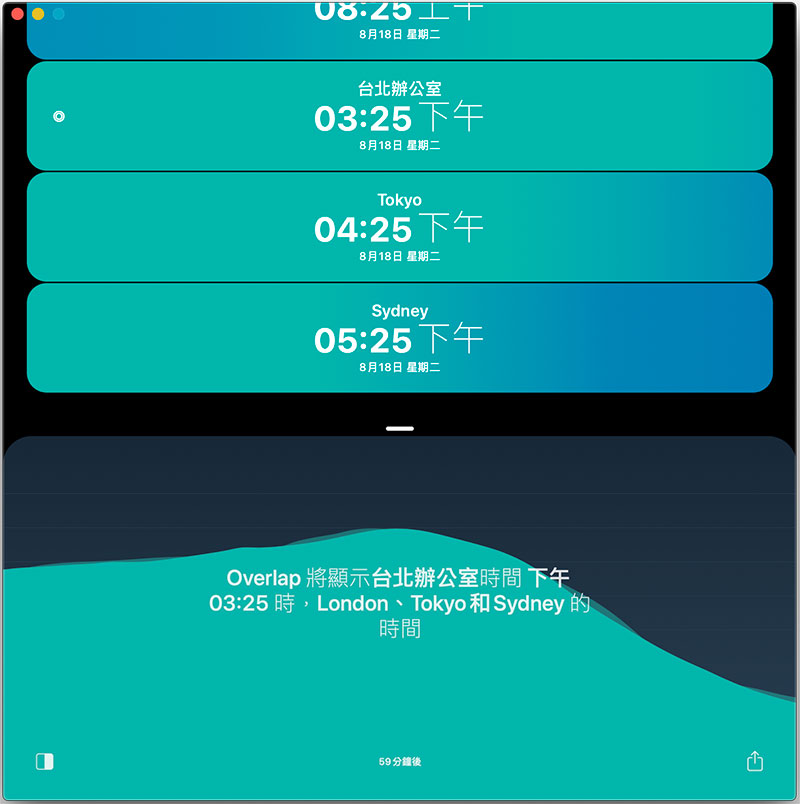
You can also click on the bottom area where the time prompts such as “1 hour later” are displayed to bring up the wave diagram, and directly press the left mouse button and drag the wave here to view the appropriate time, and the long bar above will also follow. If you want to return to the original long bar view, just hold down the short white line and pull it down to the end to collapse the wave chart.
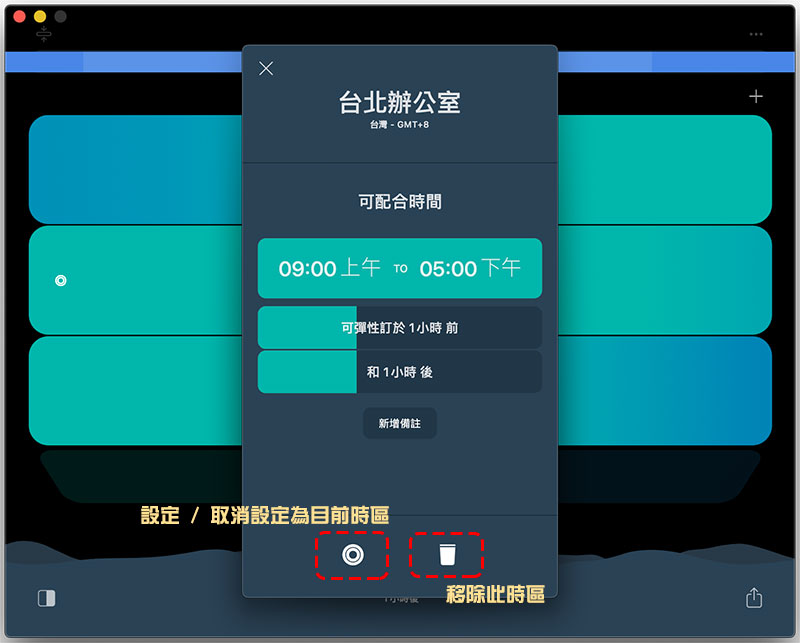
Double-click the left mouse button on the text portion of a single time zone bar, and you can edit the display name of the time zone or set the time zone to the time zone of the current location. For example, you can set the Taiwan time zone as “Taipei Office”, or mark it as family members living abroad, etc., whatever you like. In this editing page, you can also set the time that each time zone office can cooperate with for meetings. After setting, these compatible time periods will be displayed in green in the display part of the homepage, making it clear to you visually. It is also very convenient to use to communicate with relatives and friends abroad. You can find a time of compromise without affecting your daily rest.
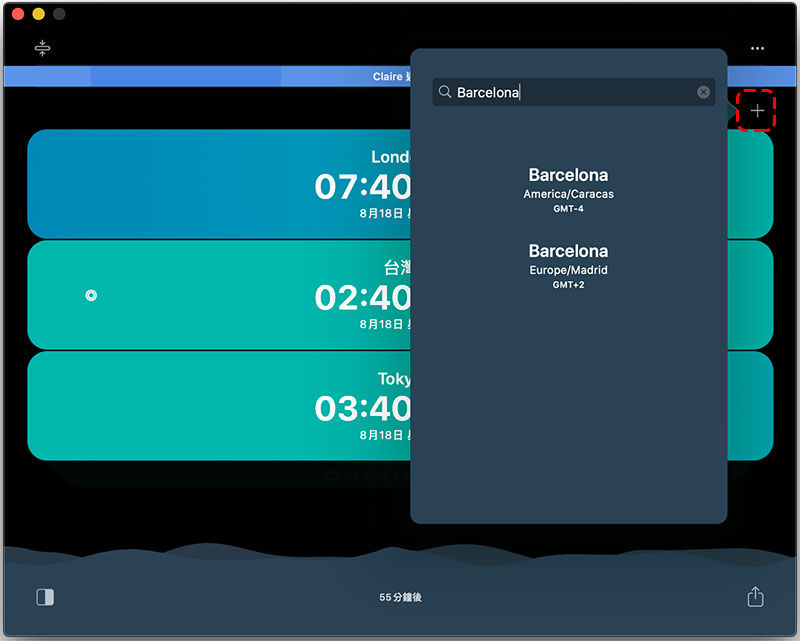
If you want to add other time zones, you can press the “+” in the upper right corner of the homepage and enter the city name in English to search for the time zone and add it to the homepage display. As for the time zone originally set on the homepage, if you want to hide or open the fold, you only need to long-press the left mouse button on the long bar. The entire column will not be too long to be seen at a glance.
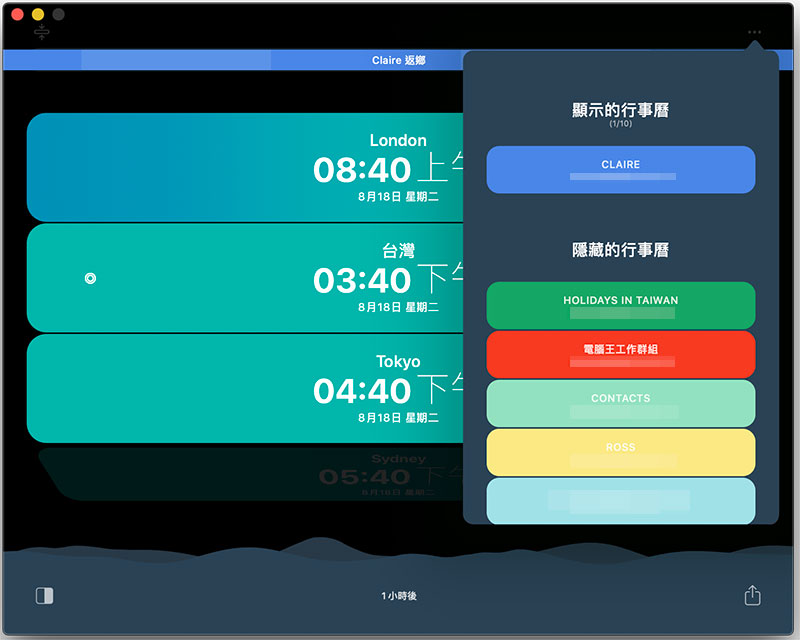
You can also integrate your existing calendars into Overlap. Click the “…” in the upper right corner to select the calendar you want to add.
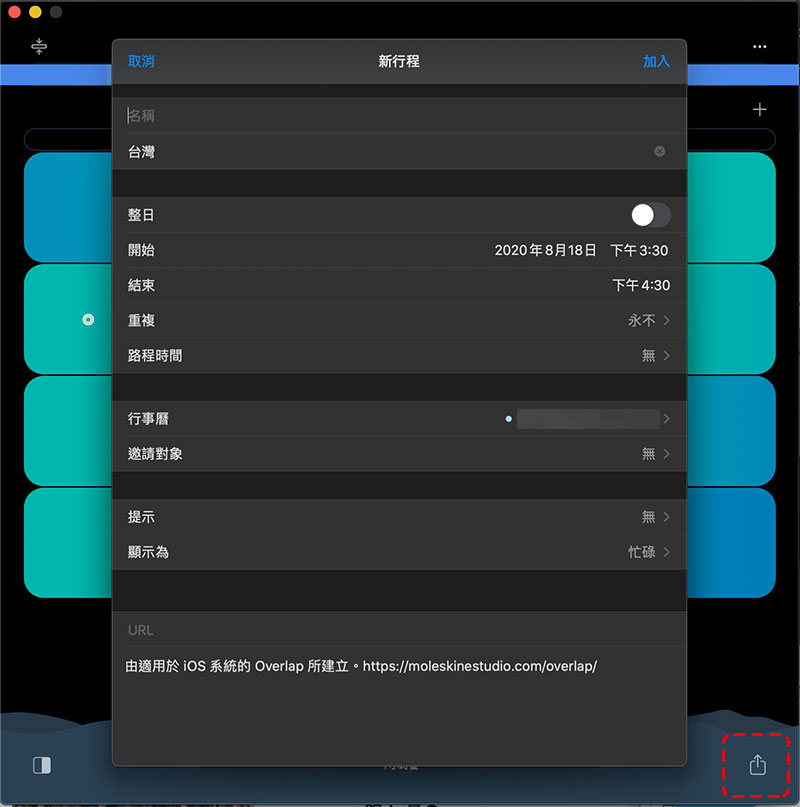
After finding the ideal meeting time for each time zone in Overlap, you can click the icon in the lower right corner to schedule the event and set a new schedule directly in your favorite calendar tool at the time you selected, without having to jump out of the calendar app. From the icon in the lower right corner, you can also choose to share your ideal time from your favorite communication platform.
This completely free app allows you to see multiple time zones from one screen, and you don’t need to keep searching for what time it is in place A in place B. You don’t need to manually add or subtract time zone conversions. You don’t need to wait for foreign participants to join the meeting and forget to take daylight saving time into account. At the same time, you don’t need to accommodate each other and stay up until midnight for meetings or video calls with distant relatives and friends. It is recommended to people like me who are too lazy to make trouble.
Source: KOCPC Chinese