


Google Smart Lens can not only recognize text content in real life and perform convenient translation functions, but also copy the recognized text content and paste it elsewhere on the mobile phone. In fact, the recognized text can also be directly “copied to the computer.” For users who attach great importance to work efficiency and want to save time and do not want to slowly enter words into the computer one by one, this feature can save a lot of time.
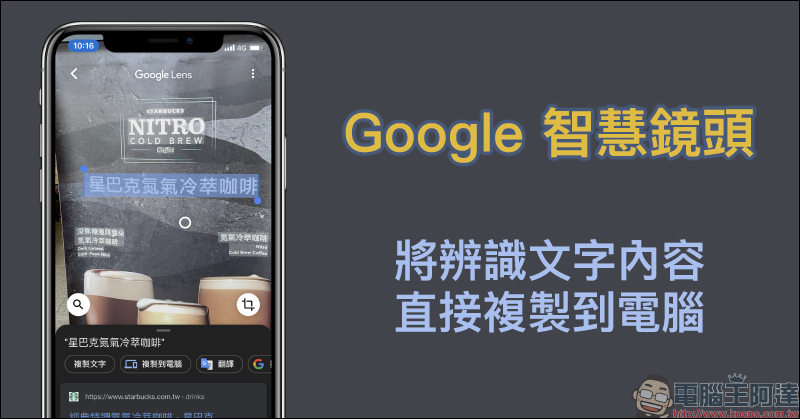
Google Smart Lens can copy recognized text content directly to the computer (teaching)
The Google Lens launched by Google provides smart lens recognition function and can also translate the recognized text content. Today, we will even teach you how to “copy the recognized text content directly to the computer”.
However, Google Smart Lens does not serve as an independent App in the iOS version. Instead, the Google Smart Lens function is integrated into the iOS version of the Google App. Therefore, many iOS users may have overlooked the convenient functions of the Google Smart Lens that is “hidden” in the Google App.
Google App (iOS version):Click here to download (App Store)
Google Lens (Android version):Click here to download (Google Play Store)
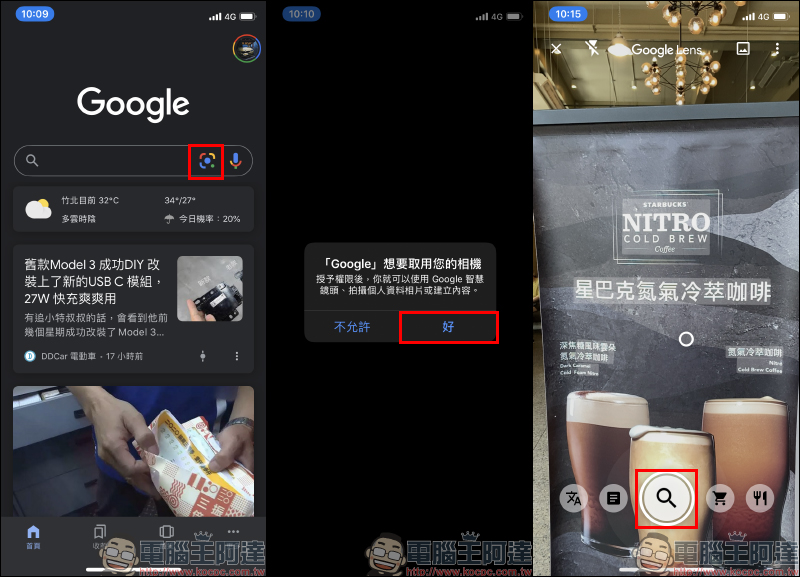
First, iOS users must download Google App (click here to go), then click the Google Smart Lens button in the search field on the homepage. For first-time use, you need to allow access to the camera. After opening the Google Smart Lens in the Google App, the camera aims at the text content you want to recognize and shoots it. At this stage, you can use the automatic mode to shoot:
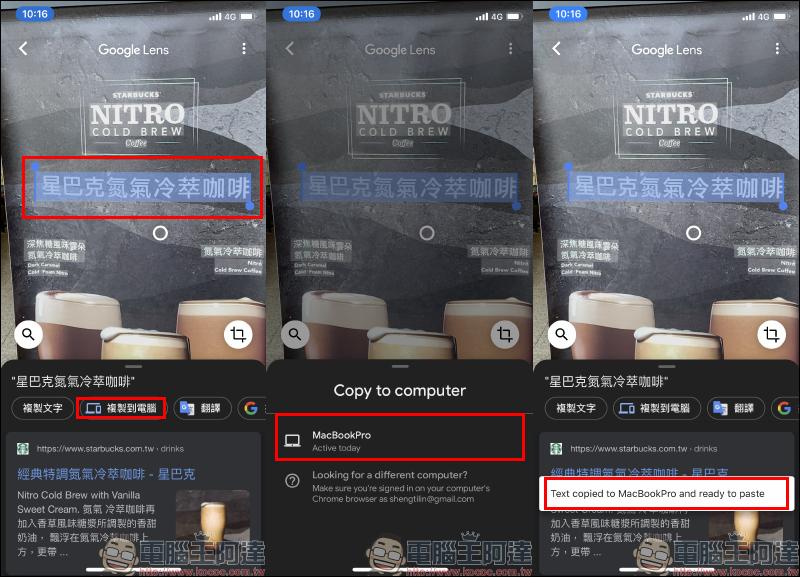
After shooting, select the text paragraph you want to copy or translate. In addition to sorting the search results that meet your needs in the field below, you can also click “Copy to Computer” to copy and paste the text directly on your computer. What you need to pay special attention to here is that the Google account used to log in to the Google App must be the same as the Google account on the computer in order to find the computer.
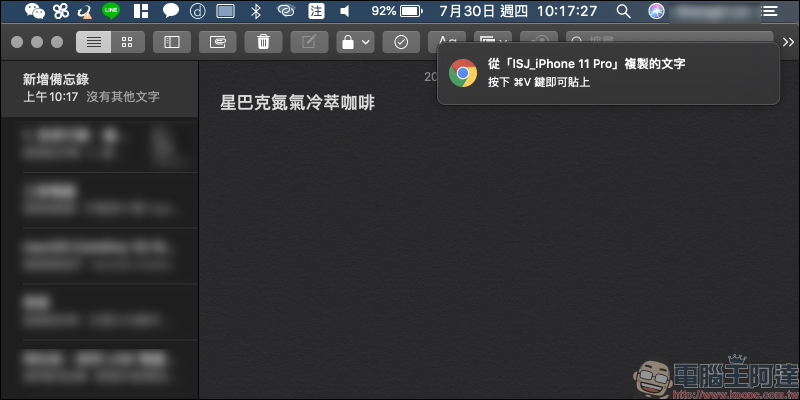
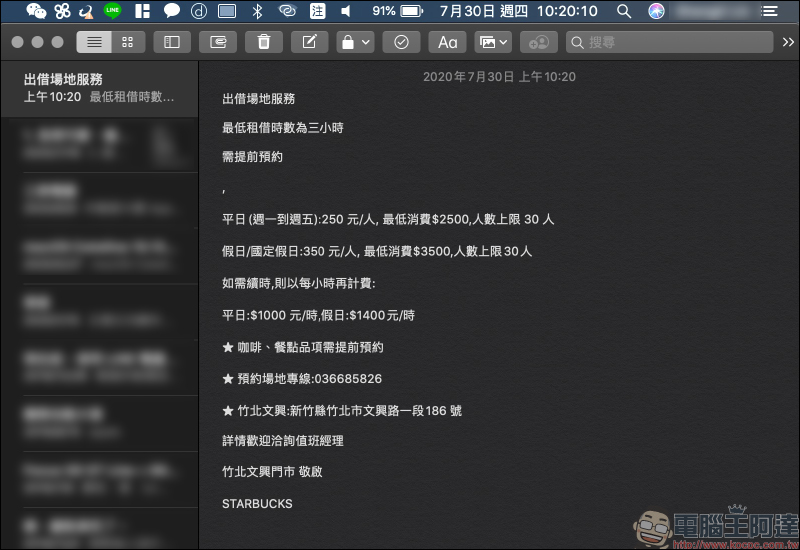
When the copying on the mobile phone is completed, a prompt message will pop up on the computer simultaneously. At this time, you can directly use the shortcut keys on the computer to paste the text copied on the mobile phone:
Next, the author also tries to identify longer text paragraphs for you. Just use the Google Smart Lens to recognize the screen, select all the text paragraphs you want to copy and click “Copy to Computer”. After selecting the computer, you can copy:
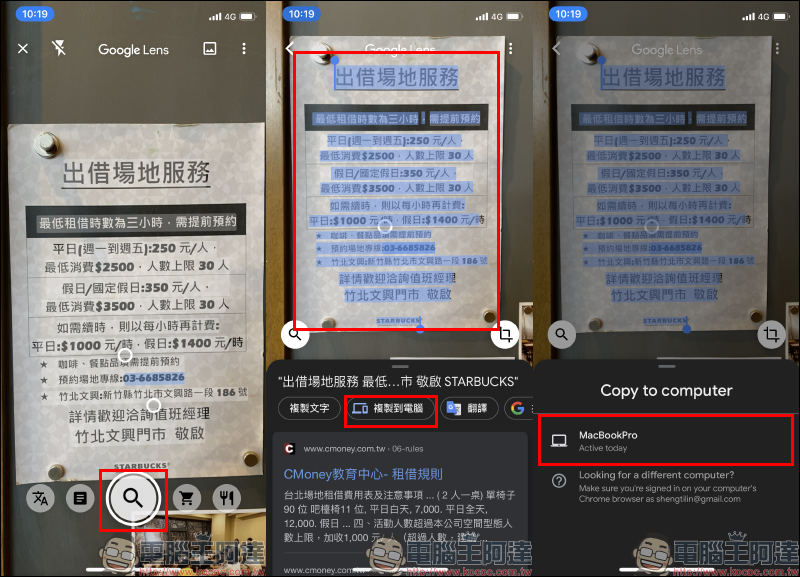
Actual testing has shown that long text content, including Chinese, numbers, and English, can be accurately recognized, and the success rate of recognition will vary depending on the clarity of the screen. However, sometimes there are still some typos in the recognition. In this case, you only need to paste them again and edit them manually. For the need to convert a large amount of text seen in real life to the computer at one time, using Google Smart Lens to recognize the text and then copy it to the computer can really save a lot of time.
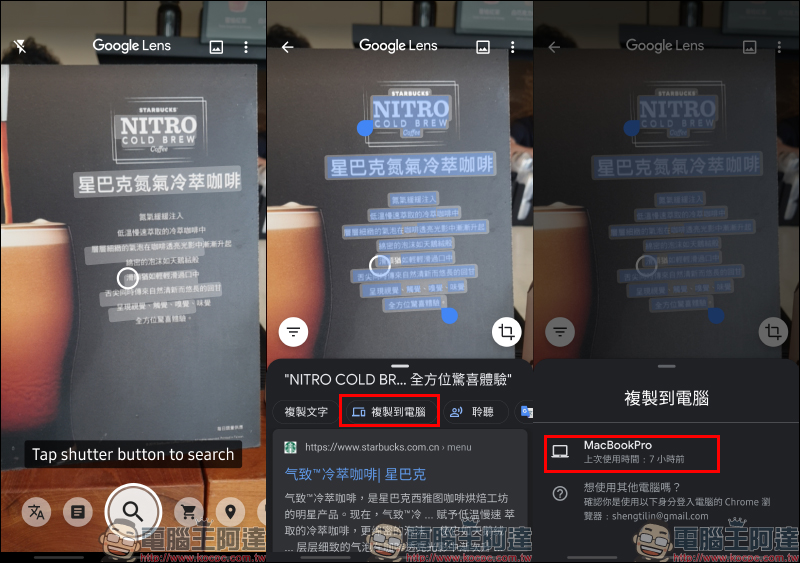
As for Android phone users, since the current Android version of Google App does not integrate the Google Smart Lens function, they need to Google Lens App (click here to download)To use the “Copy to Computer” function, the overall operation process is roughly the same as the iOS version of Google App.
Google App (iOS version):Click here to download (App Store)
Google Lens (Android version):Click here to download (Google Play Store)
Further reading:
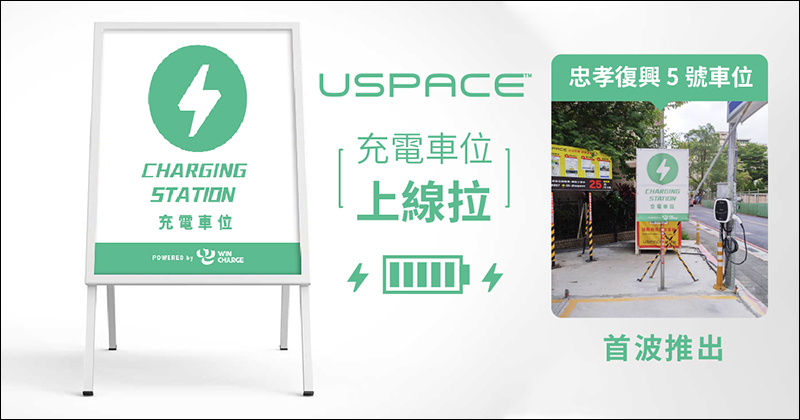
USPACE smart shared parking space “Charging Parking Space” is officially launched! Charging is free, just pay for parking
Chrome will let Android download files at a better time (early enabled for tutorials)
Source: KOCPC Chinese