


As mobile devices such as smartphones have become one of the devices used by people to send and receive documents on a daily basis, many people choose to go directly to the supermarket 7-11 to print data documents using ibon when they want to print documents. Especially through the cloud printing function of ibon, it is very convenient for people who do not want to carry a flash drive or memory card. However, ibon cloud printing can not only upload files through a dedicated web page or dedicated App.
Today I want to share a more convenient way to use ibon cloud printing, which is to directly use the ibon LINE official account in the LINE App to directly upload data and generate a QR Code. There is no need to download additional apps or enter other personal information. Whether you upload files to the cloud, go to the store, scan the QR Code and print, it is faster than other methods in the past.
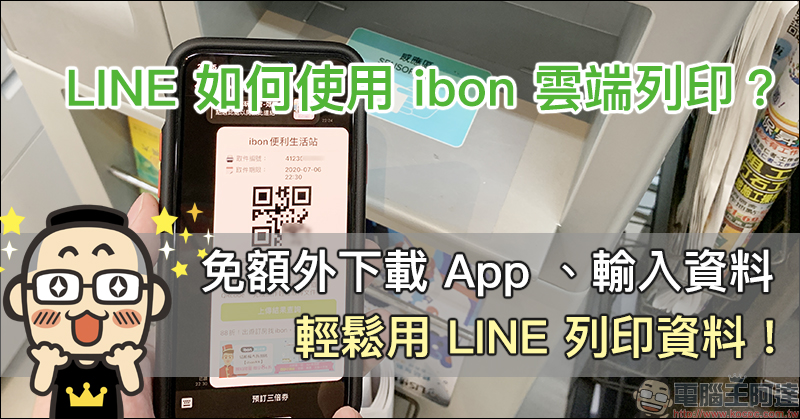
How to use ibon cloud printing in LINE? No need to download additional apps, enter data, and print data easily using LINE! (teaching)
In the past, when users wanted to use ibon’s cloud printing service, they could upload documents through “ibon cloud printing network (click here to go)”, and some people will choose OPEN POINT App (the past ibon App, now integrated with ibon cloud printing function). However, for many people, the need to print documents is only needed occasionally. Therefore, many people do not like to download another app and save it on their mobile phones to occupy storage space.
In fact, at this time, you only need to use LINE to“ibon Convenient Life Station” official account added as a friend, you can use ibon cloud printing:
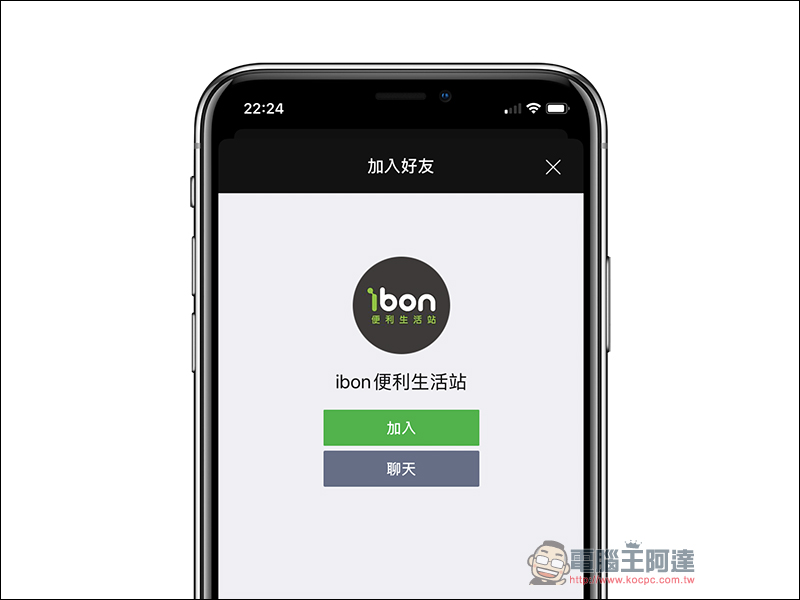
ibon Convenience Life Station LINE official account:Click here to add friends
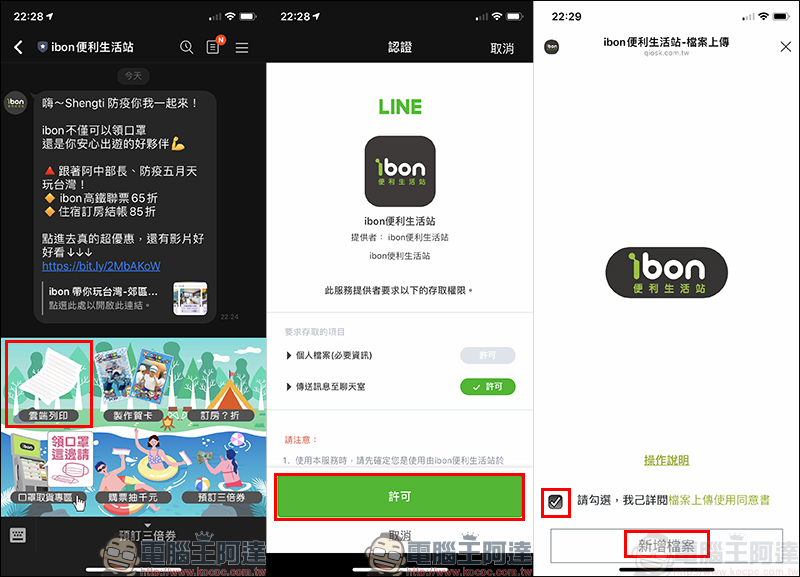
After adding ibon Convenient Life Station as a friend, click “Cloud Print” in the function menu at the bottom of the chat room page. For first-time use, you need to allow access permissions, then check to read the file upload consent form, and finally click “Add File”:
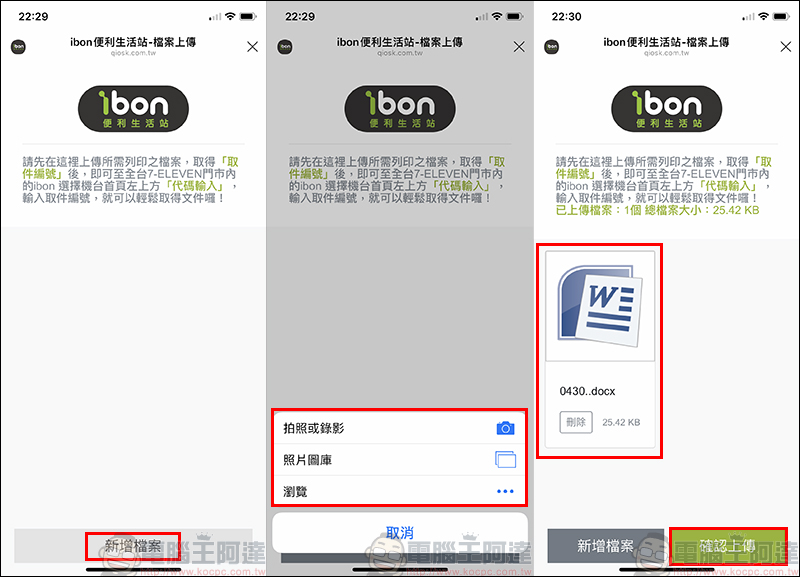
At this time, the screen will directly enter the file upload page. Select “Add File” again to upload files or images directly from your smartphone. Currently, ibon printing supports image files in JPG, BMP, and GIF formats, and documents in Microsoft Word, Excel, PowerPoint, TXT, INI, and PDF formats. Users can upload single or multiple files. After the upload is completed, click the green “Confirm Upload” in the lower right corner to actually upload the files to the ibon cloud:
After the upload is completed, it will automatically return to the LINE ibon convenience station chat room page, and the pickup number and QR Code will automatically pop up. Three minutes after the file is uploaded, users can go to ibon machines in 7-Eleven stores across Taiwan to download the file and print it. If you are not sure about the upload result, you can click the “Upload Result Query” button at any time to view the uploaded files:
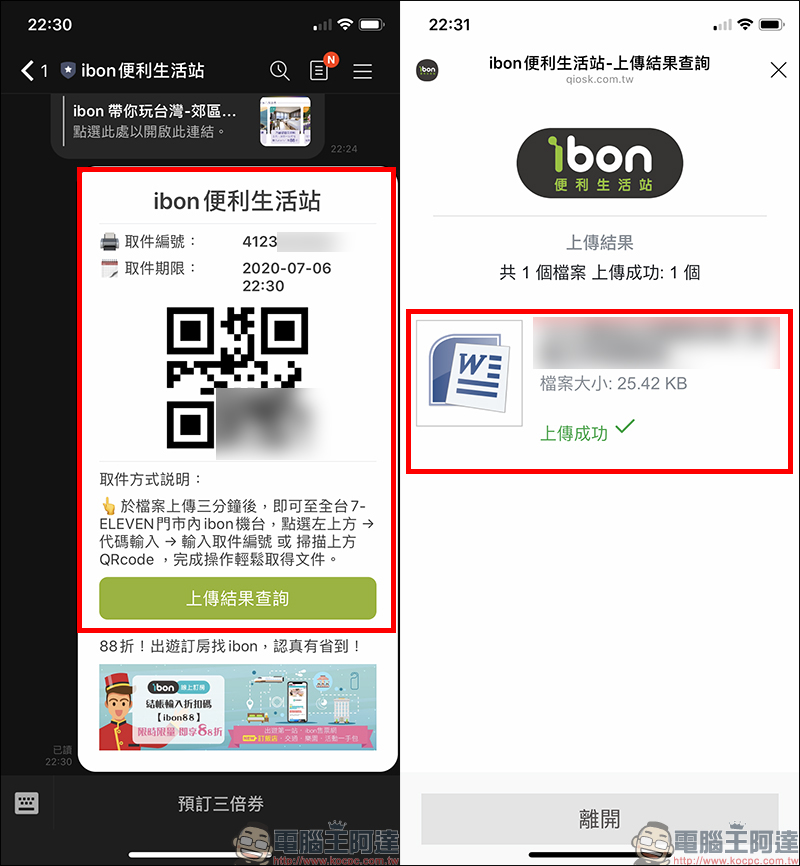
Go to 7-11 supermarket to use iBon machine
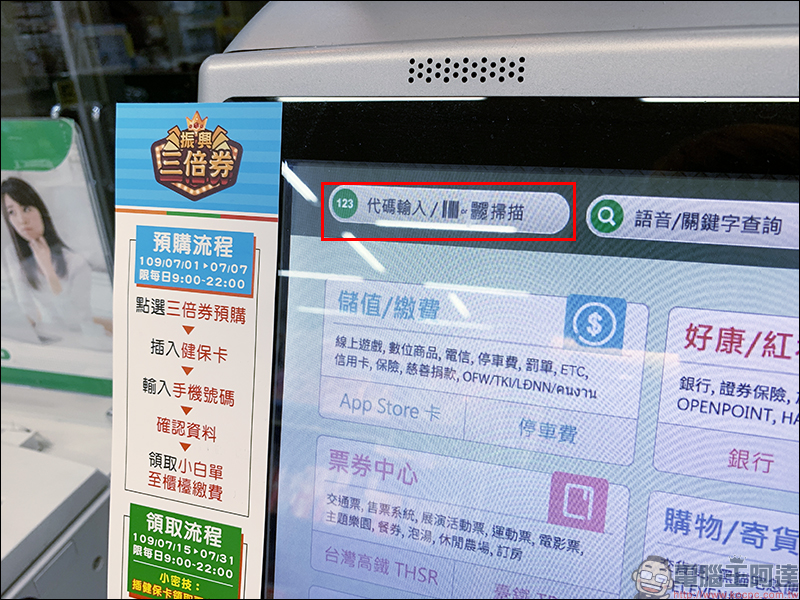
In order to facilitate readers who do not know how to operate the ibon cloud printing function to quickly understand the steps of operating the machine, the author will personally take you step by step to operate the machine. First, click “Code Entry/Scan” in the upper left corner of the ibon homepage:
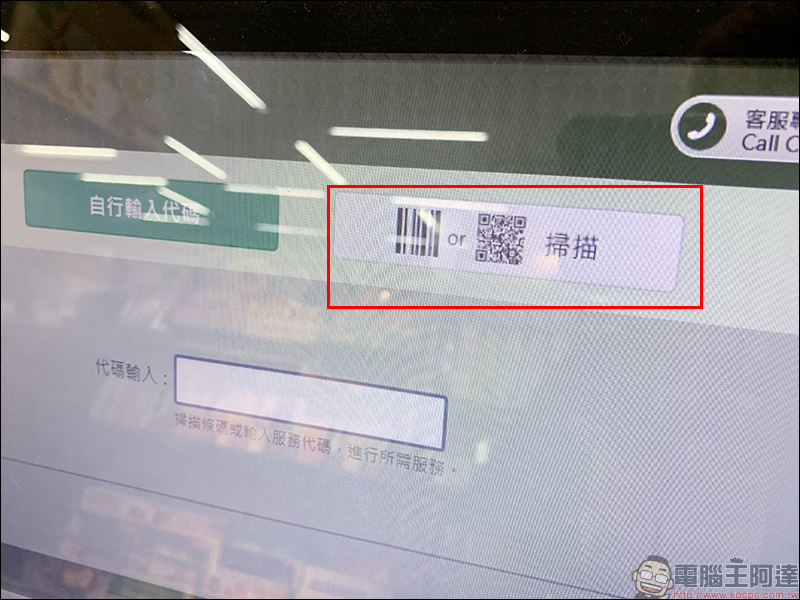
Then select “Scan” on the right:
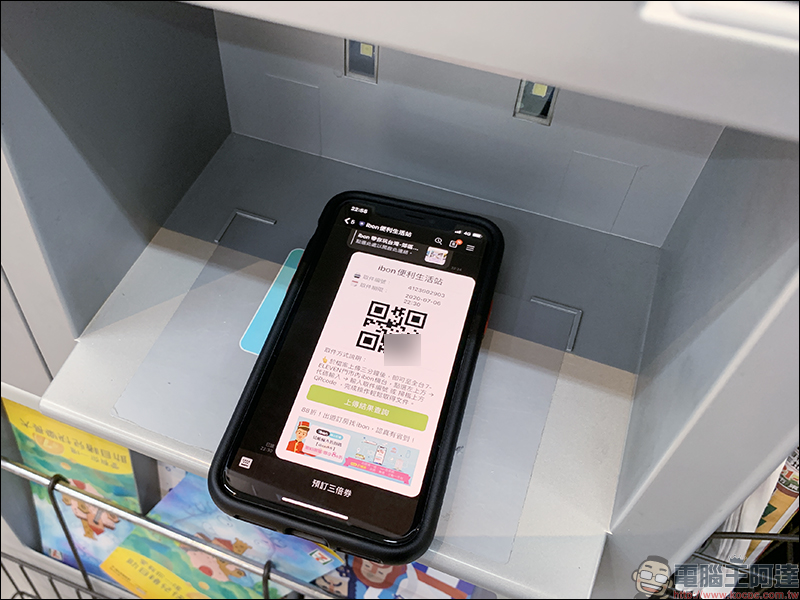
At this time, the screen will prompt people to turn on their mobile phones to scan barcodes and place them in the scanning area:
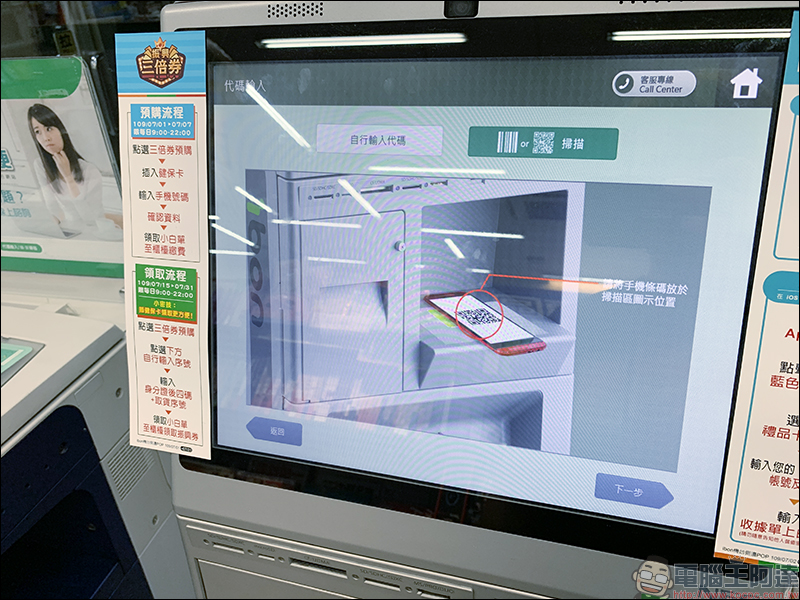
At this point, you can open the LINE chat room screen of the ibon convenience life station earlier, and adjust the QR Code barcode to the center of the screen as much as possible:
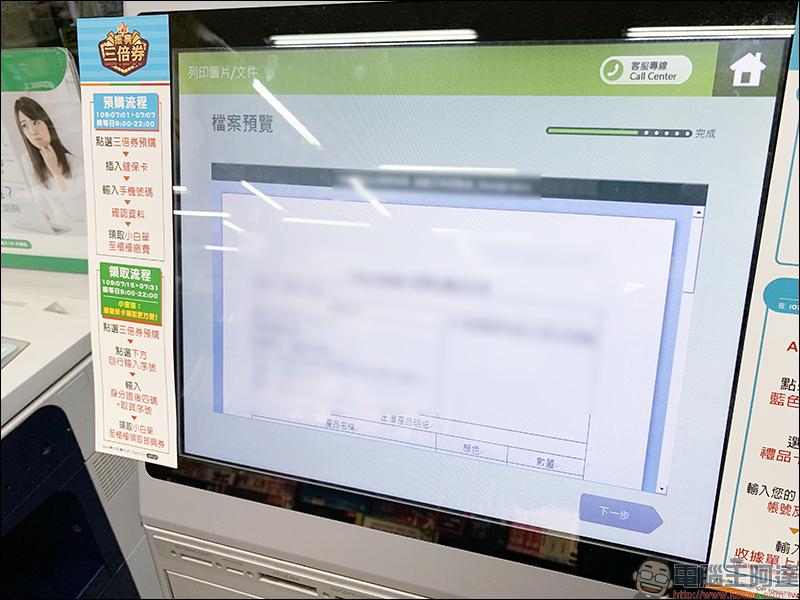
If there are multiple documents for ibon cloud printing, multiple image/document files will be displayed on the screen (up to 8 files can be selected at a time). However, I am only uploading a single file this time, so the file preview page will be displayed directly. After confirming that the content is correct, click “Next” in the lower right corner of the screen:
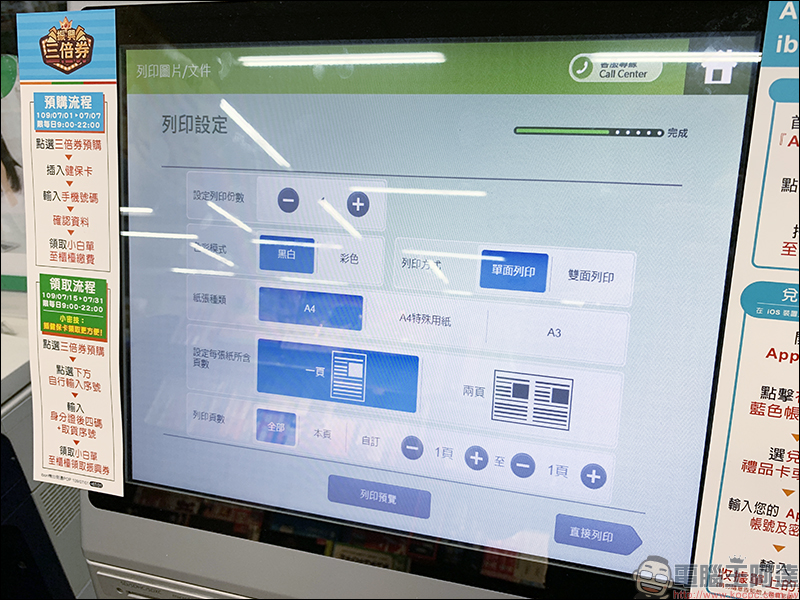
Then, in the printing settings, you can select the number of print copies, color mode (black and white/color), printing method (single-sided printing/double-sided printing), paper type (A4/A4 special paper/A3), printing range and other settings according to your needs. After confirming that everything is correct, you can click “Print Directly” in the lower right corner:
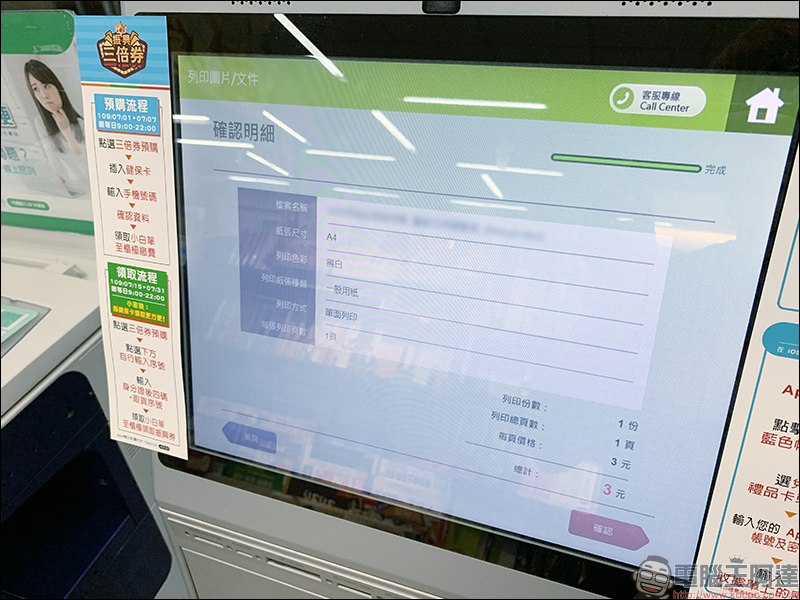
The final confirmation details will show the total amount printed. If there is no problem, you can click “Confirm” in the lower right corner to start printing. After printing is completed, the ibon machine will output a small white slip for payment. Just give the small white slip to the clerk for checkout. (*Tips: Don’t forget to take the printed documents with you!)
ibon Convenience Life Station LINE official account:Click here to add friends
Further reading:
LINE application tips: “Remotely log out” of the LINE account on other devices from your mobile phone, so you don’t have to worry about all the LINE chat content being seen!
LINE application tips: LINE received a message but not notified? Check out these settings!
Source: KOCPC Chinese