


Although we have shared many LINE application tips in the past, to be honest, the most common question asked by users is “Why are there no notifications for my LINE messages?” However, this may actually be related to the settings of your mobile phone. LINE officials also shared a series of possible reasons why LINE did not receive reminders. You may wish to follow this tutorial and check your mobile phone settings one by one to see if you can eliminate the problem of not receiving reminders!
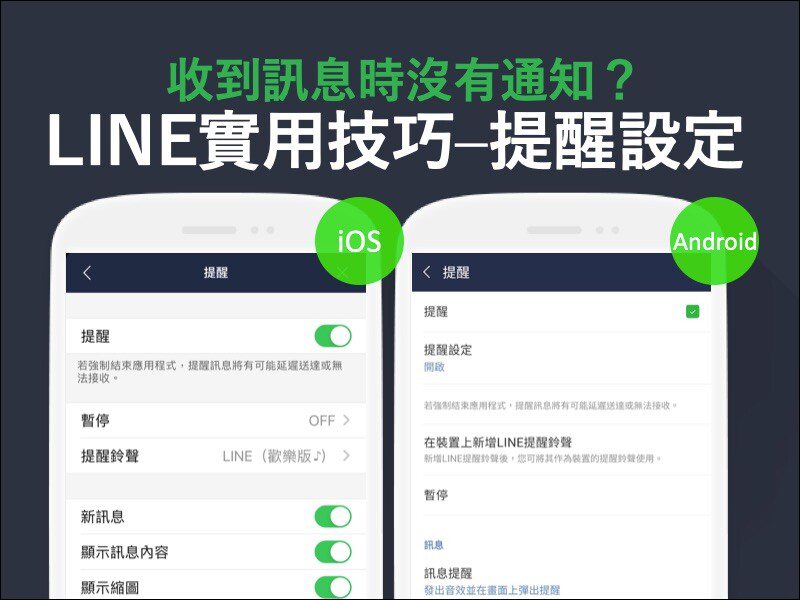
LINE application tips: LINE received a message but not notified? Check out these settings!
Whether users of iOS or Androis mobile devices, the author often receives questions about why LINE does not receive reminder notifications. However, the reasons why each user does not receive notifications are different. Recently, LINE Taiwan’s official blog also personally shared setting operation instructions to guide users to find the reasons why they did not receive message notifications. Before that, the author also briefly shared that users of both dual systems will encounter the reasons for not receiving reminders. This part is also something that is not mentioned in this official LINE tutorial.
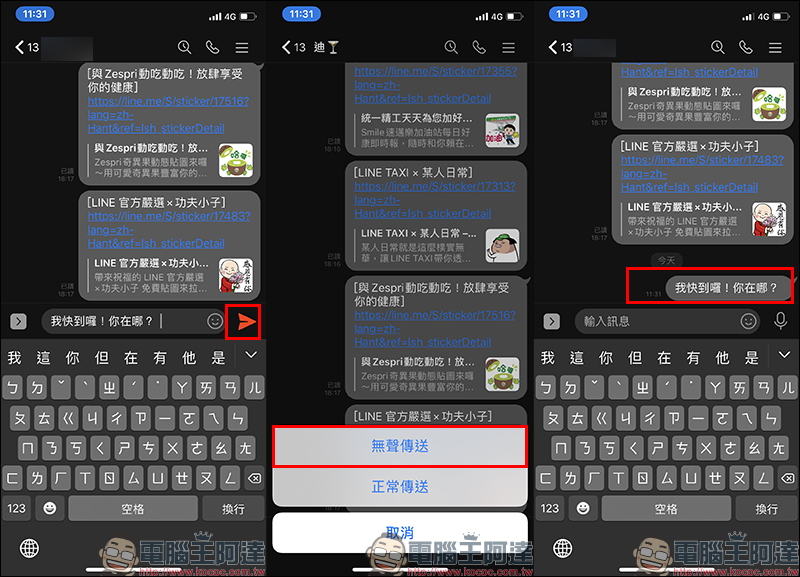
The other party sent a “silent message”
First of all, LINE’s “silent messaging” function in LINE Labs a while ago may actually be the reason why friends receive messages but not notifications! For articles about LINE silent messages, please refer to our previous reports (Click here to view the iOS version|Click here to see the Android version)。
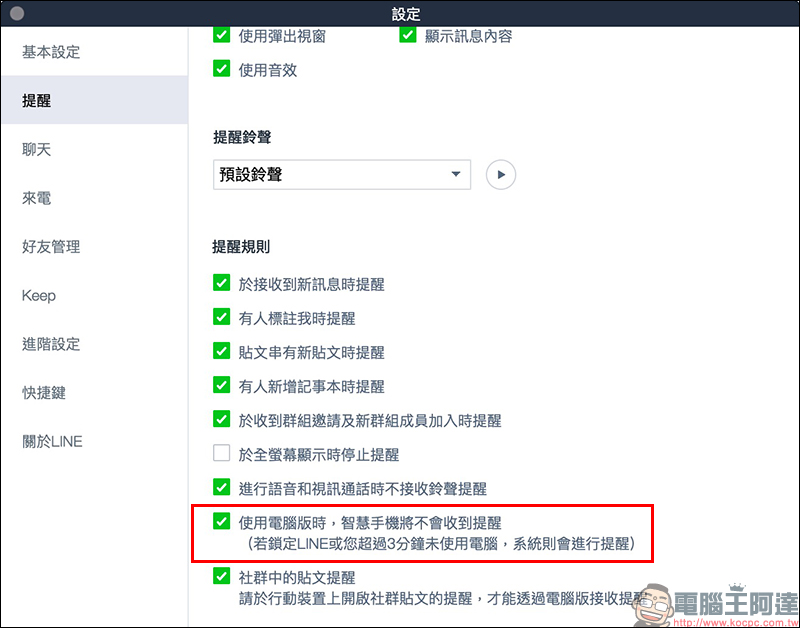
LINE PC version settings
Many users usually have normal LINE message notifications on their phones, but occasionally find that there are no notifications on their phones? This may actually be because I am currently logged in to the PC version of LINE. In the “Reminder” tab of the LINE PC version settings page, there is an item“When using the PC version, your smartphone will not receive reminders”, when this feature is turned on, the mobile phone will temporarily not receive new message reminders from LINE.
This feature will lock LINE in the PC version of LINE or the system will only remind you on the mobile phone if you have not used the computer for more than 3 minutes. This thoughtful feature is actually designed to prevent users from having their phones ring constantly with messages while using LINE on their computers.
However, if you want to receive notifications on your mobile phone, it is recommended to turn this feature off. In this way, the phone will return to normal message reminders!
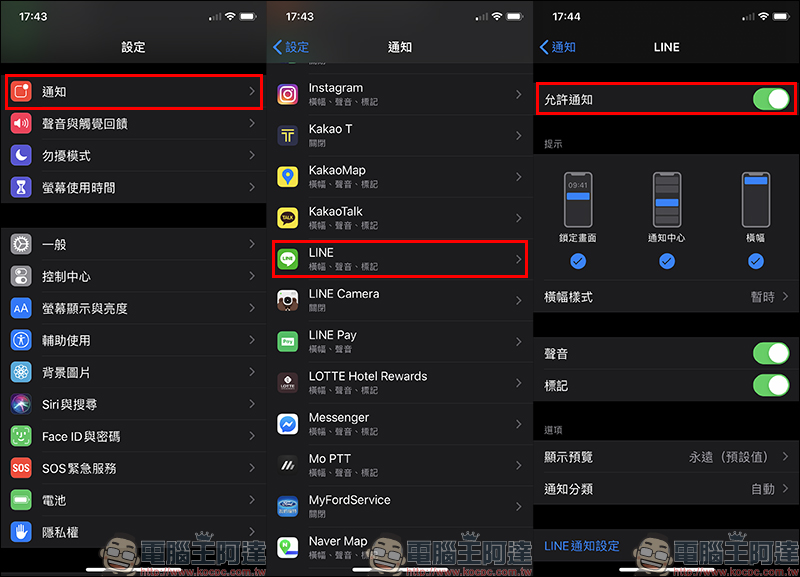
iOS user related settings
First of all, for iOS users, you can first select “Notifications” > “LINE” on the system settings page, and then confirm whether “Allow Notifications” is turned on:
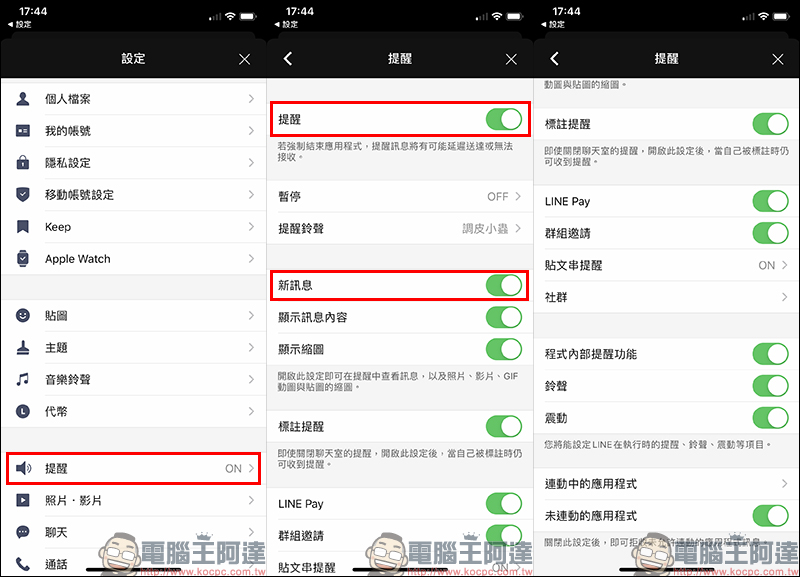
Then go to “Reminder” in the settings of LINE App and confirm that “Reminder” and “New Message” are both turned on:
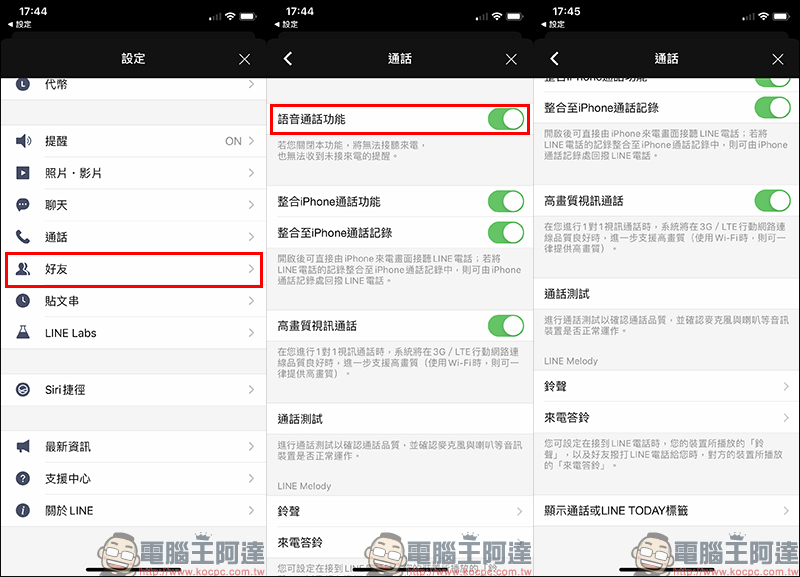
If the other party makes a LINE voice call but does not receive the notification message, you can click “Friends” on the settings page and then confirm whether the “Voice Call Function” is turned on:
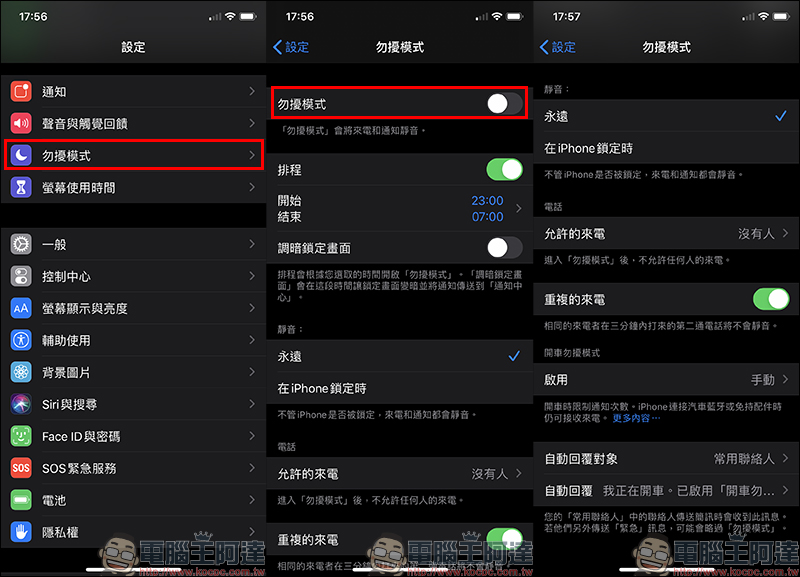
iOS users may also have a common reason why messages are not notified. This is because they accidentally turn on the “Do Not Disturb” mode, so the LINE messages they receive are also in a muted state, resulting in the final result of ignoring friends’ messages.
Android user related settings
As for Android users, the process of checking the notification settings is basically the same. First, you can find “Reminder” from the “Settings” of the LINE App, and then confirm whether the reminder function is turned on (check it). Then you can click “Reminder Settings” to jump directly to the “App Notification” page of the mobile phone system and confirm that the “Show Notification” function is turned on:
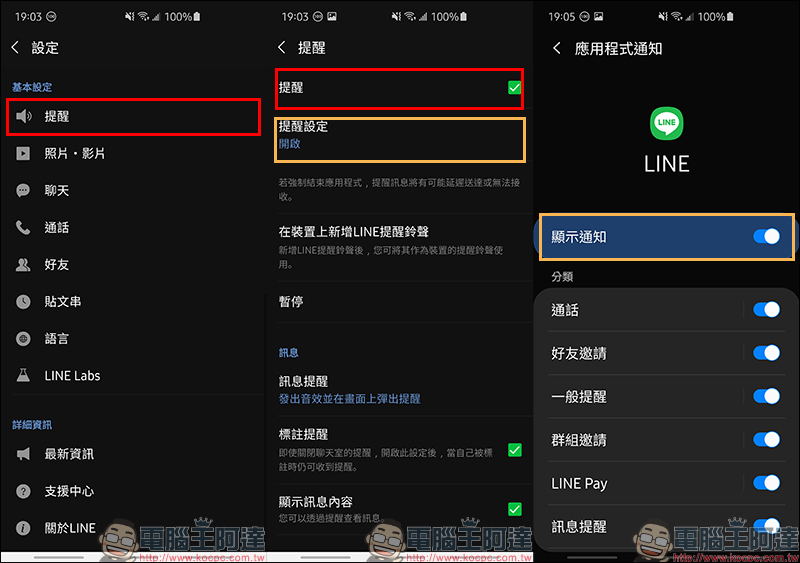
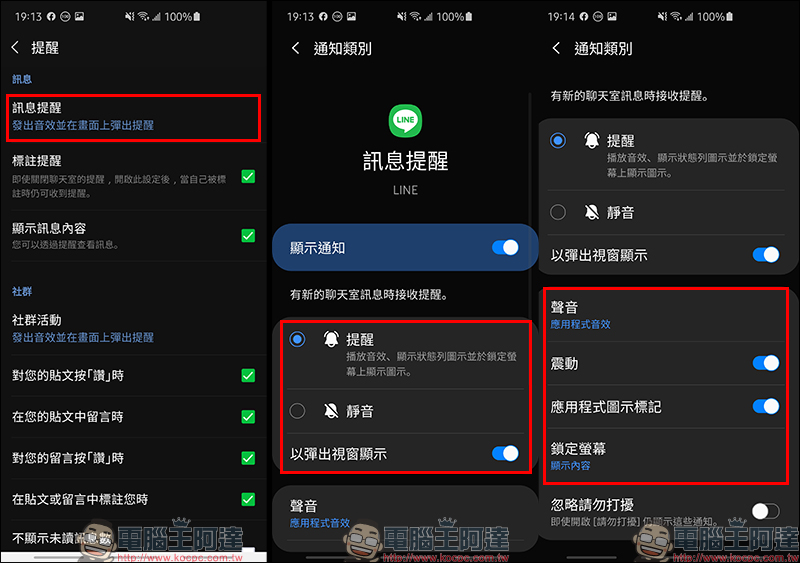
In addition, at the bottom of the LINE settings reminder page, you can find “Message Reminder” and enter it. Check whether the relevant reminder notifications of “Message Reminder” are turned on:
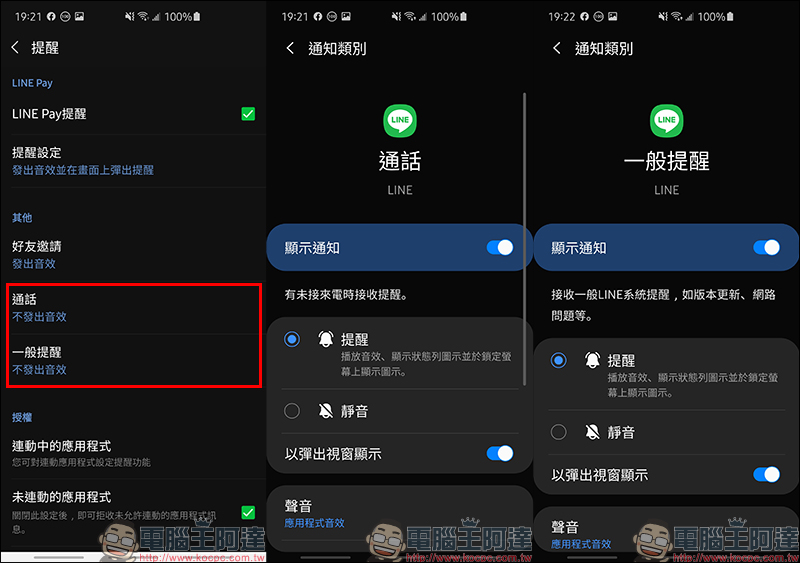
In addition, for call and general reminder notifications, the same steps are used to confirm whether notifications are turned on:
What if none of the above methods work?
If the above methods still fail to work, you can confirm the following settings in order:
- Confirm that the network signal is stable
- End all active applications
- LINE App close and reopen
- Turn off the mobile device and turn it back on again
- Help LINE lose weight (clear the cache of the LINE application):Click here to view past teachings
- Update LINE App to the latest version:Click here to update on mobile phone
- Update mobile device operations to the latest version
- In addition, you can also use the “LINE Customer Service Helper” official account (LINE ID: @linehelptw, orClick here to join on mobile phone) Add as a friend and let the artificial intelligence helper help you find answers in LINE’s database
Source:LINE Taiwan official BLOG
Source: KOCPC Chinese