


Although we have heard before that Microsoft will launch the pagination group function on the new version of the Edge browser to allow users to batch manage paginations of the same type, many people who need to enable a large number of pagination browsing information, including the author, have long been unable to wait. Today, the author will tell you how to enable this feature, as well as some practical tips for this feature, so that you can use it more conveniently!

The new Edge browser’s hidden version of the Tab Group technique is super practical and must be learned!
The latest Chromium core Edge browser is surprisingly easy to use, especially the hidden function of Tab Group, which has been available since version v83. I must introduce it carefully. Do you also have the problem of difficult to manage paging? Let’s learn it together!
How to enable the Tab Group function?
First, please open the new version of Edge browser and copy “edge://flags/#tab-groups” paste it in the address bar and press Enter.
【There is no new version of Edge browser yet, click here to download】
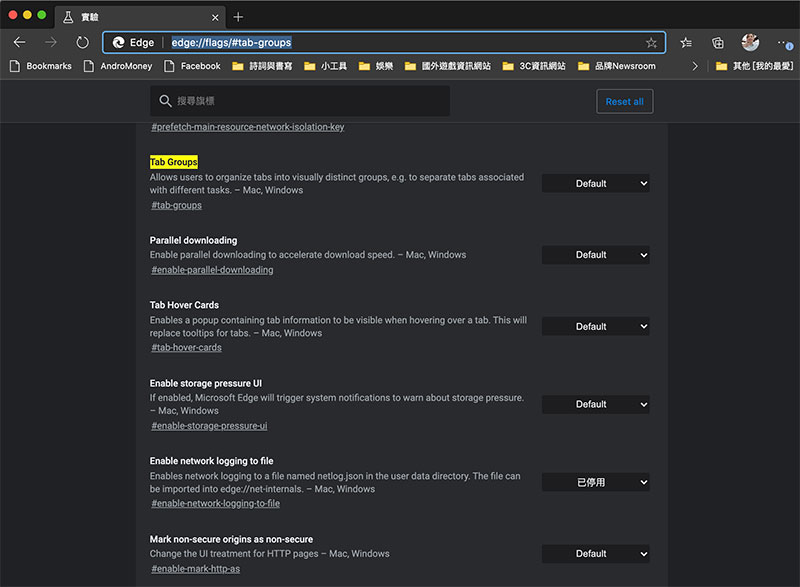
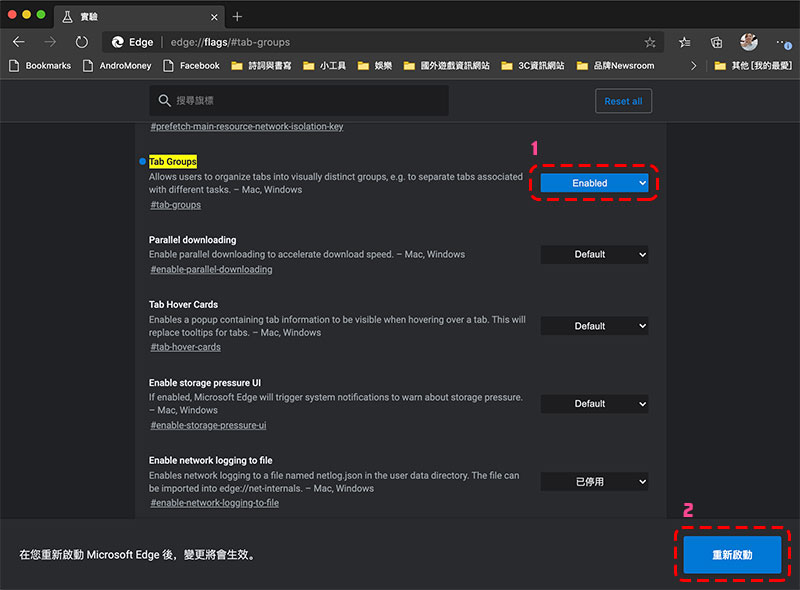
After changing the yellow highlighted “Tab Group” to “Enabled”, click “Restart” in the lower right corner to restart Edge.
Notes on practical functions and skills, it will be a big loss if you don’t learn them
After completing the above activation steps, you can use the paging group function to your heart’s content. Below, the author has compiled some commonly used and easy-to-use tips, so you can learn them quickly!
Page grouping
The first step in batch management is to group pages of the same type and nature together. The method of grouping is very simple. Just hold down the “Ctrl” key or “Shift” (the former to skip the order, the latter to order) and then click to select the page that you want to join the same group. Right-click and select “Add to new group” or “Add to existing group”.
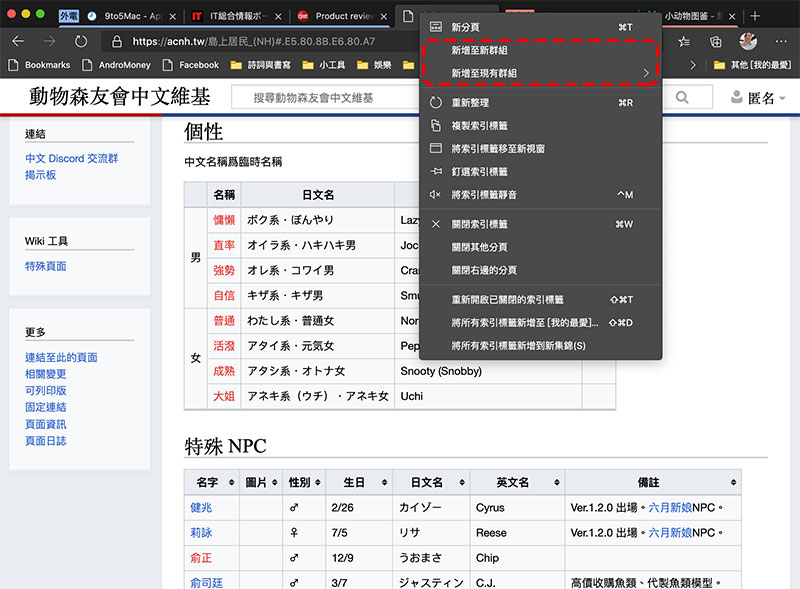
You can set a name and color for each group so you can see it clearly from the paging tab.
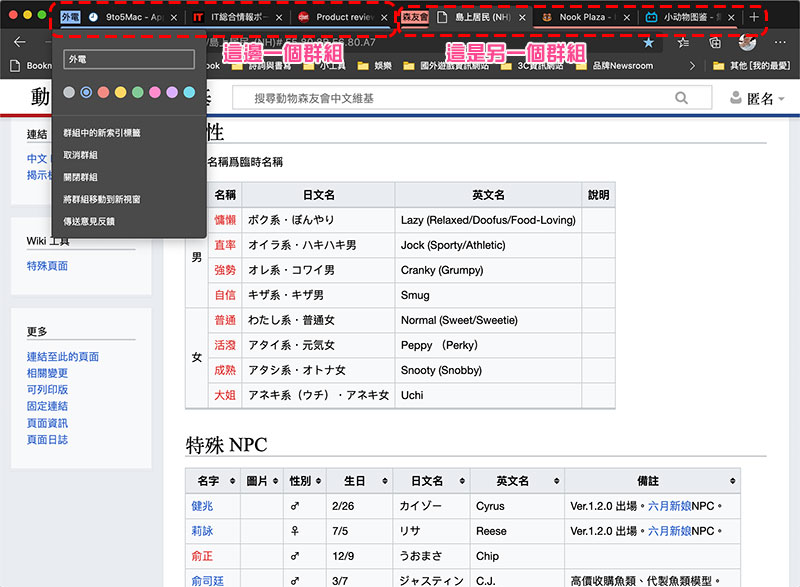
Batch operation
When your grouping is complete, the main event comes! You can perform batch operations on the tabs in the same group, close them all at once, or move them to a new window and open them all at once. Just right-click on the small label of the group to operate.
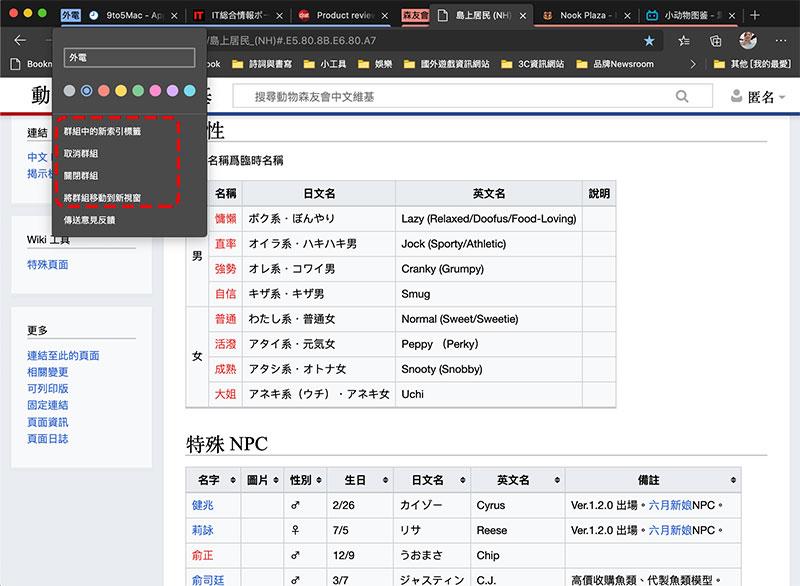
Modify paging grouping
When you click on a link in a tab that belongs to a group, the web page you open will also be automatically classified in the same group. If you want to change the group of the tab, there are two ways:
1. Directly press and drag the tab to the desired group label.
2. Right-click on the paging label to modify the grouping.
Although the official function has not been released yet, if your needs are very urgent, you might as well take advantage of this experimental function. I personally think it is very convenient, simple and easy to use. Have you learned it?
Source: KOCPC Chinese