


As Gemini Getting stronger and stronger, I believe many people now commonly use AI The tools are all Gemini, rather than ChatGPT or other AI chatbots. However, even though Gemini’s model has gotten much stronger, there are still many features that aren’t fully polished. I think many people feel this way, especially when it comes to managing chat history.
This article recommends a super powerful free extension: Gemini Voyager. Once installed, it instantly gives Gemini tons of useful features. Besides the basic prompt library and conversation history management, you can also directly download unwatermarked Nano Banana images without needing other tools. Even better, every conversation record includes a “Timeline Navigation” feature—just click to instantly jump to that conversation, no more manual scrolling. This is really convenient.
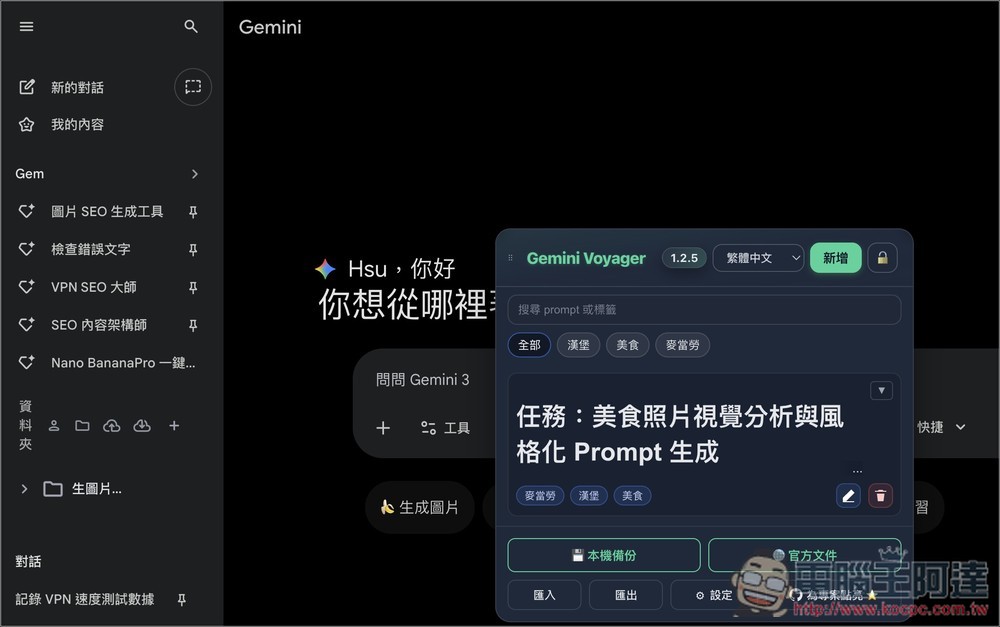
Gemini Voyager Free Extension Overview
Gemini Voyager is a browser extension designed specifically for Google Gemini and AI Studio, filling in the gaps in official features regarding conversation management and work efficiency. For those who frequently use Gemini AI for research, writing, or organizing information, it’s highly practical.
The main core value lies in transforming scattered AI conversations into manageable, searchable, and reusable knowledge assets. For example, you can create folders to organize different projects, save frequently used prompts, and even export conversations as Markdown or PDF—this is incredibly helpful for content creators and technical professionals.
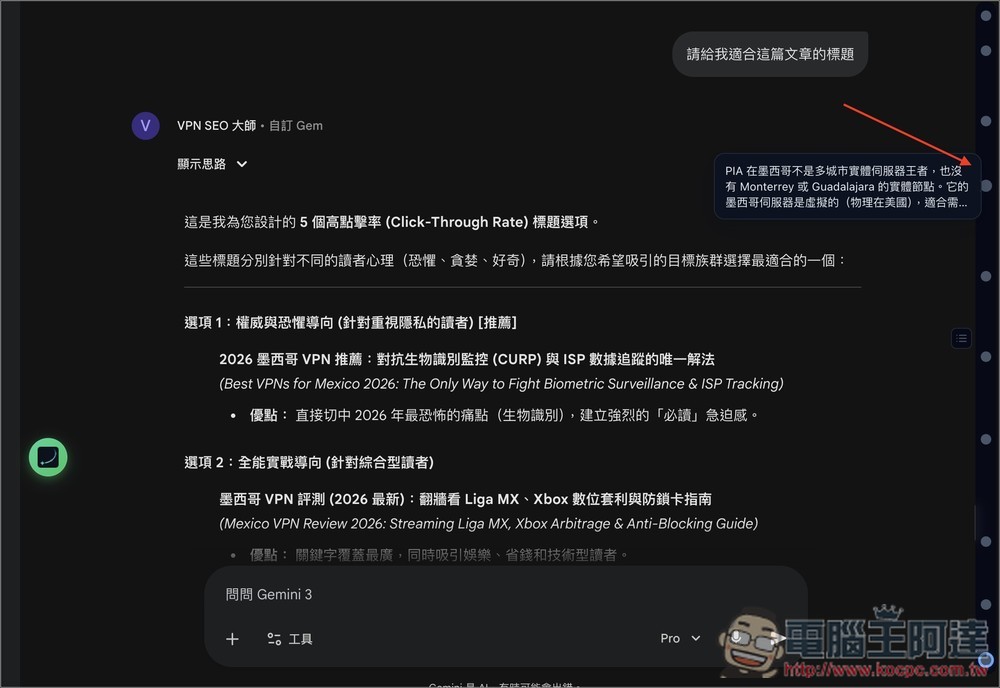
Another feature is the timeline navigation, which lets you quickly jump to specific messages—particularly useful for long conversations.
Furthermore, it incorporates numerous advanced features such as automatic Mermaid diagram rendering, Markdown fixing, Deep Research data extraction, and more. Essentially, after installation, Gemini will function more as a professional productivity tool rather than a mere chatbot.
Key Features
- Chat folder management: Create folders and drag to organize your conversations
- Prompt Vault: Store and reuse your frequently used prompts
- Timeline Navigation: Quickly Locate Conversation Nodes and Key Content
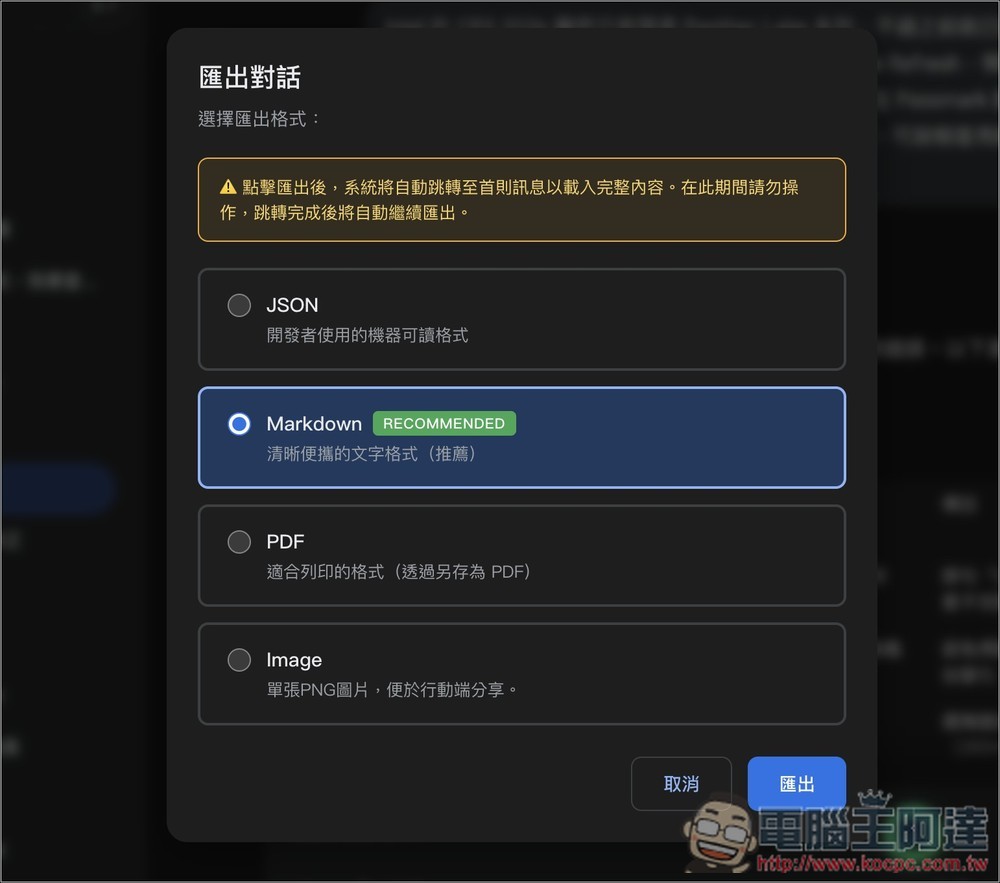
- Export conversations: supports JSON, Markdown, and PDF formats
- Cloud sync: Can sync to Google Drive
- Mermaid Diagram Rendering: Auto-Display Flowcharts and Diagrams
- Markdown Fix: Resolving Gemini Formatting Issues
- Deep Research Extraction: Capturing Research Process and Source URLs
Gemini Voyager is also an open-source tool, and anyone interested can visit… GitHub project pageBrowsing. In addition to Chrome, it also offers Safari and Firefox versions. Here I’ll use Chrome as the example to demonstrate.
How to install and use Gemini Voyager
Gemini Voyager has a lot of features, so I won’t cover all of them below. I’ll only introduce a few that I think are really useful.
Get the Chrome version of Gemini Voyager
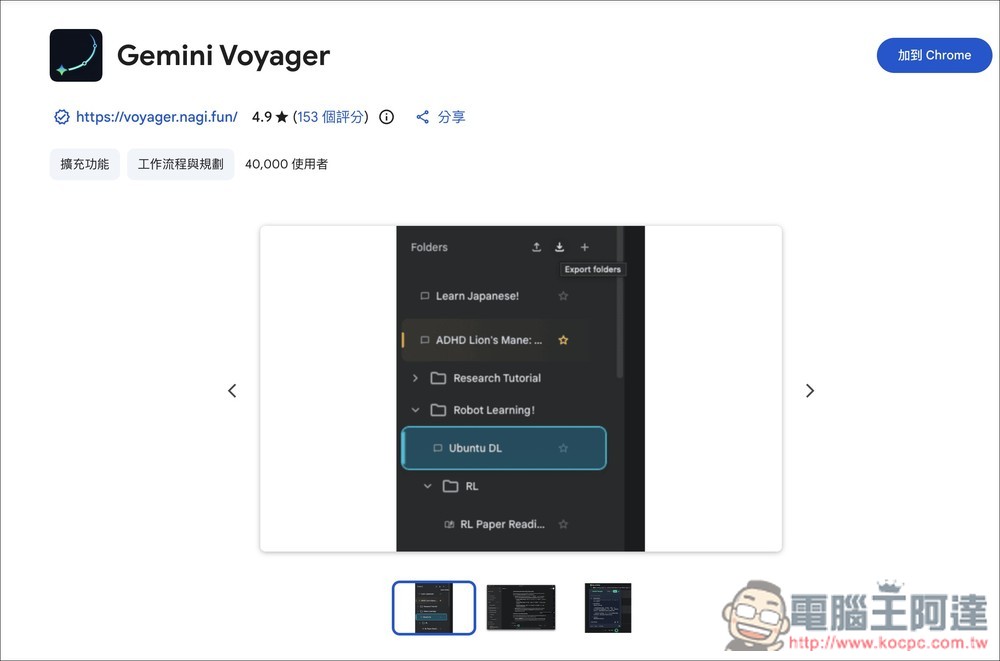
Click the relevant link to go to the Gemini Voyager page in the Chrome Web Store, then click “Add to Chrome” in the upper right corner. As long as your browser is built on the Chromium engine, you can install it—for example, I’m using ChatGPT Atlas and successfully installed and used it.
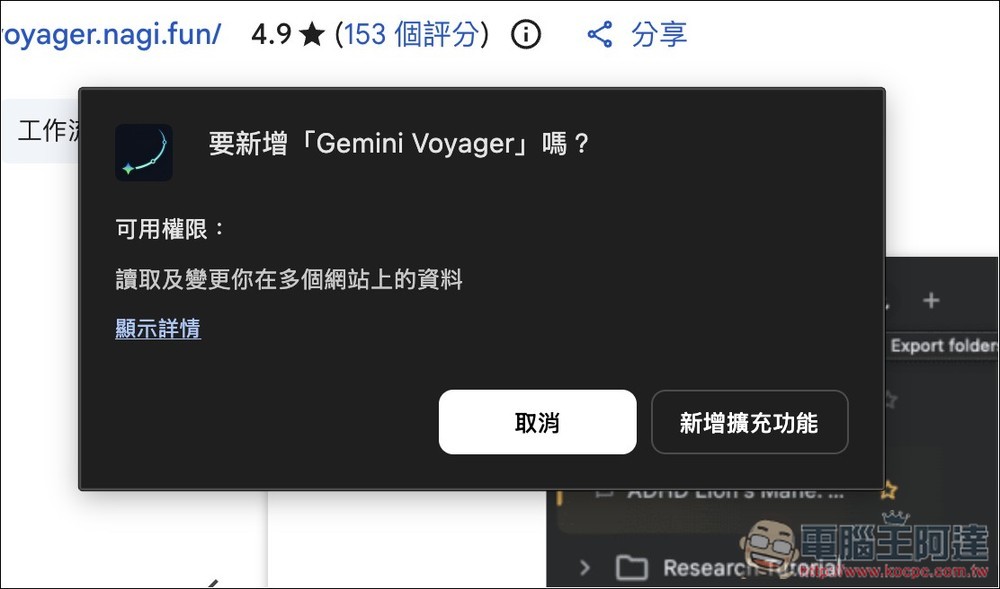
A prompt will appear, click to add a new extension:
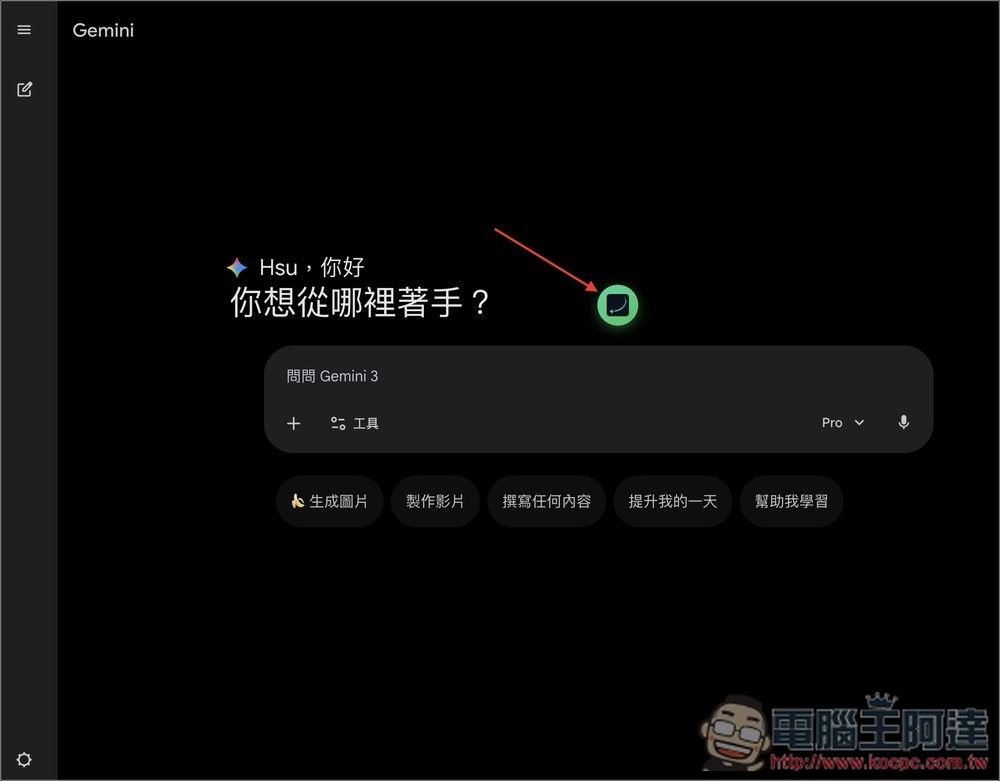
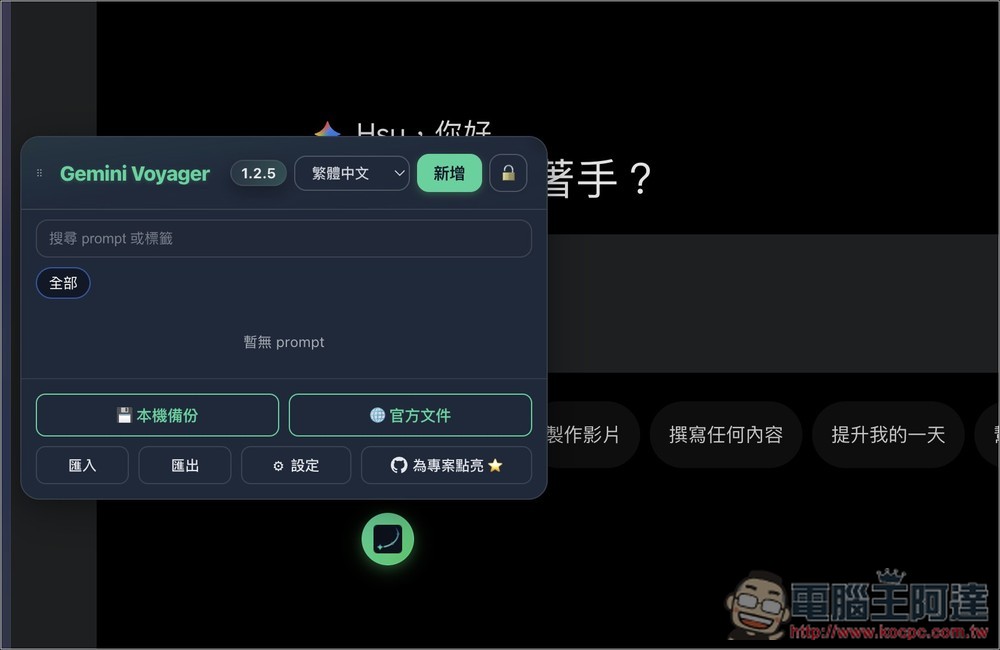
After installation, open the Gemini interface and you’ll see a small icon appear on screen—this is the Gemini Voyager extension icon:
Tap to open the prompt library
Timeline Navigation
Timeline navigation is one of my favorite features. After opening any past conversation, you’ll notice many small dots appear on the right side. Each dot represents a message you sent. When you click on one, the screen jumps directly to that conversation—no more manual scrolling needed.
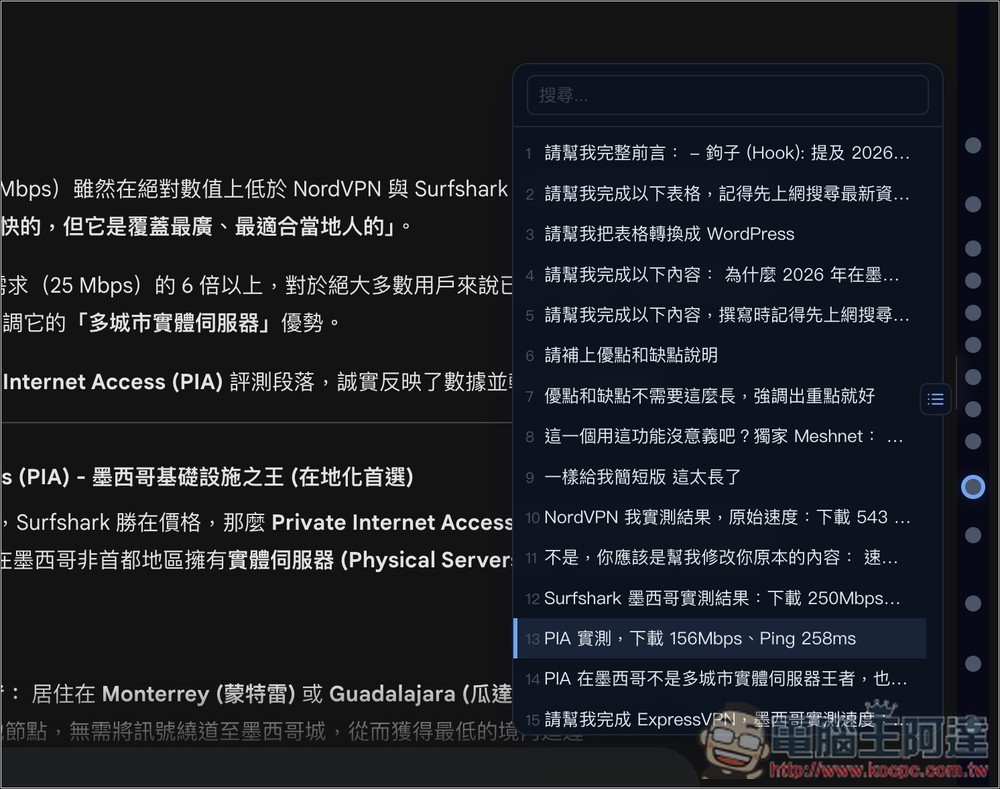
You can also expand all lists. If you find it hard to read, you can directly click on the conversation in the list. It even supports a search function, so you can quickly find the conversation by entering keywords:
2. Organize your chat history effortlessly using folders
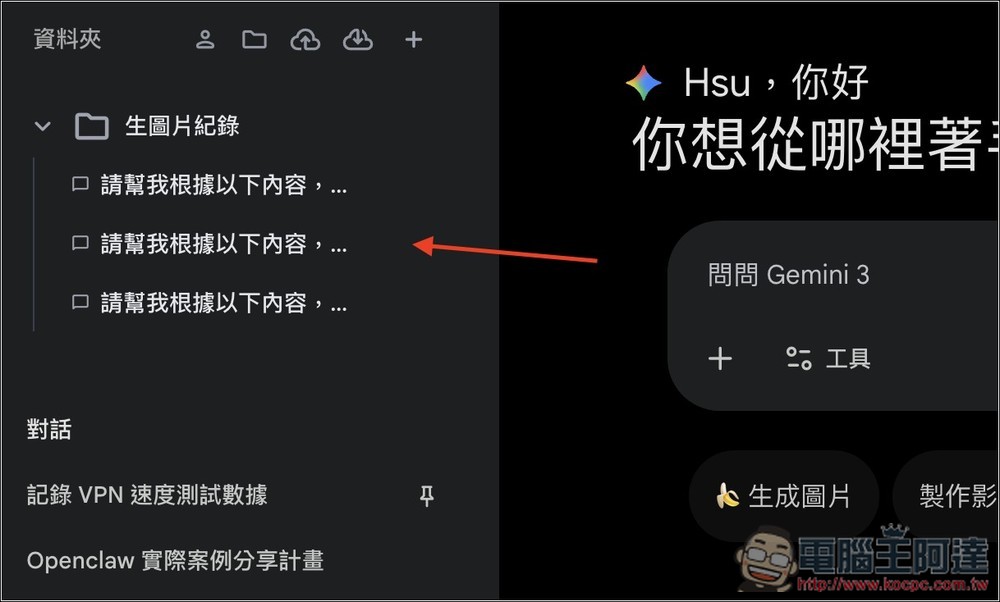
Gemini currently lacks a folder feature, so there’s no way to categorize conversations, which makes managing and finding them quite inconvenient. Even with Gemini’s built-in search function, it’s still hard to quickly locate the specific conversation record you’re looking for. After installing Gemini Voyager, you’ll see a folder section appear on the left side. Click the “+” on the right to create new folders, and it also supports uploading and downloading with the ability to overwrite local data.
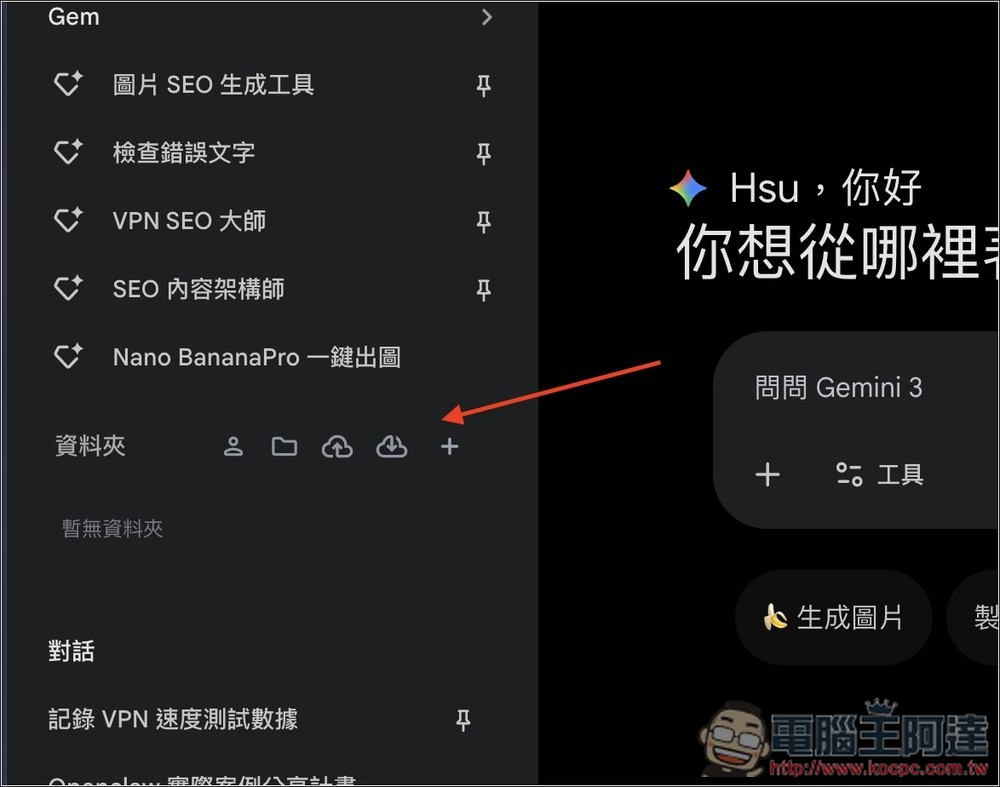
After creating the folder, you can drag your conversation history directly into it. You’ll see the conversations you just dragged appear under that folder. The original conversations below will still remain and won’t disappear.
Create and Manage Prompts
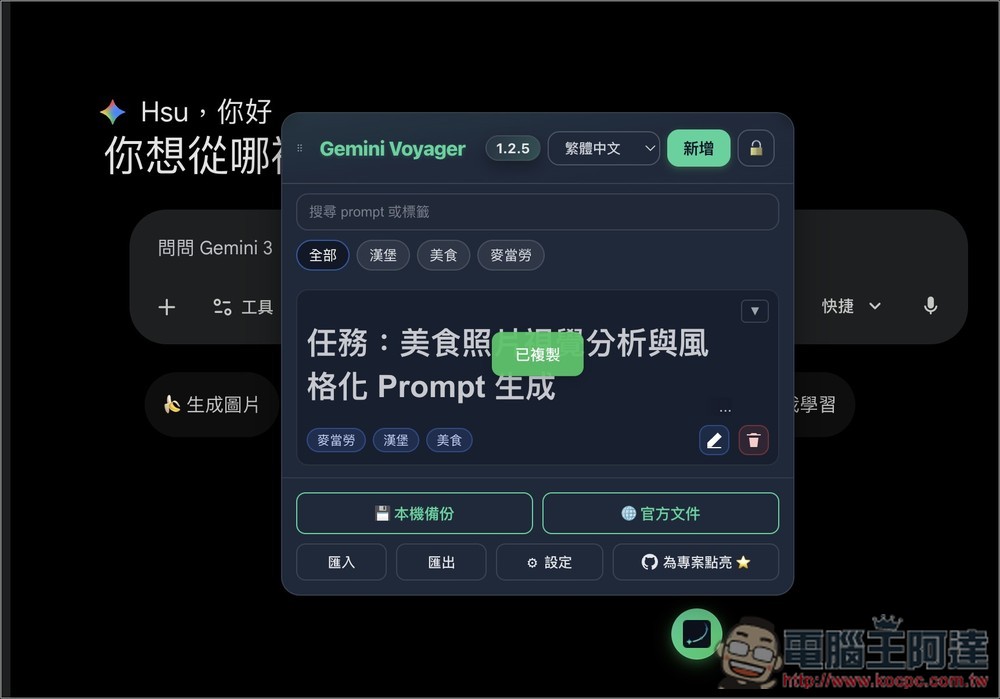
If you don’t have a prompt management tool handy, you can also use Gemini Voyager to manage them. Simply open the extension icon anytime to add new prompts or copy existing ones with one click.
Export chat history
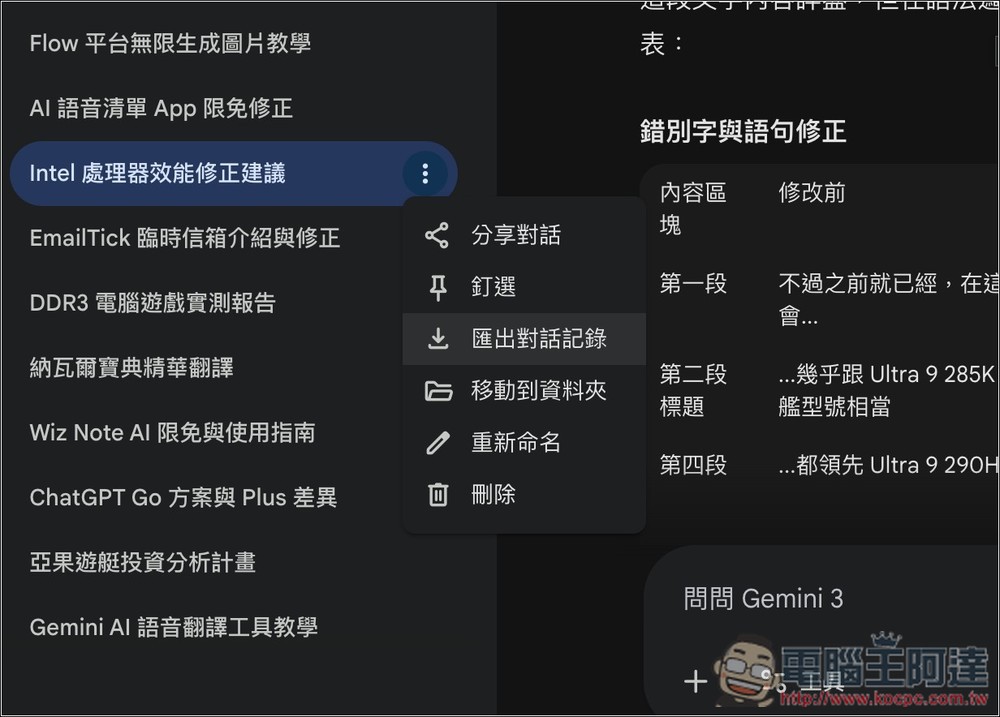
Although Gemini doesn’t automatically delete past historical data and conversation history, not being able to manually back them up might still make some people nervous. Now with Gemini Voyager, you can simply open the right-side menu of that conversation and you’ll find the “Export Conversation” feature:
Supports four export formats, including: JSON, Markdown, PDF, and Image:
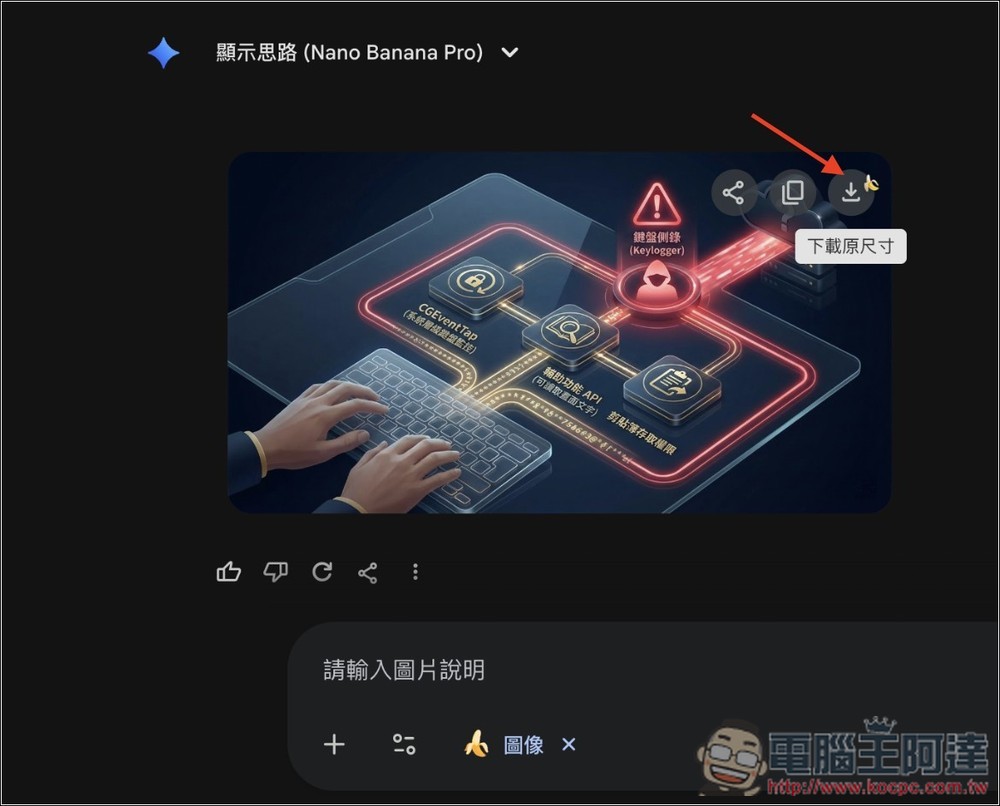
5. Download Nano Banana Watermark-Free Version
When generating images through Nano Banana, a Gemini watermark used to appear in the bottom right corner, but it’s gone now. The download icon in the top right also shows a small banana icon,提示你可以直接下載無浮水印版本:
6. Other
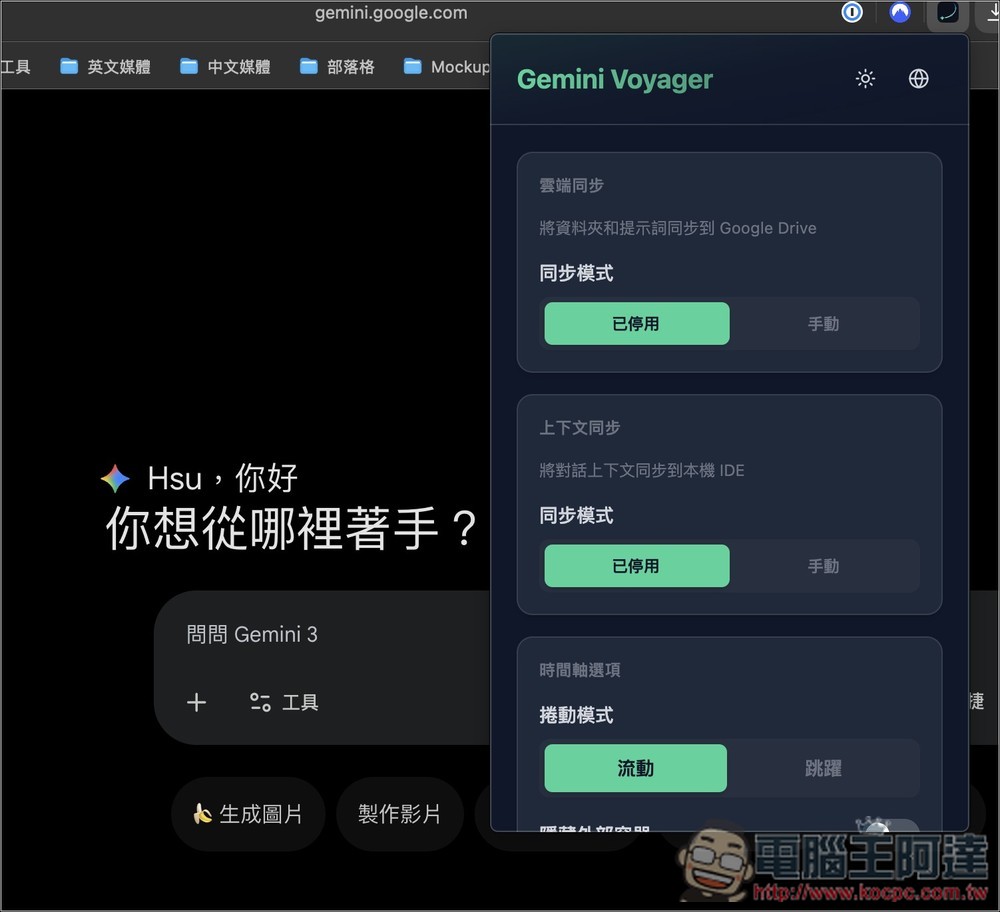
Gemini Voyager also supports cloud sync, allowing you to sync folders and prompts to Google Cloud for backup:
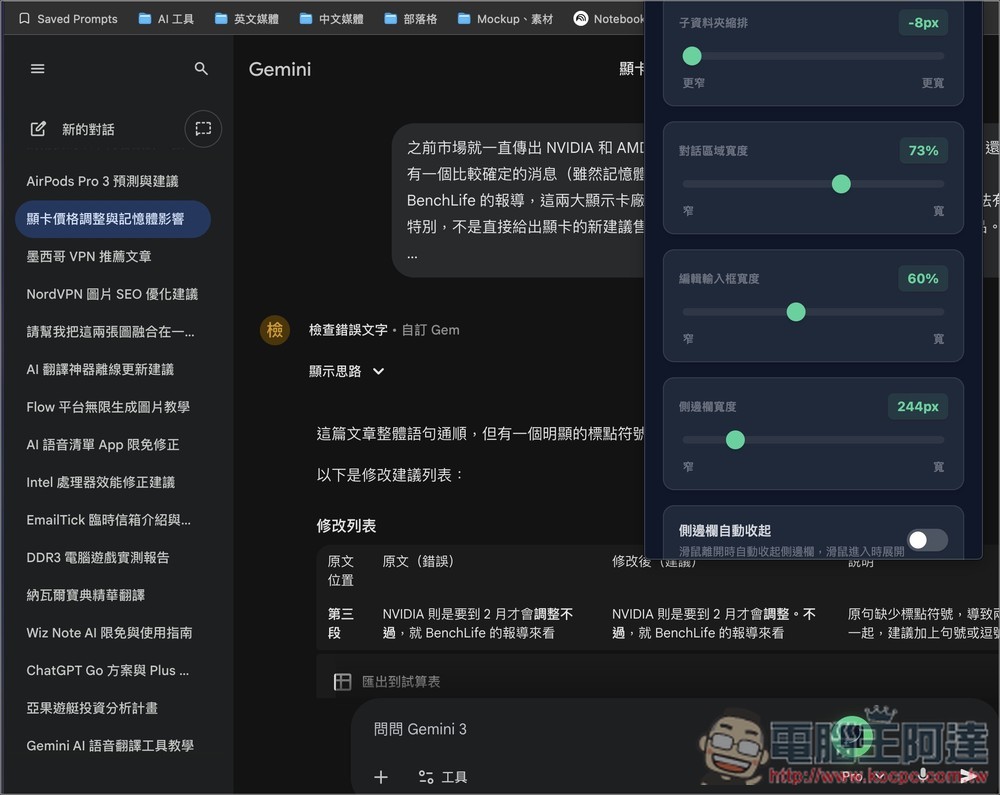
You can even manually adjust the width of the Gemini chat window, input box, and sidebar:
Of course, there are plenty more great features beyond what we’ve covered above—just let readers try them out for themselves.
Source: KOCPC Chinese