


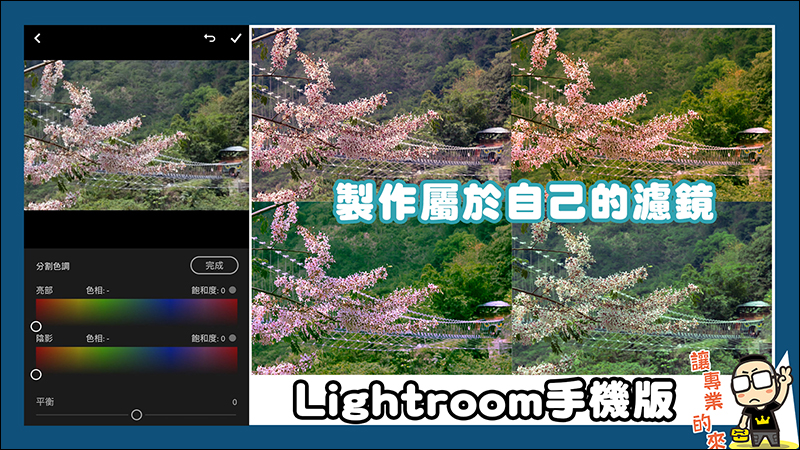
Among the computer photo editing software currently used by the author, Adobe Lightroom software is considered the best software for editing original photo files! One of the functions, “Split Tone”, allows the bright and dark parts of the photo to be adjusted to different tones. The modern, more vernacular explanation is “filter”. This is the function we are going to teach you to use today. Adobe Lightroom also has a mobile version, and the key point is that it is free!!! Although some functions require upgrading and payment, the free functions are enough for ordinary people to use, and the operation is simple and clear. For general photo apps, most of them already have preset filter colors. Although most of the tones are very good, it is a pity that you cannot adjust the tones you like. And through the split tone function in Adobe Lightroom mobile version, you can customize the tone and create your own filter style. Let’s watch the tutorial together!
We also made practical operation videos. If you find them useful, remember to like and subscribe for Ada:
Adobe Lightroom mobile version inAPP STORE and PLAY storeAll can be downloaded for free:

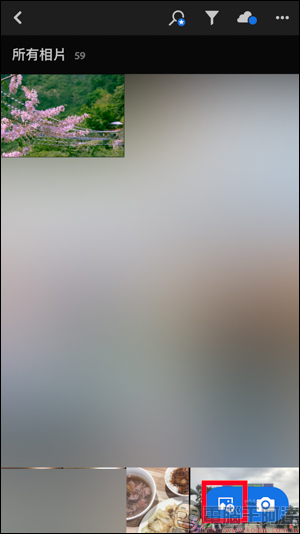
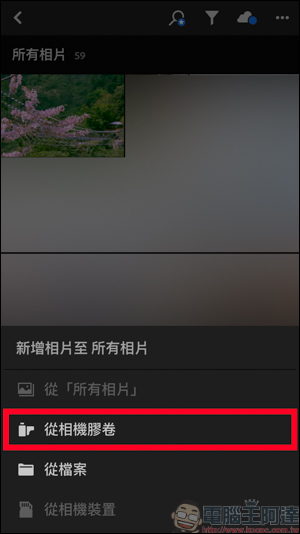
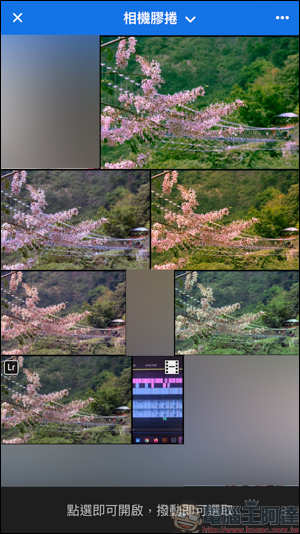
First, after entering Adobe Lightroom, click Add Picture below and select the picture you want to modify from the camera roll:
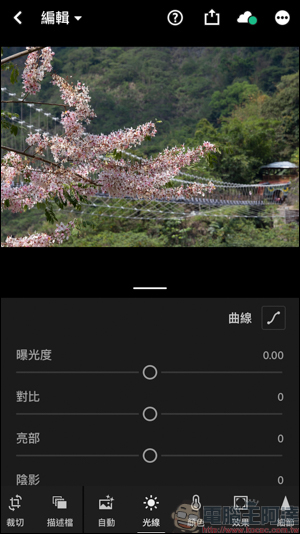
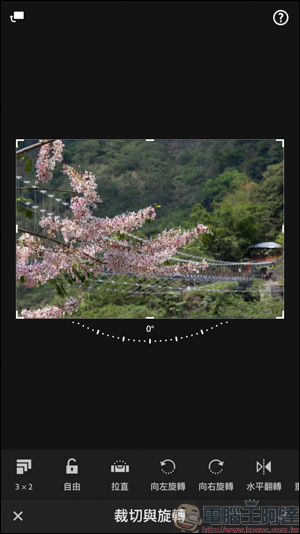
The most common functions such as lighting and cropping can be used first. Adjust the photo to the best condition before proceeding to the next step:
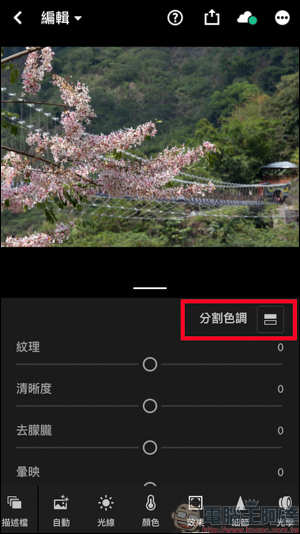
Next is the focus of this tutorial. There is a “split tone” in the color category at the bottom. After you click on it, you will see the picture on the right:
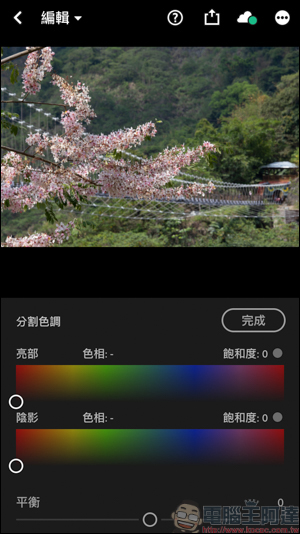
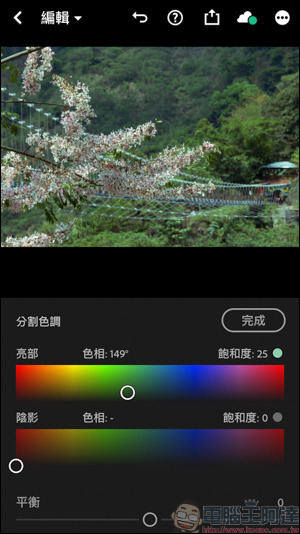
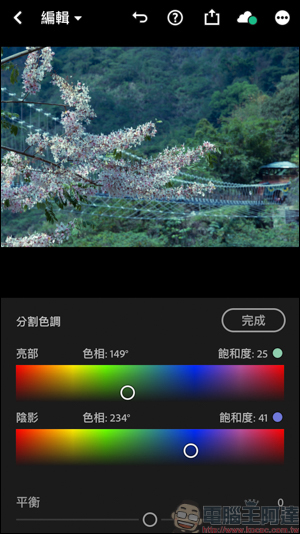
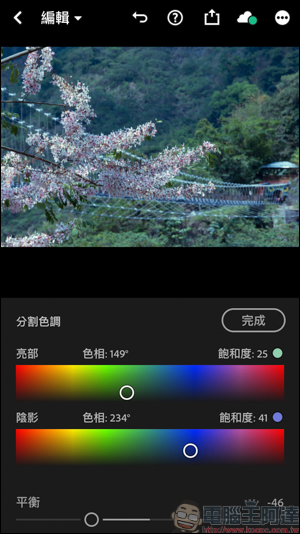
The adjustment method is very simple, just slide in the color area. These three photos are highlight adjustment, shadow adjustment, and balance. You can choose the hue and saturation you like in the highlights and shadows. It can be seen that after the adjustment, the color has the so-called filter effect:
Brightness adjustment: adjust the color tone of the bright parts of the photo
Shadow adjustment: adjust the tone of the shadow part of the photo
Balance: pull shadows to the left > highlights, pull highlights to the right > shadows
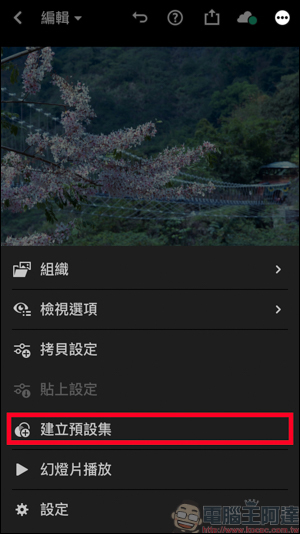
After making adjustments, you can click the save photo function above (Photo 1), or if you want to retain the tone of this style, you can also create a preset set (Photo 2). When adjusting photos in the future, just apply this preset set, which is quite convenient: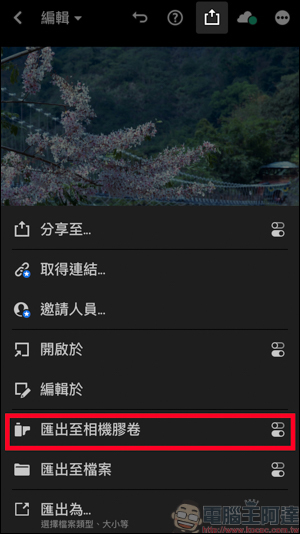
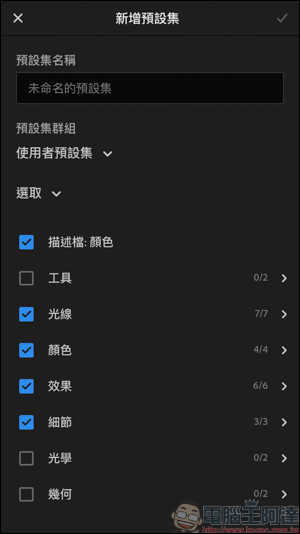
Using the split-tone function, you can create your own style of filter color. Here we also have a simple example image. The left is the original image, and the right is the image after split-tone: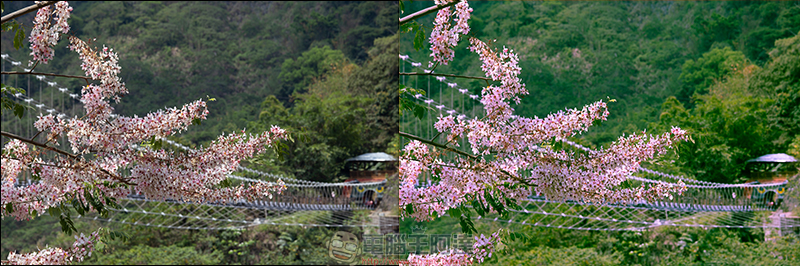
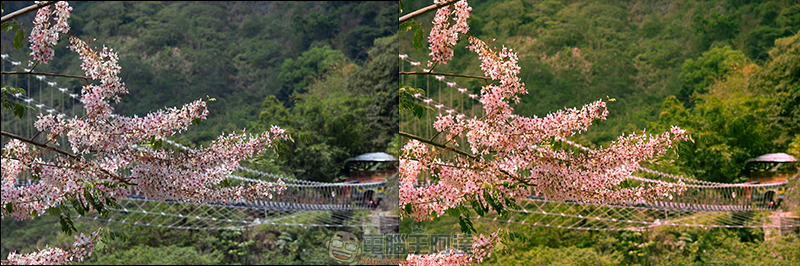
Adobe Lightroom mobile version is a very powerful software, even if you only use the free features, it is still powerful! In the future, we will bring this software tutorial to everyone from time to time:
Source: KOCPC Chinese