


We often need to adjust the size of images, and sometimes we also need to try to compress images to save space when uploading images. For editors who run social media such as Facebook and YouTube, they often need to create thumbnails that match the social platform pages. In addition to using professional image processing software, you can actually use the Resizing App, a Chrome browser extension introduced today, to simply and quickly adjust each image to meet your needs.

Resizing App is a free online image resizing, converting and optimizing Chrome browser extension plug-in
First, go to Resizing App official website (click here to go)Or go directly to Chrome Online App Store (click me to go)Download the Resizing App extension plug-in:
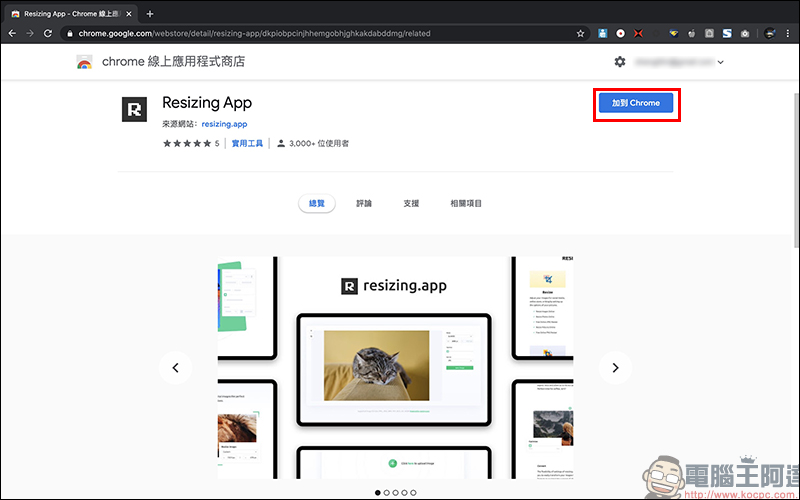
Resizing App Chrome browser extension plug-in:
Click here to download (chrome online app store)
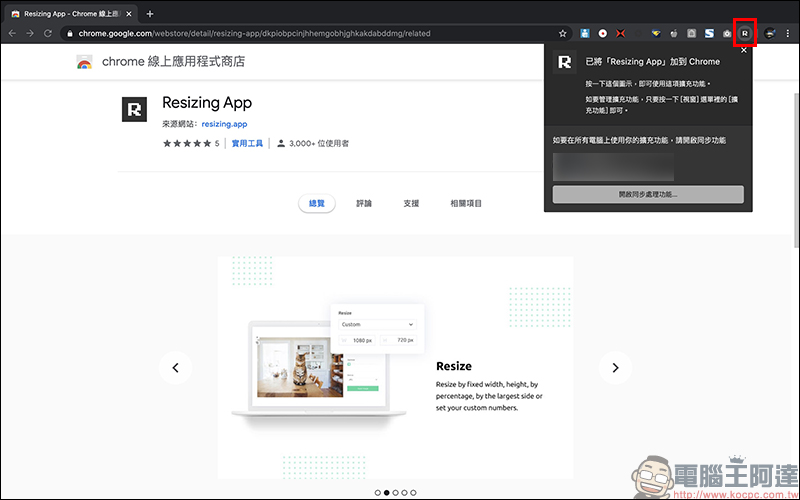
After adding the Resizing App to the Chrome browser, just click the icon button to open it:
Just click the “+” button, “here” or drag the image directly into the window to quickly import the image you want to process:
After importing the image, the functions from top to bottom on the right are size adjustment, image quality, file format and image storage. For the image quality part, the closer to the left, the higher the storage quality. To ensure that the compressed image still maintains high quality, it is recommended to select the highest or second-highest image quality for storage:
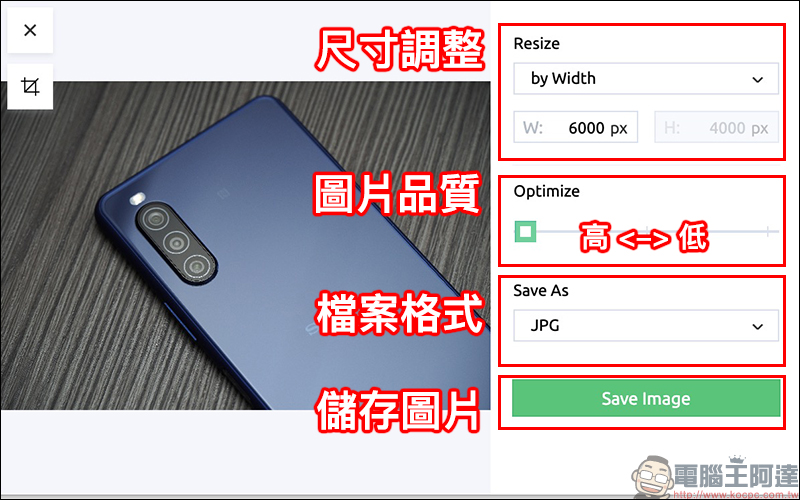
Image resizing
Resizing App offers a high degree of freedom in image resizing and is easy to use. It provides custom width, custom height, custom length, percentage, and various options for all customization:
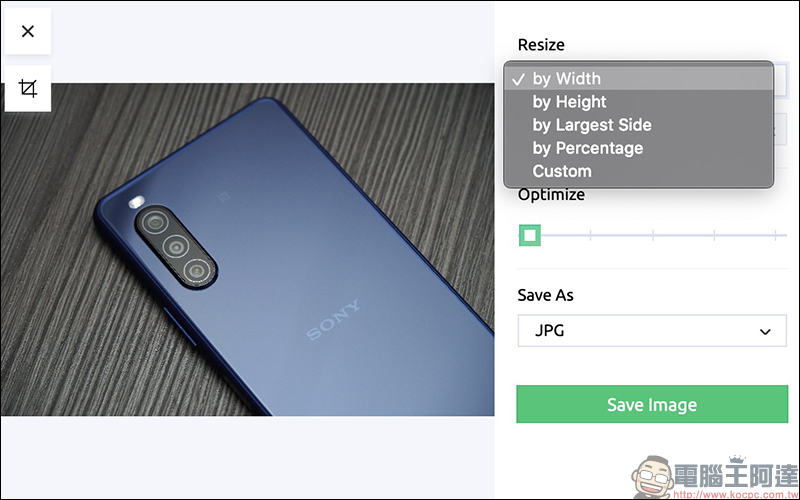
The Resizing App Chrome browser extension supports importing images in PNG, JPEG, BMP, TIFF, HEIC, GIF and WEBP formats. As for the transferred images, you can choose JPG, PNG, WEBP, BMP and TIFF formats: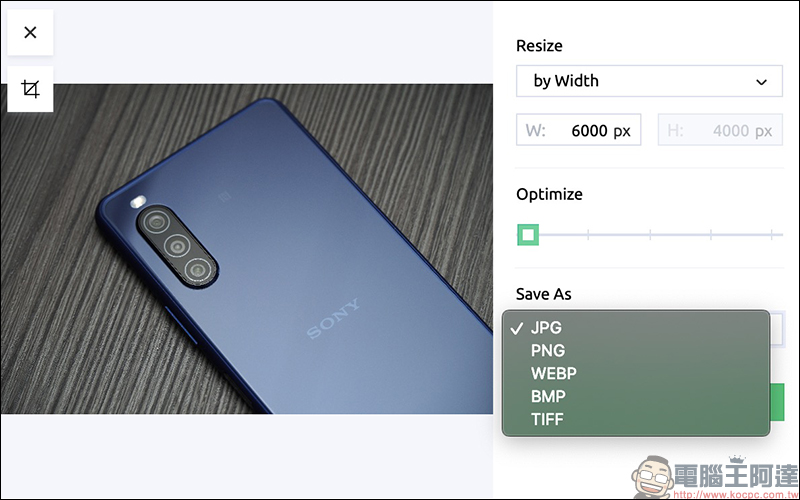
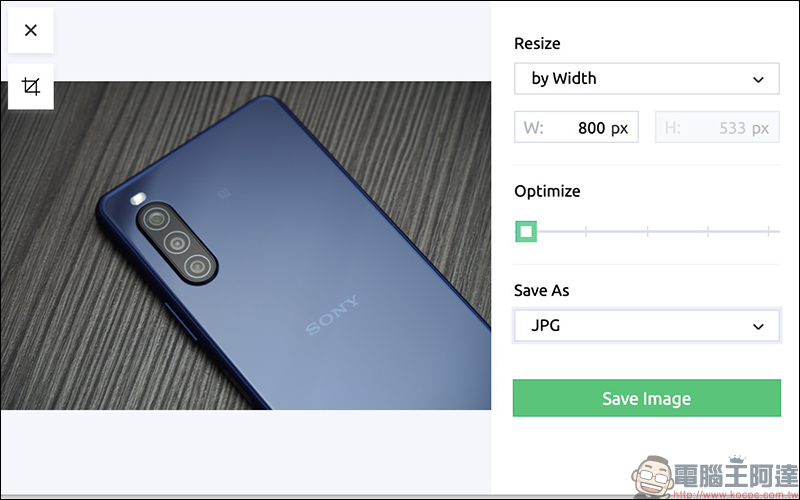
The actual measurement was to reduce this 6000*4000px image (the original file size is 13.2MB) to an image with a width of 800px. Select the highest image quality, select JPG as the file format, and then press Save Image to save the image:
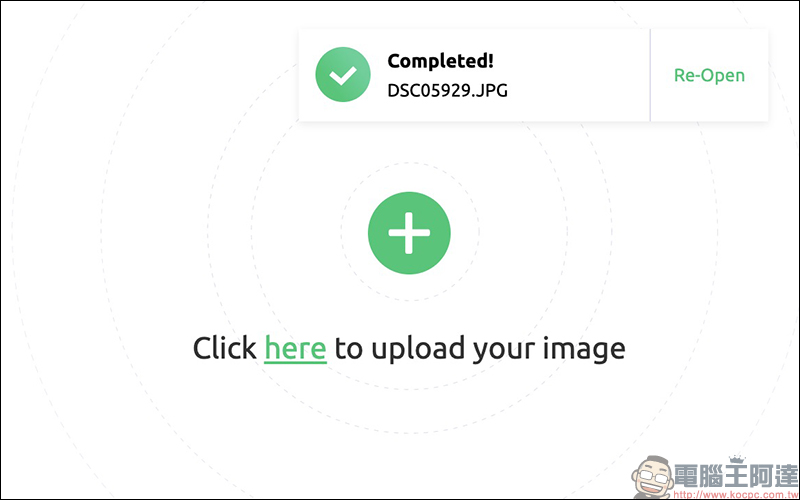
If the screen displays “Completed”, it means that the image has been downloaded:
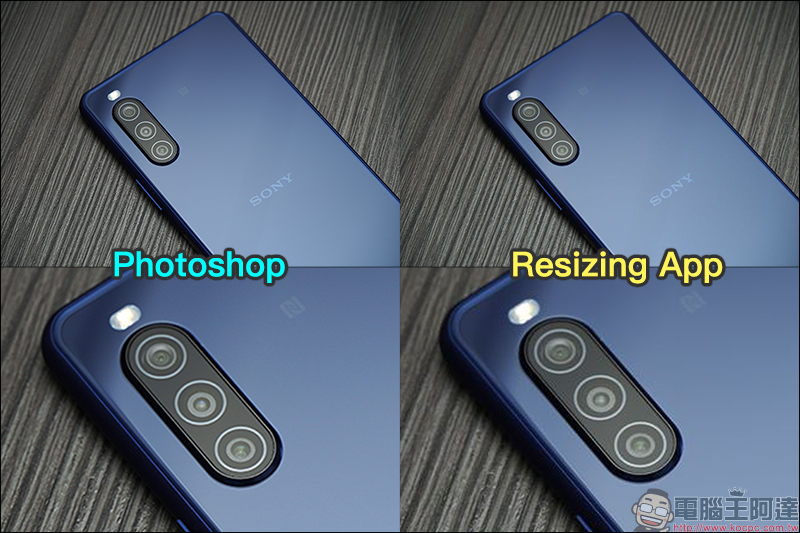
Comparing the file size of the same image compressed to 800px wide and reduced using Photoshop, the file size after the thumbnail is 316KB. However, using the Resizing App Chrome extension introduced in this article, the image file size is only 54KB.
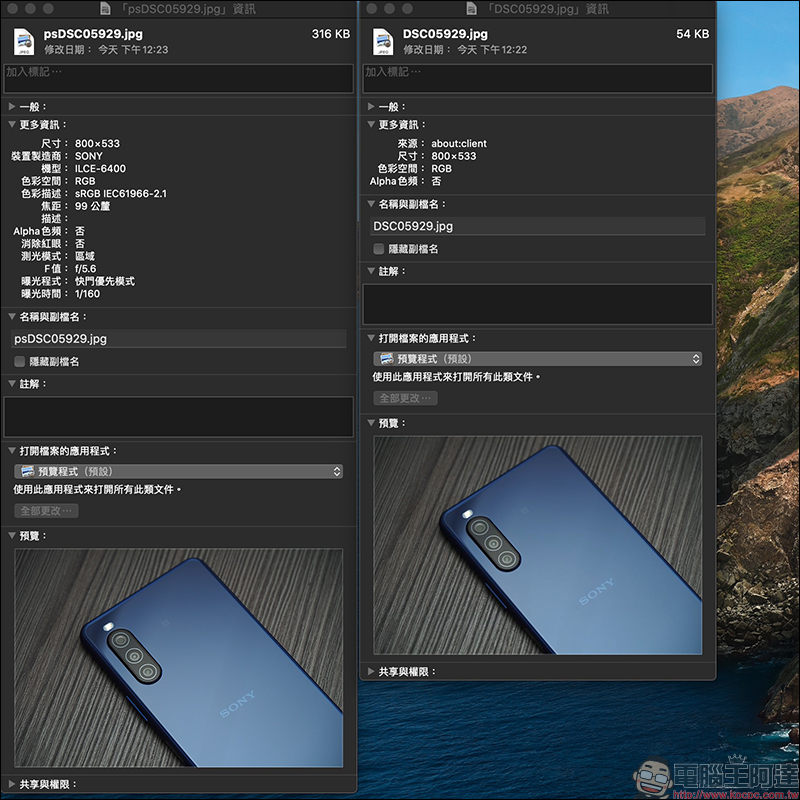
As for the compressed quality of the two, although some quality differences can still be seen after partial enlargement, in fact, if there is no deliberate enlargement, there will not be too obvious difference with the naked eye. If you want to actually apply the Resizing App to images uploaded on blogs and social platforms, this compression quality is quite sufficient:
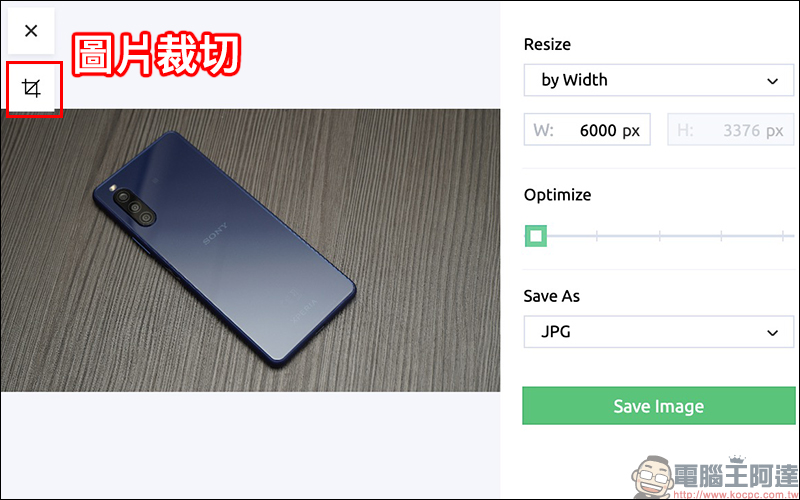
Picture cropping
Resizing App also supports image cropping function. After importing the image, click the crop button on the left:
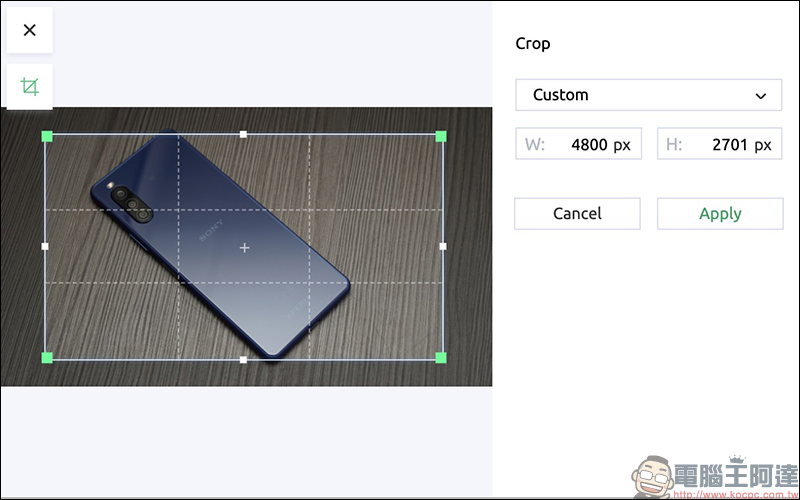
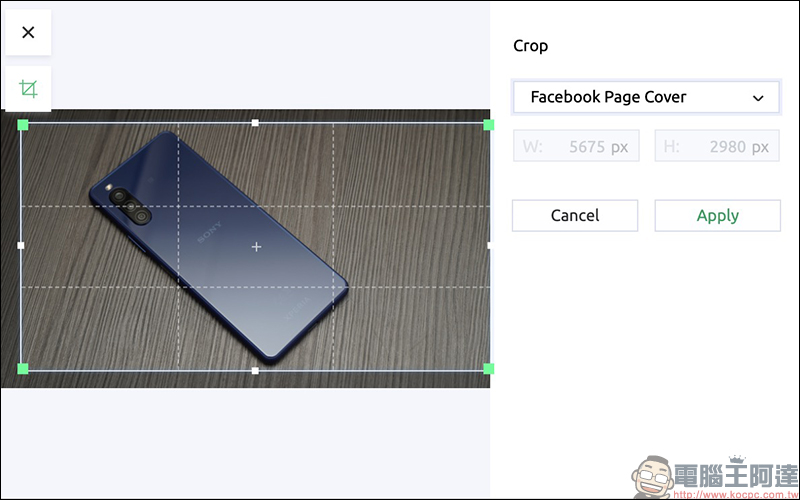
After entering the image cropping page, users can not only customize the size of the cropped image, but also support a variety of cropping ratio template selections:
The author believes that this is one of the very thoughtful and practical functions of Resizing App. Whether it is cover thumbnails and other picture ratios commonly used on social platforms such as Facebook, YouTube, Instagram, Twitter and other social platforms, you can directly apply the ratio template that meets your needs, which greatly saves the time of manually inputting the length, width and height of the picture:
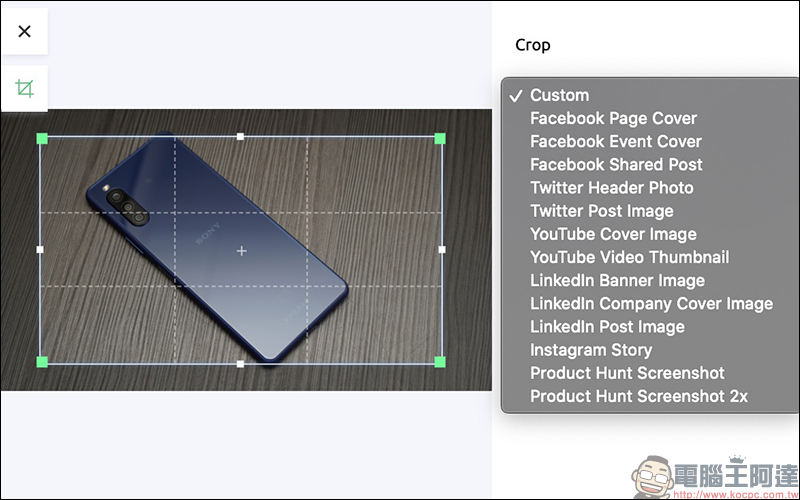
For example, after selecting the Facebook page cover, the cropping frame ratio will also be changed to the correct cropping ratio, and the user can further manually adjust the cropping range:
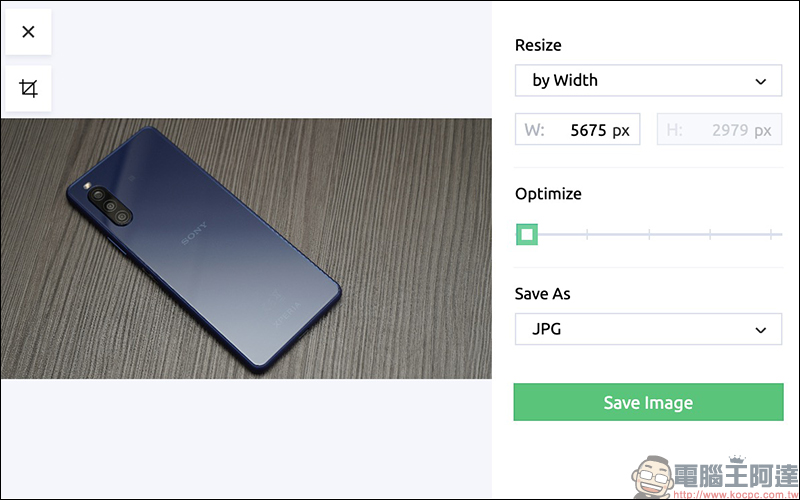
After cropping is completed and the user returns to the main screen, the user can still resize the image:
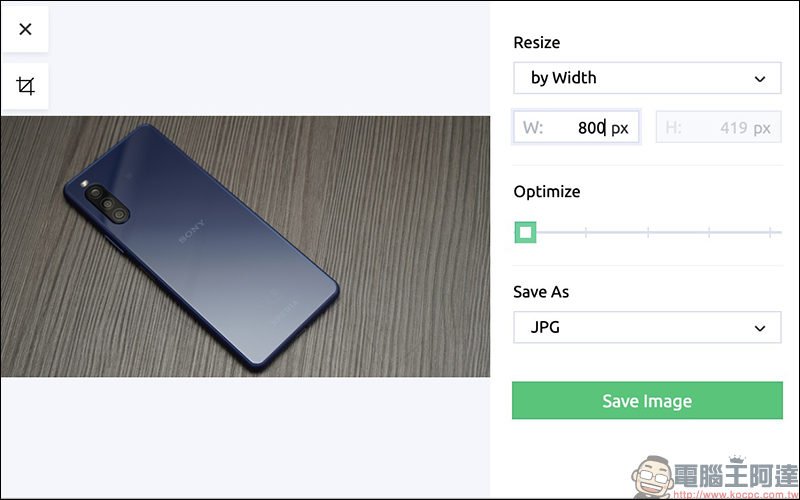
For example, after reducing the image to 800px in width, click Save Image to save the cropped and reduced image to your computer:
Resizing App Chrome browser extension plug-in:
Click here to download (chrome online app store)
Further reading:
ImageOptim Mac free image compression software & Automator thumbnail tutorial

Source: KOCPC Chinese