


last September, Google has announced that it will gradually push Gmail dark mode (dark mode) to all users. However, after waiting for a long time, I have never seen this feature on my iPhone. I originally thought that it was because of poor character, but I asked my friends and found out that many people do not have it. After nearly a year or so, it seems that push has finally started officially (?). Recently, my Gmail suddenly turned dark, and so did my friends’. If yours hasn’t, or you want to change it back to the original light mode, this article will teach you how to change Gmail’s dark/light mode.
The Android part must be Android Q or above for Gmail to have dark mode.
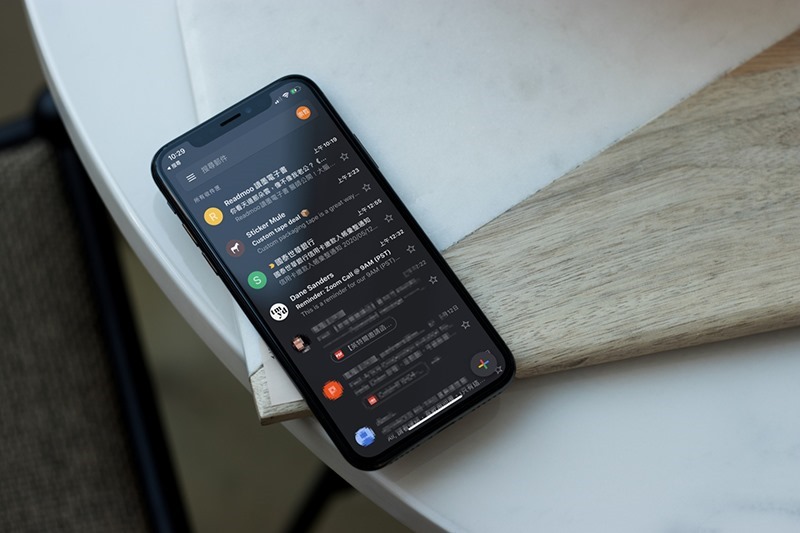
Teach you how to change Gmail dark/light mode
Steps to enable and modify dark mode in Gmail for iOS
If your iOS system has set the dark mode itself, Gmail will automatically use dark mode by default, so you should be like me when you open Gmail one day and suddenly it turns dark.
If your iOS system is in light mode, even if Google pushes Gmail dark mode to you, you won’t know it and you need to go into settings to manually enable it.
Light mode vs dark mode:
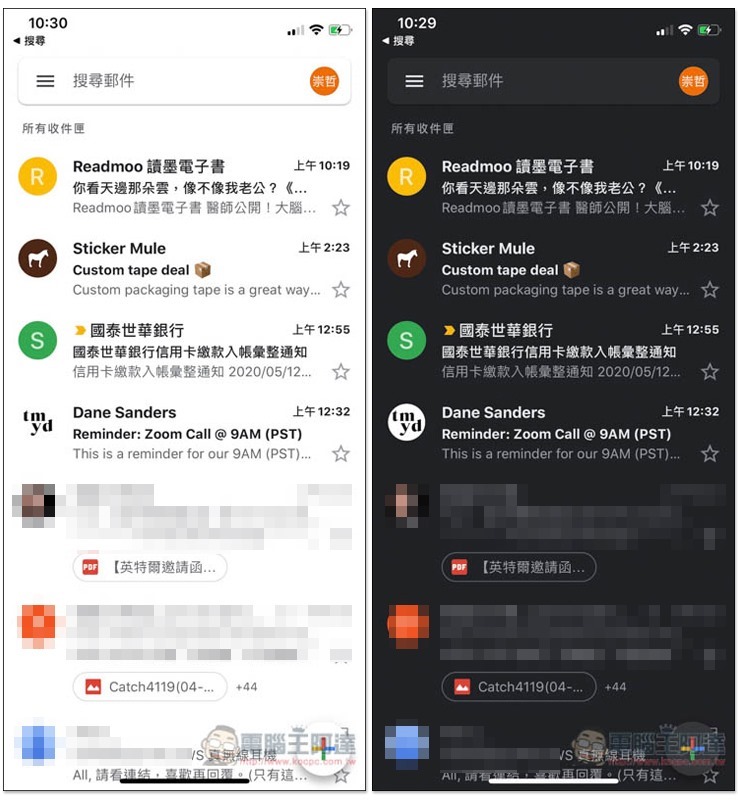
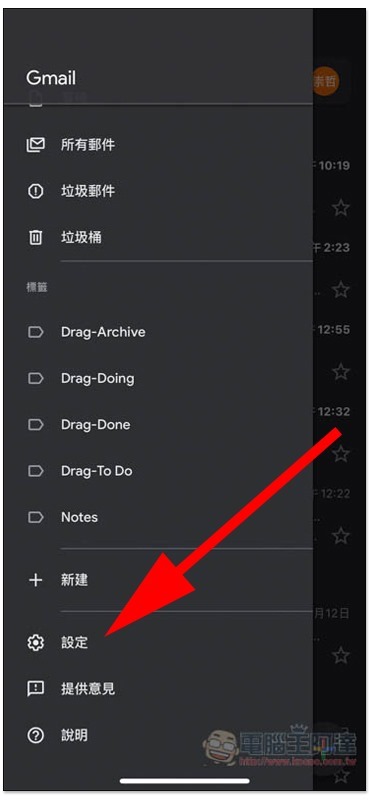
Manual activation is very simple, click on the three-line menu in the upper left corner and go to “Settings”:
A new option “Theme” will appear below. If you don’t see it, it means Google hasn’t pushed it to you yet, and you need to wait a little longer:
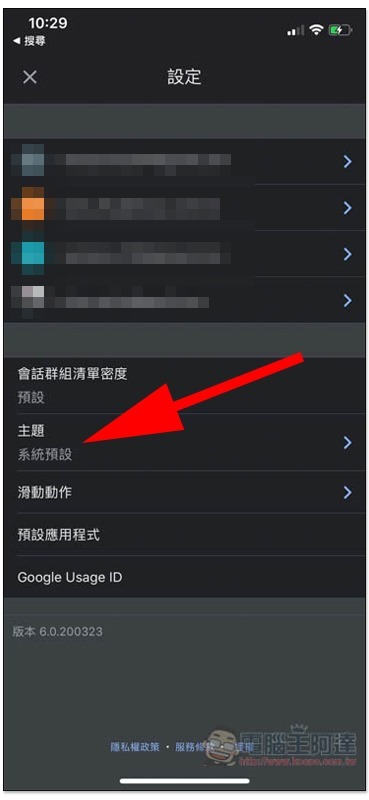
Then you can choose the theme setting you want, system default, light or dark, and it will be changed immediately after clicking:
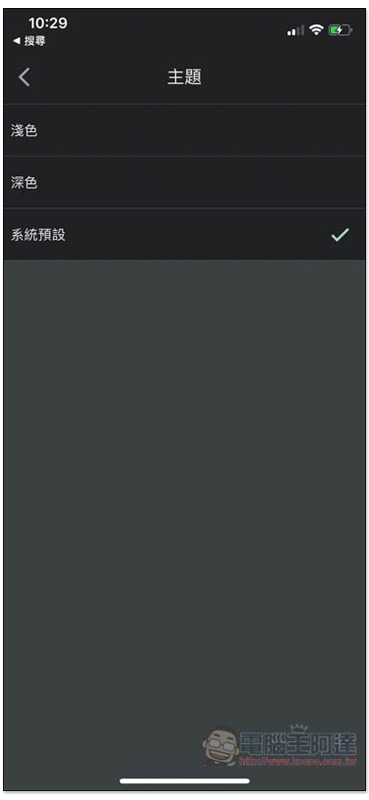
The advantage of dark colors is that they are less irritating to the eyes when used at night, and they can also effectively save power, so they are highly recommended.
In addition, those who haven’t seen it can also try to enter the App Store to see if there is a new version of Gmail. If so, please update it, and then go back to the settings to try.
Steps to enable and modify dark mode in Gmail for Android
According to the official Gmail website instructions, this feature is only available for Android devices running Android Q or above. If yours is not, it will not work.
Yes, the operation method is similar to that of iOS, except that after entering the settings, you have to click “General Settings” to see “Theme”.
- Open the Gmail app on your Android phone or tablet
。
- Tap the Menu icon in the upper left
。
- Tap “Settings”
[General settings].
- Tap [Topic].
- Select [Light], [Dark] or [System Default].
Source: KOCPC Chinese