


Unless the screen you buy has a built-in camera lens for a desktop computer, you will need to purchase an additional one. For those who only occasionally use the video function, the investment is not worth it. In fact, you only need to have a smartphone and install the iVCam free software, and your desktop computer will have a video lens immediately.
iVCam is a free software that transfers mobile phone lens images to a computer through wireless networks and replaces the function of the video lens. You can choose to use the front lens or the main camera lens. It also provides some additional functions, such as: beautification, image capture, video recording, etc.
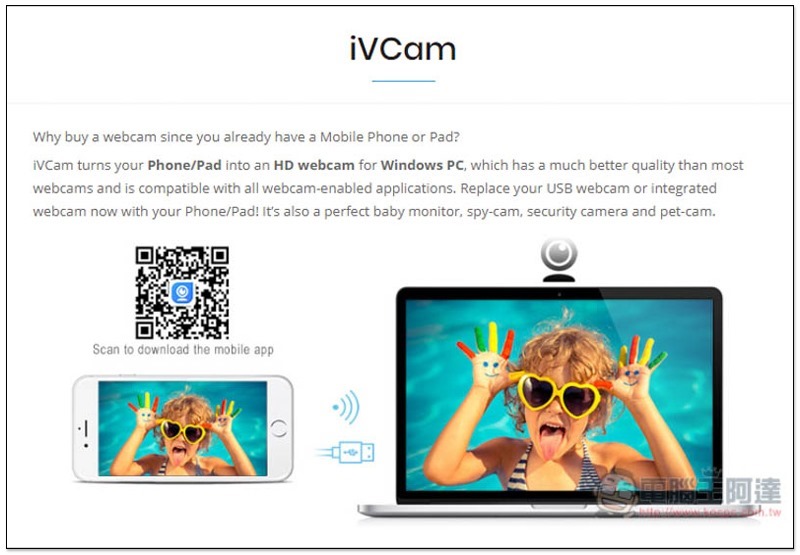
iVCam is a free app that allows your smartphone to be used as a desktop video camera
The desktop version of iVCam is currently only available for Windows, while the mobile version supports iOS and Android. For Windows, please go to the official website to download the installation file. For the mobile version, go to the App Store or Google Play and search for iVCam.
Just keep pressing Next during the installation process:
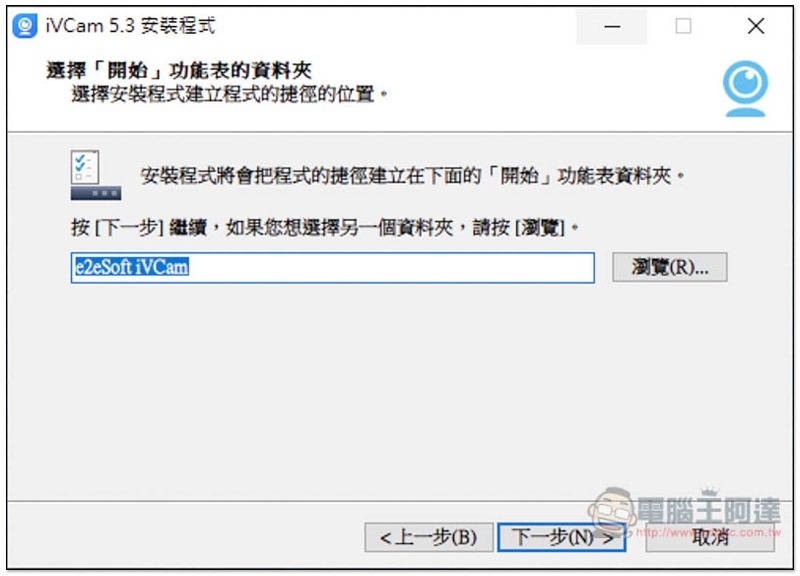
Before use, remember that Windows and the smartphone must be connected to the same network. 4G + wireless network will not work. However, if the desktop computer uses a local network and the mobile phone is connected to the same wireless network, it will be fine.
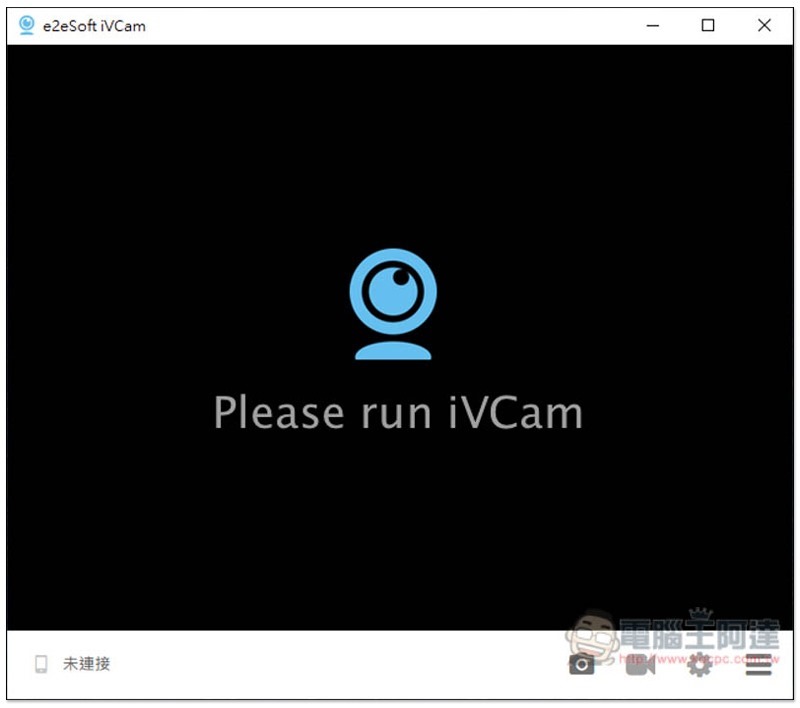
After seeing this screen on the desktop version, open the mobile app:
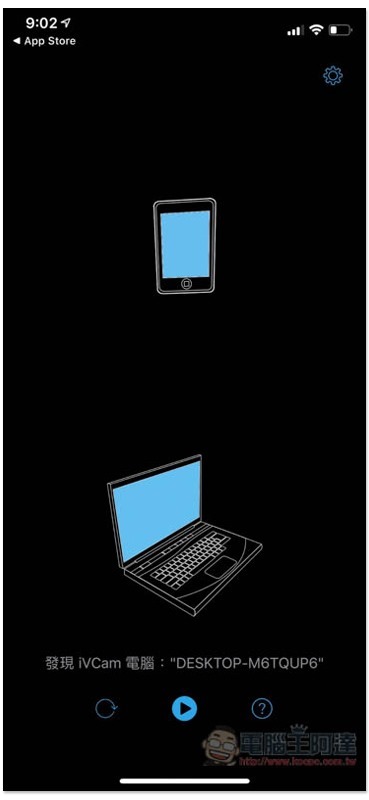
The mobile app will automatically find your computer and press the play button to connect. In addition, if it shows that the connection failed, please confirm whether your computer has anti-virus software installed. If so, the firewall may block it. It is recommended to try pausing the firewall function first:
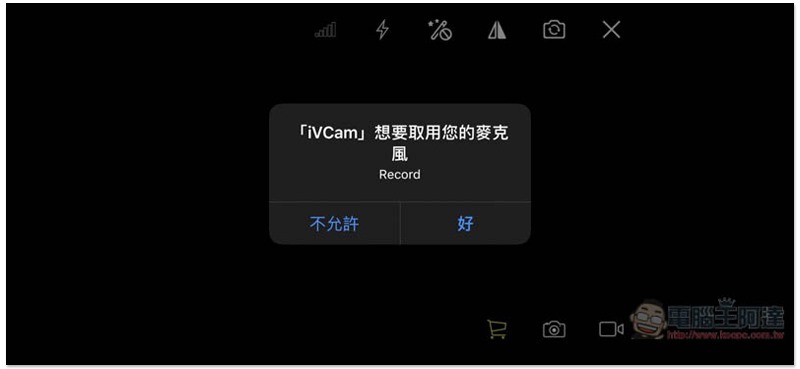
The first time you use it, you will be asked to obtain microphone and camera permissions:
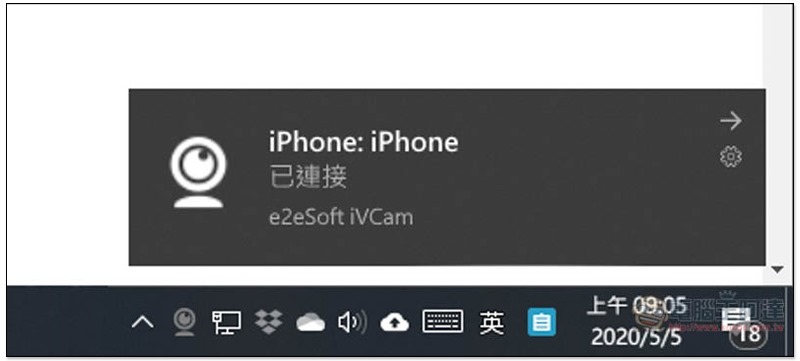
The computer will then receive a notification that it is connected:
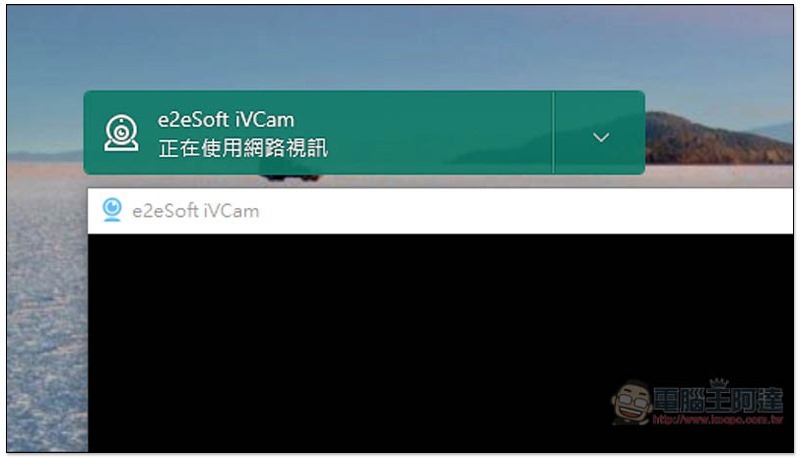
The main lens of the phone will also be displayed, and you can start video chatting:

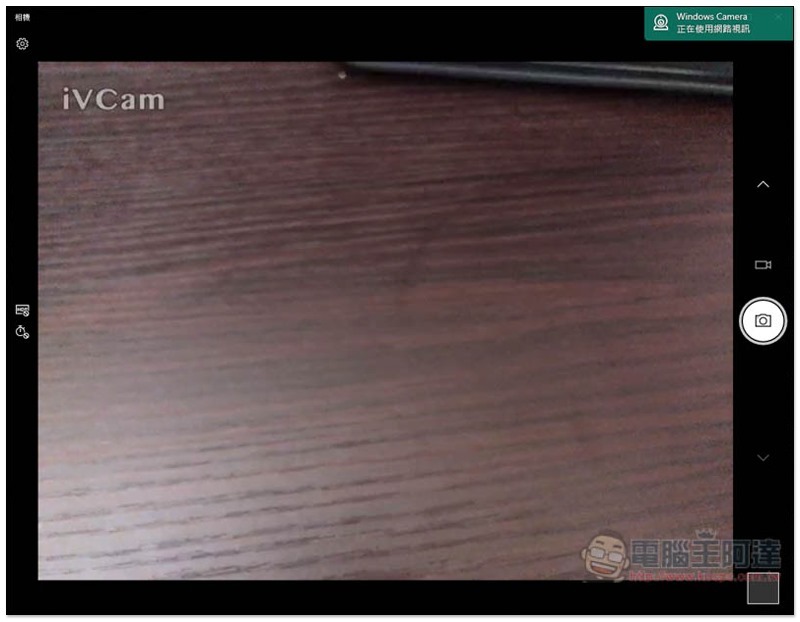
I also checked whether it really replaced the computer network video lens, and it was indeed correct:
When testing the camera function of Windows, it turned out to be iVCam. However, the logo in the upper left corner of the free version cannot be turned off. Those who mind can consider upgrading to the paid version:
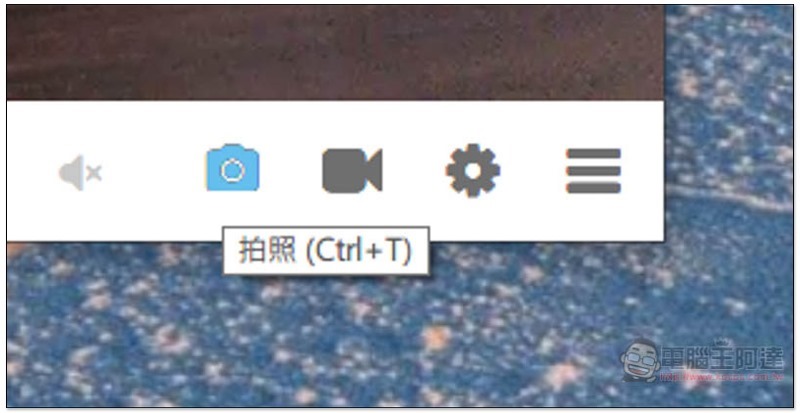
There are some additional functions on the lower right side of the desktop version, including photo taking, video recording, camera settings and other menus:
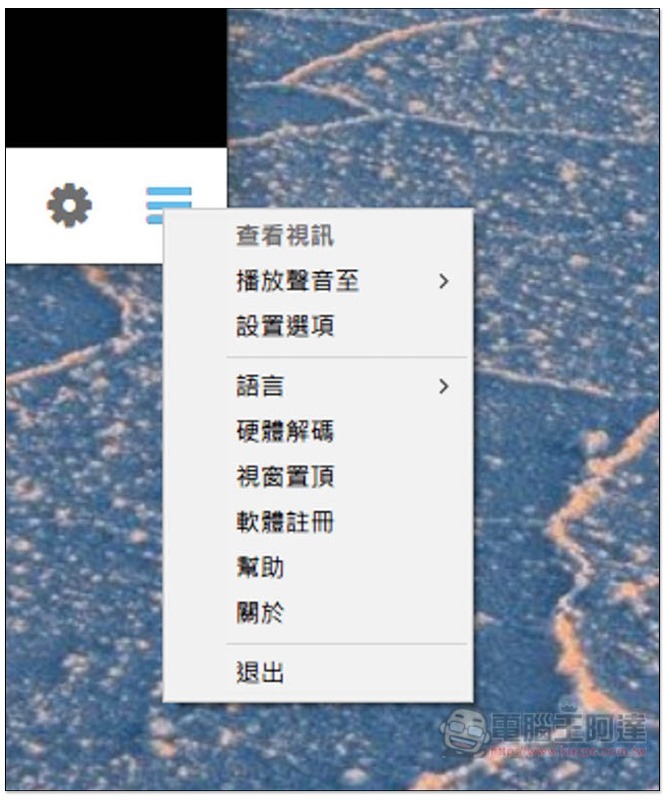
In other menus, you can adjust the playback sound position, hardware decoding, window top, etc.:
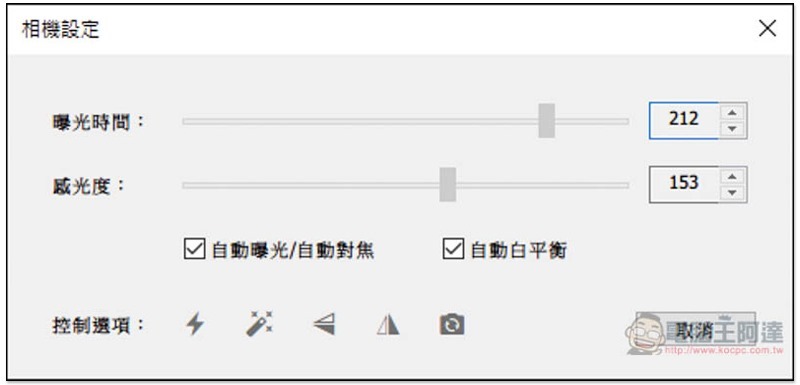
Camera settings can control exposure time, sensitivity, and other control options. If you feel that the video quality is not very good or too dark, you can adjust it from here. Some feature phone apps can also adjust it.
The picture below shows the mobile app screen. The first icon above can check the connection quality:
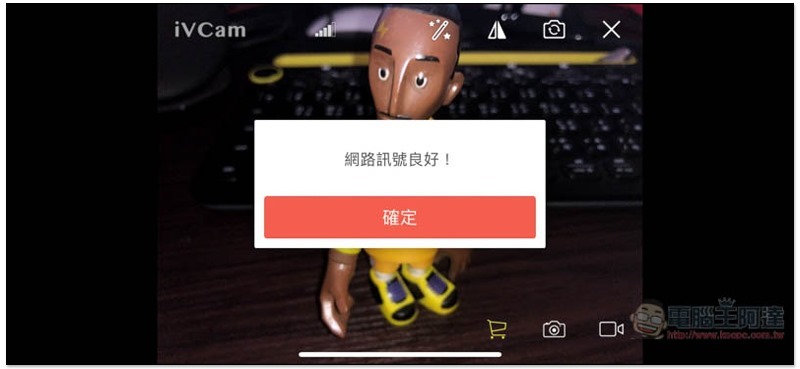
The following are: adjusting flash light, automatic beauty, and lens switching. You can also control taking photos or videos in the lower right corner:
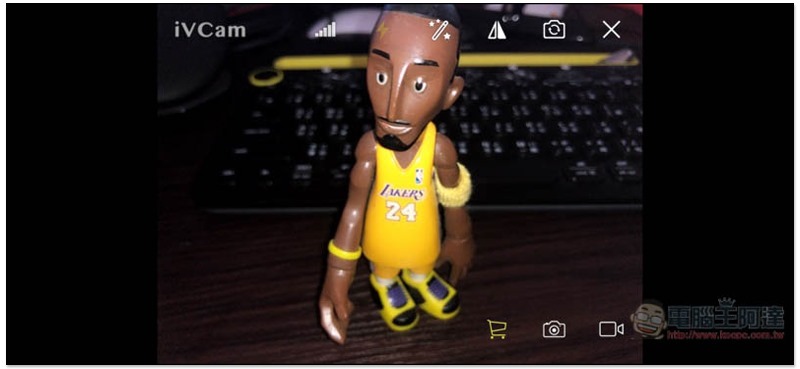
The app also has instructions for use:
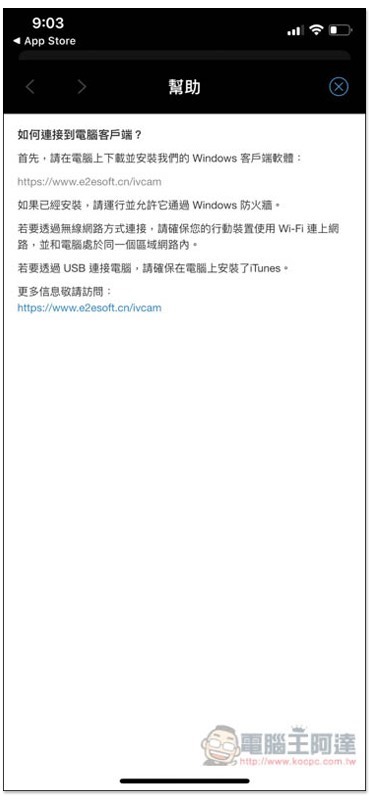
Supplementary information
iVCam official website:Click here to go
App Store:Click here to go
Google Play:Click here to go
Source: KOCPC Chinese