


Have you ever encountered a webpage where you often stop your mouse and eyes because of some webpages with good-looking layouts? If you have friends who run blogs or self-hosted websites, you should have the above experience. When you see something you like, you always have to study it carefully. The “WhatFontTool” I will introduce today can easily check the font, color, style, and line height on the webpage. The method of use is also quite simple, so keep reading!

(WHATFONT TOOL official website)
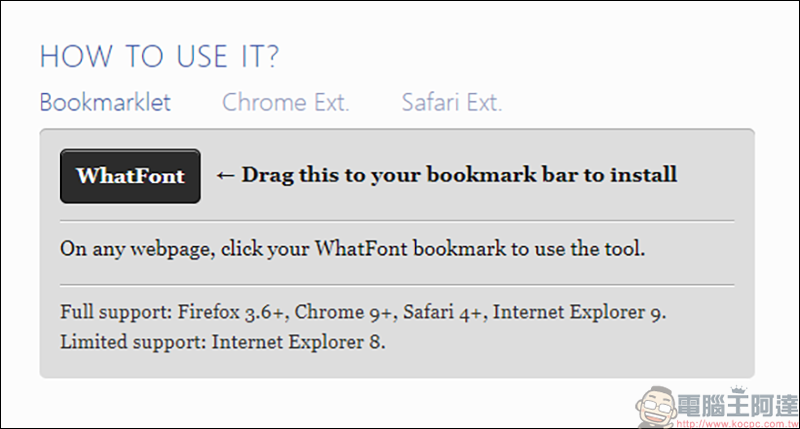
After entering the WHATFONT TOOL official website, pull to the middle of the page to see the download location. The first one is to use the tool by adding a new bookmark page, but I tried several web pages and it didn’t work, so I skipped it:
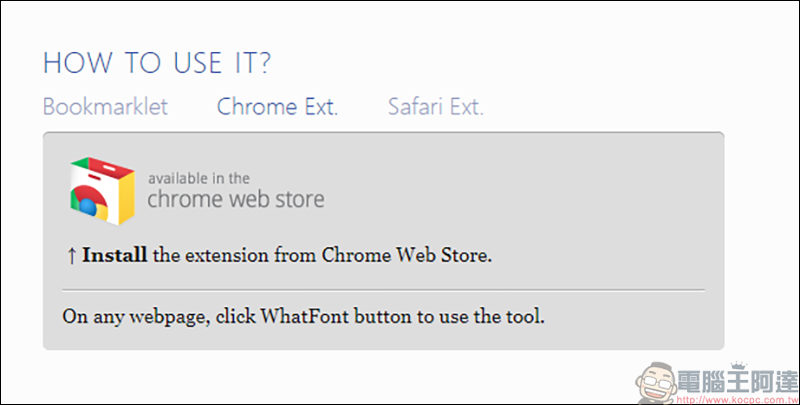
The other one is the Chrome software, and the following tutorials will focus on this:
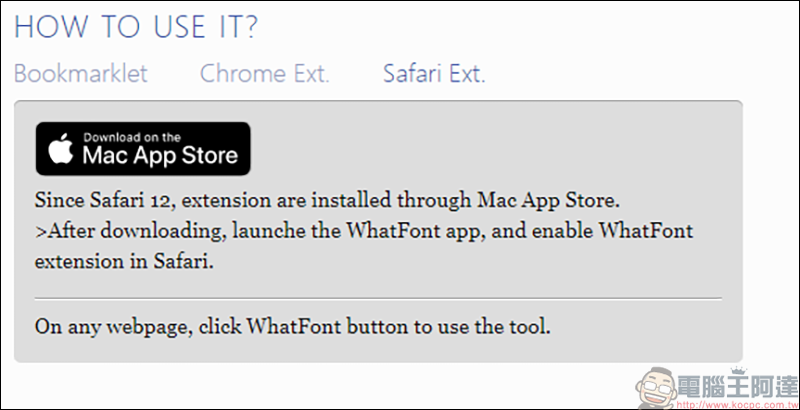
Friends who use Mac can also download it from the Mac App Store:
Teaching begins
First, go to the Chrome Online App Store to download the WhatFone extension:

(Download address)
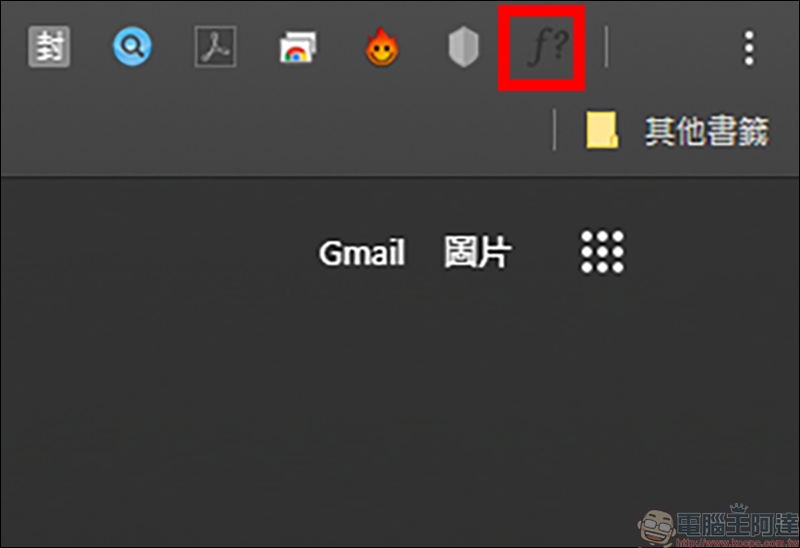
After installation, the WhatFone icon will appear in the upper right corner:
The method of use is also very simple. Just click on the WhatFone icon of the extended function, and it will be executed immediately on the web page. The yellow box in the upper right corner is to end the function, and the red box in the middle is when the mouse is moved to the text, the font used for the text will appear:
It’s not over yet! Just click on the text you want to know, and complete information will appear, including font, style, line height, and color. They are all shown to you. Just remember to turn it off after using it:
Source: KOCPC Chinese