


becauseWuhan pneumoniaIn order to spread risks due to the impact of the (COVID-19) epidemic, more and more companies are now asking employees to work remotely or try to work in groups from home. Turning on a laptop at home has become a daily routine for many people. However, working from home may not allow everyone to maintain the previous work efficiency. Apple officials also provide nine super practical iPhone/iPad/Mac tips for working from home that you may not know yet, which can help you handle various tasks more conveniently and quickly through iPhone, iPad or Mac, allowing you to maintain close communication and collaboration with your team and break the distance barrier.

1. Not enough desktop space?iPad It’s your second monitor
Many office workers have two monitors (perhaps more) on their desks, but there is no second monitor at home, which affects their work efficiency when working from home. In fact, the iPad can also become your second monitor through the “parallel” function: as long as you press “AirPlay” on your Mac, the iPad can become an extension of the Mac and be used like a second monitor, instantly increasing the desktop space!
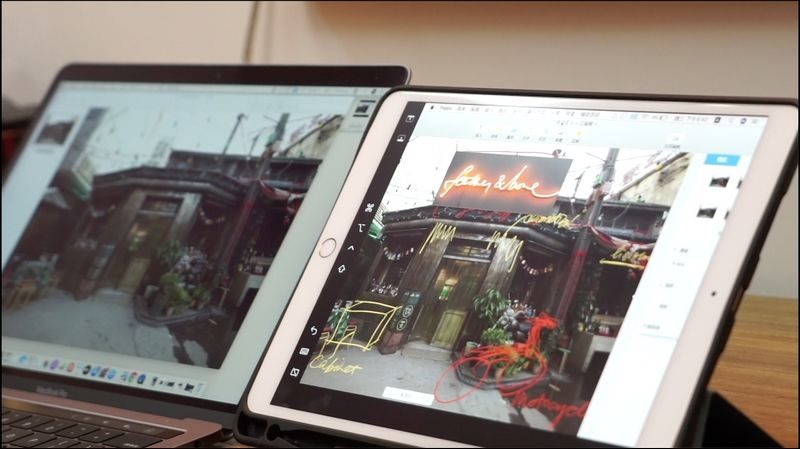
Please click me for teaching
2. Do you need to search for information online while processing paperwork? iPad is also available
Many people’s habit of using computers is to use multiple windows and applications simultaneously. In fact, the iPad can also meet this multitasking requirement. The “Slide to Front” and “Split Display” functions supported by iPad OS allow multiple apps to be ready at any time, and you can move between different programs or windows with just one swipe.
“Slide Over”
While an app is open, swipe up from the bottom of the screen to summon the Dock, select the desired app from the Dock, press and drag up, and the app will appear as a floating window, allowing two apps to be used at the same time. If you want to change the window that has been brought to the front, just tap the bottom of the window to select another open app.
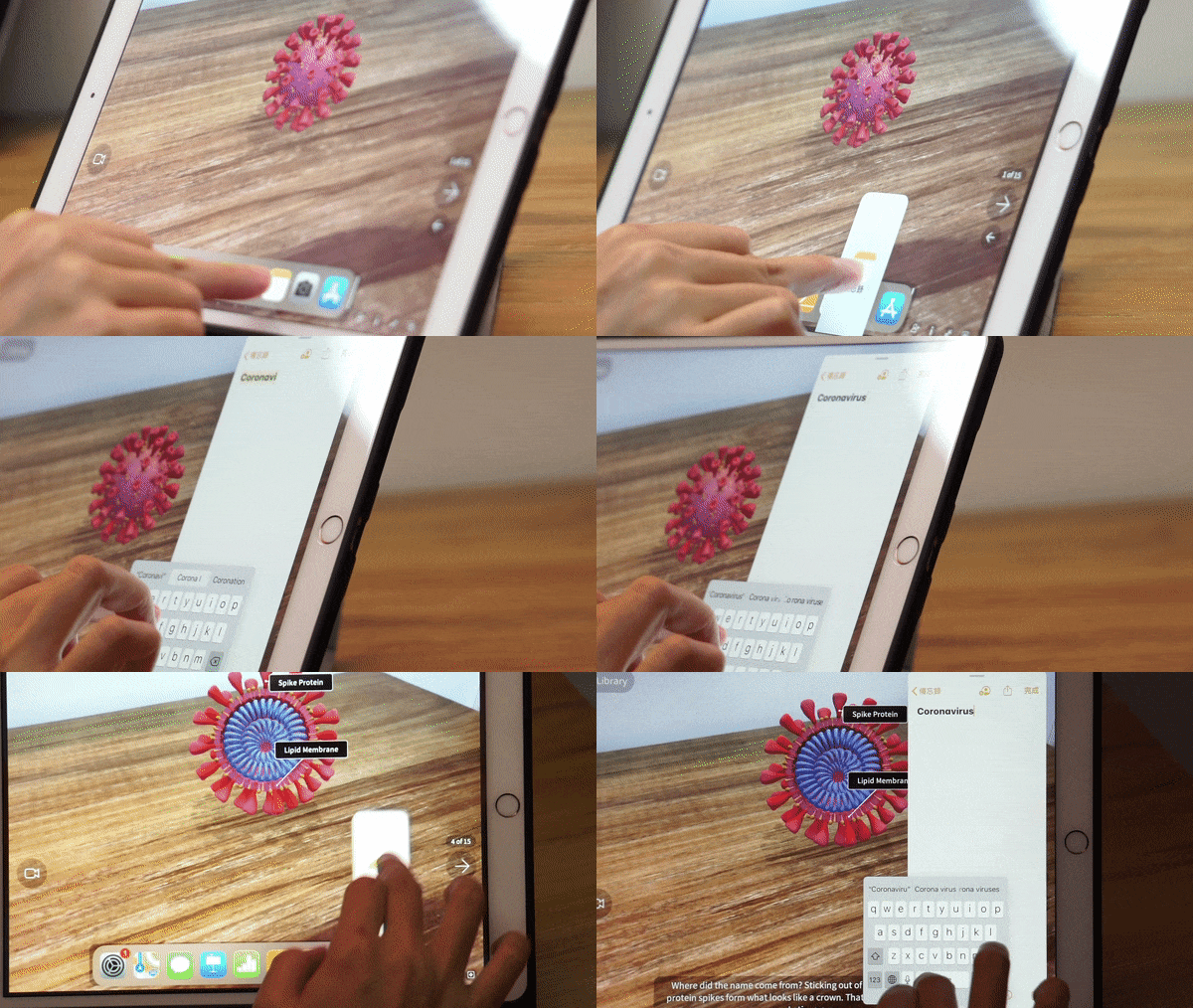
Please click me for teaching
“Split View”
While an app is open, swipe up from the bottom of the screen to summon the Dock, select the desired app from the Dock, press and drag to the left or right of the screen, and the screen will be split into two sides. Drag the black line in the middle to adjust the size of the display, thereby opening two different apps, or two windows of the same app.
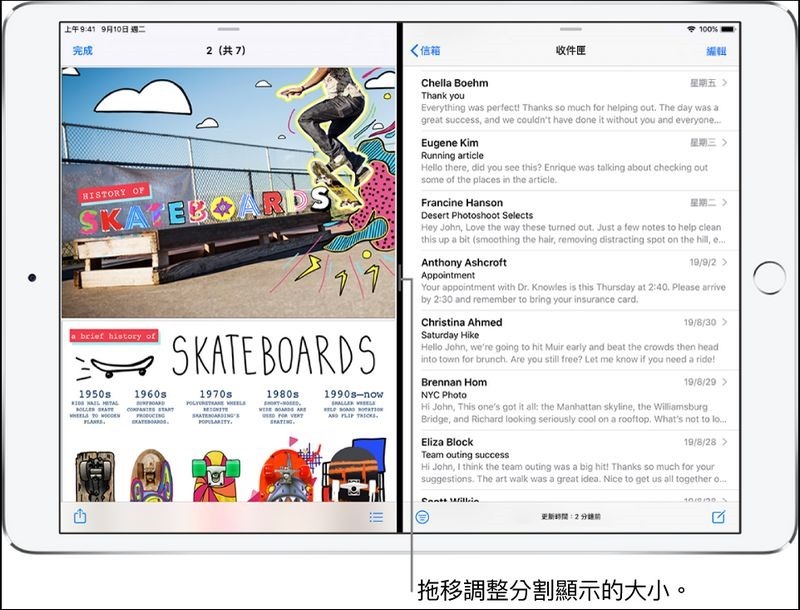
Please click me for teaching
3. Continue the same work on different devices
The “Continuity” function allows users to start an operation on one Apple device and then continue the progress on another device, maintaining efficiency without losing focus on the project. Just use the same Apple ID, Wi-Fi, Bluetooth and turn on the “Handoff” function on your devices: Handoff – you browse a Safari webpage on the iPad on the sofa, and then you return to the Mac at the work desk and you can still continue the browsing progress just now. Just press the “Handoff” image of the app to continue the previous operation. It can be used with Safari, Maps, Reminders, Pages, Numbers, Keynote, etc., as well as apps from some third-party manufacturers; Universal Clipboard – text, images, photos and videos copied on one device can be pasted and used on another device.

Please click me for teaching
4. Write files on Mac and shoot pictures on iPhone
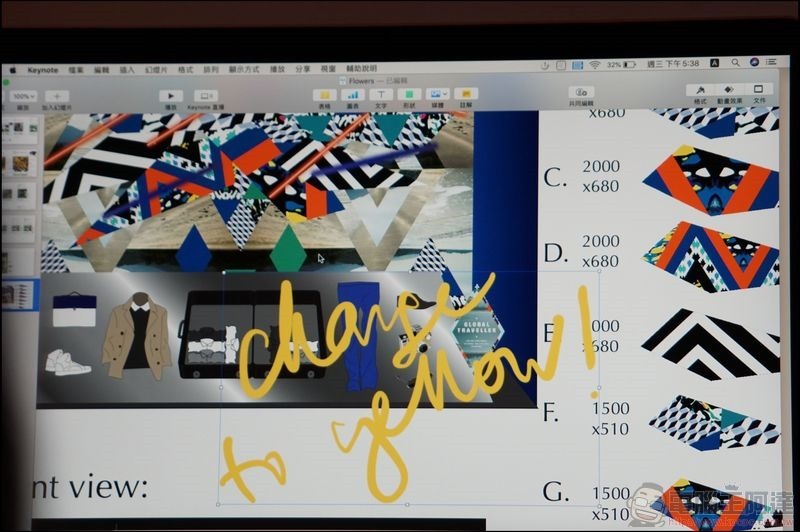
Suppose you are using Mac’s “Pages” to make a report and need to add a photo. At this time, your iPhone or iPad will become your right-hand assistant: just click “Insert” in “Pages” and select “Take Photo” from your iPhone or iPad. The selected device will automatically open the camera function, and the captured picture will be automatically displayed on the document.

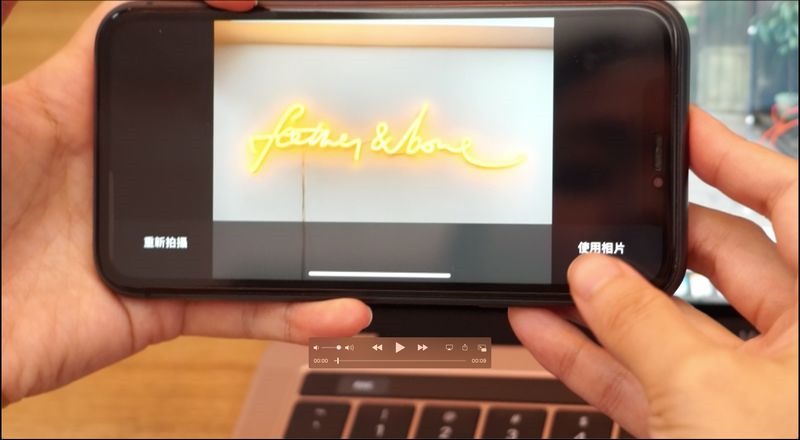
In addition to taking photos, you can also use your iPhone or iPad to scan documents or add hand-drawn paintings. The “Camera Connection” function also supports “Mail”, “Messages”, Finder, etc.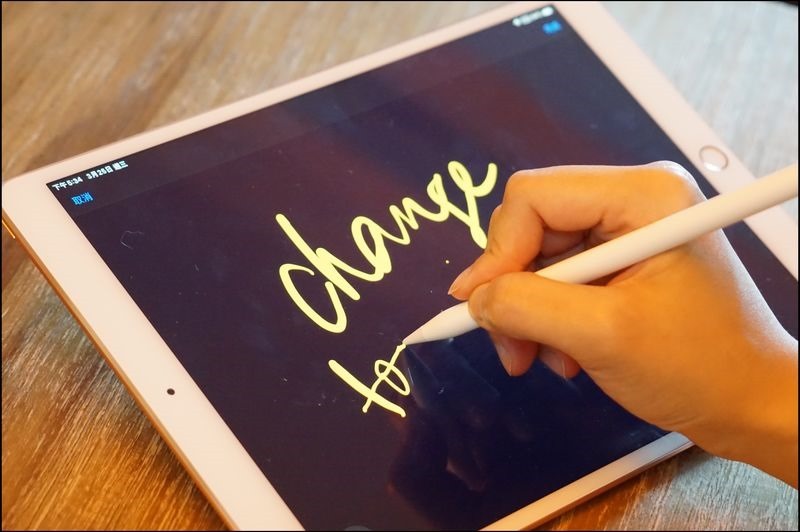
Please click me for teaching
We also edited a video of using the “Camera Continuation” function of Mac and iPad to add hand-painted paintings and iPhone to match photos. You can check it out:
5. Make good use of the “File” App to achieve cloud cleaning
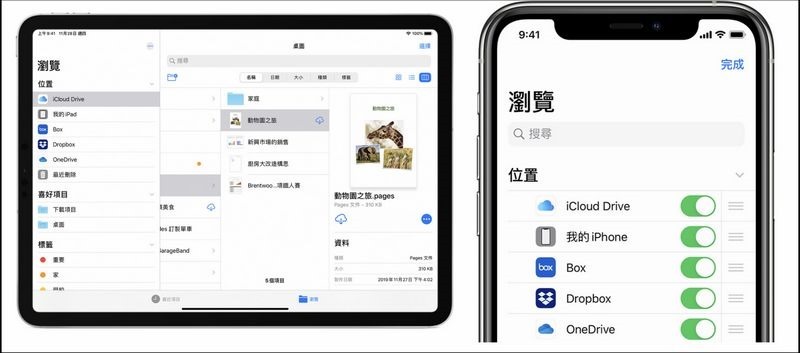
You may not have noticed: In addition to displaying the files stored on the device, the Files app on your iPhone, iPad or iPod touch can also add your iCloud drives, Dropbox, Box, OneDrive or Google Drive and other cloud services. This powerful app not only allows you to use your phone or iPad to share iCloud files and invite colleagues to collaborate on Pages, Numbers and Keynote files at any time, it can also act as your “file central processor”, allowing you to access and integrate all cloud platforms under your name to free up more storage space, making “cloud cleaning” very convenient.
6.iMessage In addition to sending messages, you can also share your screen
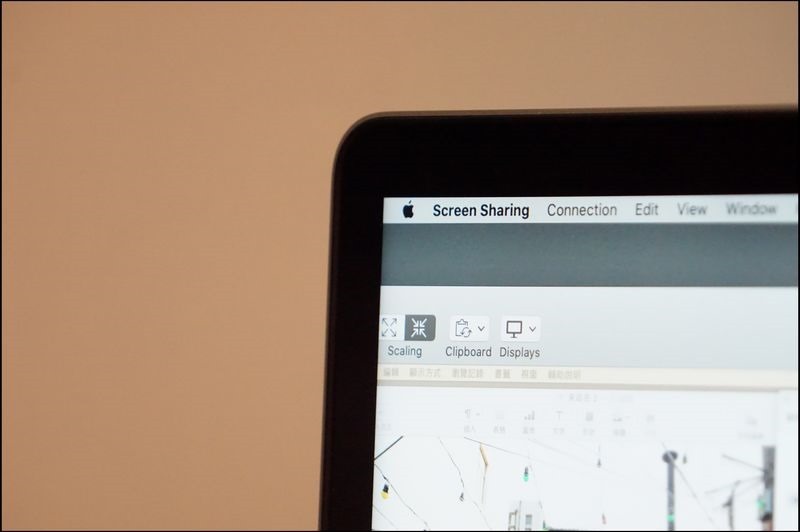
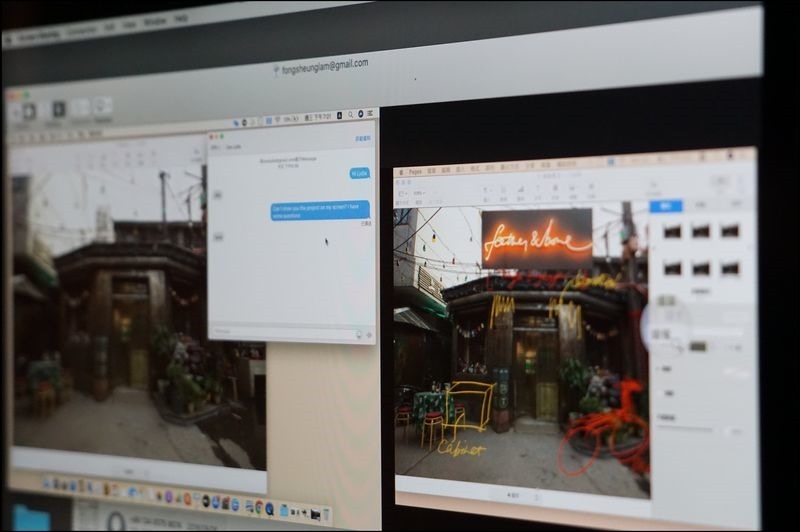
In addition to allowing users and groups to share text or voice messages, pictures and videos, iMessage for Mac also allows you to share each other’s computer screens with other members without installing third-party software. Just start a conversation with friends who also use Mac in the “Messages” app, and select “Share my screen” or “Request to share screen” in “Details” in the upper right corner. You can start a voice call while working, and view or operate each other’s desktops in the window. It is also very convenient whether it is discussing projects among colleagues, or cooperating with classmates to report or correct homework. In addition, all iMessage messages and attachments are point-to-point encrypted, and only the sender and receiver can access them, ensuring the privacy of both parties.
Please click me for teaching
7. Collaboratively edit files
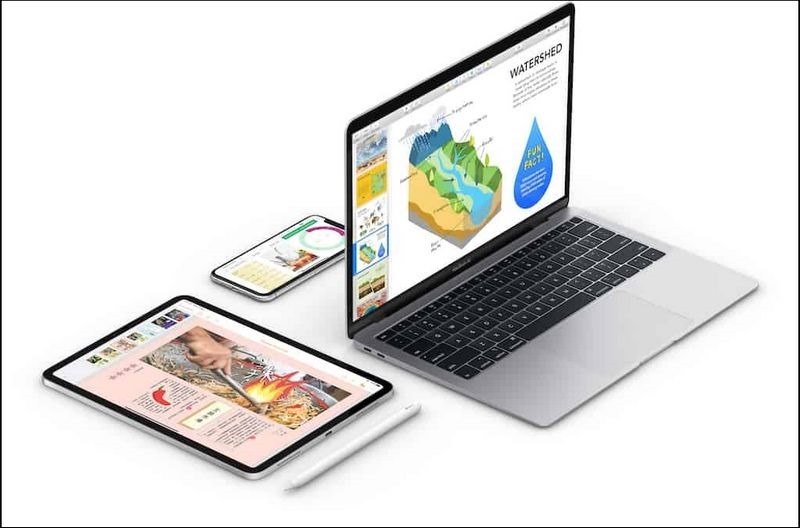
Pages, Numbers and Keynote have a variety of templates and complete design tools, allowing you to easily create documents, spreadsheets and presentations. With real-time co-editing functions, you and your colleagues can work together on Mac, iPad, iPhone or even PC. Just log in iCloud.comto open and synchronize editing of shared Pages, Numbers, and Keynote files.
Please click me for teaching
8. FaceTime Also available for video conferencing
The powerful FaceTime not only allows you to save on long-distance phone calls and keep in touch with contacts in other places at any time, the “Group FaceTime” function also supports up to 32 users for simultaneous video or voice calls. When a contact speaks, the video box will automatically increase in size to help you follow the conversation. All FaceTime content is also point-to-point encrypted, and Apple cannot decrypt the conversation content during device transmission.

Please click me for teaching
9. Share reminders
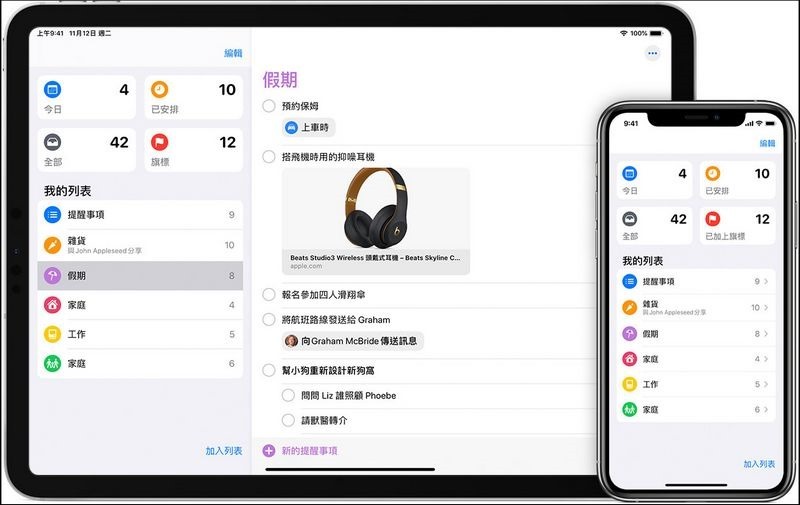
Working from home is more or less a multitasking and concentration challenge. The “Reminders” app helps you create reminders containing subtasks and attachments, and set reminders based on time and location, setting a time limit for each task, which helps improve efficiency. You can also share a “Reminders” list with colleagues or family members. When the other party accepts the invitation, they can add, delete, and mark completed items. Whether it’s a work task or a shopping list, to-do items in different categories are clearly visible.
Please click me for teaching
Source: KOCPC Chinese