


I believe that many users of Mac computers usually hope to reduce the size of image files as much as possible when writing blog posts, and at the same time hope that the images will still have considerable quality after compression. Today, in addition to introducing ImageOptim, a free image compression software that is easy to operate, fast, and has very good image compression quality, I will also share a little trick that can quickly complete image thumbnails in batches directly on Mac.
ImageOptim Mac free image compression software
What I want to introduce today is “ImgageOptim”, a free image compression software that the author has been using frequently recently. Compared with using Photoshop to directly compress images, ImageOptim can obtain good image quality and smaller file size while maintaining the same image file size.
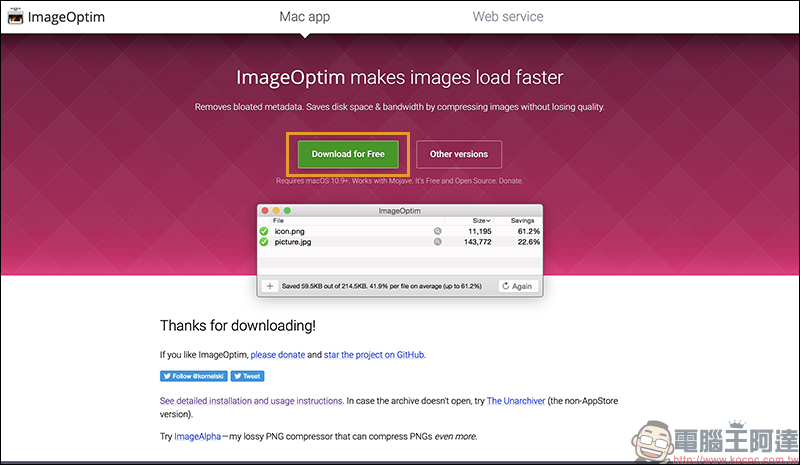
First, go to ImageOptim’s website (click here to go), click “Download for Free” to download ImafgeOptim image compression software for free. The process does not require registering as a member or filling in any personal information. Click the download button to download directly:
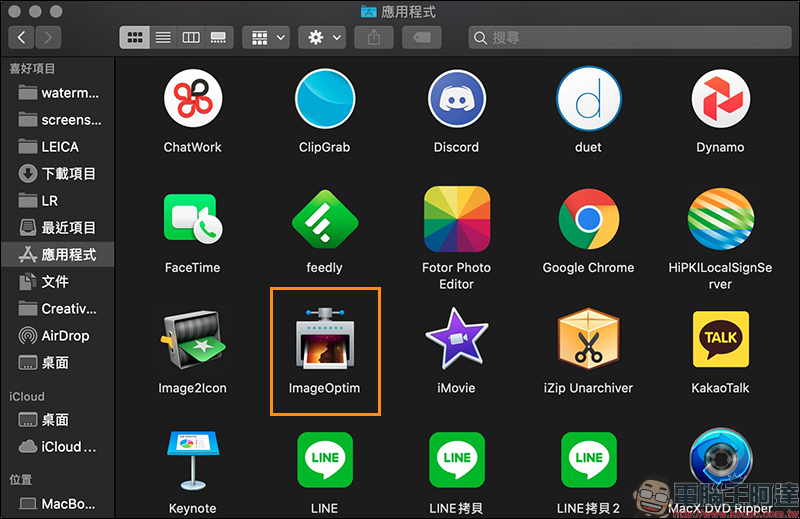
After the download is complete, open the ImageOptim software:
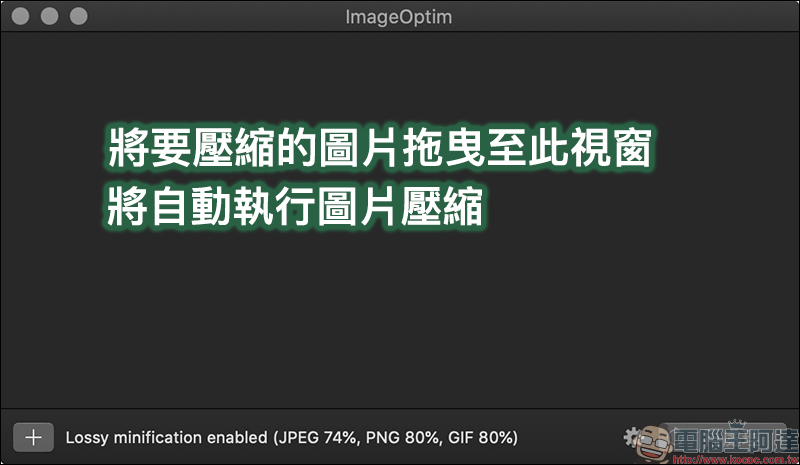
Then just drag the image you want to compress to the ImageOptim window, and the image compression process will automatically begin. Basically, the default image quality should meet the needs of most users. If you have special preferences, you can click the “Gear” button in the lower right corner of the window to open the preference settings:
In the preferences page, users can set various settings such as the compressed quality of images, including EXIF information, which can also be removed after compression. If you want to prioritize the compressed file size, it is recommended to set the image quality to about 75%; if you want to prioritize quality, it is recommended to set the image quality to 85%.
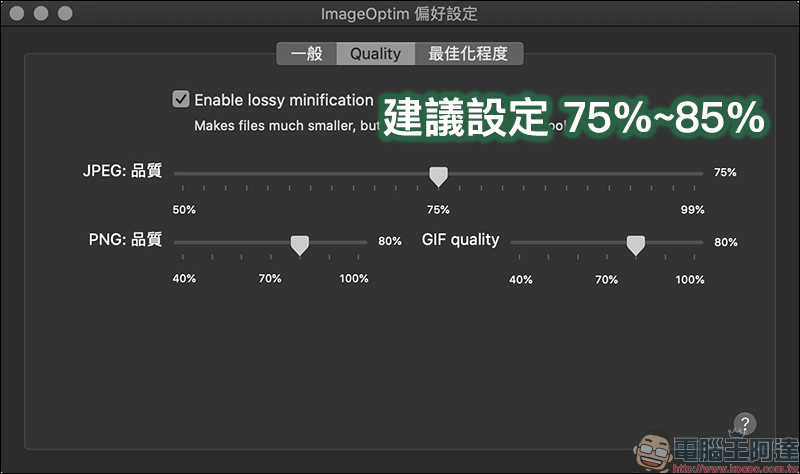
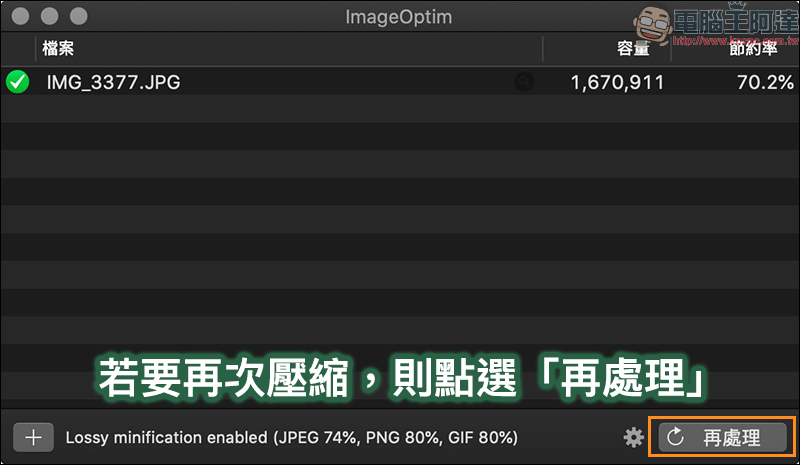
Here, the author compresses images in JPG format at 75% quality. After processing, the file is reduced by 70.2%:
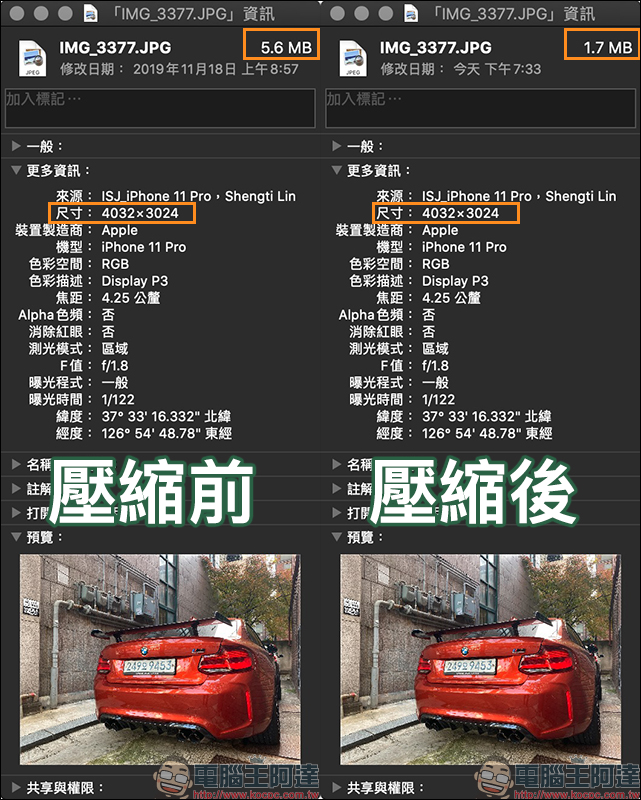
Comparing the file size before and after compression, under the same resolution, the file size before compression was 5.6MB, but after compression using ImageOptim, it was reduced to 1.7MB:
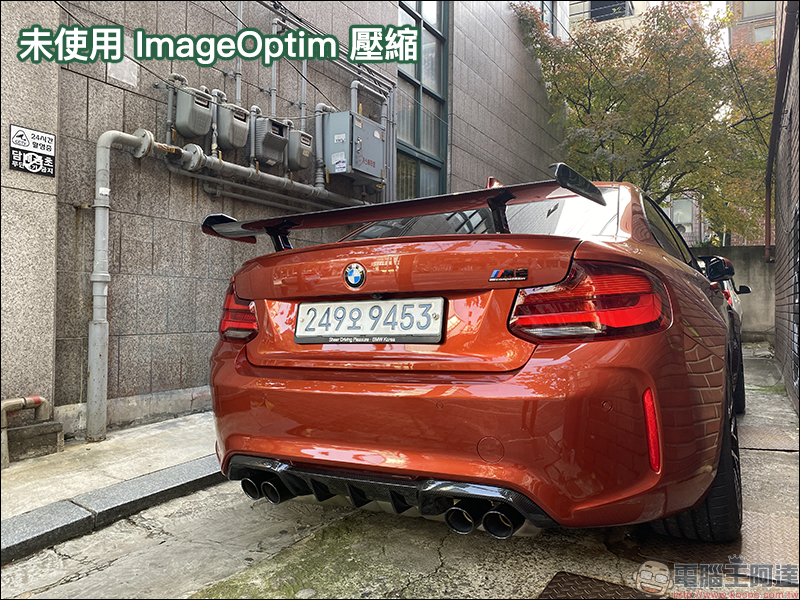
As for the actual difference between the image quality after 75% compression and the uncompressed image? Here we take two identical pictures (one of which uses ImageOptim to compress the picture), and then use Photoshop to reduce the picture to a length of 800px. First of all, the first picture is an image without ImageOptim compression:
Next is the result of using ImageOptim to compress the image:
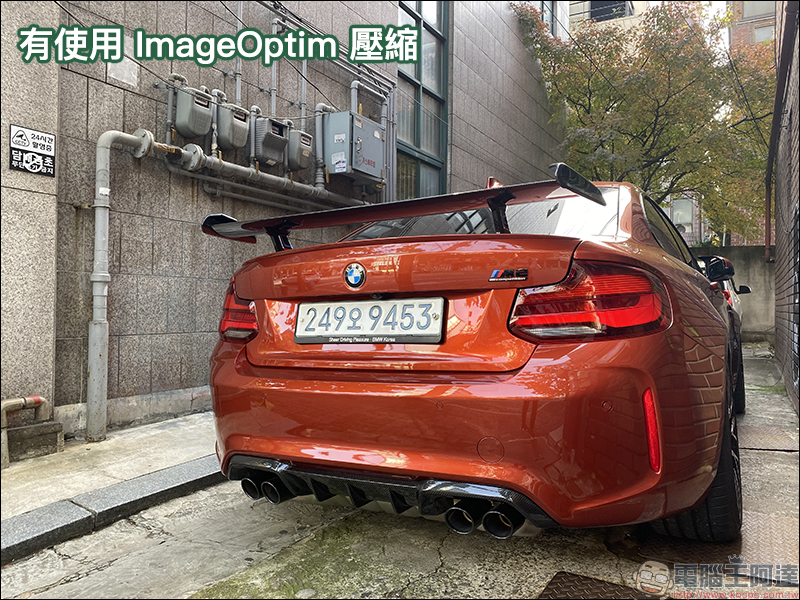
If the two results cannot be distinguished visually, you can directly set the image quality to 75% in ImageOptim! If you find 75% quality unacceptable, it is recommended to set it to 85% image quality. In addition, since ImageOptim only compresses images and does not change the size of the image, it is recommended that if there is a need for thumbnails later, you first reduce the size of the image and then drag it to ImageOptim to compress the image.
ImageOptim:Free download (click here to go)
Also featured: Automator thumbnail tutorial
Paired with ImageOptim, a free image compression software, this time I will share the “Automator thumbnail” that all Mac users can learn. Automator is actually built into macOS. It is a personal automation assistant program that allows users to easily achieve the goal of completing more work with less effort.
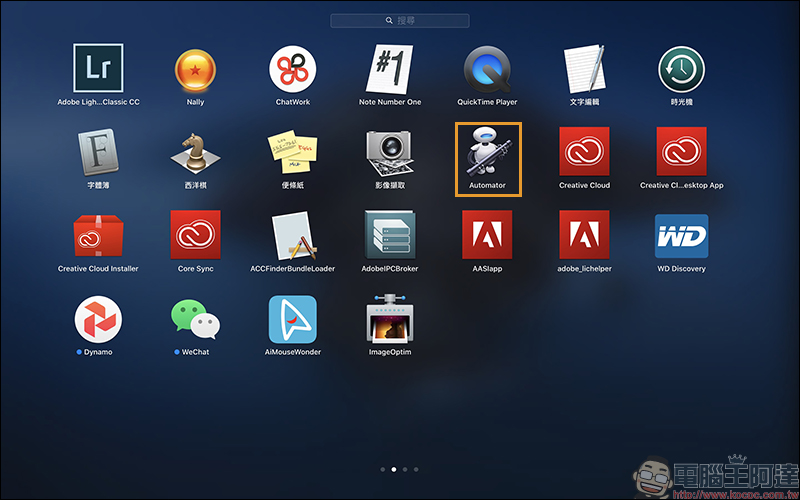
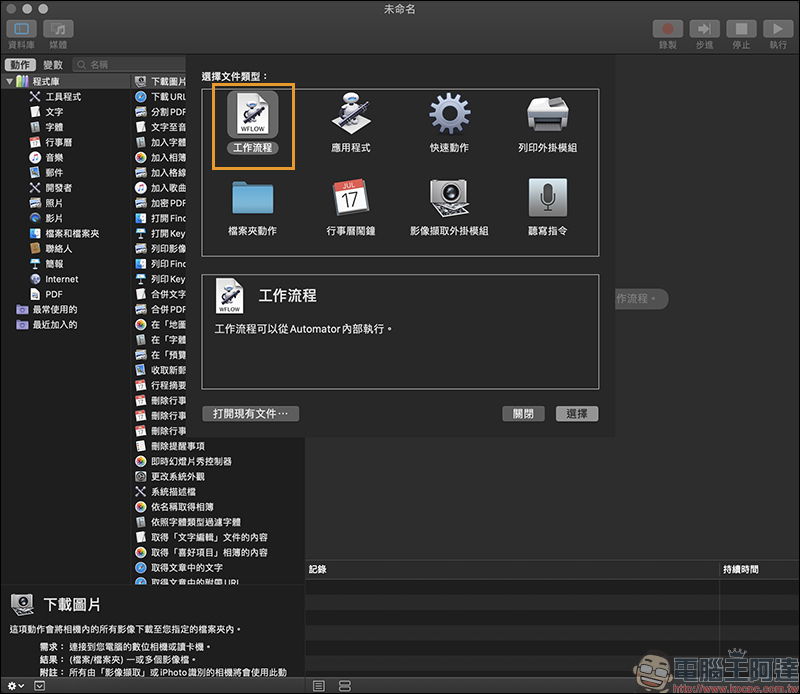
Automator can execute a single or multiple batches of thumbnails. The steps shared here are not necessarily standard processes. They are just the operating procedures that the author finds more comfortable in actual use. After opening Automator, first add a “Workflow”:
Then, drag the image you want to reduce directly to the right side of the window. There is no limit to dragging a single or multiple pictures here, and any picture can be added or deleted as long as it is before the final thumbnail process:
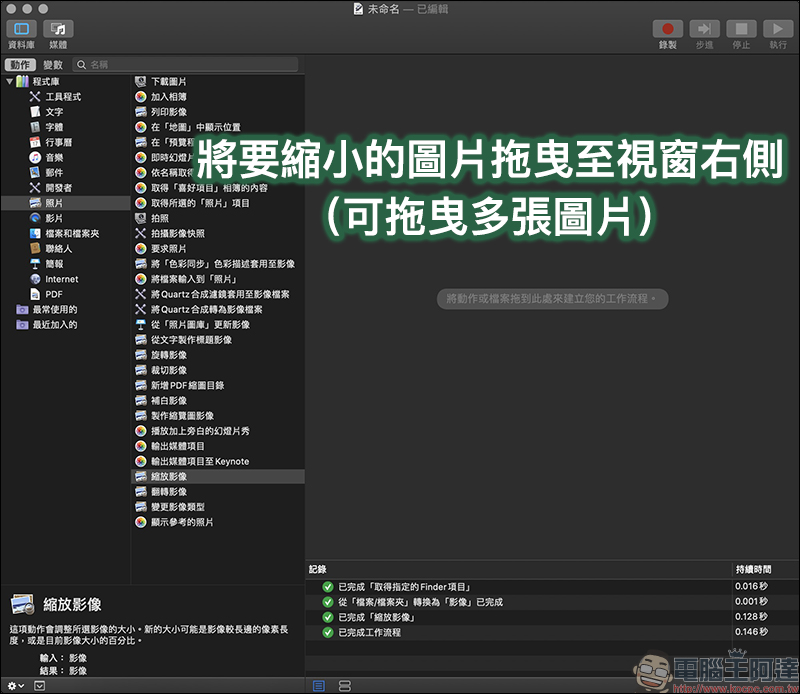
When an image is dragged to the right to perform an action, the source of the image will be displayed on the screen. At this time, the added image can also be added or deleted. Then in the action options on the left side of the window, find “Photos” > “Zoom Image” and drag the “Shrink Image” action to the right window:
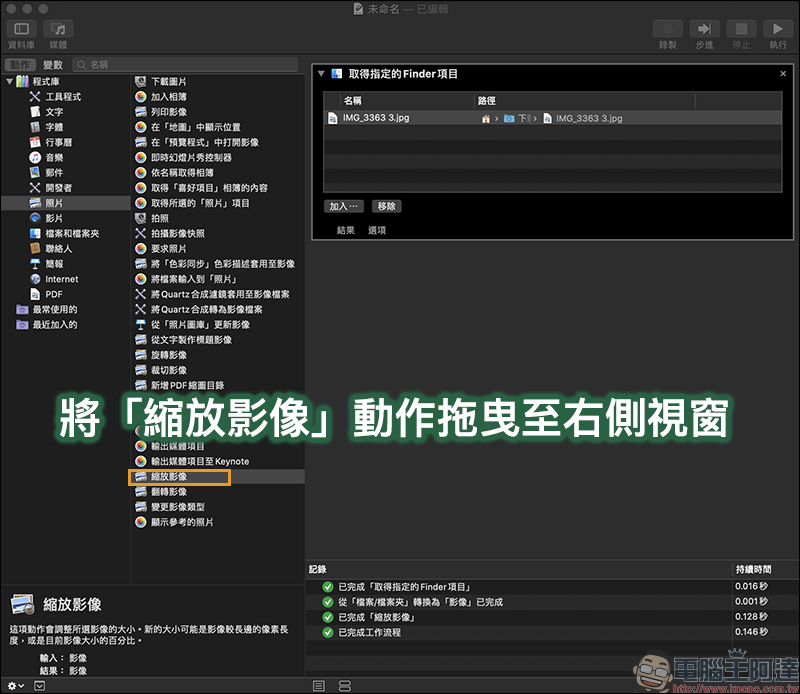
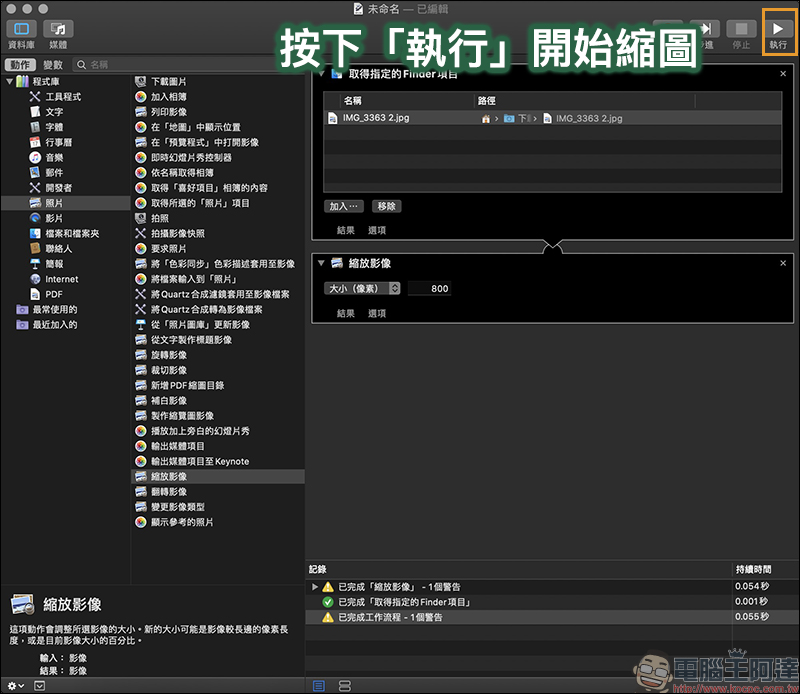
At this point, we have confirmed the source of the image and executed the “zoom image” action. In the zoom image, we can set the image size we want to reduce (here, we take 800px as an example). When everything is confirmed to be OK, we can click the “Execute” button in the upper right corner of the screen to start thumbnailing.
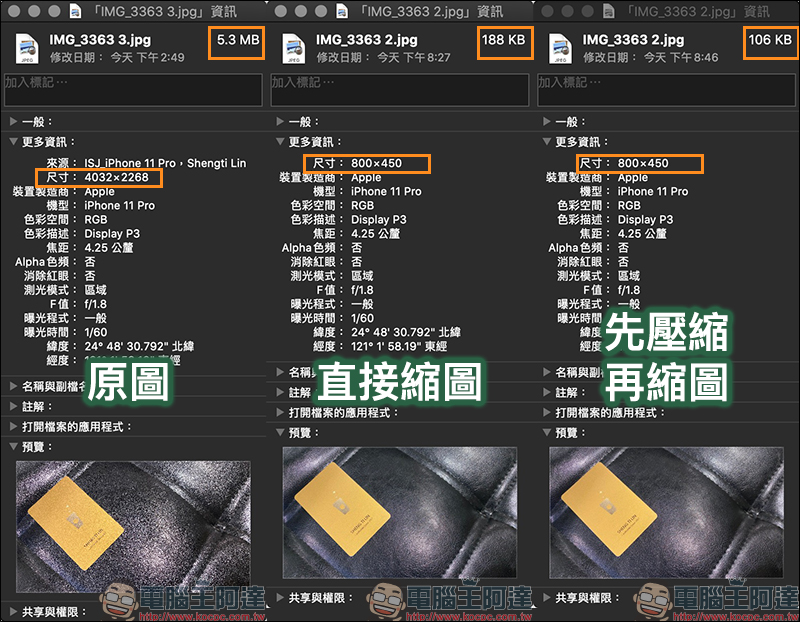
Comparing the same image, the file size differences between the original image, the image reduced directly using Automator, and the image first compressed using ImageOptim and then reduced using Automator are as follows:
Further reading:
iOS application tips: Safari paging automatically closes schedule setting tutorial
Source: KOCPC Chinese