


In addition to Google’s “Instant transcription” App allows people who participate in meetings and events to save a lot of time in subsequent organization. In addition, Google recently released an update to the “Google Translate” Android app, adding a “transcription” mode that is very useful for users with foreign language needs. It performs speech recognition and translation at the same time to achieve the purpose of “speech to text + real-time translation”.
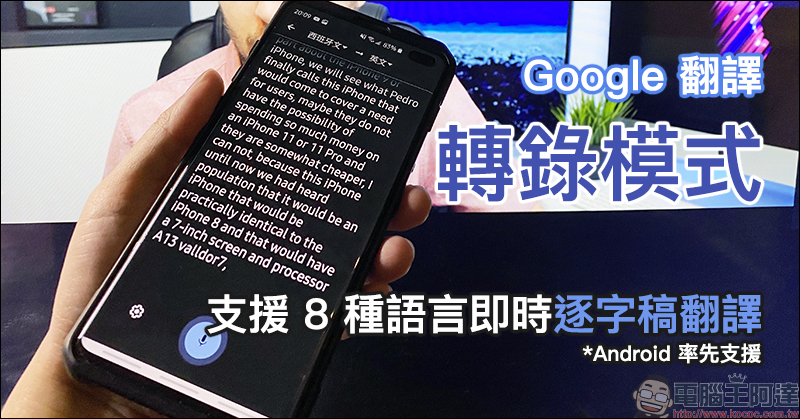
Google Translate adds “transcription mode” and initially supports real-time verbatim translation in 8 languages
Google Translate has recently added a “Transcribe” mode after an update. Although it has been gradually opened in the Android version this week (the iOS version will be added in future updates), some people may find that even after updating the Google Translate App, it is still displayed in the old version interface, and of course there is no “Transcribe” button.
If you encounter this situation, just switch the system language of your Android phone to “English” first, and then open the Google Translate App. You will find that the interface has been converted to a new version, and the “Transcribe” function has also been added. After confirming the update to the new interface, you can switch the system language back to the original preferred language.
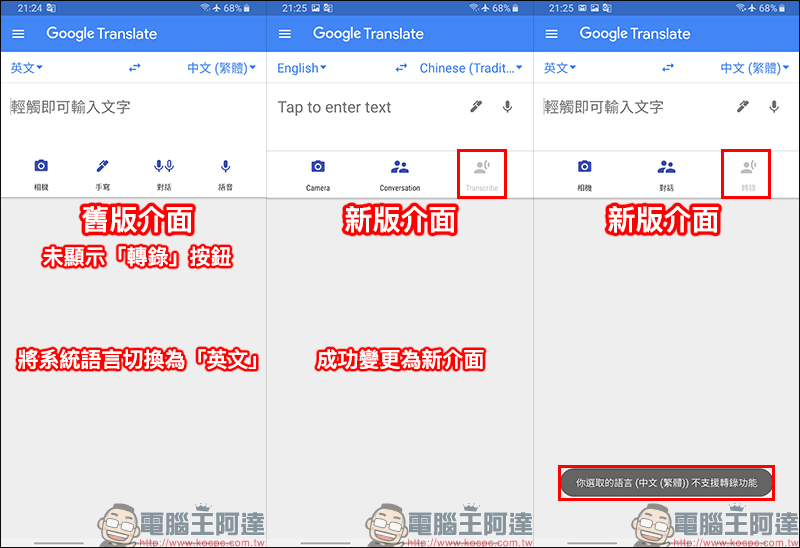
However, because the “Transcription” function currently does not support Chinese, as long as either the original text or the translation is an unsupported language, the “Transcription” function will be grayed out and unavailable.
At present, the “Transcribe” function has just been launched. Initially, it only supports eight languages: “English”, “German”, “French”, “Russian”, “Spanish”, “Portuguese”, “Thai” and “Hindi”. Although it is a pity that Chinese is not yet supported, we can still experience these features first. It is expected that this feature will be of great help when more languages such as Chinese are added in the future.
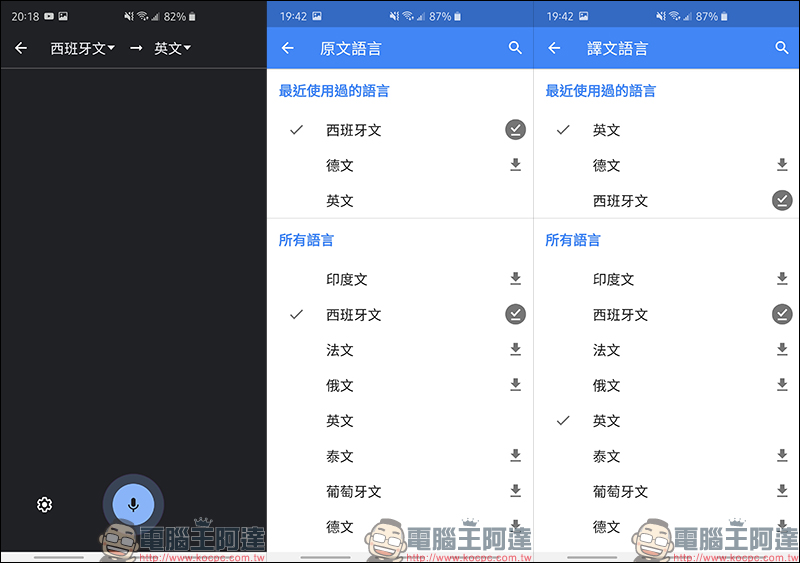
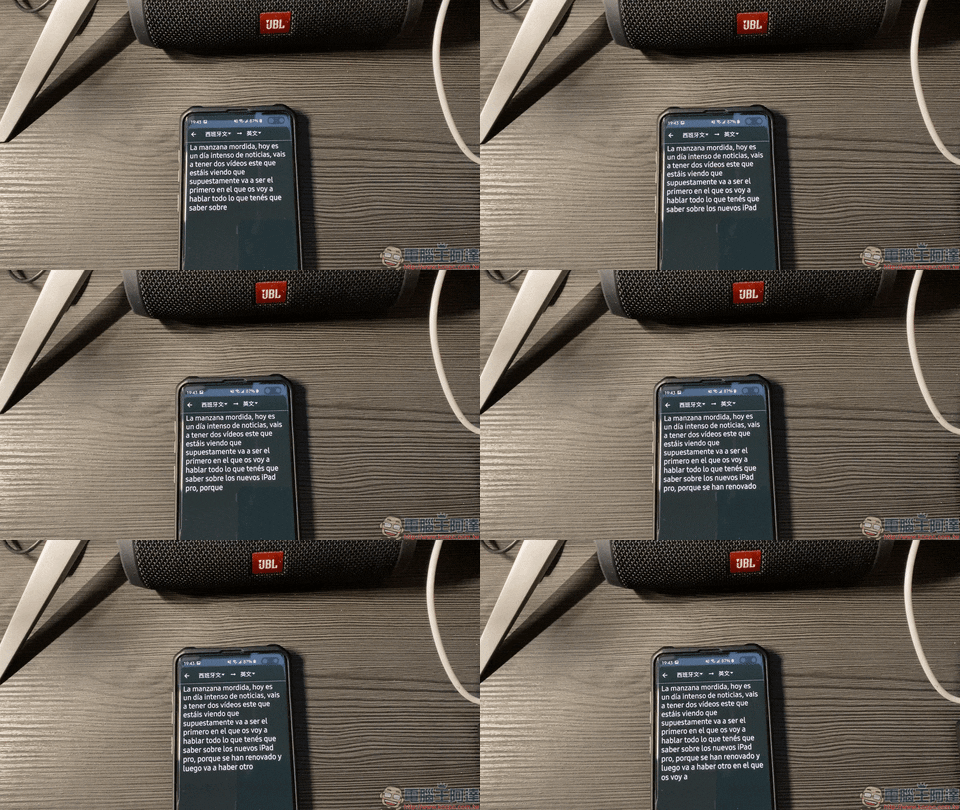
Here is a practical demonstration of how to use the transcription function in “Spanish” and “English”. For more accurate translation results, it is recommended to use it in a quiet environment. Just set the source language and translation language and click the “Transcribe” button to get started.
Google also specifically reminds that the system will send the user’s recorded audio to Google for processing. Google may retain the user’s conversation transcripts for a period of time to help improve Google Translate services. Therefore, Google officials also remind you to obtain the consent of others around you before using this feature.
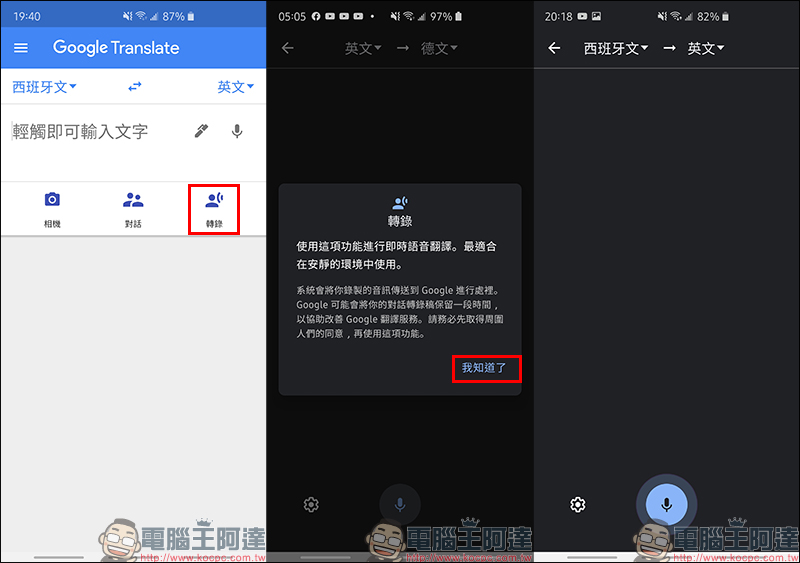
When the language setting is correct, the system will operate automatically after entering the “transcription” mode. Since speech-to-text and translation processing require an Internet connection, users must have an Internet connection to use this function. This feature is somewhat similar to the combination of Google’s “Instant Transcription” app and Google Translate’s “Speech Translation” feature. Overall, the recognition success rate of the “transcription” mode is quite high, and the original text can be translated into the specified translation very quickly. During the transcription process, the system will correct the entire text and the content of the drama at any time, and the application is different from the “conversation” mode.
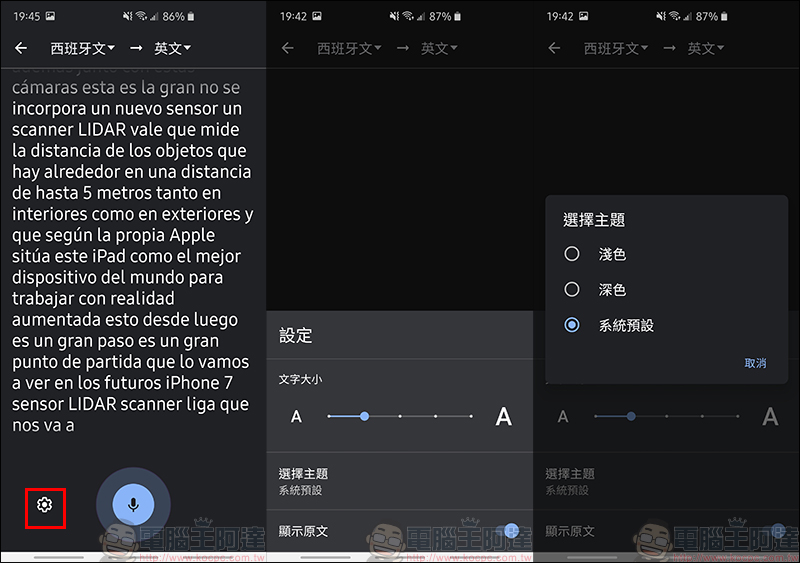
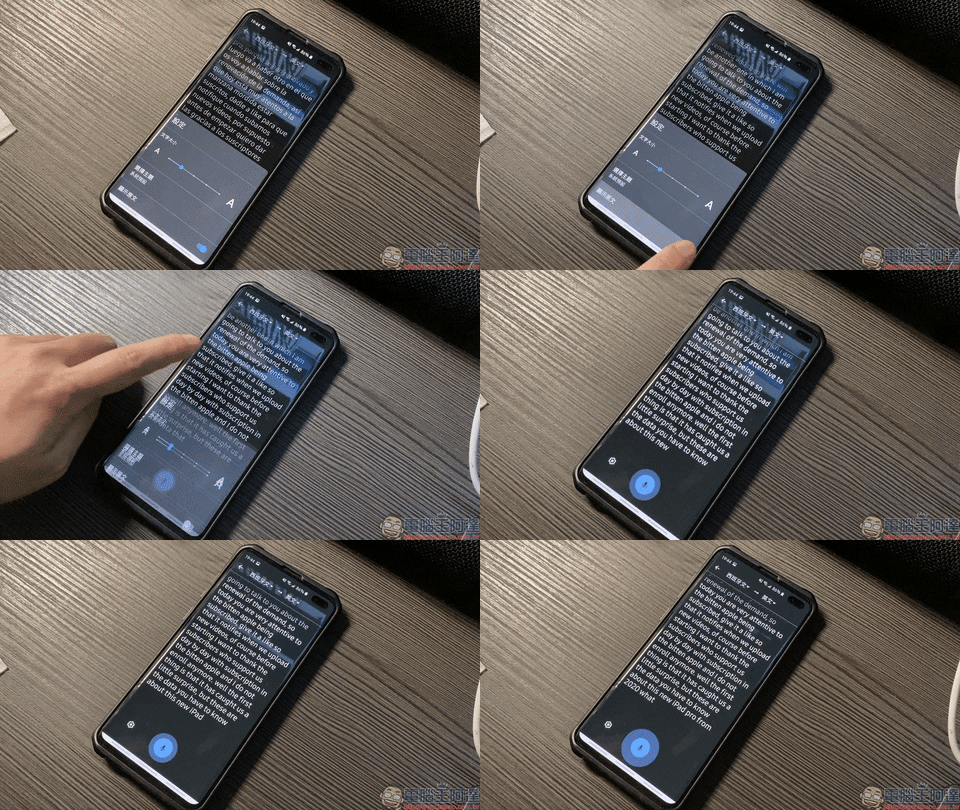
While the transcription job is running, users can also set the text size, display theme, and switch between displaying the original text in this mode. During the setting operation, the original transcription work will continue to run, and users do not need to worry about interrupting the content.
Users can switch to display the original language or the translated language at any time according to their own needs, and check whether the content is correct.
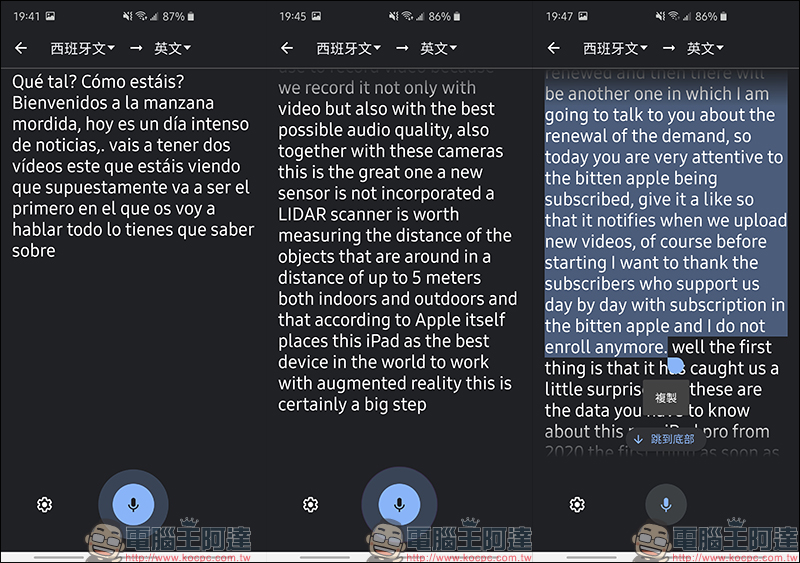
If you want to end the “transcription” recording, just press the microphone button on the screen to stop. Then the user can select and translate the text content and paste it in other applications. Of course, during the transition period when the transcription function does not yet support Chinese, users can also copy the English sentence pattern first, return to Google Translate and use text translation to convert the content into Chinese.
Source:Google
Further reading:
Google Maps “Discover Food” menu translation function makes searching for foreign restaurants more intuitive and simple! (use teaching)
Source: KOCPC Chinese