


Whether you want to go out for fun or find nearby restaurants, you can use it Google Maps Complete route navigation easily, but did you know that Google Maps actually has many hidden functions? Today I will teach you how to change the navigation icons on Google Maps. Come and learn how to replace the boring blue icons with cute car patterns.

1. Enter navigation mode
Turn on “Google Maps” App, first use the route planning function and enter the car navigation mode. It should be noted here that the icon can only be changed when using car navigation. Others such as walking, motorcycles, and bicycles are not currently supported.
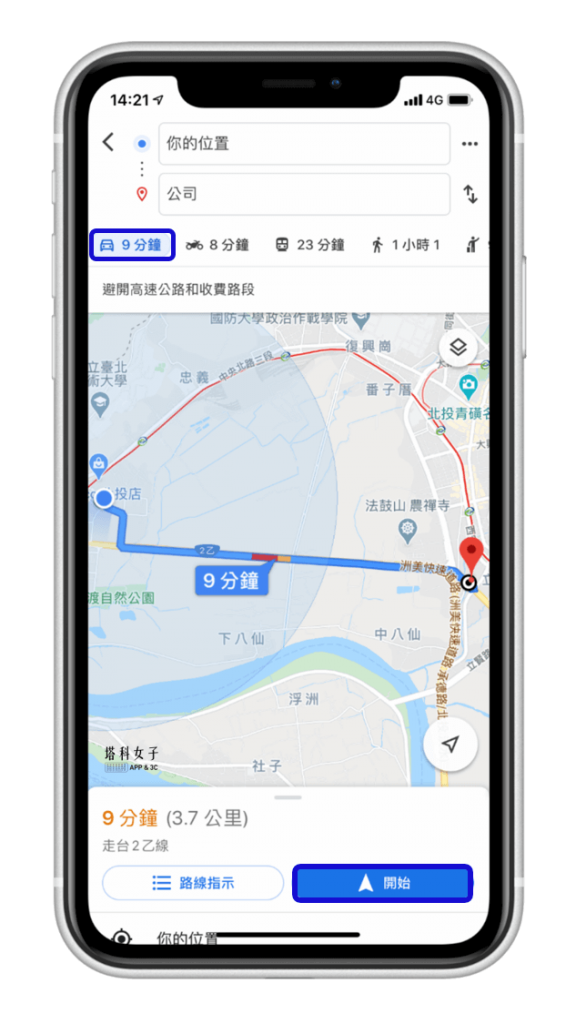
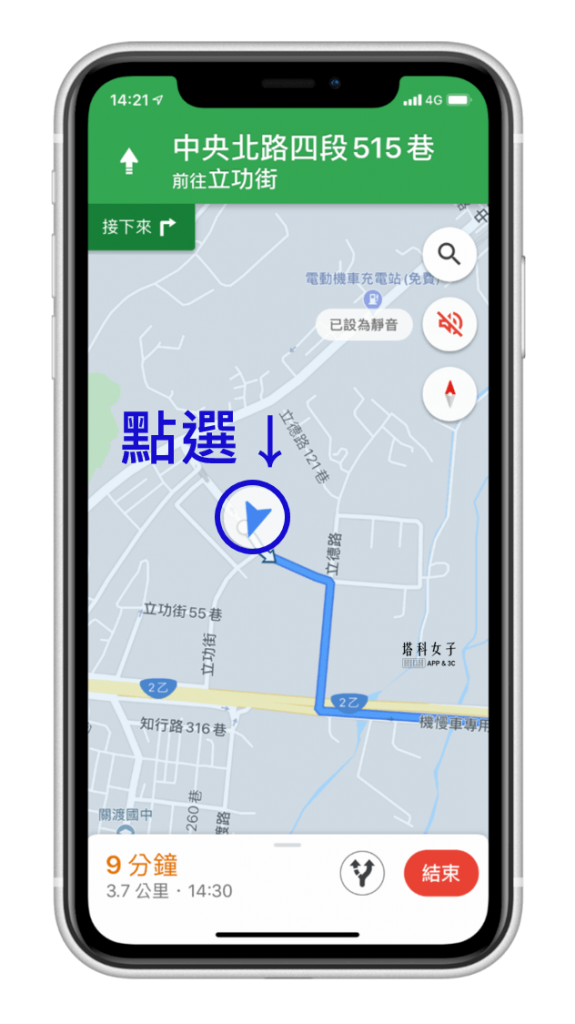
2. Click the blue icon
Next, click on your current location on the map, which is the blue icon.
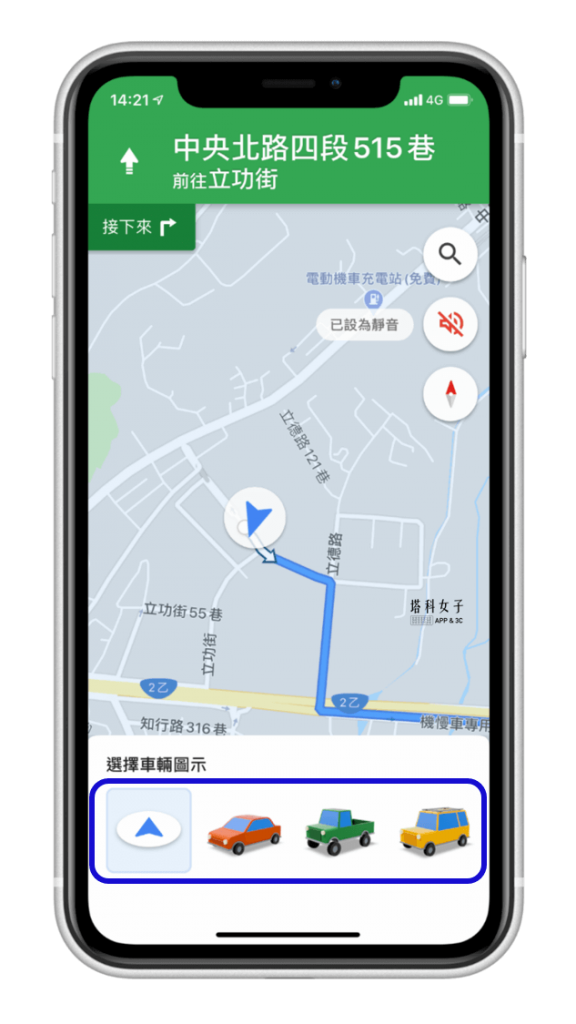
3. Change car icon
You will see four options appear below. There are three different cars for you to choose from. Just choose the car you like.
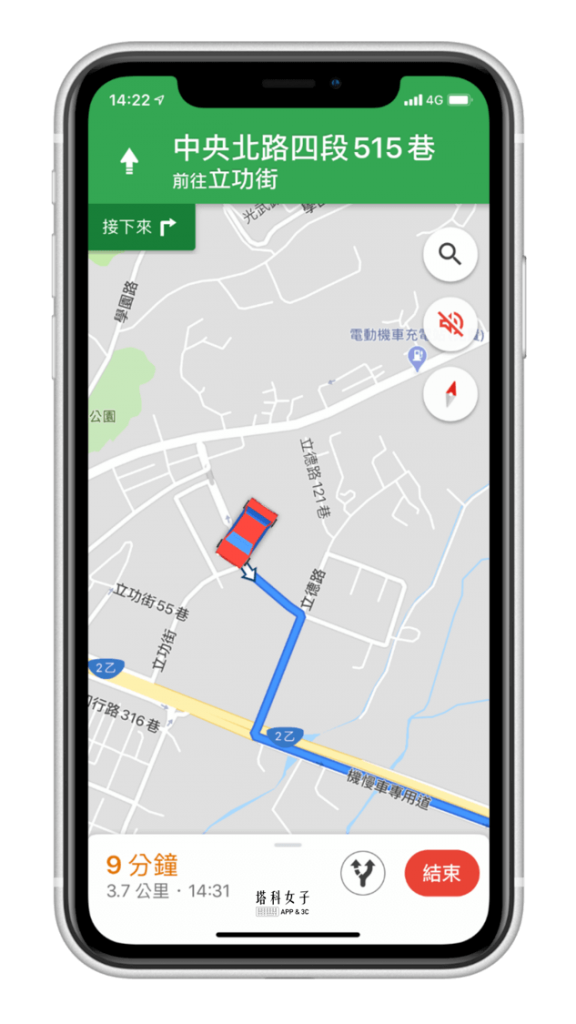
Success, now the icon on your Google Maps has been successfully changed to a car icon. You can use this car navigation in the future.
Conclusion
The above are the hidden functions of Google Maps introduced this time. If you want to know more Google Maps skills, you can refer to this article
Featured articles
- 10 practical tips for iOS Notes App, suitable for notes and lists
- How do I know if my phone number is blocked? Teach you how to use this method to check
- Super powerful video download shortcut, download FB/IG/YouTube/Twitter videos (iOS shortcut)
- Use your iPhone to navigate home with one click, no need to enter an address (iOS shortcut)
- Recommended Pedestrian Navigation APP|PinnAR uses AR augmented reality to help you no longer get lost!
Source: KOCPC Chinese