


As Gmail gradually becomes a standard item in many people’s work and life, many times if you communicate with people, you need to use different identities (slash connections for different work corresponding windows, further study, etc.) and languages. Unless you apply for a Gmail / G Suite account for each identity, using different signature files may have to be copied and pasted by yourself. Now, with Gmail’s latest support for multi-signature files, you can save yourself this trouble. Continue reading Gmail adds multi-signature file support. How to use it? See the report here.
▲Image source: Google
Gmail adds support for multi-signature files, see here for how to use it
The official blog mentioned that the advantage of multi-signature files is that it allows you to communicate with people between different teams, companies or product projects, or even in different languages, to achieve the best communication effect. It is currently confirmed that this feature will be gradually rolled out to all Google / G Suite accounts starting this month. If it appears, you can find it in “Settings > Class Settings > Signature” – so if you haven’t seen it yet, don’t be nervous, you should receive it before the end of the month (probably). Below we will also teach you how to use this function.
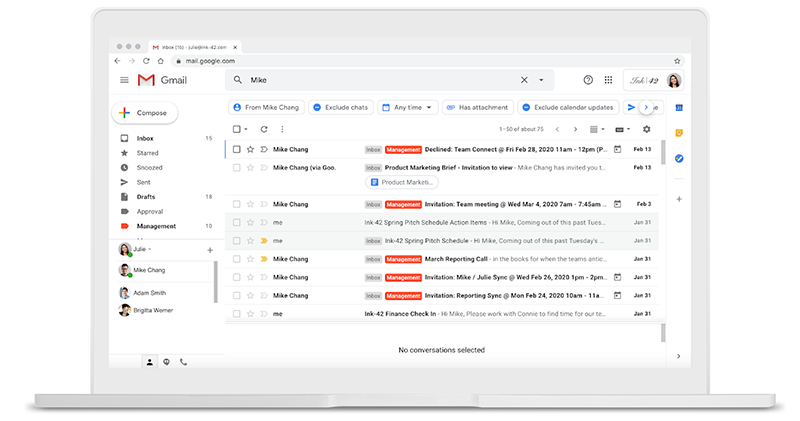
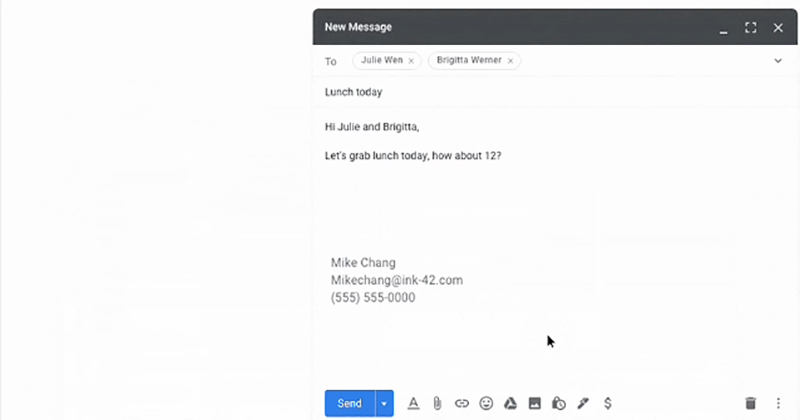
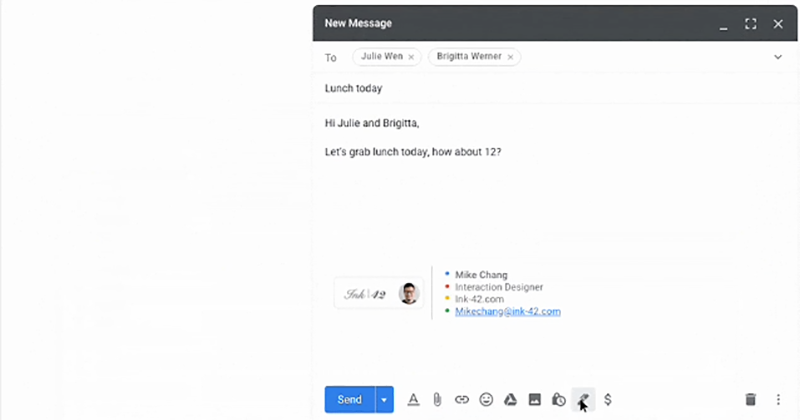
First, when you reach the aforementioned setting location (“Settings > Group Settings > Signature” in the upper right corner of the Gmail screen), you will be able to see the function of creating a new signature file. However, in the bottom function bar of future new emails and email replies, you can also see a new “Signature” button (which looks like a pen), where you can also quickly select and manage signature files:
After clicking, the newly added signature file function bar will be expanded. It can be seen that in addition to quickly selecting a previously set signature file, you can also choose not to use any signature file, or click on the top management signature file to add, remove, etc. editing functions:
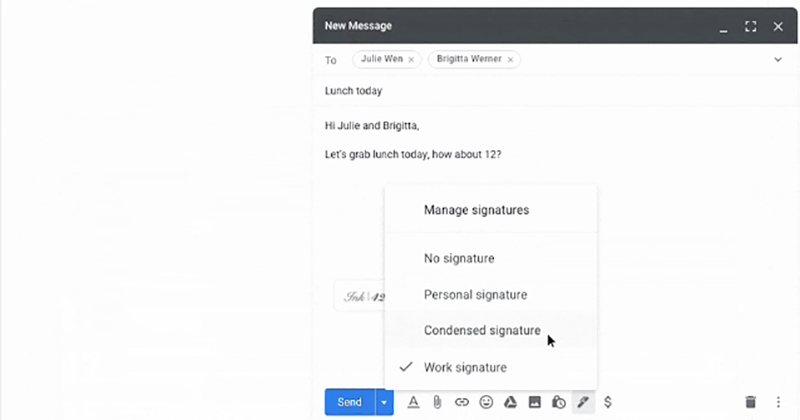
If you choose to switch, you can quickly change the signature file you use when sending letters! Isn’t it very simple? Learn it quickly:
Pictures/sources cited in this article
Further reading:

MacBook Pro 16-inch unboxing experience: a familiar new friend
Source: KOCPC Chinese