


Do you find that your computer has a bunch of strange software installed, and you don’t know how to delete it? By removing the software, you still need to worry about whether the computer has not been completely deleted. With this software, Geek Uninstaller, you can easily and simply delete the software in your computer. What’s more worth mentioning is that this software requires no installation and is small and easy to carry.
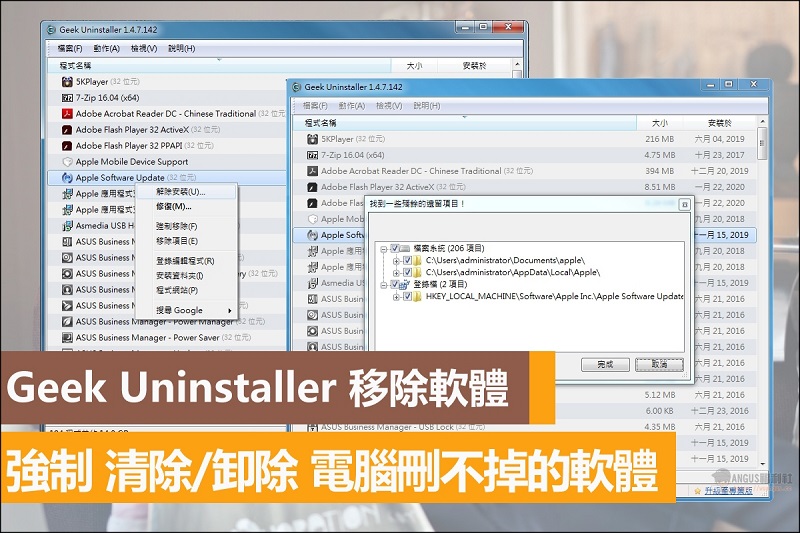
Geek Uninstaller tutorial
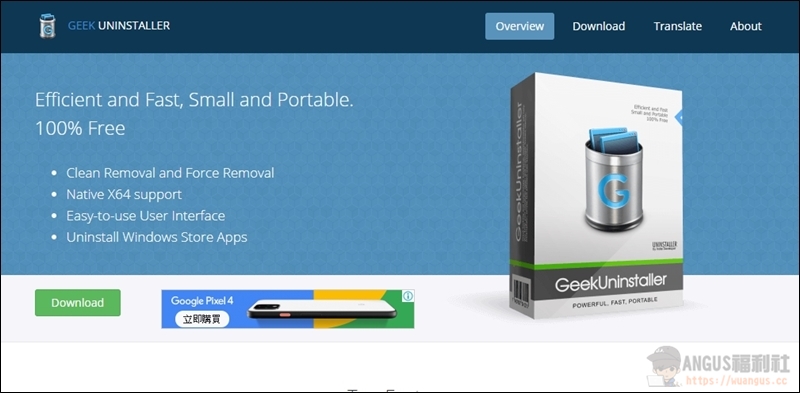
▼ First, enter the download page of the Geek Uninstaller official website and click “Download” on the left to download it directly. (Points are at the end of the article)
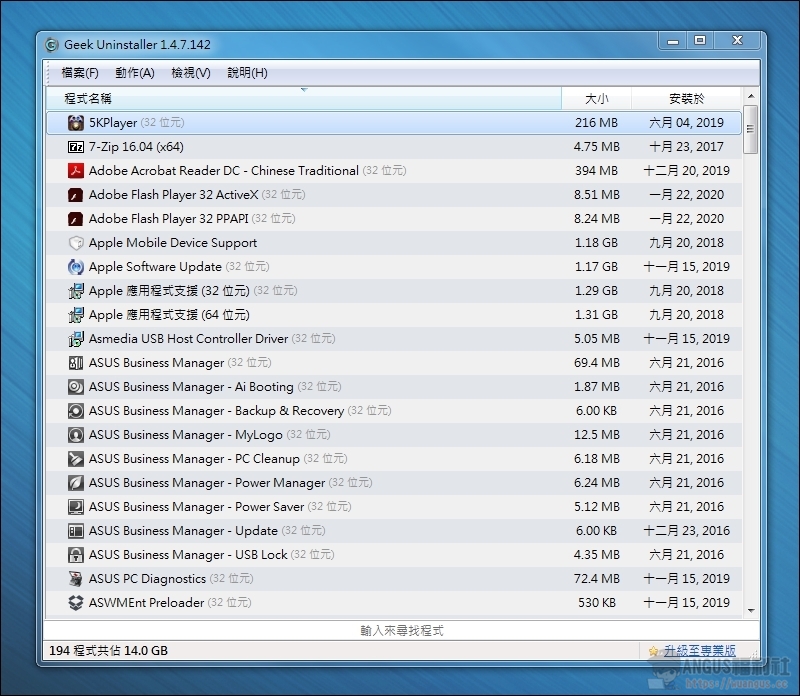
▼ Download the file > Unzip > After executing the Geek Uninstaller program, the main window will open directly and you will see all installed software/size/installation time on your computer.
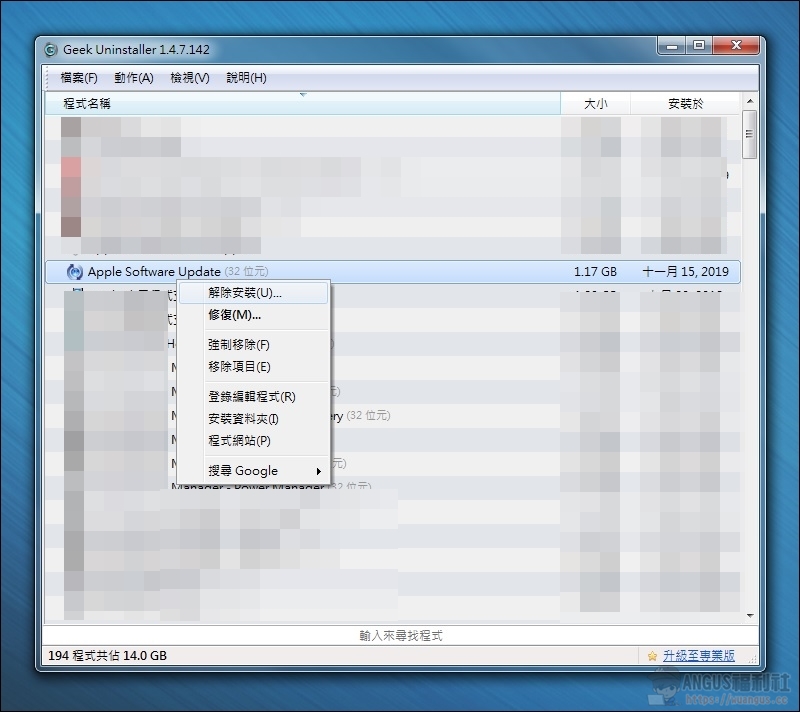
▼ Right-click the mouse on the software you want to remove and click Uninstall. The removal process will be executed. It is really simple.
▼ Even the remaining files and login files in the system will be displayed together, and you will be asked whether you want to remove them. Click “Finish” below.
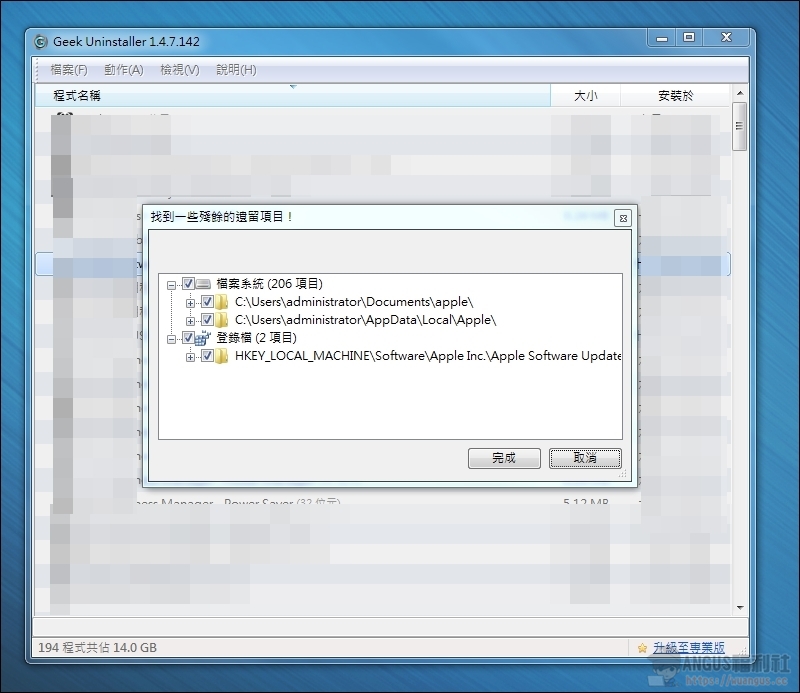
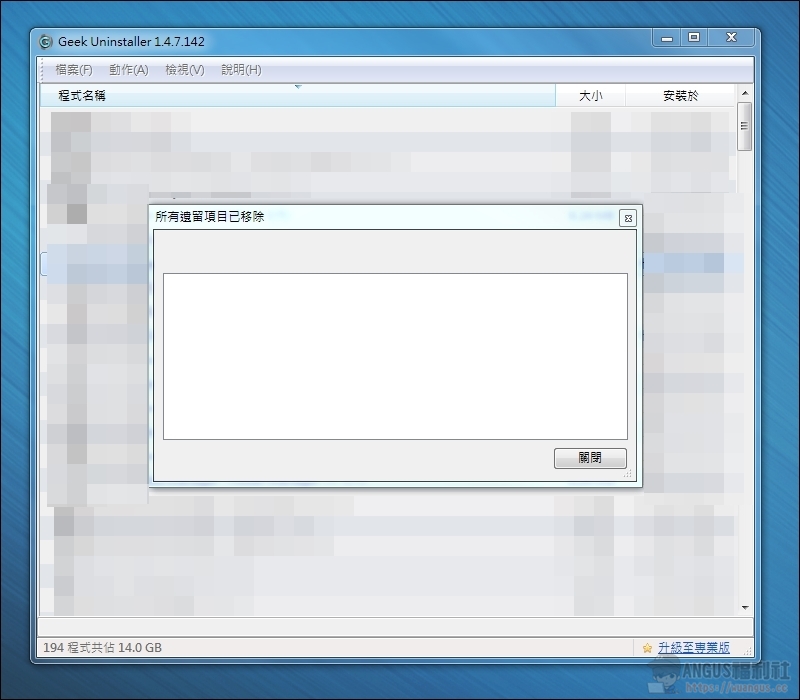
▼ After the final removal, the Windows system will be restored to its cleanest state. Finally, just press “Close”.
More practical software articles
- AS SSD Benchmark tests the performance and health of SSD solid state drives
- FBackup free computer backup, back up hard drive data regularly without fear of failure!
- Troubleshooting Acrobat Reader requires a font package to display this page correctly
- Advanced SystemCare Professional Edition, an in-depth optimization tool for Win systems!
- [Utility Tool] Flexible Renamer can modify file names in batches and is a favorite among bloggers.
- How to use built-in restore and refill Windows 10 operating system
- EaseUS Todo Backup Home Professional personal computer data backup/restore solution!
Source: KOCPC Chinese