


I believe many people have installed software such as System Resource Monitor. The name may be different, but the function is generally used to check the usage status of resources within the computer system, including CPU, GPU, memory, etc. In fact, Windows 10 already has such a built-in tool, but you may not know where it is. Today the author is going to tell you where to find this built-in utility tool and how to use it.
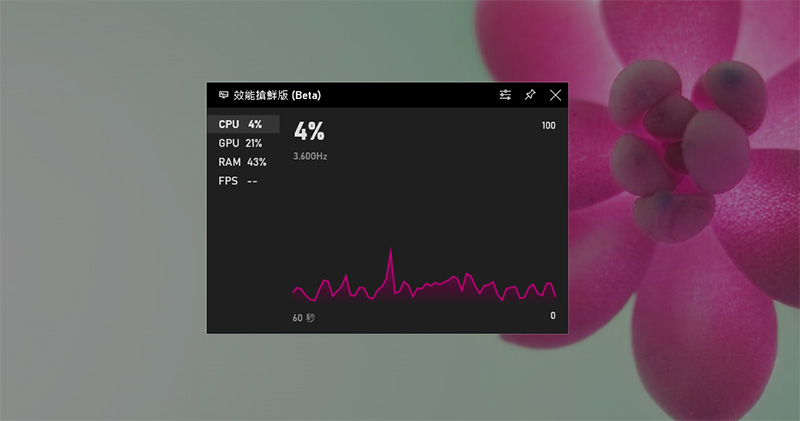
No need to install third-party software! How to find the Windows 10 built-in System Resource Monitor?
Generally speaking, everyone knows that you can find the work manager by pressing “Ctrl + Alt + Del”. You can see the resource usage data from the performance tab. Since it is a built-in tool in Windows 10, the data is more accurate than third-party software. However, the trouble is that it is displayed in a window, which may not be so convenient to find when you are doing other tasks. There is another hidden version of System Resource Monitor in Windows 10. In addition to allowing you to quickly view it, you can also pin it to the desktop! To find this hidden version of System Resource Monitor, just press the key combination “Win + G”, yes! That is, open the game mode panel, and then you can see it in the lower left corner of the entire screen.
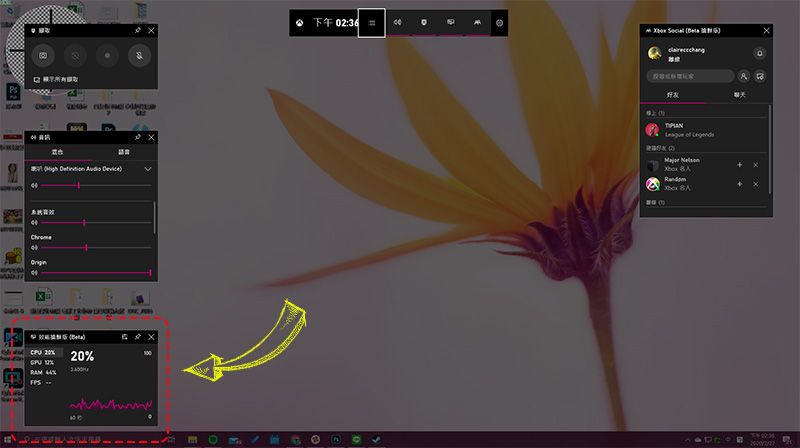
This system resource monitor contains a lot of content, including CPU usage, GPU usage, memory ratio, FPS, etc., which can be viewed at once in this panel. Through settings, you can also make more in-depth settings, such as the theme color displayed, background transparency, and which values are to be displayed. In addition, the displayed panel can also be resized and dragged to select its placement, which is very convenient.
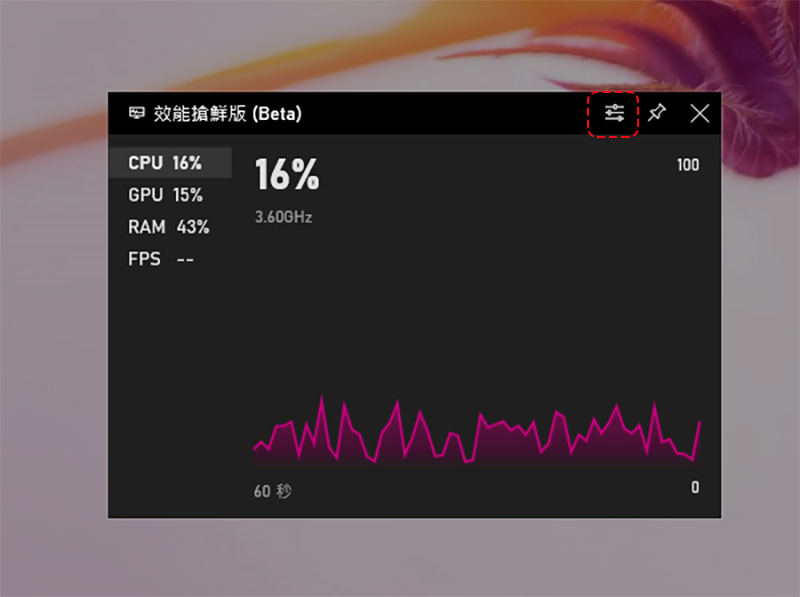
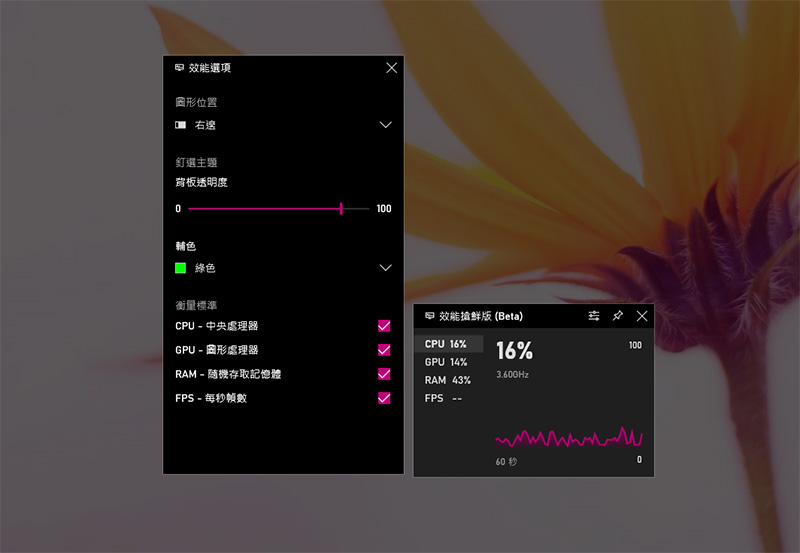
What if you want to fix it to the desktop? After you have made the above settings, just press the pushpin icon in the upper right corner to fix it on the desktop. Click the label next to it to switch to the data line chart of different components; in full mode, press the arrow in the lower right corner to switch to streamlined mode that only displays percentages.
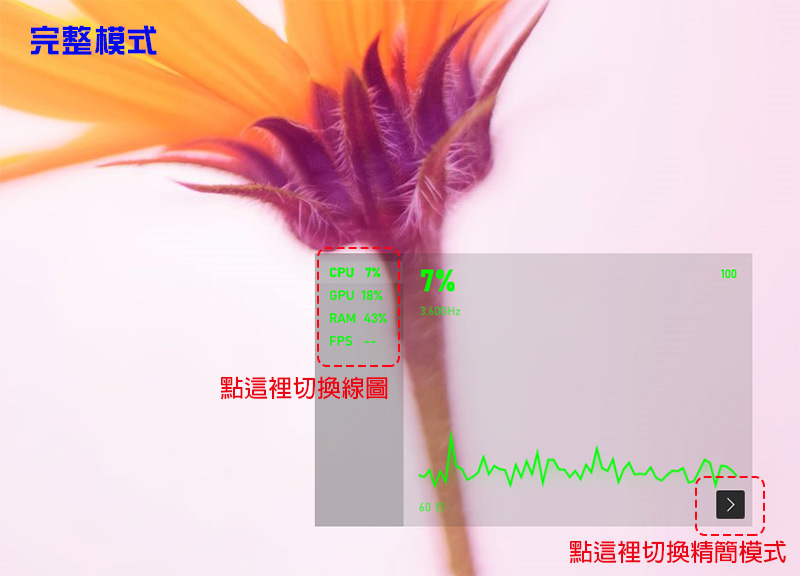
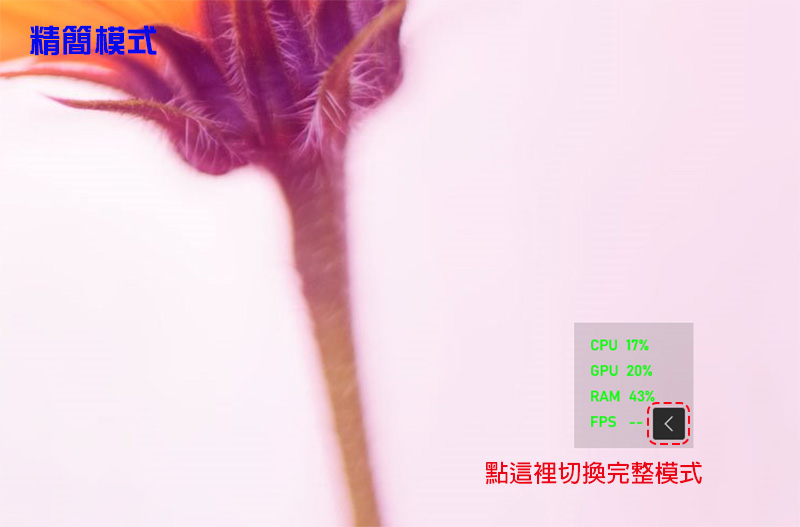
This system resource monitor will always remain on top, no matter how many windows you open below it will not cover it; if you want to unpin it, press the key combination “Win + G”, and then click the pushpin icon of the system resource monitor to make it disappear from the desktop.
Source: KOCPC Chinese