


Although the performance of computer hardware has become more and more powerful and the price has become cheaper, if it is not top-level, it is still not enough to play some AAA game masterpieces. In order to solve this problem, many people immediately think of spending money to upgrade. In fact, you can also try to improve performance through system optimization. This Wise Game Booster is a good choice. It is completely free. It will automatically scan the computer for areas that can be improved, starting from the system, processing procedures, and setting services.
However, be warned, the difference will not be as obvious as upgrading the hardware, but it will still help to some extent.
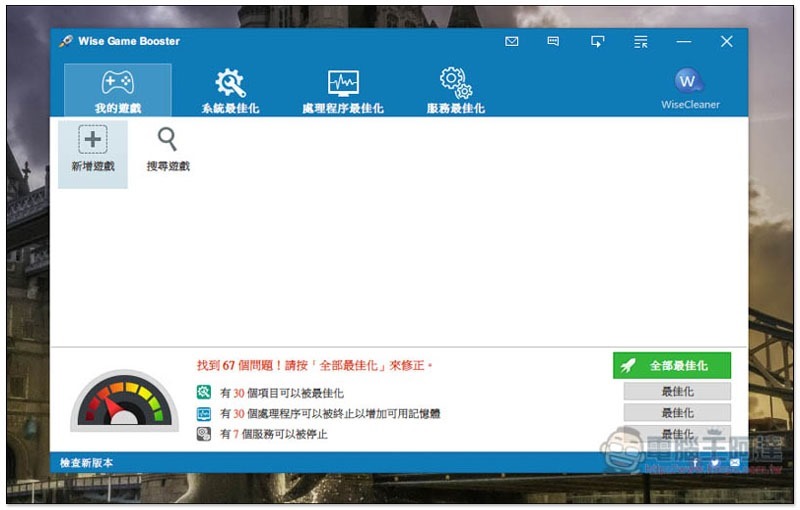
Introduction to Wise Game Booster free game accelerator tool
Click here to enter Wise Game Booster official websiteDownload the installation file. Although the official website is in English, this product supports Traditional Chinese language, so don’t worry about not understanding it.
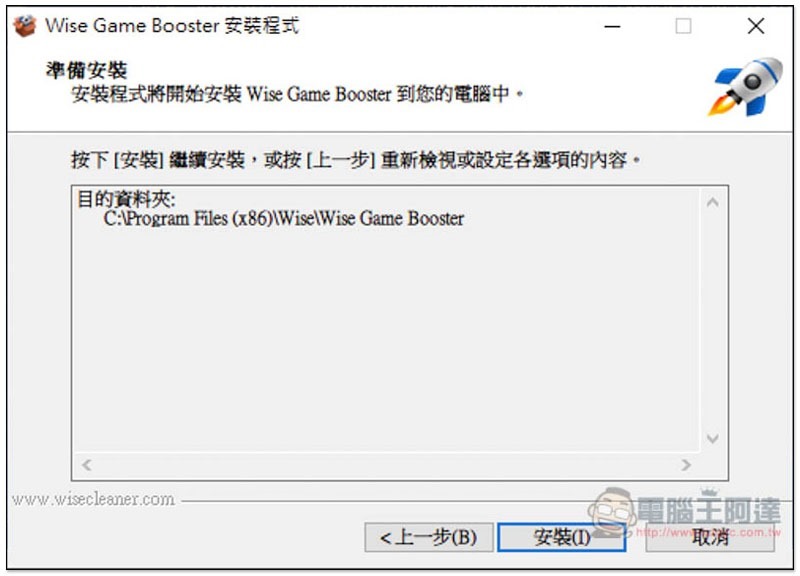
Just keep pressing Next during the installation process, and other programs will not be installed secretly:
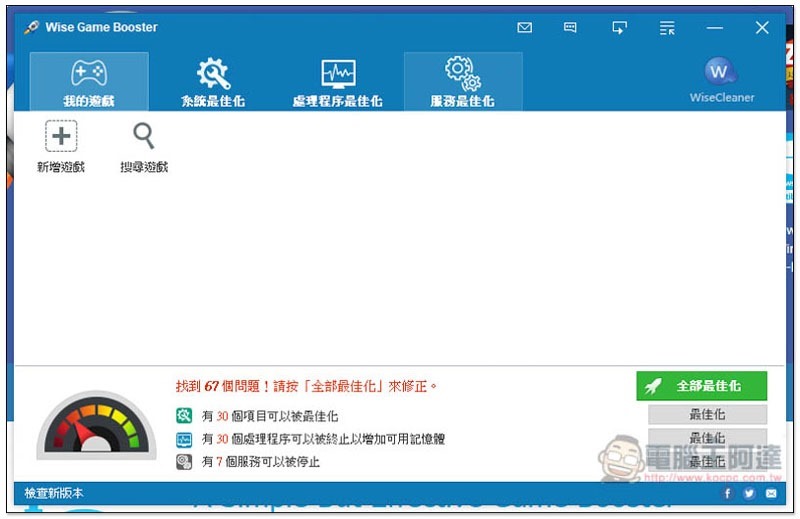
After installation, open it and it will automatically scan your computer for problems that can be optimized. For me, I didn’t expect that there were as many as 67 problems. Click “Optimize All” on the lower right to solve them with one click. However, before optimizing, it is recommended to check which options will be modified. Click “System Optimization”, “Processor Optimization” and “Service Optimization” above to view them. :
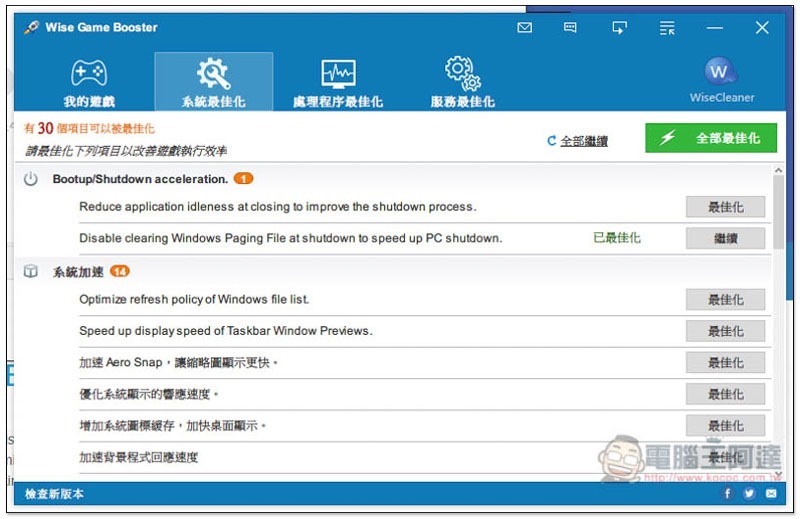
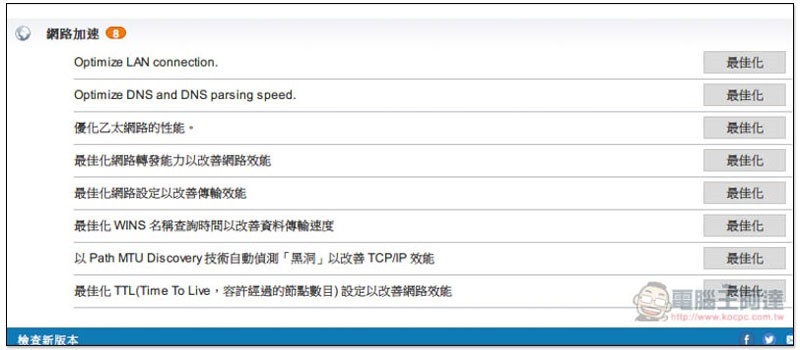
The system optimization section will classify each optimization option separately, such as: power on and off, system acceleration, network acceleration, system stability, etc. If this project has been adjusted to the best state, “Optimized” will also be displayed on the right. I highly recommend optimizing everything manually instead of using the one-click function, so as to ensure that all changes will not affect the use of your computer:
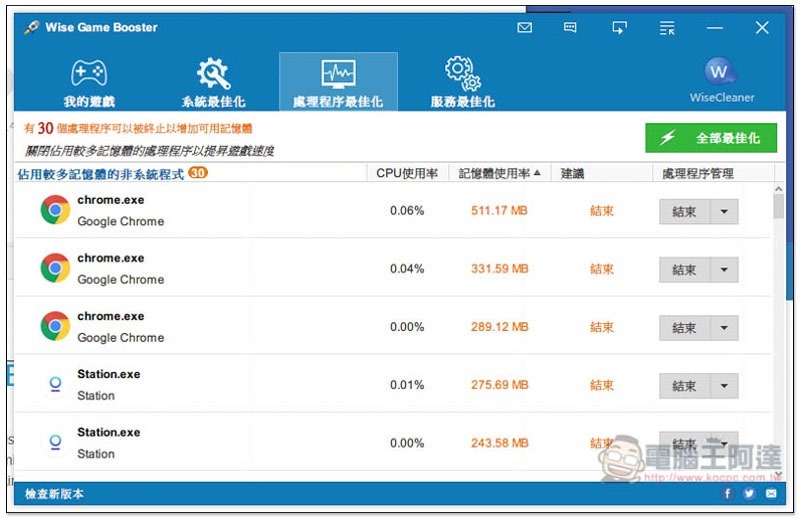
Processing program optimization will close programs that “occupy more memory”. I don’t think this function is very necessary. Basically, you can achieve the same effect by manually closing open applications when playing games. At most, you can use it to check if there are any programs that you forgot to close but occupy a lot of memory:
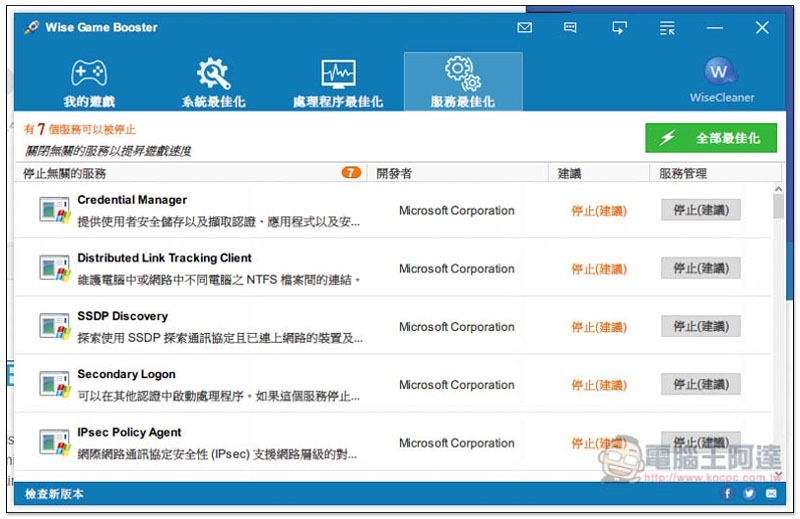
You need to be particularly careful when optimizing the service. Many settings will be changed here. If you are not sure what the impact will be after stopping, you can Google to find out:
Supplementary information
Wise Game Booster official website:Click here to go
Source: KOCPC Chinese