


Although the editor has recently been a little annoyed by the problem of Gmail reporting spam emails but being thrown into spam emails (There is already a solution tutorial through the filter function), but I have to say that Gmail continues to introduce new features to Google’s own mail service through updates. In fact, I have always been very impressed by the functionality. Recently, they have brought more powerful updates to the search function, which will allow you to narrow down the emails you need more quickly. Continue reading Gmail has added a quick search button function, making it easy to find the content of correspondence (teaching) reports with just a few clicks after searching.
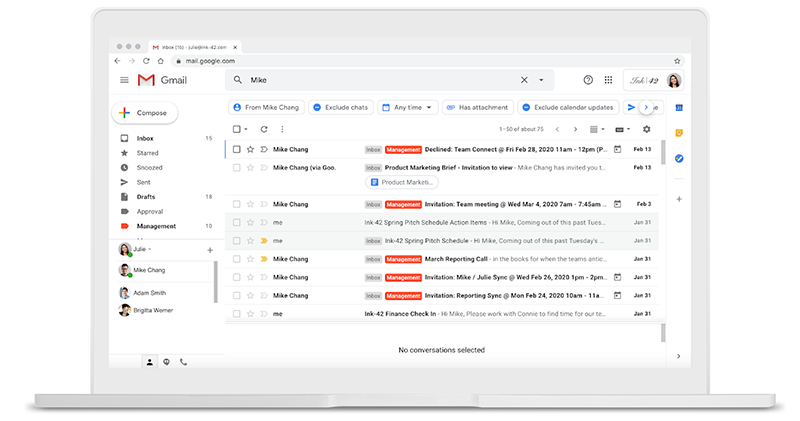
▲Image source: Google
Gmail adds a new quick search button function, you can easily find emails with a few clicks after searching (tutorial)
Generally speaking, if you need to find specific Gmail / G Suite emails, in most cases you should open the interface and enter keywords, and then view them one by one in the list, right? Obviously as a search engine giant, Google doesn’t want you to do this Beat up girls Inefficient use of search. The advanced search function that was originally hidden on the right side of the search function bar is presented in a more humane and intuitive way, allowing you to use the advanced search function that you were too lazy to open before you know it.
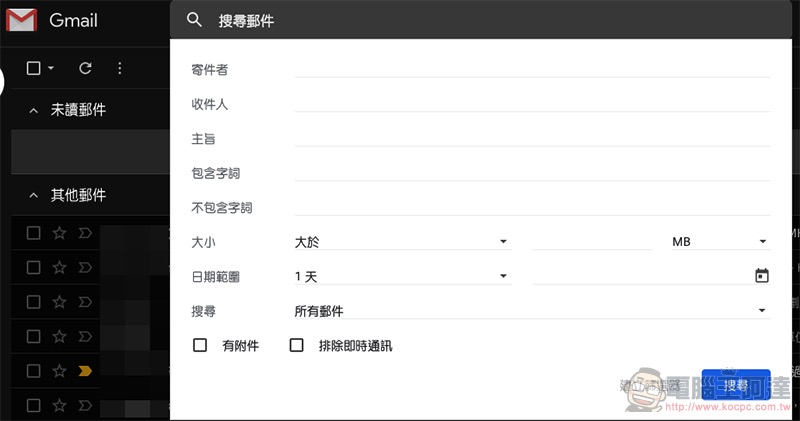
▲Picture: Advanced search function at this stage.
That is to say, although this feature is said to be available to all users in the update instructions, the editor has not actually seen this feature in G Suite accounts or general Gmail accounts. So this may be a feature that will be released in subsequent updates. The search function of the new version of Gmail web version will be as shown below. After the search is completed, various specific condition setting buttons will be added at the bottom of the search bar.
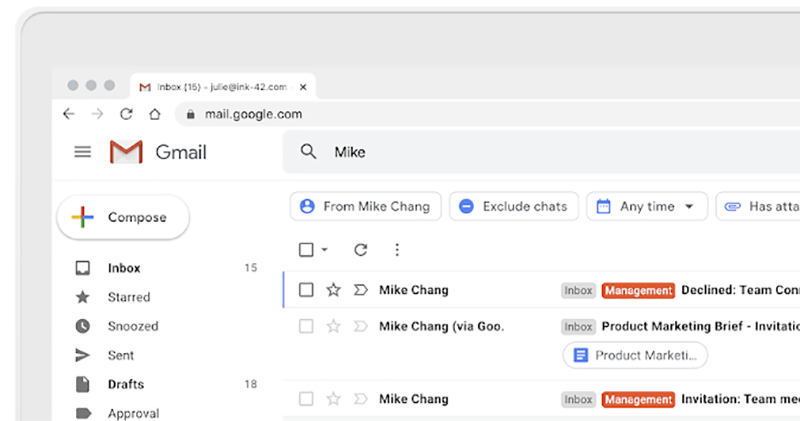
▲Image source: Google
Simply put, this feature narrows your search with suggested search options. Take the search in this picture as an example. If he searches for the name Mike, Gmail will quickly give you “letters from Mike Chang”, allowing you to remove letters from other people with the same name at once. You can also select a specific time point through the time range of the drop-down menu, and you can even specify emails with attachments. Although the overall user experience is similar to the advanced search function originally hidden in the search bar, by listing various option bars into small buttons, it is really easier to use to increase search efficiency and accuracy. It is a good feature, and I recommend it to all readers.
Pictures/sources cited in this article
Further reading:
“OK, Google” will control chargers — from mobile devices to your electric car
Source: KOCPC Chinese