


In order to conveniently receive the latest information, many websites now provide the notification function of the Chrome browser, and Computer King Ada is no exception. However, you may like some websites very much at first, but after a long time, you will be fine with them, and you will rarely even visit the website. However, you will definitely want to turn off the notification function that was allowed at the beginning, otherwise it will be very annoying to receive new notifications every day. This article will teach you how to operate it, continue reading.
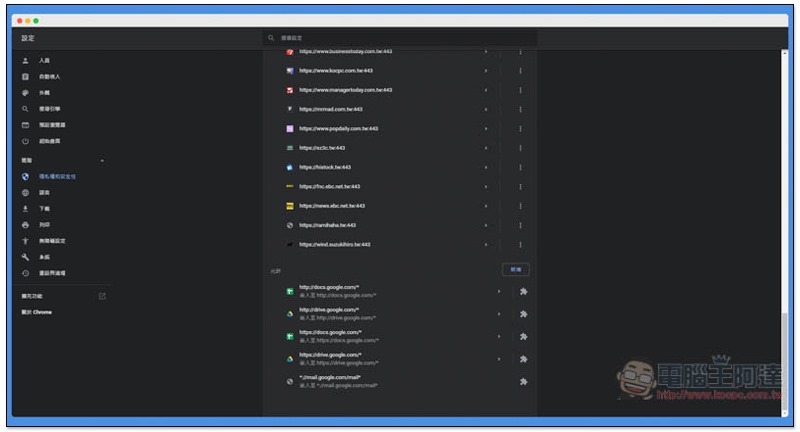
How to manage and turn off allowed/subscribed Chrome website notifications?
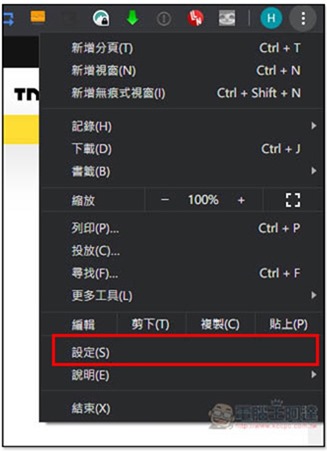
The method is very simple. After opening the… menu in the upper right corner, enter “Settings”:
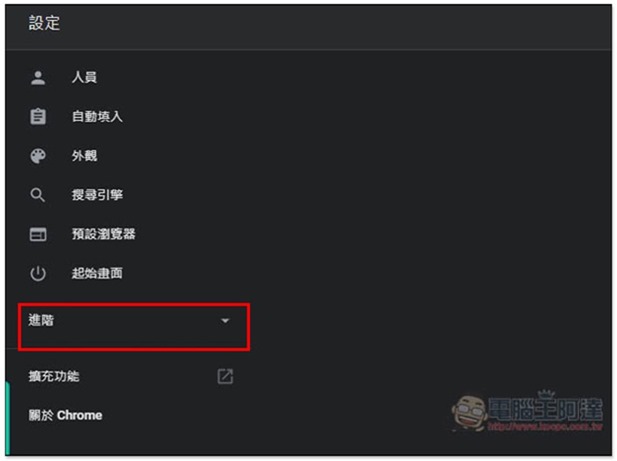
Find “Advanced” in the left column and click the inverted triangle on the right:
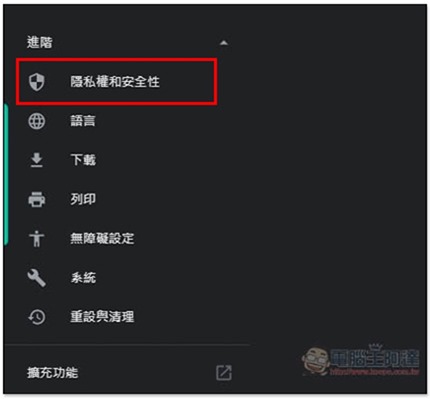
Go to the first “Privacy and Security”. You can actually find this option directly by scrolling down the right side of the screen, but it is easier to go through the left menu:
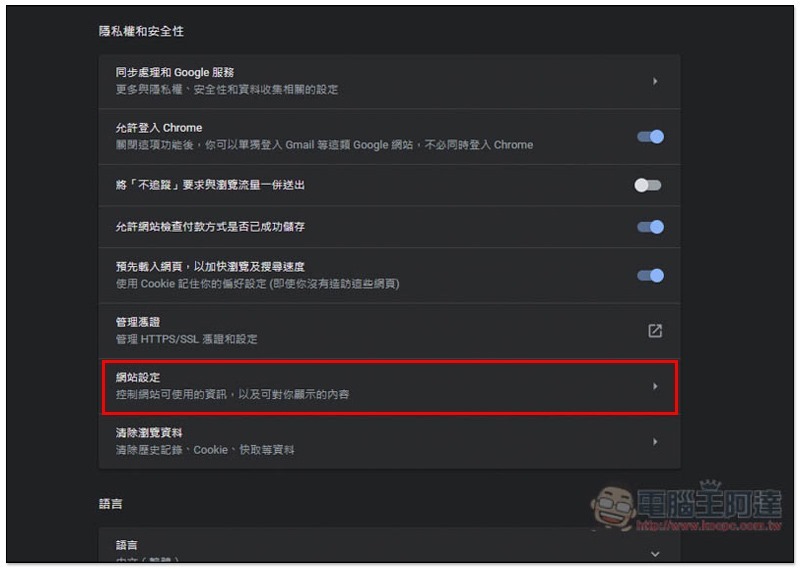
In the menu on the right, find the “Website Settings” option. This option allows you to control the information that the website can use and the content (including notifications) that can be displayed to you. Generally speaking, it will be in the second to last position:
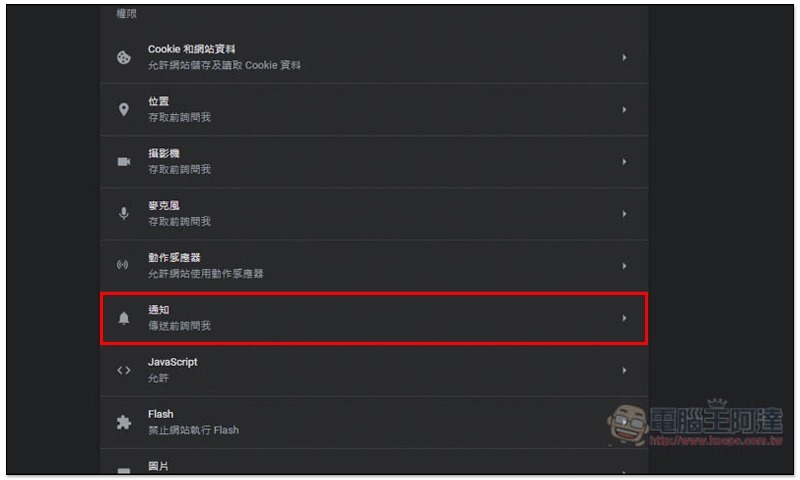
Find the Notifications option, between the motion sensor and JavaScript:
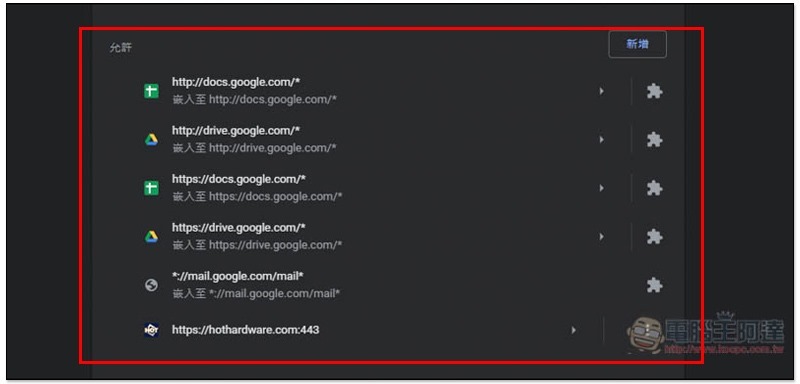
After entering, the websites you have blocked will be displayed at the top. Scroll down to find the “Allowed” websites:
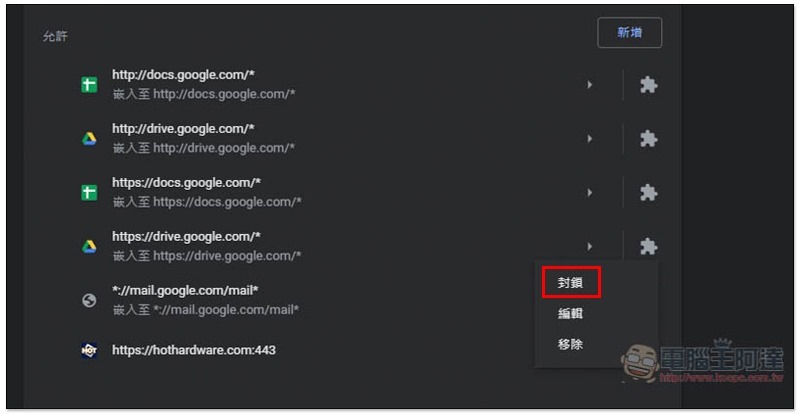
After finding the website you want to turn off notifications, click the… menu on the right, and you will see the “Block” function. After clicking it, the website will be moved to the blocked list above. In addition, you can also remove it, but when you enter this website in the future, a window will pop up again asking whether you want to accept notifications:
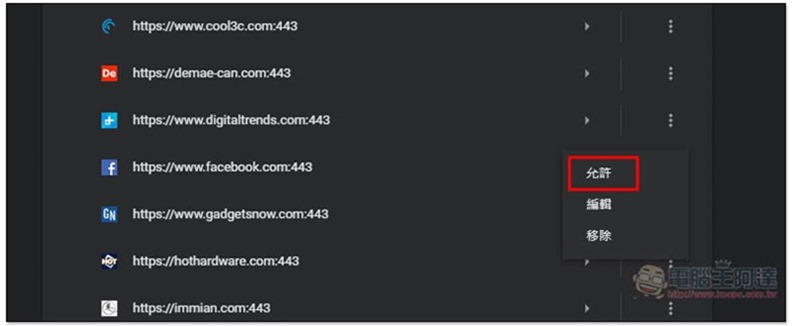
If you want to change a blocked website to allow, the operation method is the same. After finding the website you want to change, open the… menu on the right and you will find the “Allow” function:
If you no longer want to deal with these notifications and want to block them all, you can directly turn off “Ask me before sending” above so that they will not appear again.
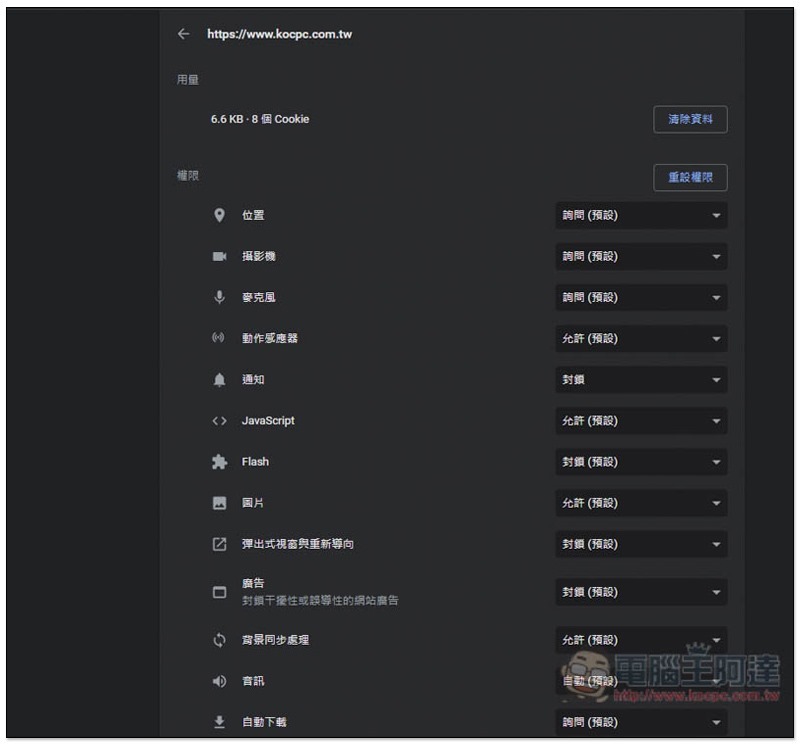
After clicking on any website, you can change the relevant permissions of this website. If you need to:
Source: KOCPC Chinese