


Apple users may know that if you accidentally lose your iPhone, you can use “Find My iPhone” to track the location of your iPhone through remote location. This feature is also applicable to other devices such as iPad, iPod and even Mac. However, more people don’t know that you can actually change the iCloud password directly by logging in to the iPhone unlock password. This article will teach you how to effectively prevent this problem and easily prevent your Find My iPhone from being closed by others.

Can you log in to the iPhone unlock password to directly change the iCloud password and close Find My iPhone?
I believe that most iPhone users have logged into their iCloud account on their daily iPhone. However, many people may not know that as long as they log into iCloud on their iPhone, they can directly change the iCloud (Apple ID) password after unlocking the screen. Although this feature makes it more convenient for users to use it, it also raises a problem, that is, if someone cracks your iPhone, they will be able to use this feature to change your iCloud password and then turn it off. Find My iPhone function, it also makes it very likely that the phone will not be recovered if it is lost.
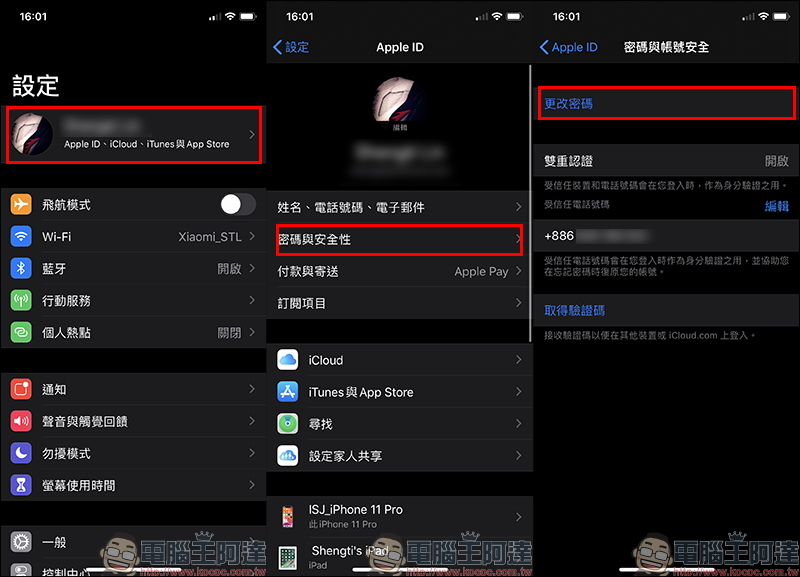
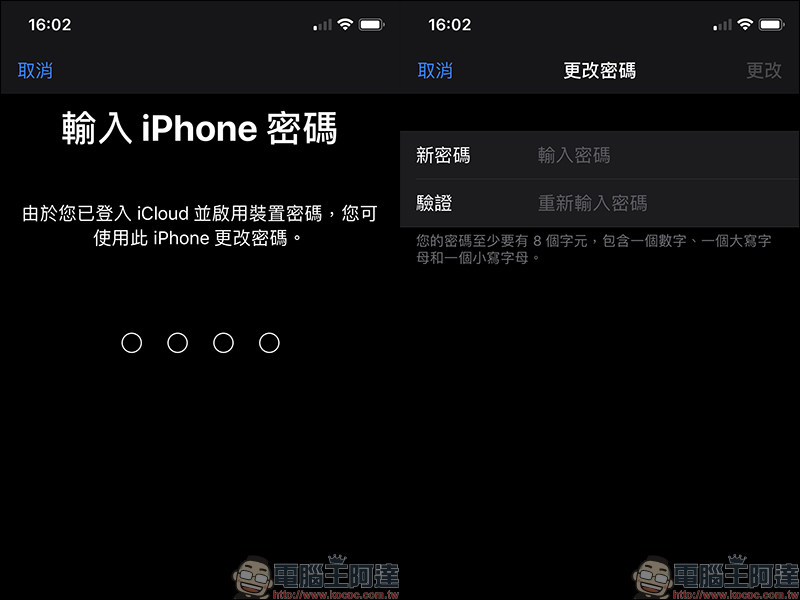
You can see that following the above steps to enter the account to change the password, the screen will display “Because you are logged in to iCloud and have enabled device passcode, you can use this iPhone to change the password.” At this time, as long as you enter the iPhone unlock password, you can directly change the iCloud (Apple ID) password through authentication:
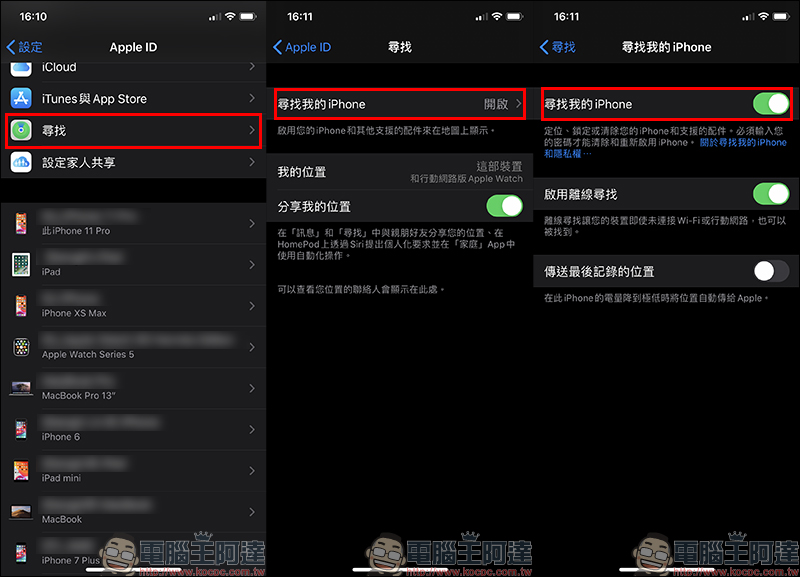
When a malicious person obtains your iPhone and unlocks it, and has also changed the iCloud (Apple ID) password, he can directly go to “Find” on the account page (Apple ID) to turn off the Find My iPhone function directly:
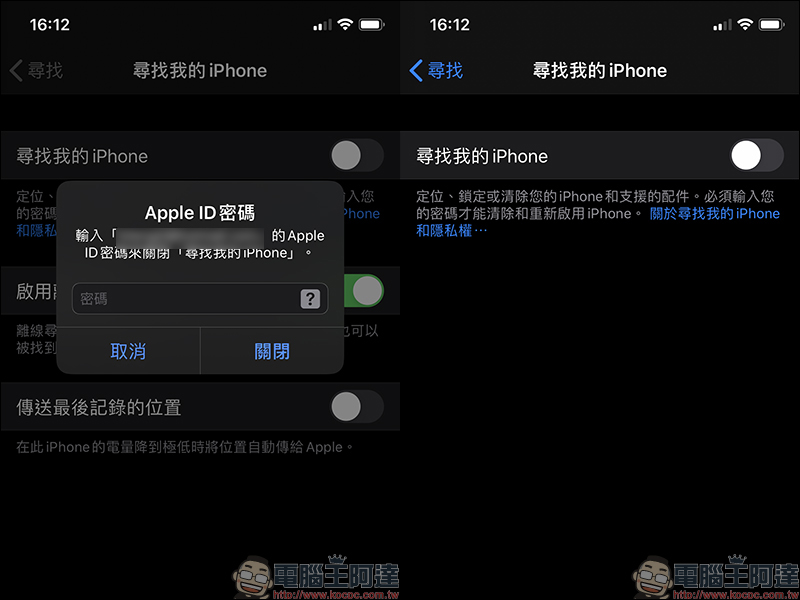
Also because someone else has obtained a new password by changing the password, you only need to enter the new password to turn off the Find My iPhone function through authentication:
How to prevent this problem?
In fact, it is quite easy to prevent this problem. First, click “Screen Time” on the settings page, then click “Content and Privacy Restrictions” to turn on this feature:
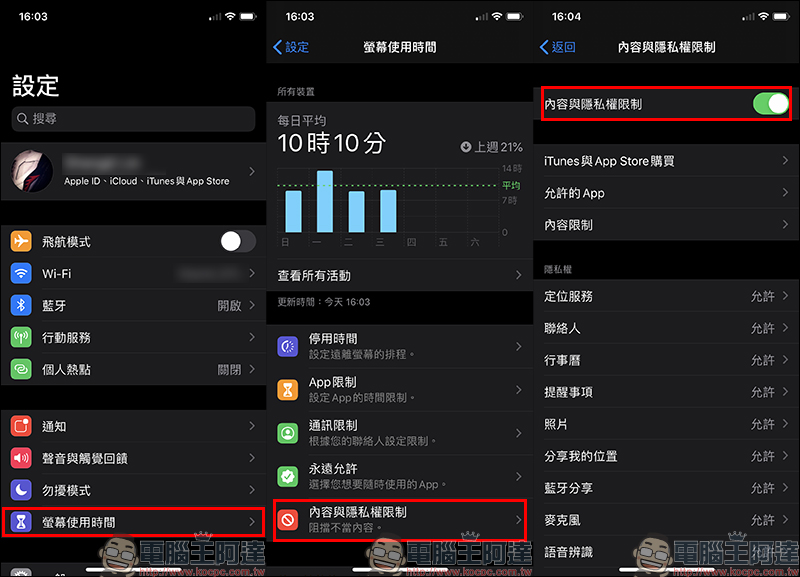
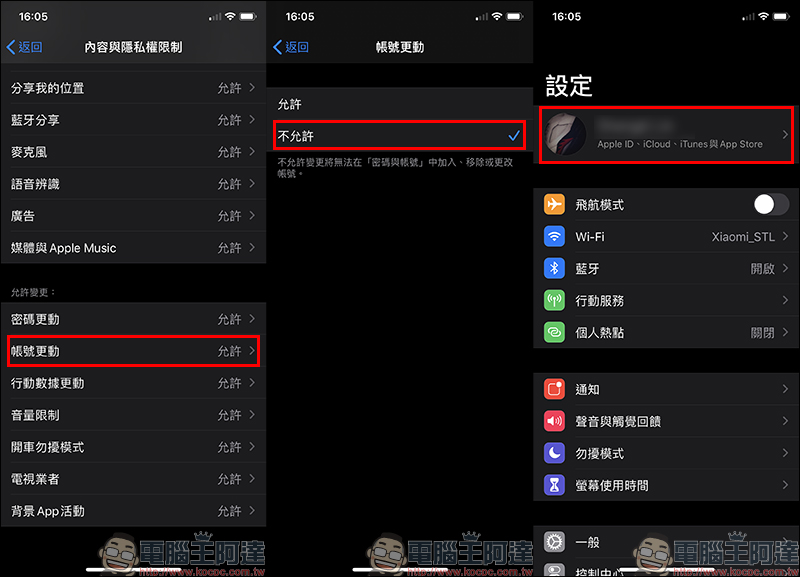
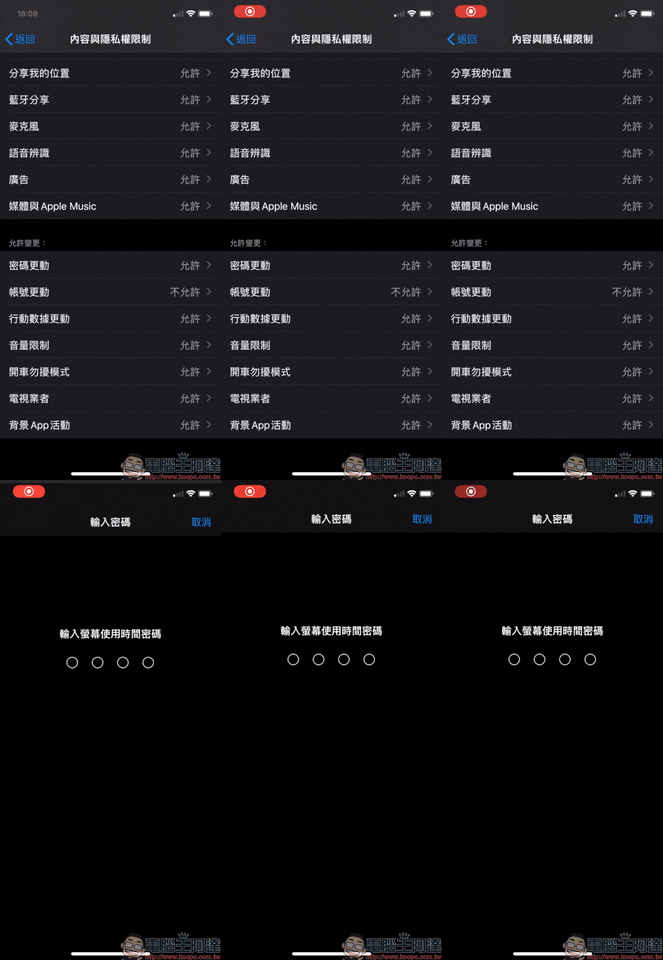
At the bottom of the page, change the “Account Change” that allows changes to “Not Allowed”. At this time, the settings page will be grayed out and the account cannot be changed:
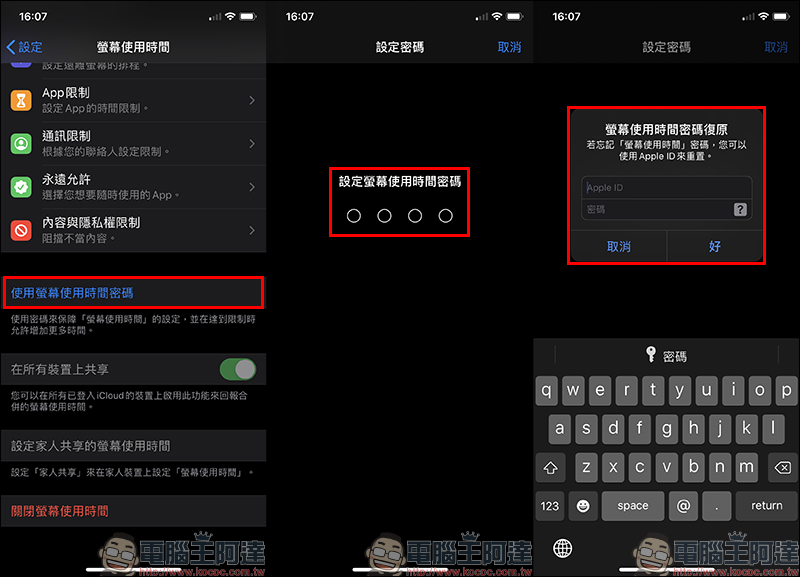
To prevent the above “Content and Privacy Restrictions” settings from being changed, go to “Screen Time” and set up “Screen Time Password” to add a layer of restriction protection password.
In addition, to prevent the “Screen Time Password” from being cracked, in addition to not using birthdays or other easily guessed numeric passwords, do not use the same password for the “Screen Lock Password” and “Screen Time Password”:
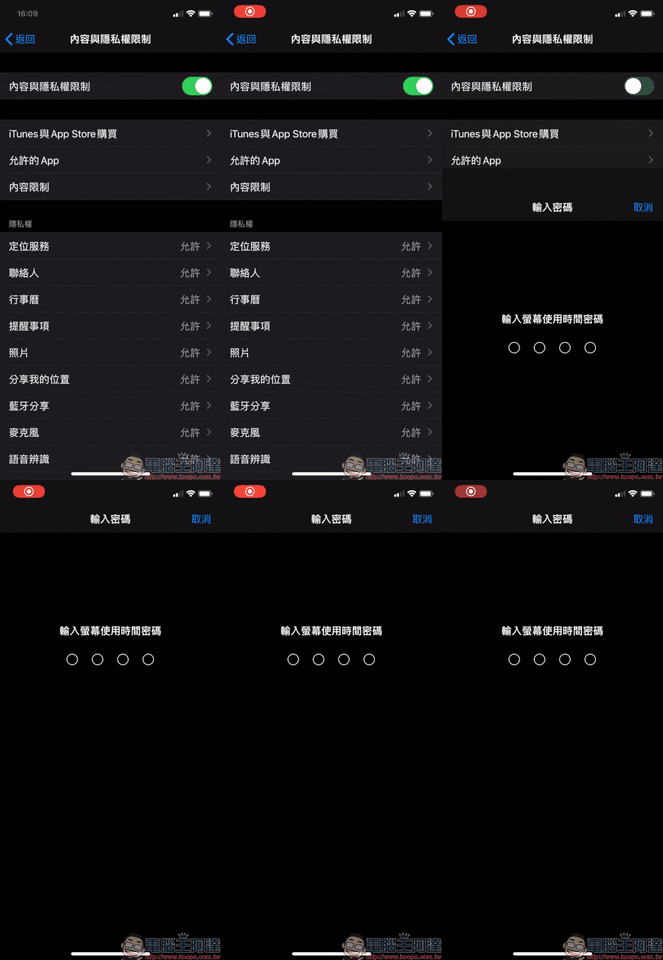
After setting the Screen Time password, if others want to change any settings in content privacy restrictions, they must enter this password to make changes. This can also further increase privacy security:
Also featured: How to add security to the screen unlock password?
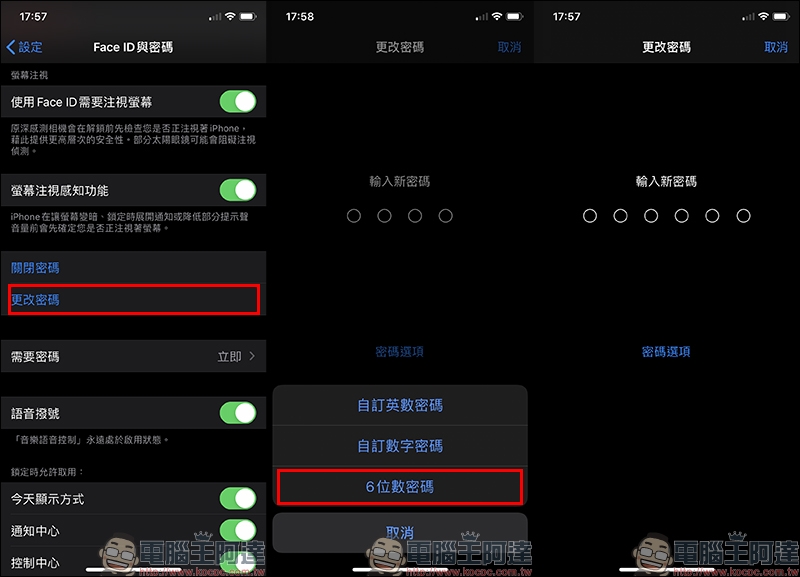
In the past, the iPhone unlock password was usually defaulted to a “4-digit password”. Although the default iPhone is currently changed to a “6-digit password”, many users still go to the settings to change the password option to a “4-digit password” for convenience. However, this setting makes it easier for users to be unable to distinguish the difference between the “screen unlock password” and the “screen time password”, and it is also easy to set the same password, which leads to the possibility of password cracking.
Therefore, the author also recommends that you use the “6-digit password” as the first choice for screen unlock password, and avoid the first 4 digits of the 6-digit password being the same as the “Screen Time Password”. If you want to further enhance the security of unlocking, you can change the password to a “custom alphanumeric password” or “custom numeric password” as the screen unlock password:
Further reading:
iOS App Tips: Four Tips for Making Quick Calls
Source: KOCPC Chinese