


ScreenShare is a free cross-platform screen projection tool that is supported by iOS, Android, Mac, Windows, and Android TV systems. It has AirPlay, Miracast, and DLNA protocols. It not only projects the mobile screen to the computer, but also the reverse, that is, the computer screen is projected to the mobile phone. In addition, it also provides some good practical functions, such as: screen recording, graffiti, etc., completely free of charge.
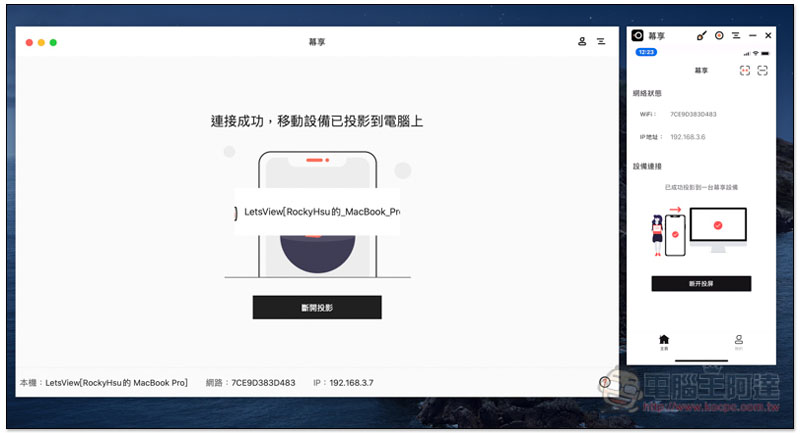
Introduction to screen projection free tools
Click here to enter the official website of Muxiang, select the version you want to download. I will take iOS to Mac and Android to Mac as examples below.
Also, let me remind you that the Android version requires downloading the APK file for installation. If you mind, you can skip it directly.
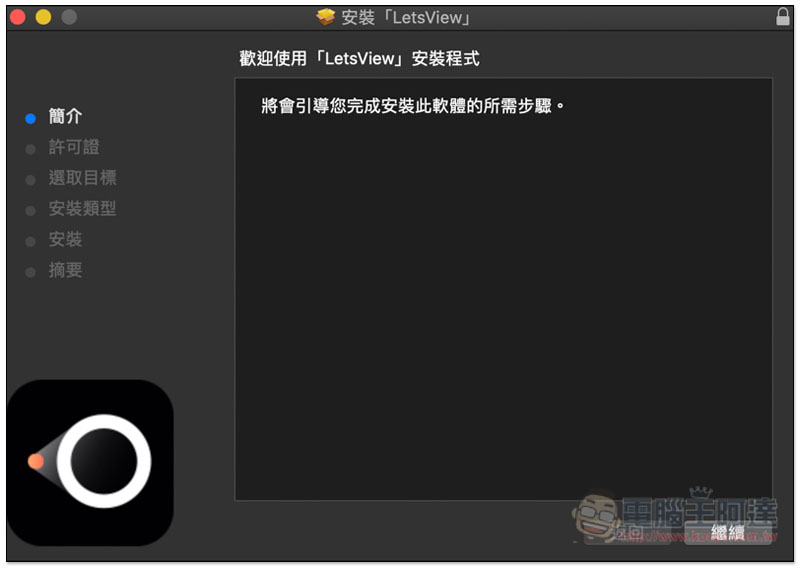
Just click Next during the Mac version installation process:
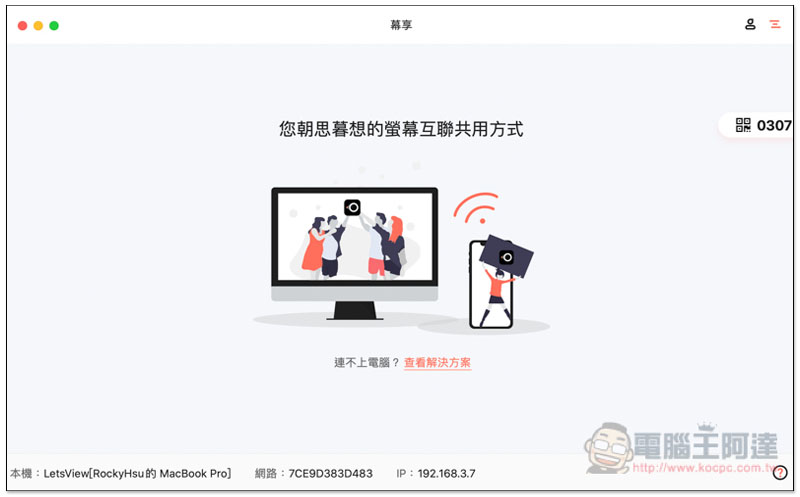
Once done, open it and take out the phone you want to project.computer to computerOkay, it depends on your needs. Let’s look at the iOS version first:
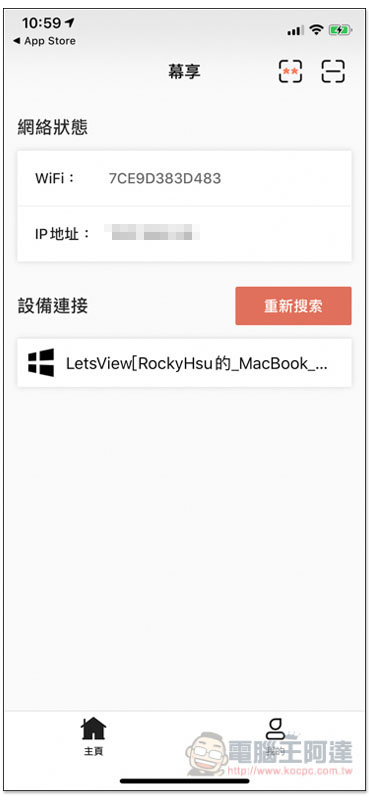
After the iOS App is opened, you will see the name of the device on the same network below, click on it:
Choose how you want to project, project to your phone screen, or project your computer desktop to your phone:
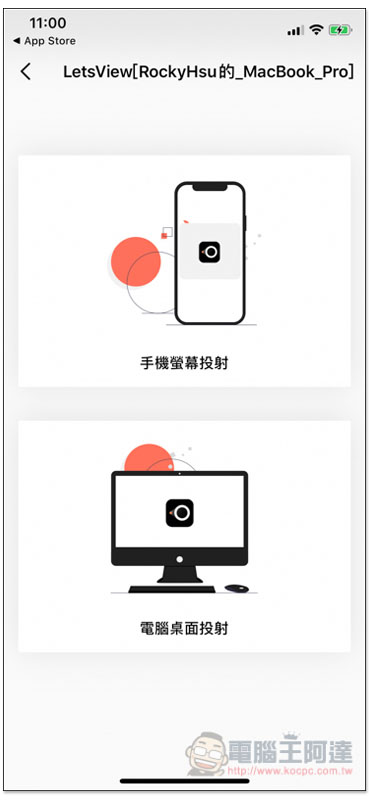
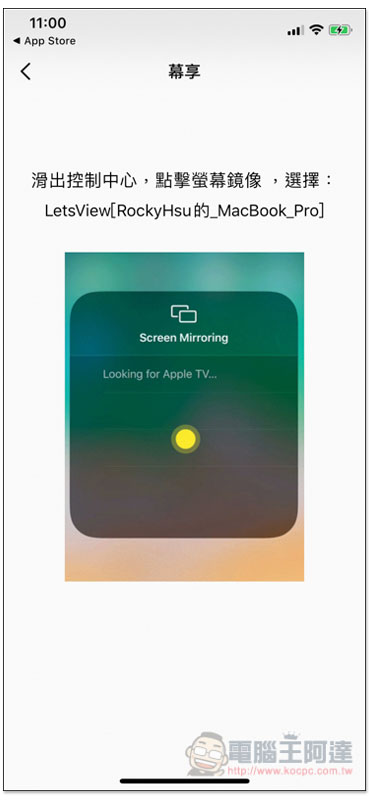
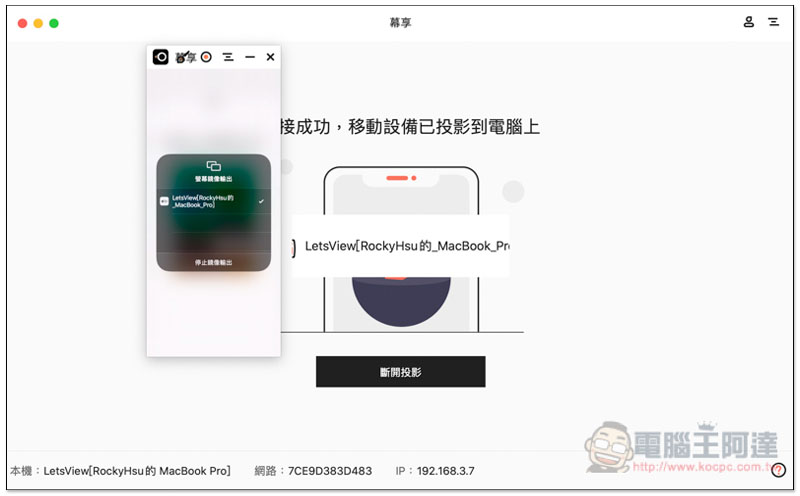
The iOS casting method requires screen mirroring output in the control center, just like the AirPlay operation method:
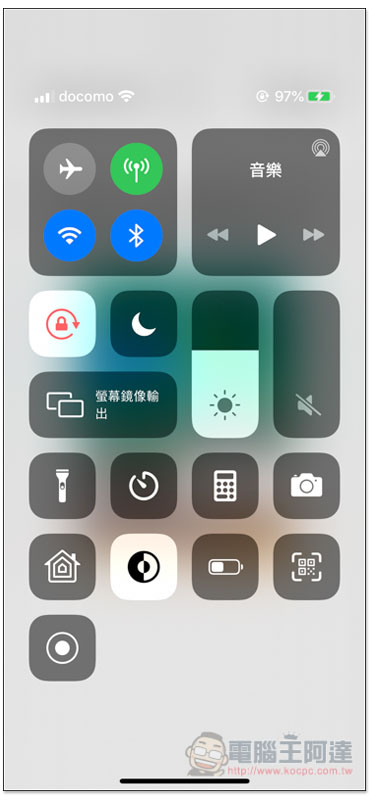
Slide open the control center, adjust the brightness and you will see the screen mirroring output function on the left side:
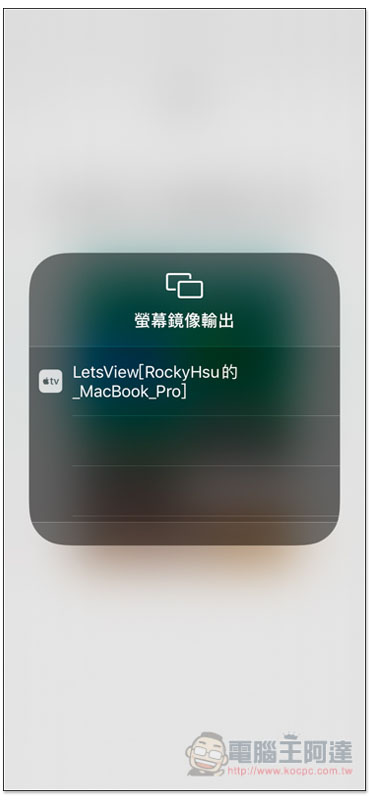
Click on the device to project:
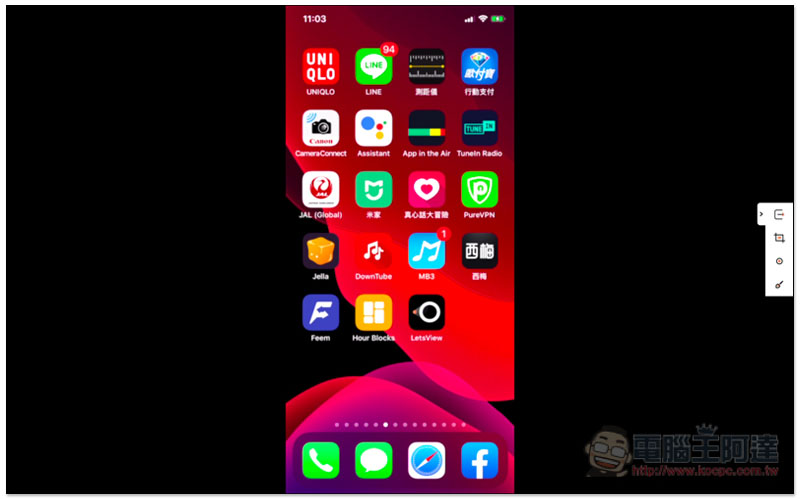
You will see the iOS screen on your Mac or computer, and the images and sounds will be projected, which is great. However, this set has a small drawback. It cannot be zoomed in or out in window mode. The default screen is very small, which makes it difficult to use. But the good news is that it also provides full screen:
There will be no problem after zooming in. If you feel the resolution is a bit low:
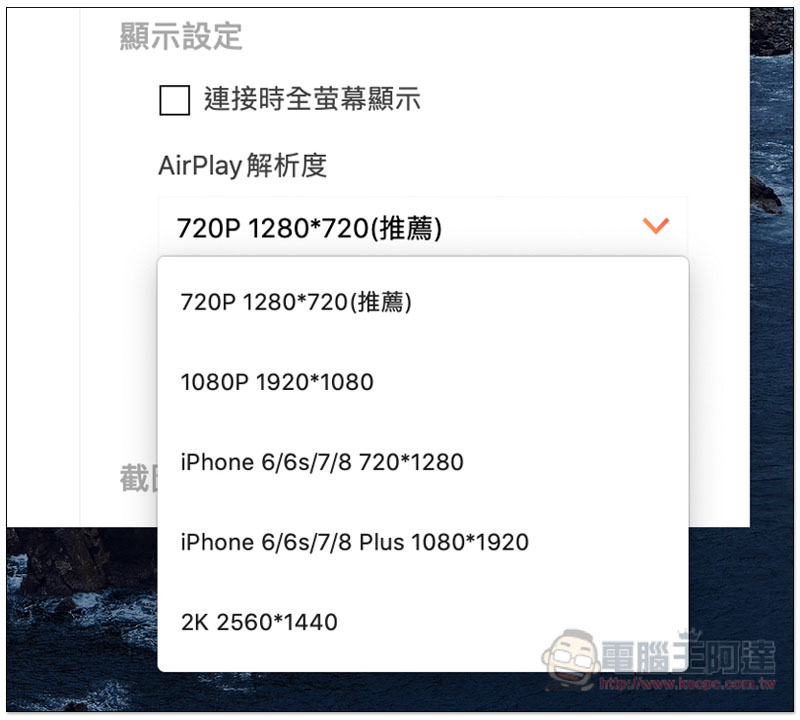
You can adjust the display settings a bit higher, the default is 720P:
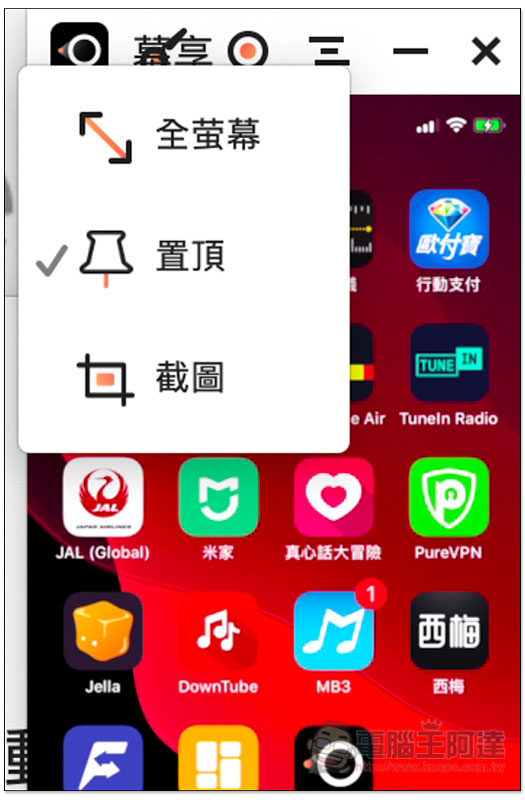
There are some tools available at the top of the window, such as pin, screenshot, and screen recording:
Although it is said that images and sounds will be projected, in my actual test, when I used it to play games, it was not very smooth and there would be lag (I am not sure about Windows, I don’t have a computer at hand to test):
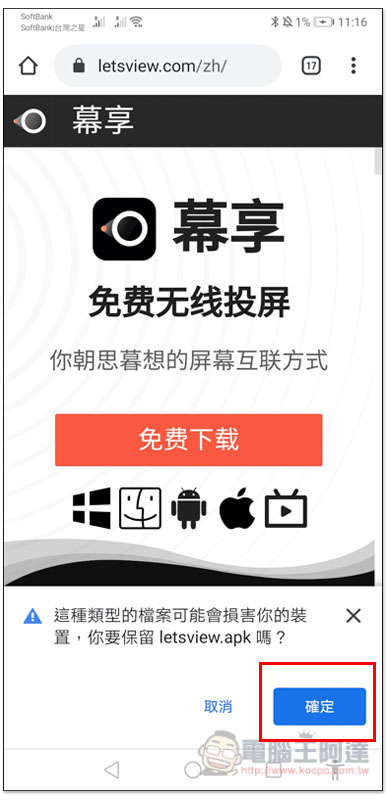
The operation method of projecting Android to Mac is roughly the same. This set is not available on Google Play, so you need to download the APK file from the official website and install it:
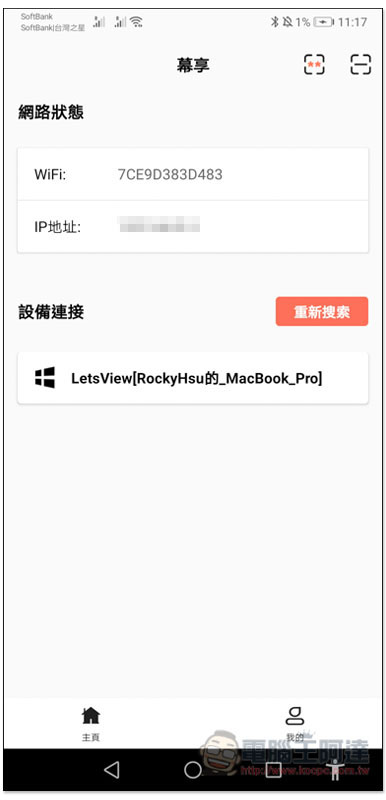
After installation, open it and you will see the devices on the same network below:
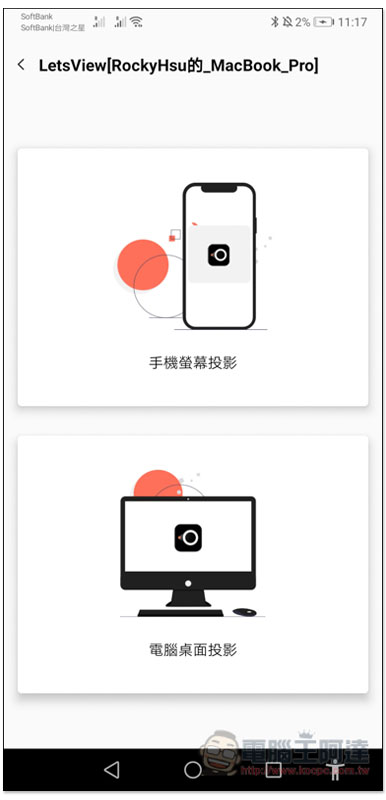
Click to select how you want to project:
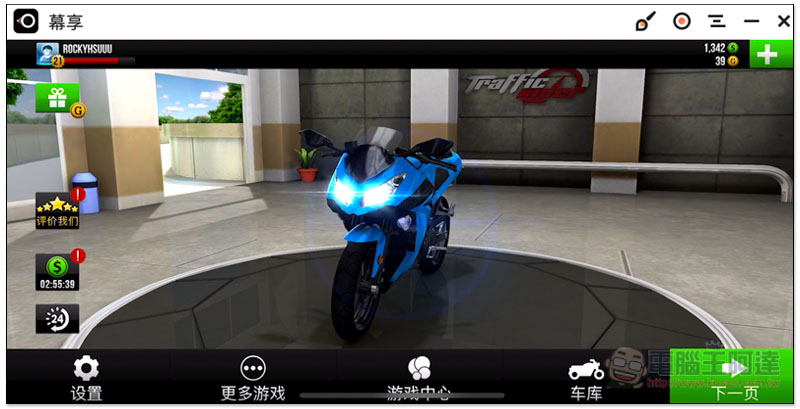
Your Mac or computer will see the Android screen:
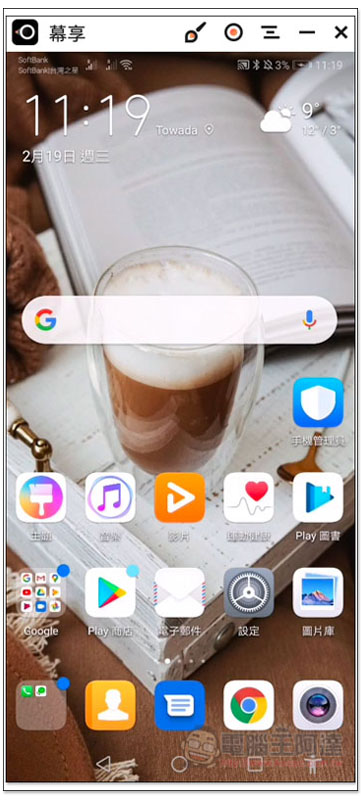
Although the operation of this set is really simple, I personally don’t say it is particularly smooth to use. There are still many areas worthy of improvement.
Those who are interested can try it first. If you feel like me, you can also refer to other tools introduced before: Airplay Receiver for windows、Scrcpy 。
Supplementary information
Muxiang official website:Click here to go
Airplay Receiver for windows 讓 iPhone / iPad / Mac 也能使用 AirPlay 鏡像到 PC 電腦上(影像、聲音都會)
Source: KOCPC Chinese