


Windows users who have used AirDrop on Mac and iOS must be envious of this ultra-convenient feature. No matter whether there is a network or not, wireless transmission can be performed as long as the device is nearby. Therefore, this article will recommend a free tool that allows Windows to have AirDrop-like functions: Feem V4, which supports all platforms and is available in Windows, Mac, iOS, Android, and Linux system versions. Each system can wirelessly transmit data to each other across platforms, and it also transfers directly to each other without uploading to any cloud server. The speed is very fast and the user experience is quite good.
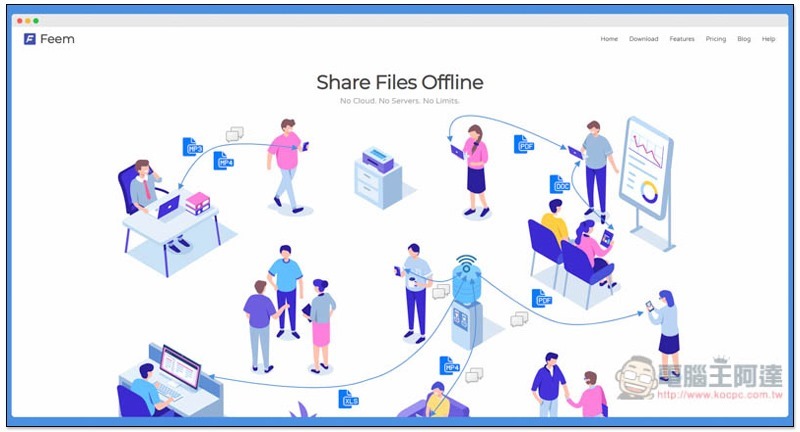
Introduction to Feem V4
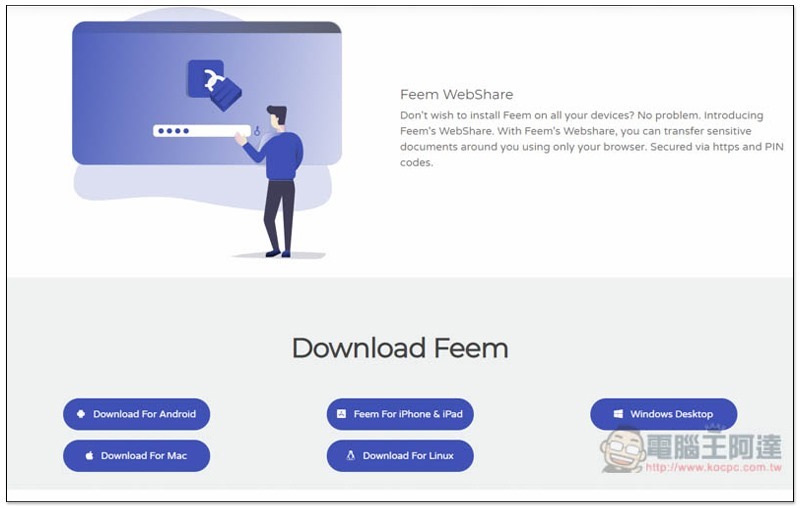
Click here to enter the official website of Feem V4, it depends on which system version you want to download. I will use Windows as an example in this article, and the mobile version is Android:
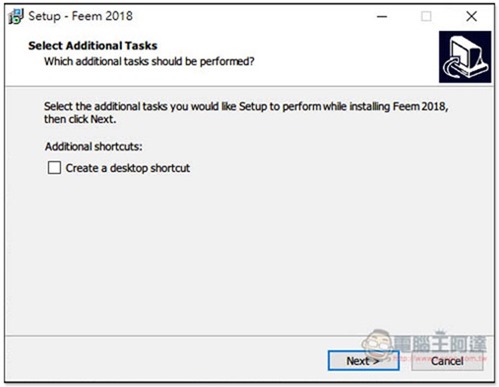
Just keep pressing Next during the installation process. If you need to create a desktop shortcut icon, check Create a desktop shortcut:
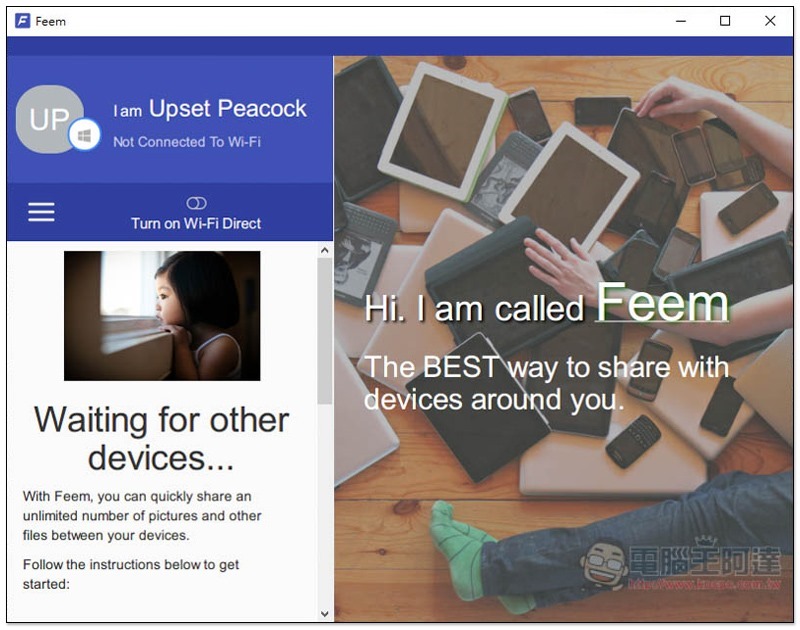
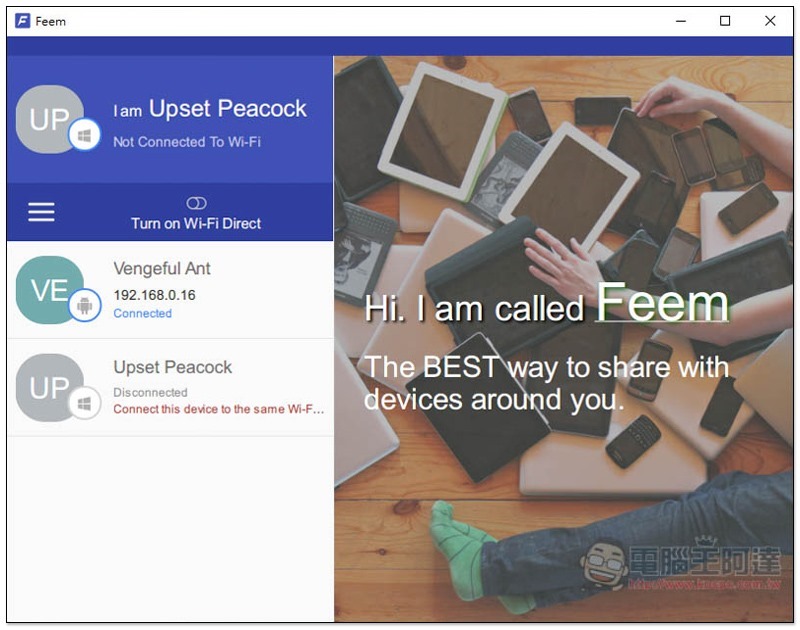
The picture below shows the Windows operating interface, which can be used without applying for an account. Currently, I have not installed this set on other devices, so Waiting for other devices is empty:
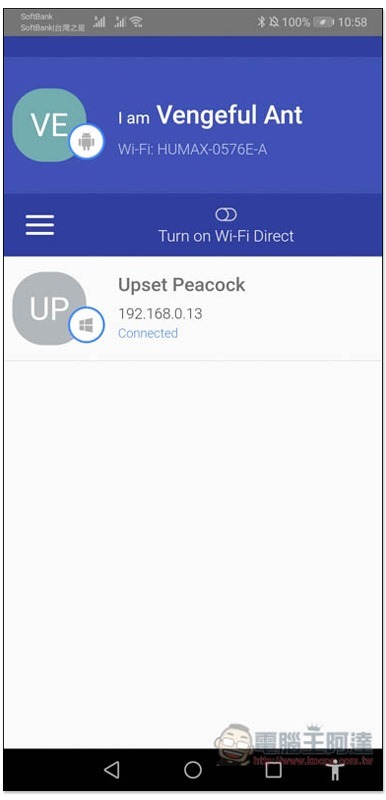
After the installation is completed on my Android phone, as long as it is on the same network, it will immediately appear on the list without any settings:
The Android phone also detects my Windows computer:
How to transfer data via Feem V4
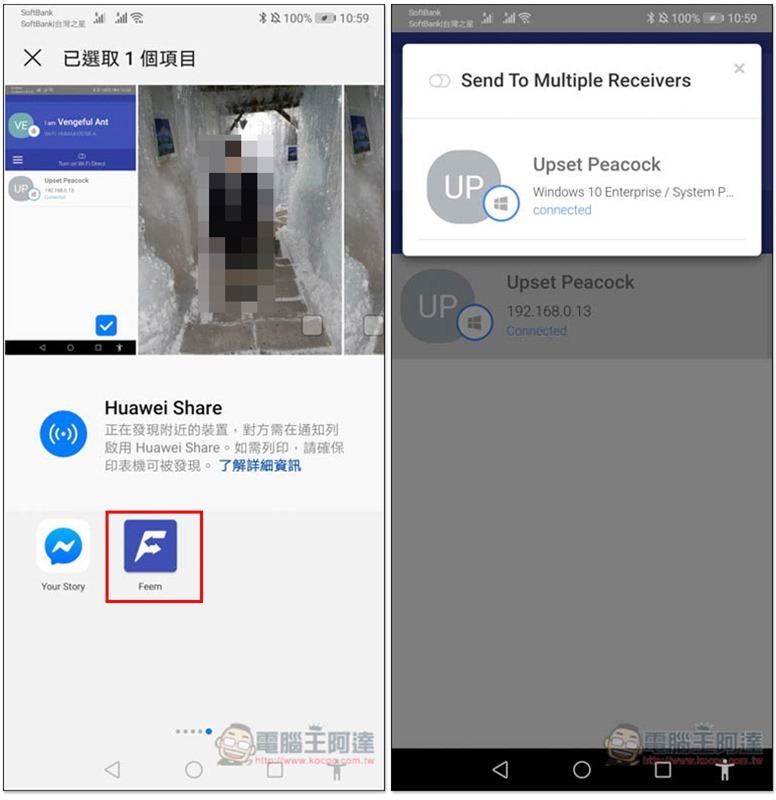
There are two Android transfer methods. The first is to directly click into the chat window of the device to upload. The second is an operation process similar to Airdrop. After entering the file/photo/video you want to transfer, click the share function and find Feem, as shown in the figure below:
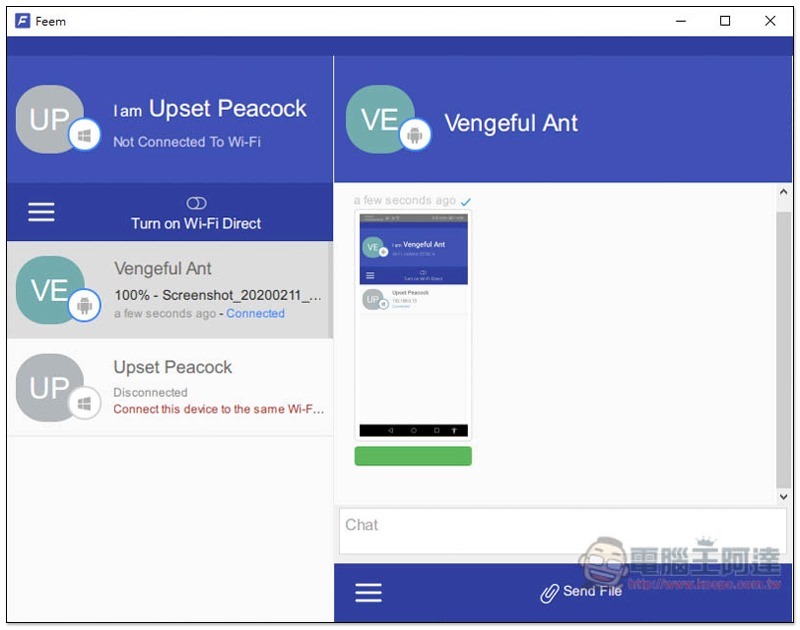
Windows will receive the file, which has been stored in the computer and will not be uploaded to any cloud server during the process:
The default storage location is the pictures folder:
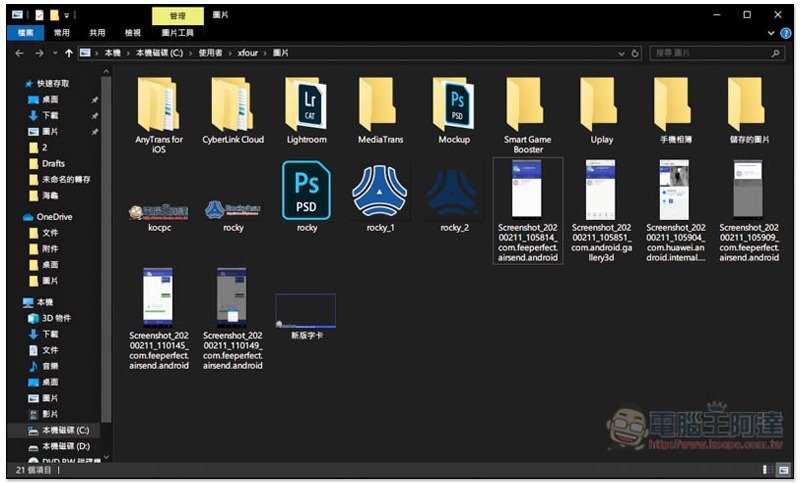
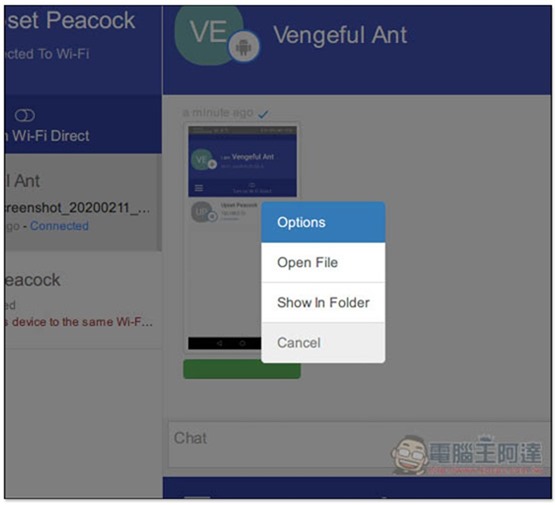
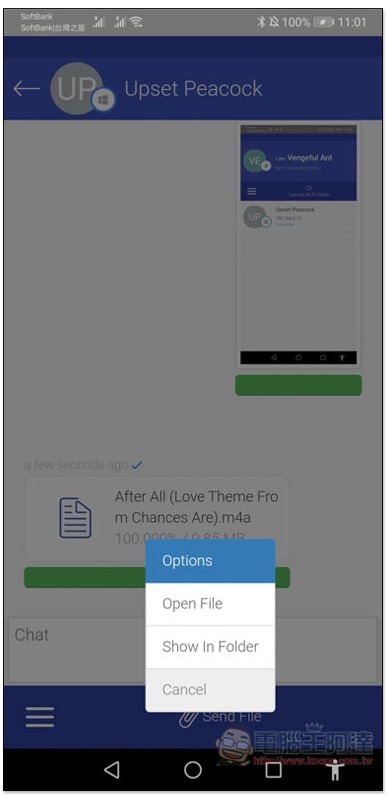
If you can’t find it, you can click on the file to open the menu, and you will see the Show in Folder function:
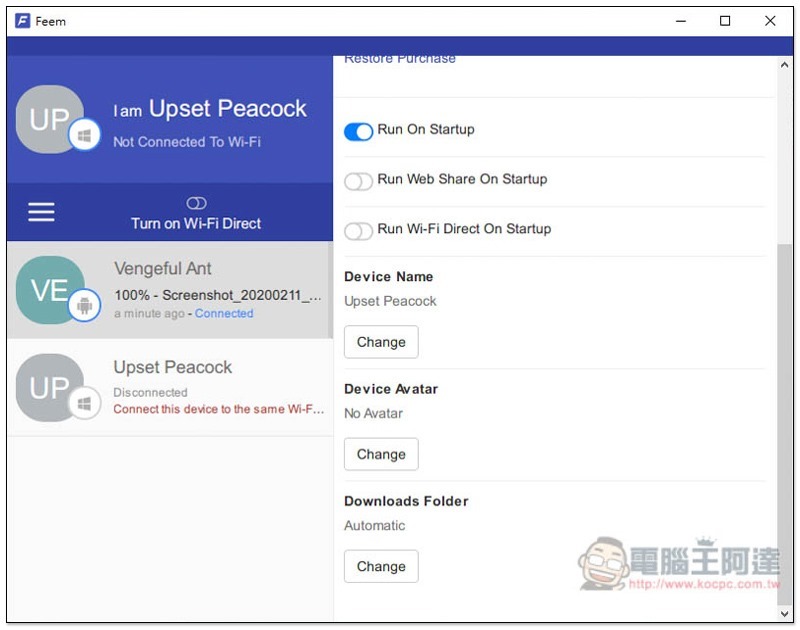
Although you can find the option to change the downloads folder (Downloads Folder) in the settings, the free version cannot be changed and must be upgraded to the paid version:
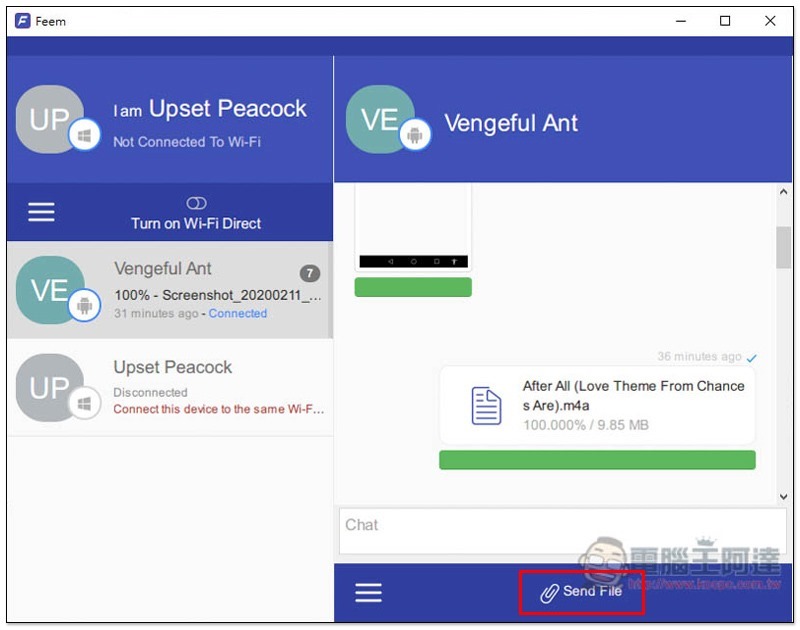
As for Windows transfer to mobile phones or other devices, just click Send Files at the bottom of the chat window. It is no problem to transfer large files such as videos, and the speed is very fast:
Once the transfer is complete, your Android or other device will receive this file:
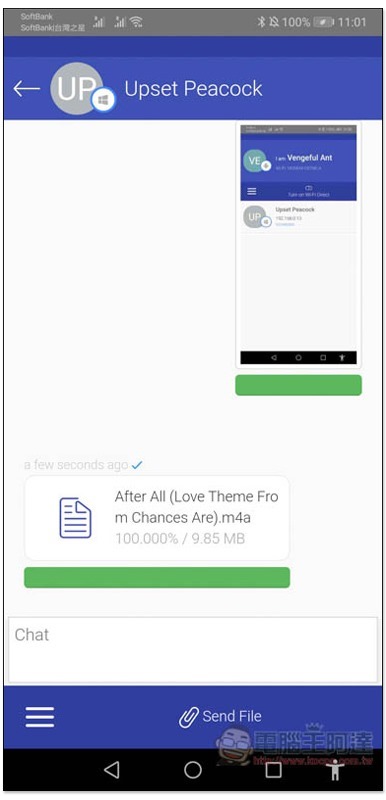
You can open it directly to watch or use:
Feem V4 can be said to be the best cross-platform file transfer solution I have ever used. It is easy to use and does not require any configuration. It is easier to use than AirDroid. I highly recommend it to everyone.
Supplementary information
Feem V4 download pages for each version:Click here to go
Source: KOCPC Chinese