


The iOS screenshot method is the side/power button + volume up button. Although it is not difficult to operate, if you are like me and often use the screenshot function, you may find that this action is not that smooth, especially if it can only be used with one hand. It is easy to make mistakes, such as not pressing these two buttons at the same time, accidentally pressing the side/power button first, and the screen dims. This article will teach you a little trick. Just long press or double-tap the screen to take a screenshot. It can be easily done even if your iPhone/iPad is placed on the desktop.
Long press or double-tap the screen to complete the tutorial steps for taking screenshots
This gesture action is actually realized through the white dot. If you have already turned on the white dot, you only need to set one more function. If you haven’t, I will teach you how to open it below. In addition, I will also propose two solutions to the eye-catching white dot problem that many people don’t like.
How to turn on the little white dot function
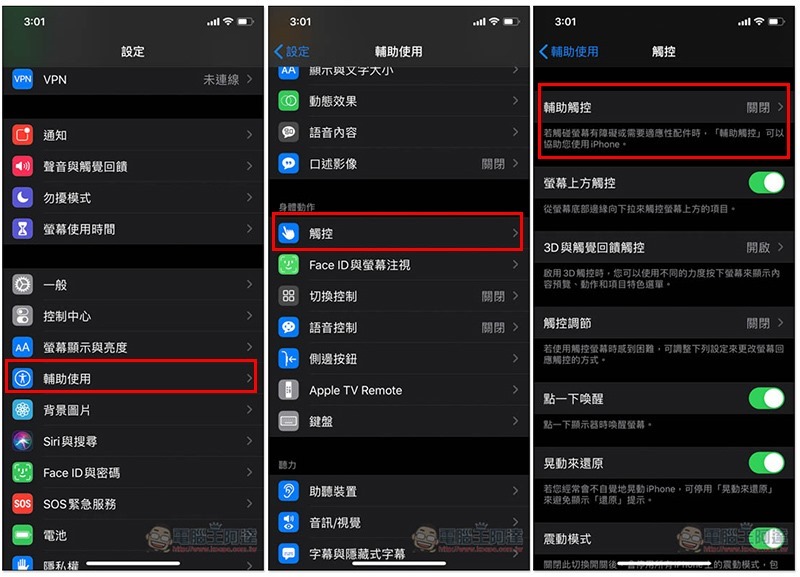
After entering iOS settings, click Accessibility –> Touch –> Assistive Touch:
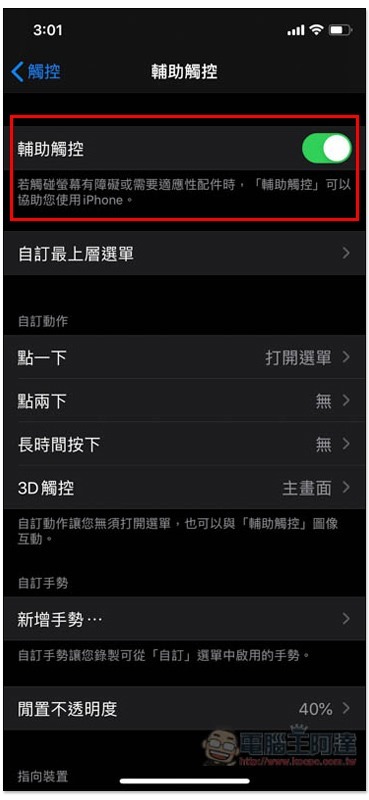
Turn on the auxiliary touch function, so that the small white dot will appear on the screen (the screenshot cannot be taken):
Set long press or double tap on the screen to take a screenshot
Below you will see that double-clicking and long-pressing do not set any action. It depends on which one you want to use. After entering the internal page menu, select “Screenshot”:
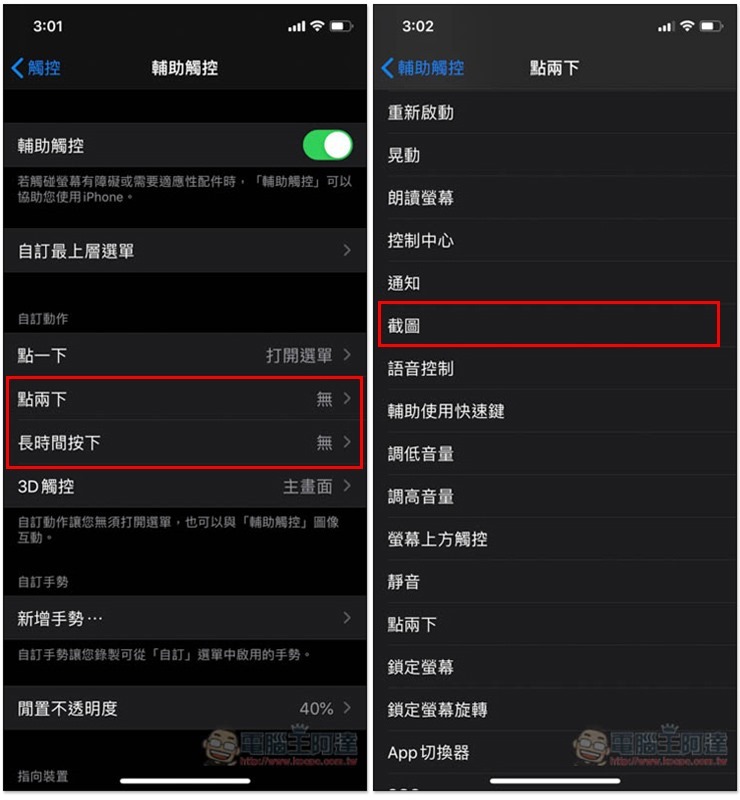
Next, you can click twice or press the white dot for a long time to take a screenshot. In the future, there is no need to use the awkward method of side/power button + volume up button, and it is really nice to be able to take screenshots even when the device is placed on the desktop.
How to solve the eyesore of small white spots
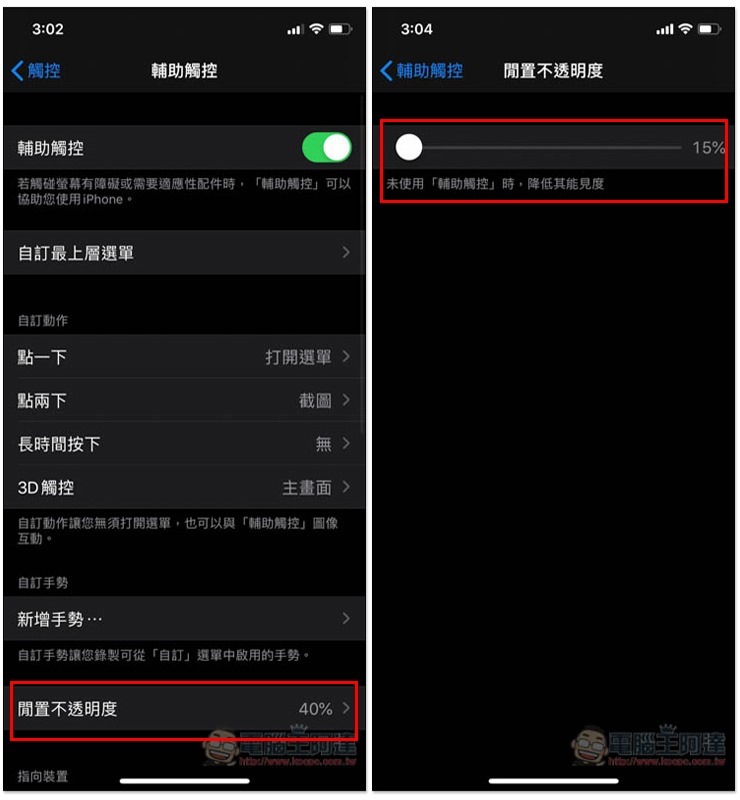
There are two methods. The first is to reduce the transparency of the small white dots to the lowest level. At the bottom of the assistive touch menu, you can find the idle opacity setting. Adjust it to the lowest 15%, and then slide the white dot to the edge of the screen (I personally put it in the lower right corner), so that when the white dot is not used, it will become almost invisible:
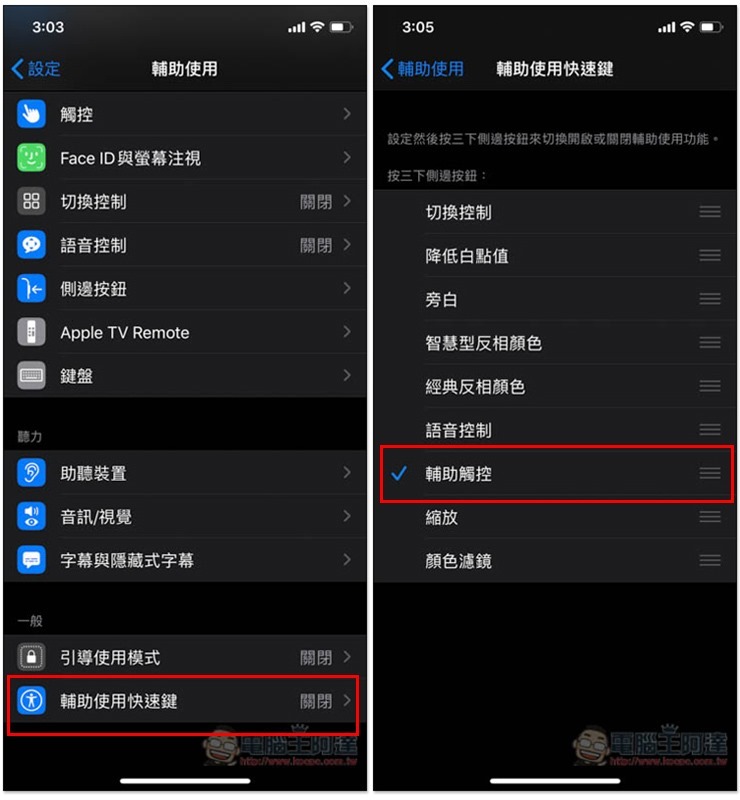
The second method is to set the white dot to be activated by tapping the side/power button three times. In the assistive use menu, enter the assistive use shortcut keys and select “Assistive Touch” and you are done:
I personally prefer the first solution, because the second one feels pointless. You still have to press the side button. It would be easier to just not use the white dot.
Source: KOCPC Chinese