


Although everyone knows that time management is important, it is really difficult to fully grasp it without auxiliary tools to help track and record what time is spent on every day. If you are using the iOS system, this Hours Time Tracking is a good choice. It allows us to create independent timers for various things. When recording, it will also be arranged according to the schedule, such as: writing articles at 3~4pm, checking information at 4~5pm, etc., which facilitates our follow-up tracking and management.
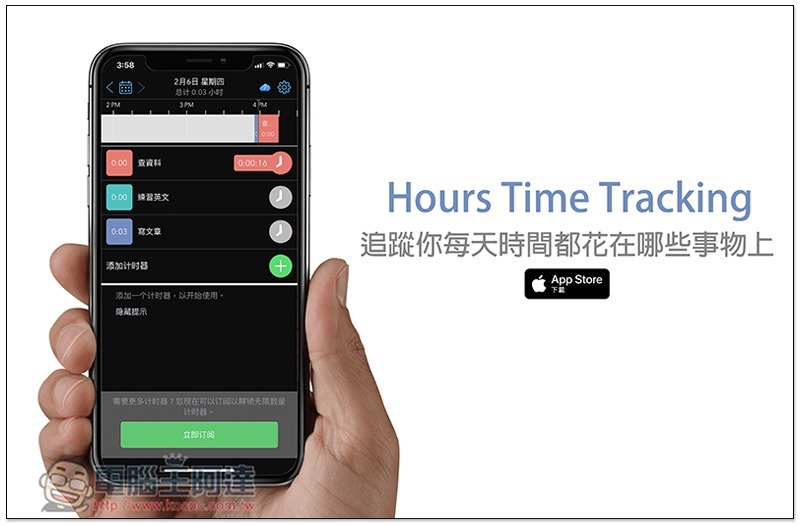
Introduction to Hours Time Tracking
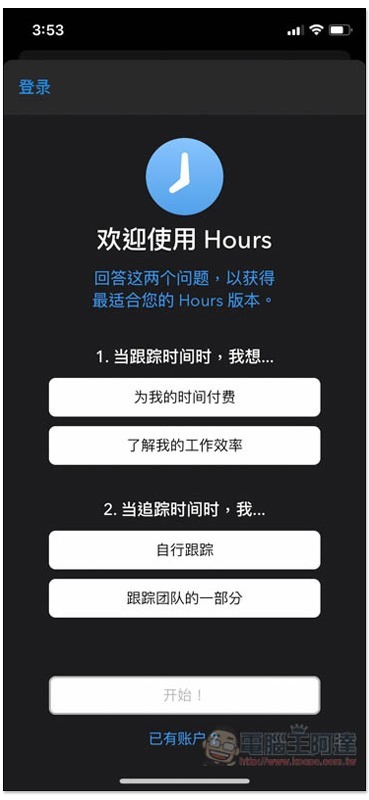
When you open Hours Time Tracking for the first time, you need to answer two questions. The main reason is that this app provides multiple versions, including personal, professional and team:
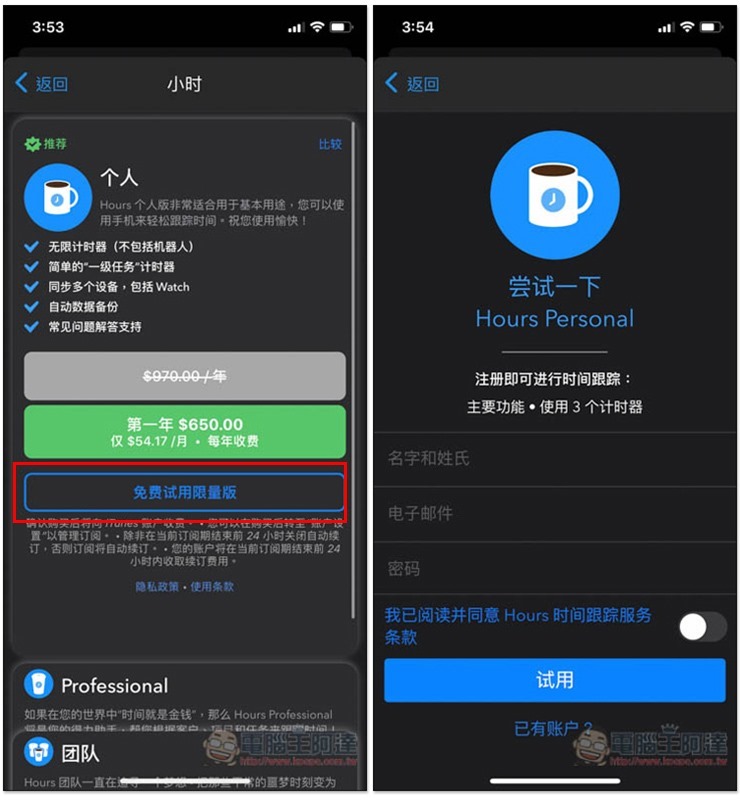
There is also a free version and a paid version. The free version can only create up to 3 timers. Personally, I think you can try it first. For the main work, I think 3 is quite enough, unless you also want to record some trivial things. Click on the free trial limited edition to register. This step will not require payment or subscription, and there is no need to worry about being deducted later:
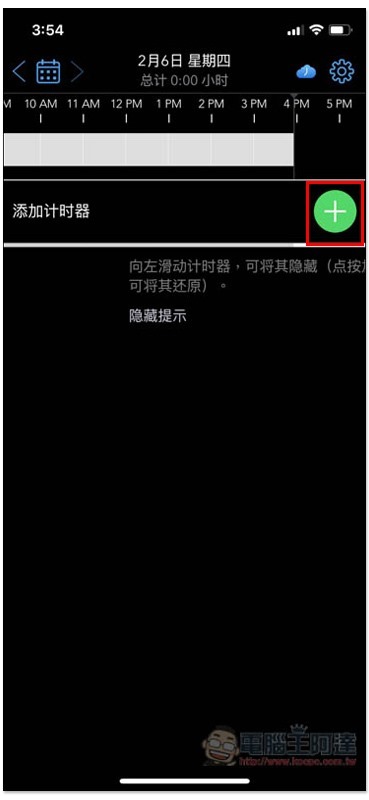
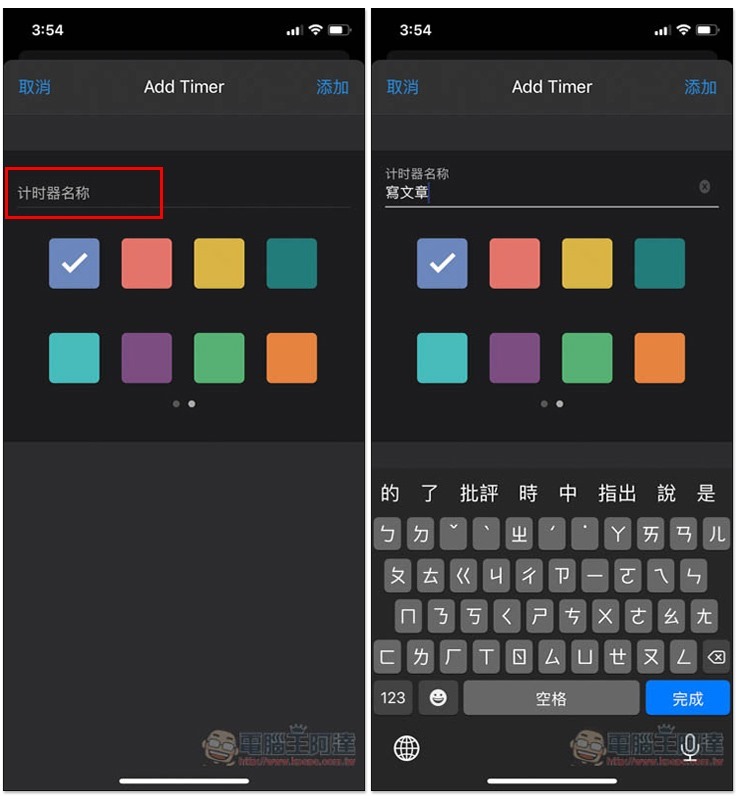
The interface design is very simple. Click + in the screen to create a timer:
Just fill in the name and select the color block, it’s very simple:
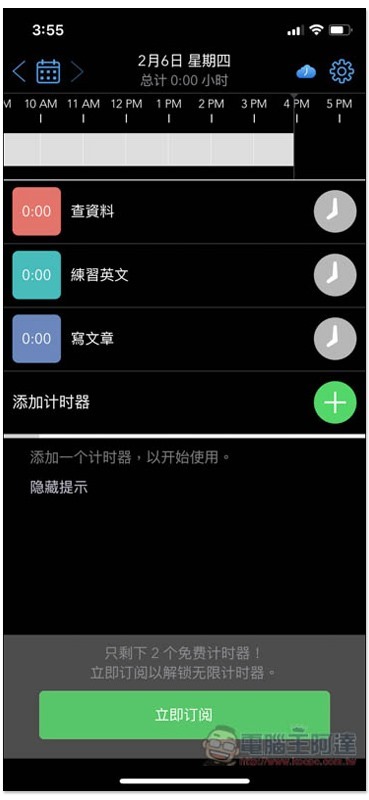
As shown below, set up timers for your three main tasks (you will need to upgrade to a subscription version if necessary):
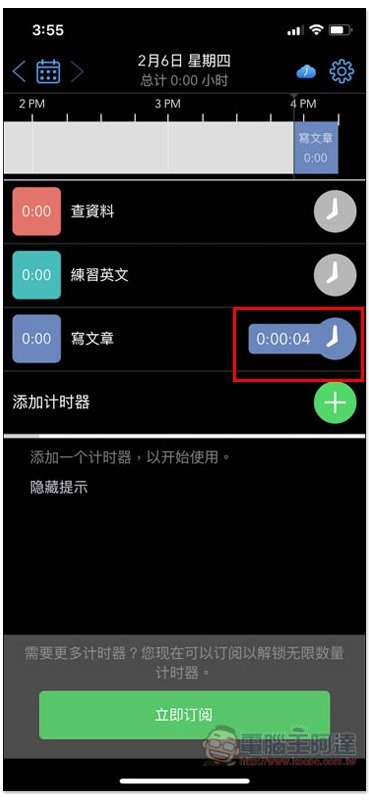
Press the clock icon on the right and the timer will start counting. Even if the iPhone/iPad screen turns black or jumps back to the home screen, the time will continue to count and will not stop. In addition, the time bar above will also instantly record the current working hours:
Like this, by recording the different work color blocks of the time bar, you can quickly understand what you were doing during this time. It’s a pity that the timer cannot be synchronized to record. Sometimes I may check information while writing an article:
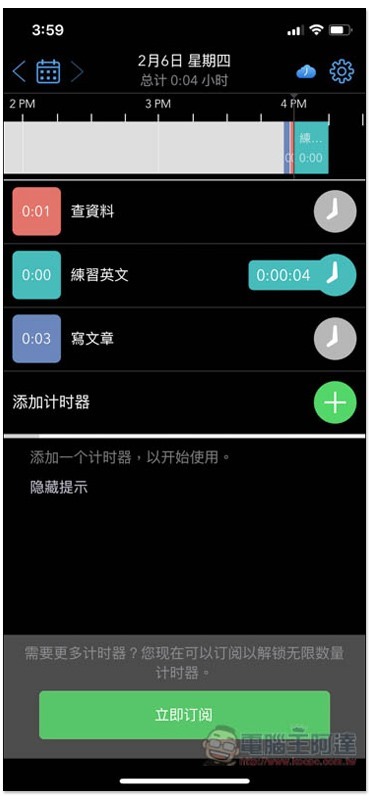
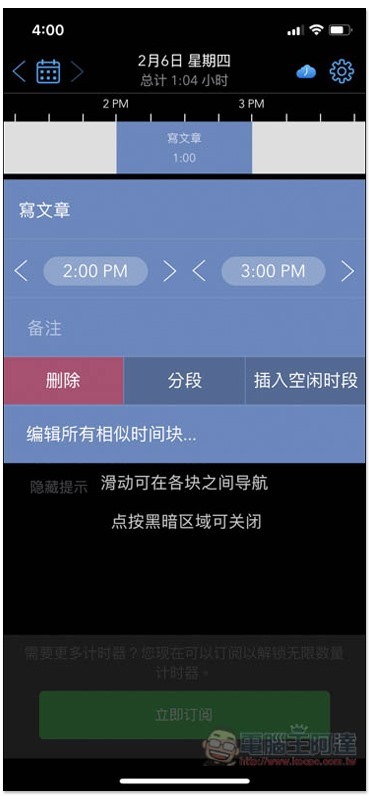
Click the color block to view the detailed time (from what time to what time):
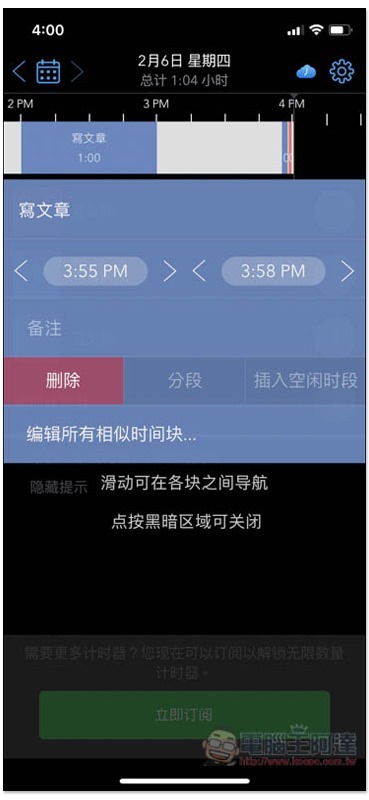
If you forget to turn on the timer record for a certain period of time, it doesn’t matter. You can add it manually by clicking on the white area:
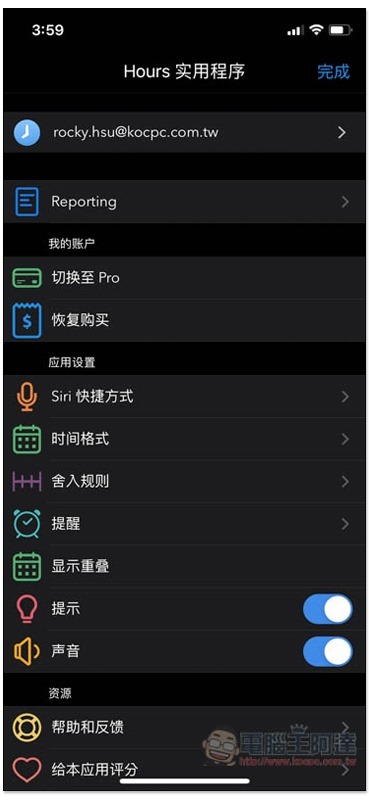
There are also many functions in the settings. The most noteworthy one is the Siri shortcut:
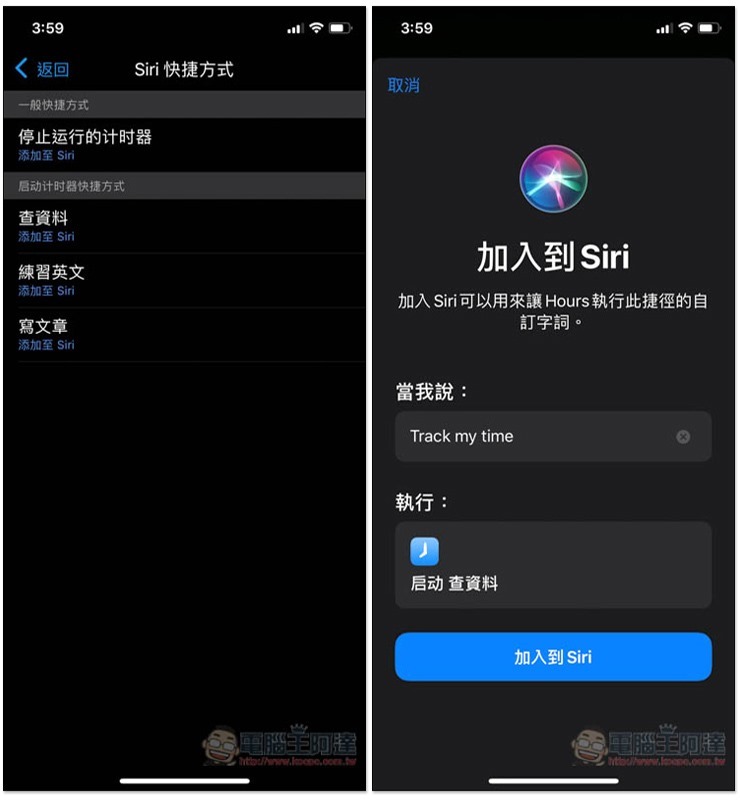
It can implement the function of adding Siri commands. For example: when I say a certain command, Siri will help me start the timer without opening the app and manually enabling it. This is quite convenient:
Supplementary information
Hours Time Tracking download page:Click here to go
Source: KOCPC Chinese