

• About Us
King of Computer Media
  • Home
  • Tech News
  • AI News
  • Apps & Tutorials
  • Mobile & Telecom
  • Lifestyle
  • About Us
No Result
View All Result
  • Home
  • Tech News
  • AI News
  • Apps & Tutorials
  • Mobile & Telecom
  • Lifestyle
  • About Us
No Result
View All Result
King of Computer Media
No Result
View All Result

Home - Computer Applications and Other Tutorials - A must-learn for Windows 10 newbies! How to get “My Computer” and “Control Panel” back to the desktop?

A must-learn for Windows 10 newbies! How to get “My Computer” and “Control Panel” back to the desktop?

Claire by Claire
February 3, 2020 - Updated on August 4, 2026
in Computer Applications and Other Tutorials

With the end of the life of Windows 7, a large number of newcomers to Windows 10 have been born. In the past system, the two system shortcuts of “My Computer” and “Console” have been placed on the desktop by default. However, in Windows 10, you may not be able to find it and feel flustered, or you may have accidentally deleted it by yourself. Today, let the author tell you how to get these two shortcuts back at once!
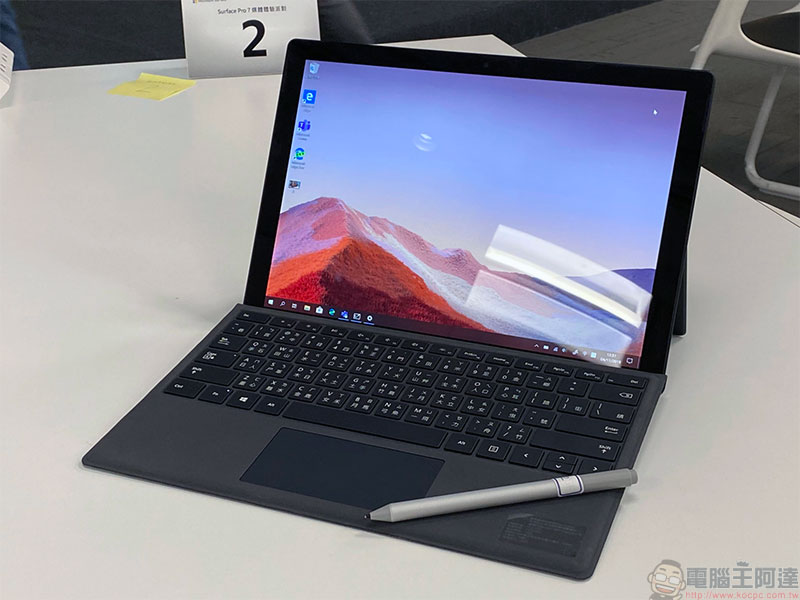
A must-learn for Windows 10 newbies! How to get “My Computer” and “Control Panel” back to the desktop?

The usefulness of “My Computer” and “Control Panel” is that they allow you to quickly access and view the local hard drive. As a newbie to Windows 10, are you feeling flustered because you can’t find “My Computer” and “Control Panel” on your desktop? Do you feel like you don’t know the fastest way to get to these two locations in the new system? Although the new system may seem unfamiliar at first glance, you can actually make it more familiar. Just follow the author’s steps and you will soon be back to the comfortable environment you are used to.

1. Click “Settings” in the “Open” menu.
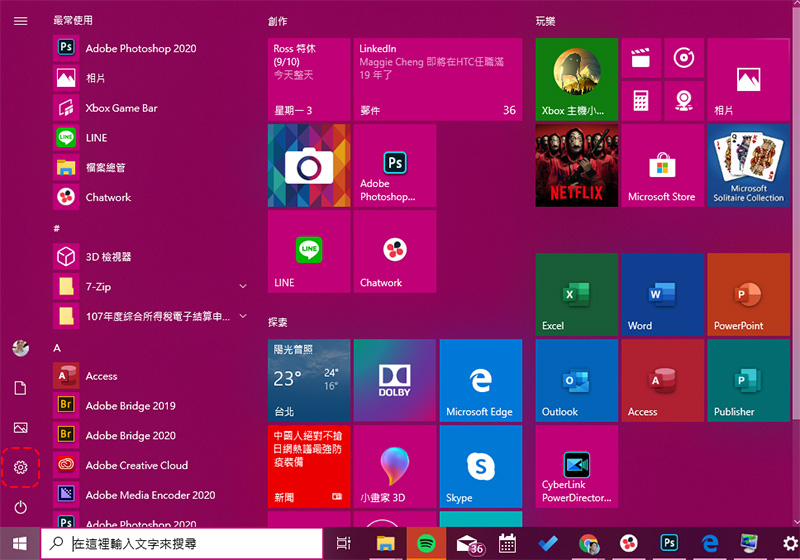
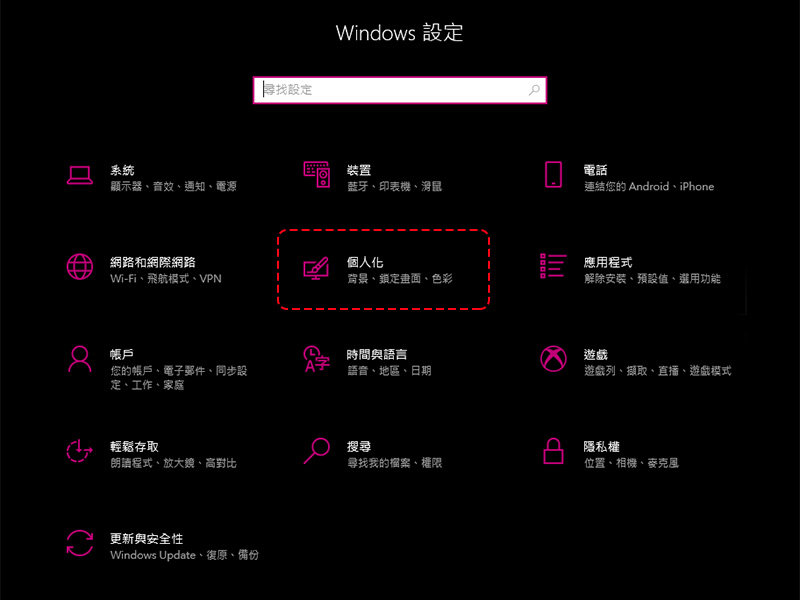
2. Select the “Personalization” option.

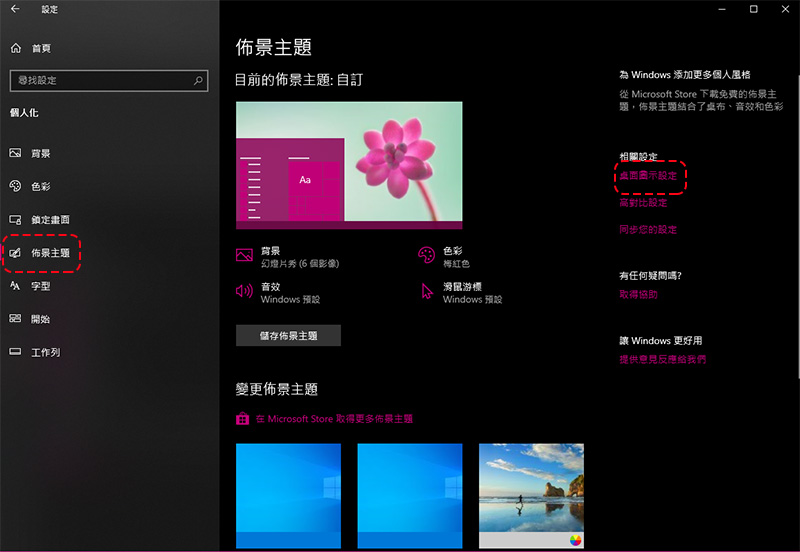
3. Select the “Theme” item in the sidebar, and then click “Desktop Icon Settings” under the related settings next to it.
4. Does the next window look as familiar as seeing a fellow villager? That’s right! Thanks (?) to the fragmented design among the Windows 10 project teams, we can still see the UI interface design in Windows 10 that has not yet been fully unified. In this Windows 7-style window, you can display the system shortcuts you want to display on the desktop, including our protagonists this time “My Computer” and “Control Panel.” Just tick the check box in front of the item in the “Desktop Icon” and click Finish and OK at the bottom after completing the settings.
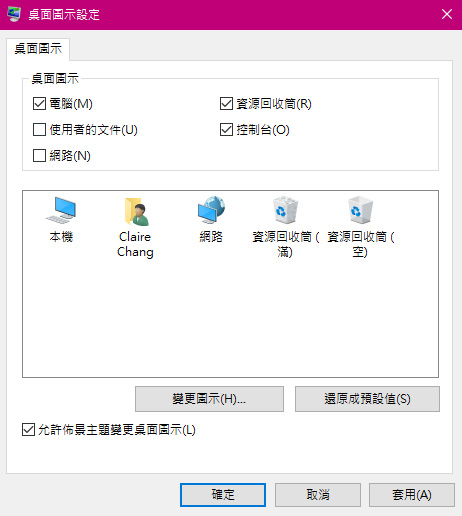
Isn’t it quite simple? It’s always reassuring to see familiar people in unfamiliar places. I hope today’s simple tutorial can help you adapt to Windows 10 faster!

Source: KOCPC Chinese

Tags: consoleMicrosoftsettingsTeachingWindows 10

Recent Posts

  • Meta Muse Lands on Mac: Personal AI Agent Begins Operating Your Files, Messages, and Calendar (Muse for Mac)
  • First oMLX performance results for M5 Ultra Mac Studio leak: prefill speed 3-4x faster than M3 Ultra, data taken down after exposure.
  • After the iPhone 17, the frame material was changed back to aluminum alloy. Is it better than titanium?
  • The iPhone 18 Pro series, Apple Watch Series 12, Apple Watch Ultra 4, and AirPods 5 are now on sale—a first look, with warm “Burgundy Red” and striking “Glacier Blue.”
  • The battery replacement cost for the iPhone 18 Pro / Pro Max has gone up again! Compared with 5 years ago, the increase has doubled.

Recent Comments

No comments to show.
  • About Us

We welcome partnership inquiries and product review opportunities from smartphone manufacturers, iPhone accessory brands, and app developers.koc kocpc.com.tw|Privacy Policy |Hosting & Maintenance: Fast Line Taiwan, A-Chang Digital Technology

No Result
View All Result
  • Home
  • Tech News
  • AI News
  • Apps & Tutorials
  • Mobile & Telecom
  • Lifestyle
  • About Us

We welcome partnership inquiries and product review opportunities from smartphone manufacturers, iPhone accessory brands, and app developers.koc kocpc.com.tw|Privacy Policy |Hosting & Maintenance: Fast Line Taiwan, A-Chang Digital Technology